.svg)
If you want to securely add users, change passwords, or connect to the Active Directory server being used with your FileCloud site, then you will need to use an SSL certificate.
The Lightweight Directory Access Protocol (LDAP) is used to read from and write to Active Directory. By default, LDAP traffic is transmitted unsecured. You can make LDAP traffic confidential and secure by using Secure Sockets Layer (SSL) / Transport Layer Security (TLS) technology.
Before you can enable the use of SSL certificates in FileCloud Server, you must have completed the following steps:
-
Install and configure your Active Directory server
-
Install an SSL certificate on your Active Directory server
How do I enable the use of SSL in FileCloud Server?
To enable the use of SSL Certificates in FileCloud Server:
-
In the FileCloud admin portal's left navigation bar, scroll down and click Settings. Then, on the Settings navigation page, click Authentication

The Authentication settings page opens. -
Under Authentication, change Authentication type to Active Directory, and click Save.
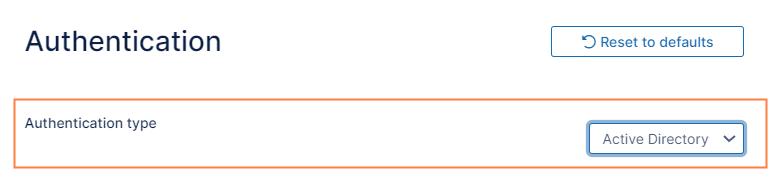
Additional settings appear. -
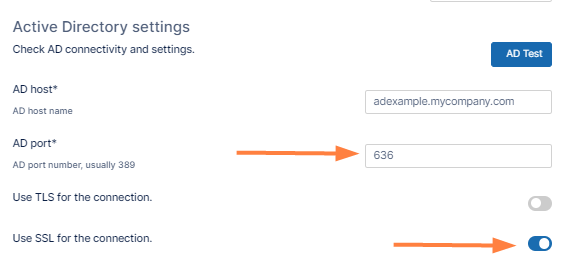
In AD port, change the number to 636.
-
Enable Use SSL for the connection.
-
Click Save.