.svg)
To configure FileCloud/Okta integration in Okta for SSO group/user import:
-
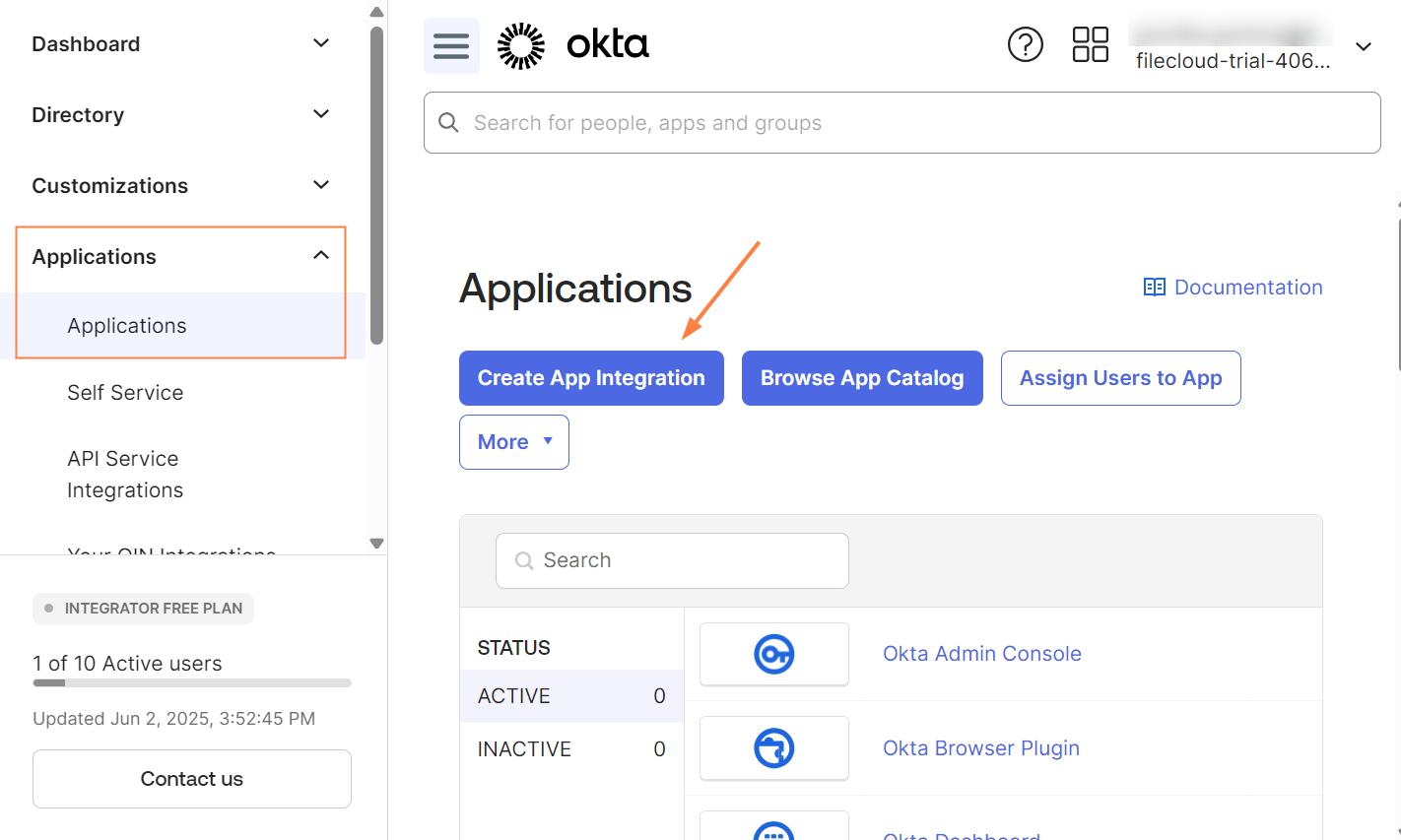
Log in to the Okta admin portal, and navigate to Applications > Applications.
-
Click Create App Integration.
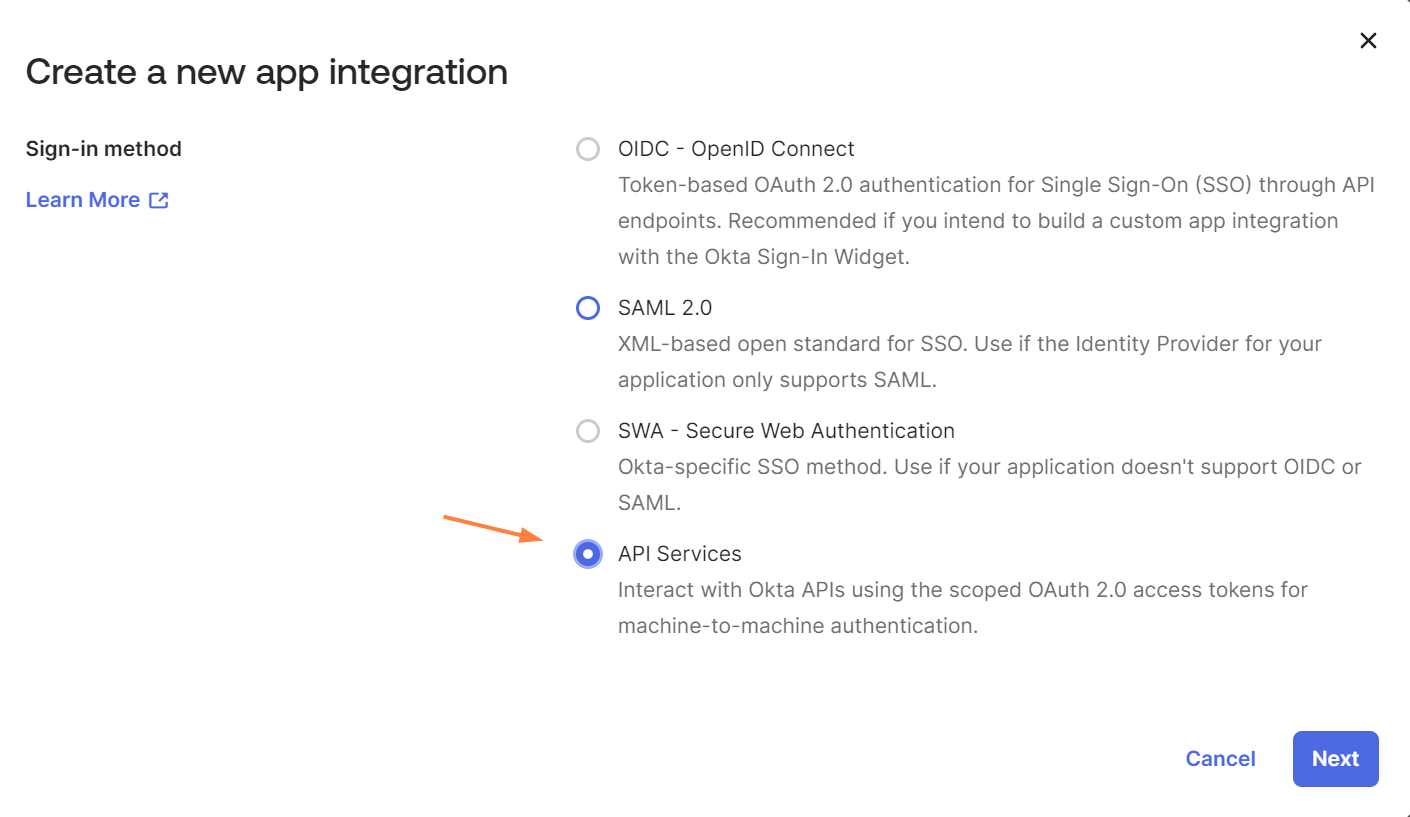
A list of sign-in methods opens. -
Choose API Services, and click Next.
-
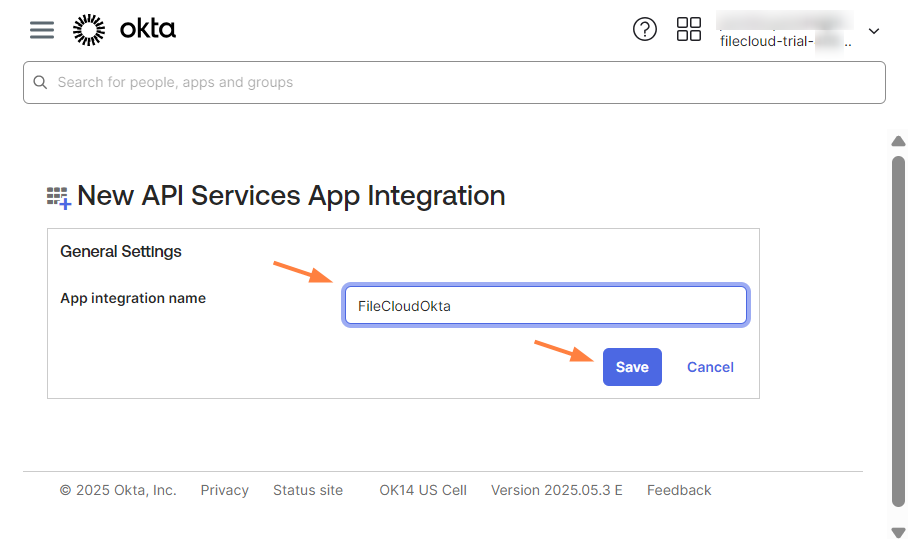
Enter a name for the app integration and click Save.
-
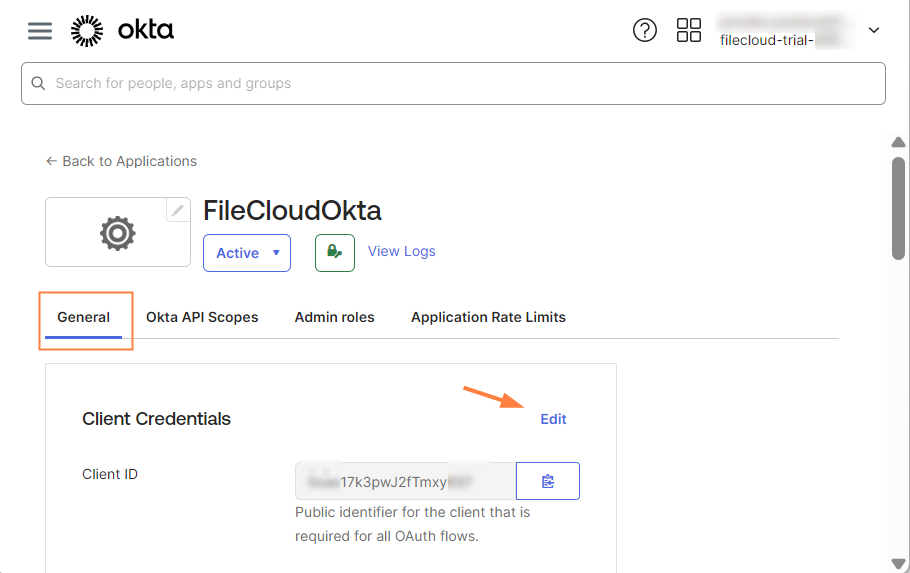
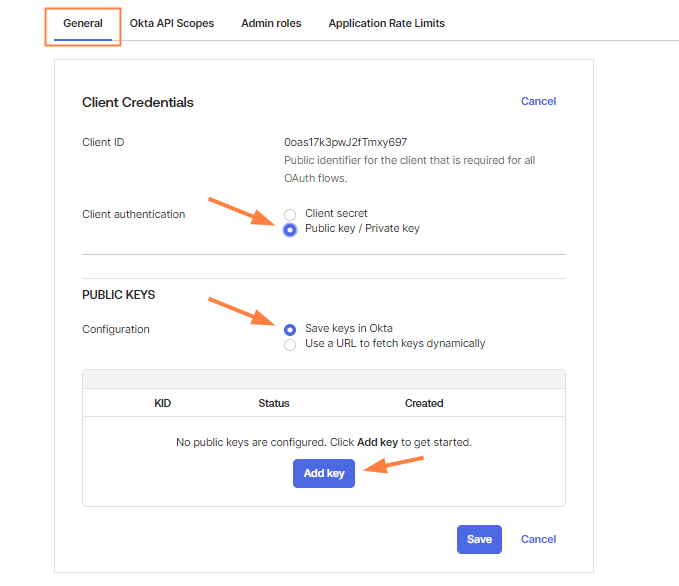
Your new app opens to the General tab. Click Edit.
-
For Client authentication, select Public key / Private key.
-
For Configuration, choose Save keys in Okta.
-
Click Add key.
The Add a public key window opens. -
Paste in your own key or click Generate new key.
-
If you click Generate new key, under Private key - Copy this! click PEM, and then click Copy to clipboard, and save the copied key to a text file with a .pem extension so you can upload it to FileCloud.
If you do not save as a .pem file, you will not be able to upload the private key to FileCloud.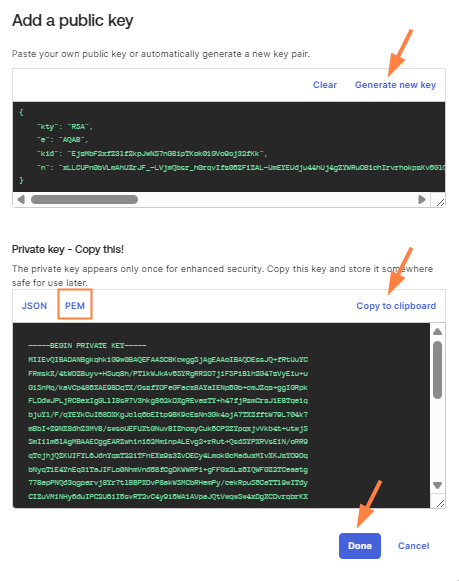
-
Click Done.
-
Click Save, or your public key will not be saved.
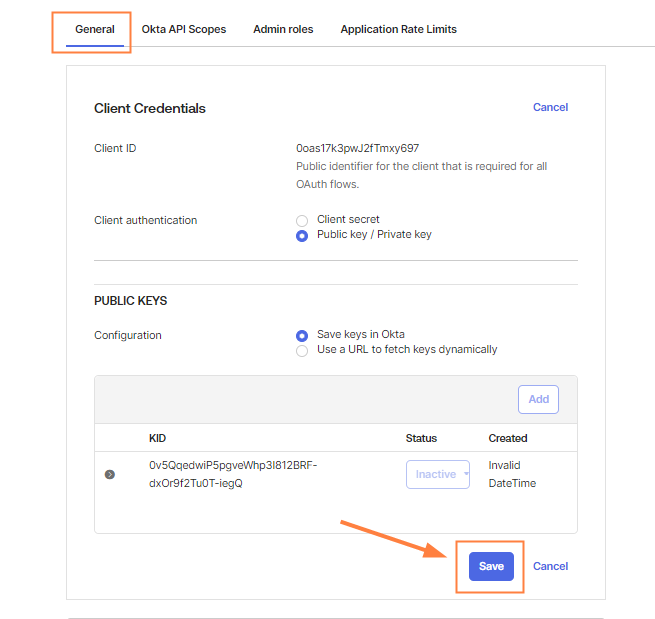
Once you click Save, your key should show a Status of Active and a Created date.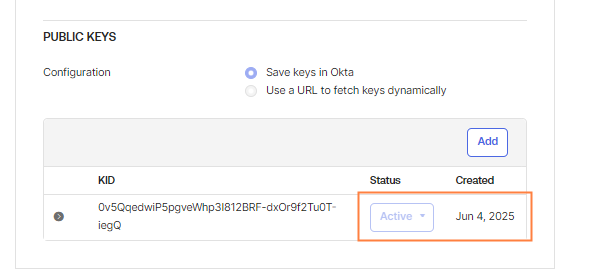
-
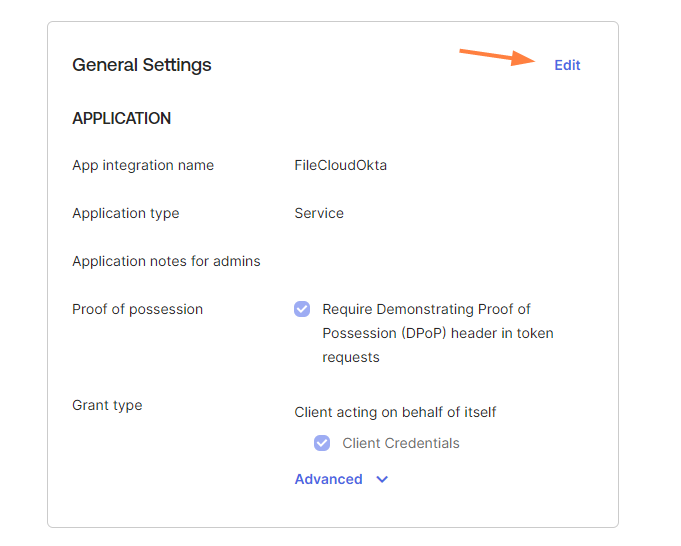
Remain on the General tab. Scroll down to General Settings, and click Edit
-
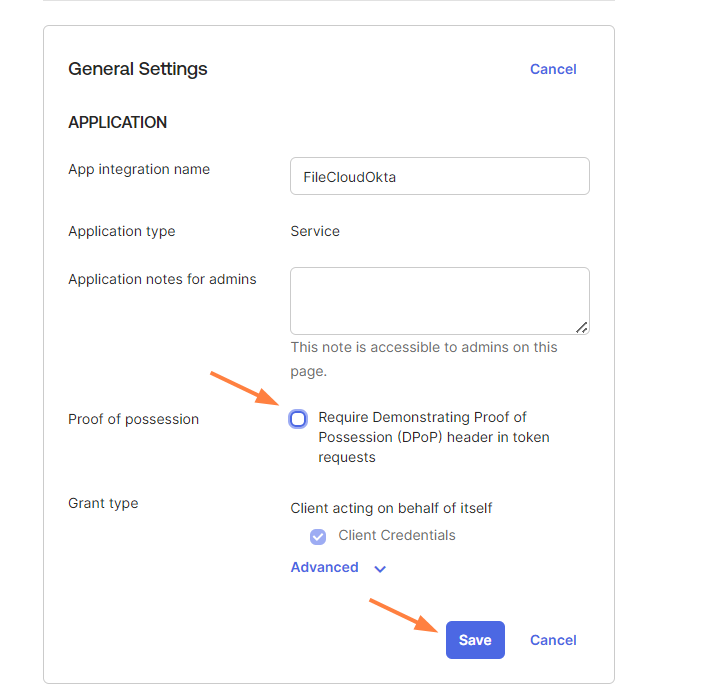
Uncheck Proof of possession, and click Save.
Click the Okta API Scopes tab.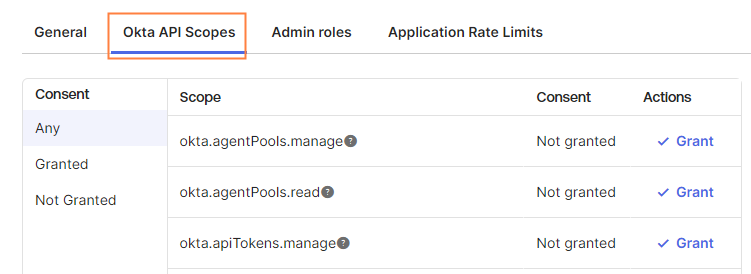
-
Scroll down to okta.groups.read and click Grant to enable FileCloud to read Okta groups.

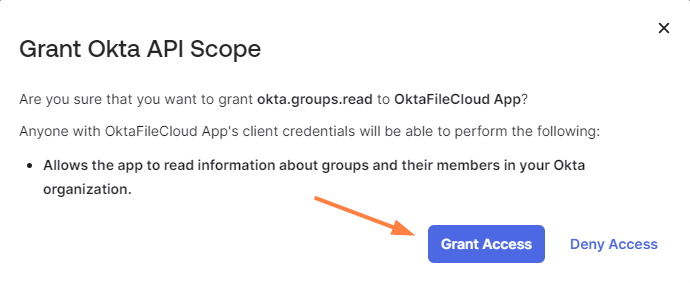
You are prompted to grant okta.groups.read scope to the app. -
Click Grant Access.
Now the row for okta.groups.read should appear as:
-
Scroll down to okta.users.read and click Grant Access to enable FileCloud to read Okta users.
The Grant Okta API Scope notification does not appear again.
-
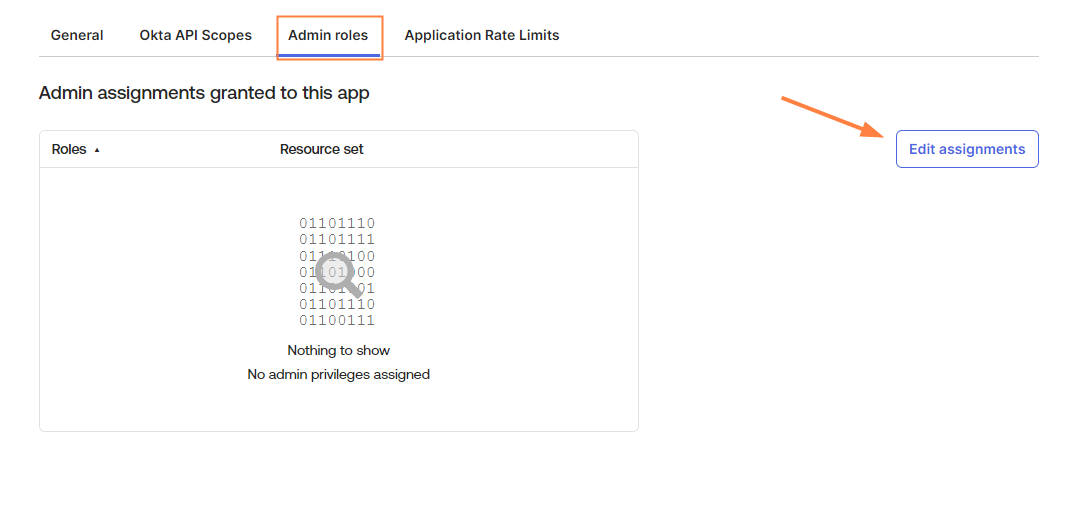
Click the Admin roles tab.
-
Click Edit assignments.
-
In Role, choose a role that should have access to Okta groups and users, or choose Read-only Administrator.
-
Click Save Changes.
You have finished setting up integration on the Okta side.
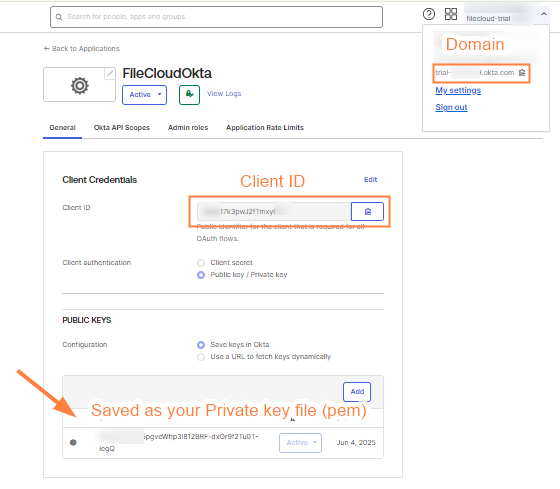
Now you have the values you need to set up integration on the FileCloud side: the domain in the user drop-down box, the Client ID on the General tab, and the .pem keyfile that you saved.
To enter the values into the FileCloud side, see SSO API: Configure Import of SSO Groups and Users.