.svg)
To configure FileCloud/Azure integration in Azure for SSO group/user import:
-
Log into portal.azure.com, and go to Microsoft Entra ID (https://entra.microsoft.com/) .
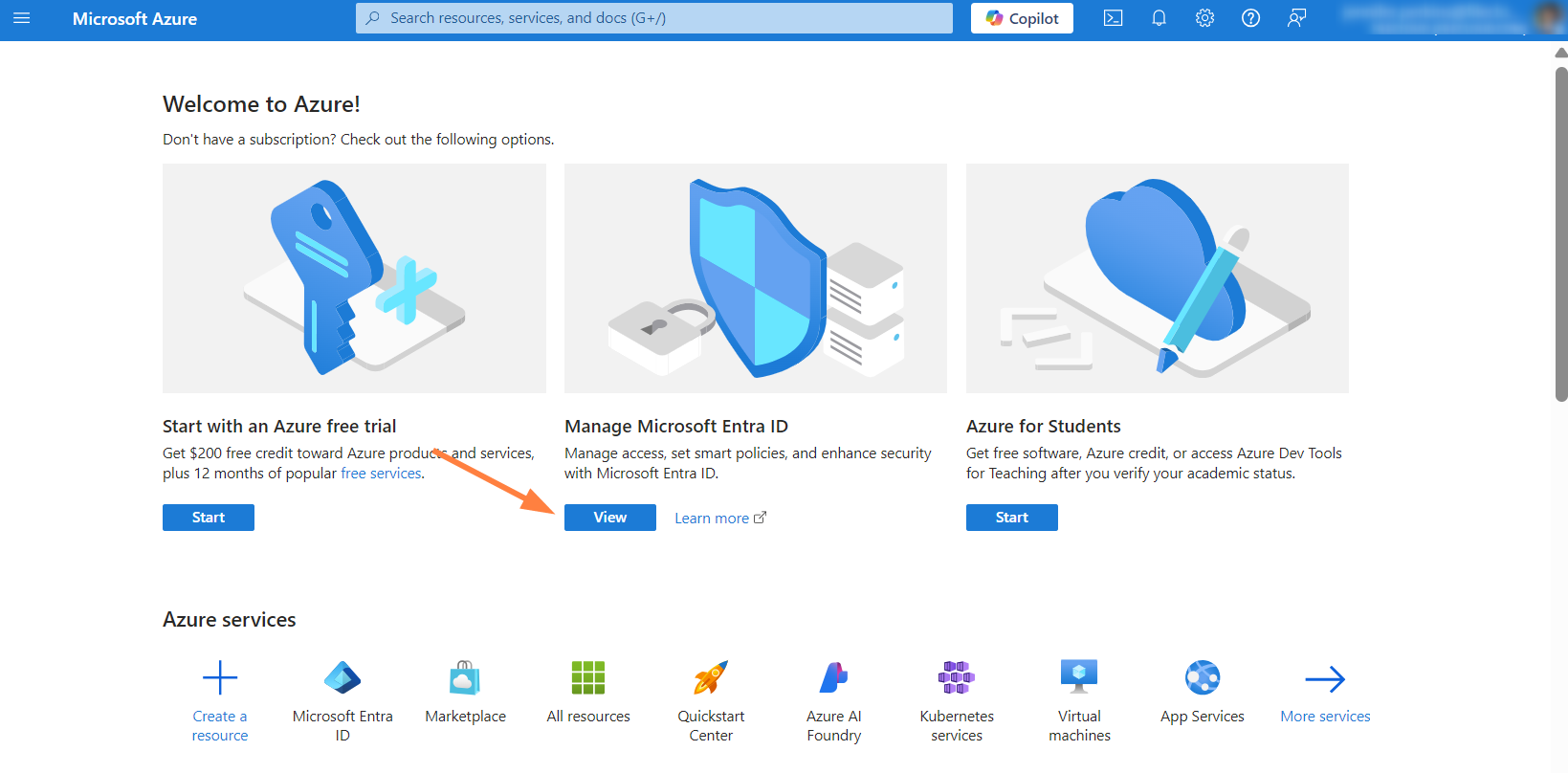
-
In the left navigation pane, go to Manage > App registrations, and at the top of the page, click New registration.
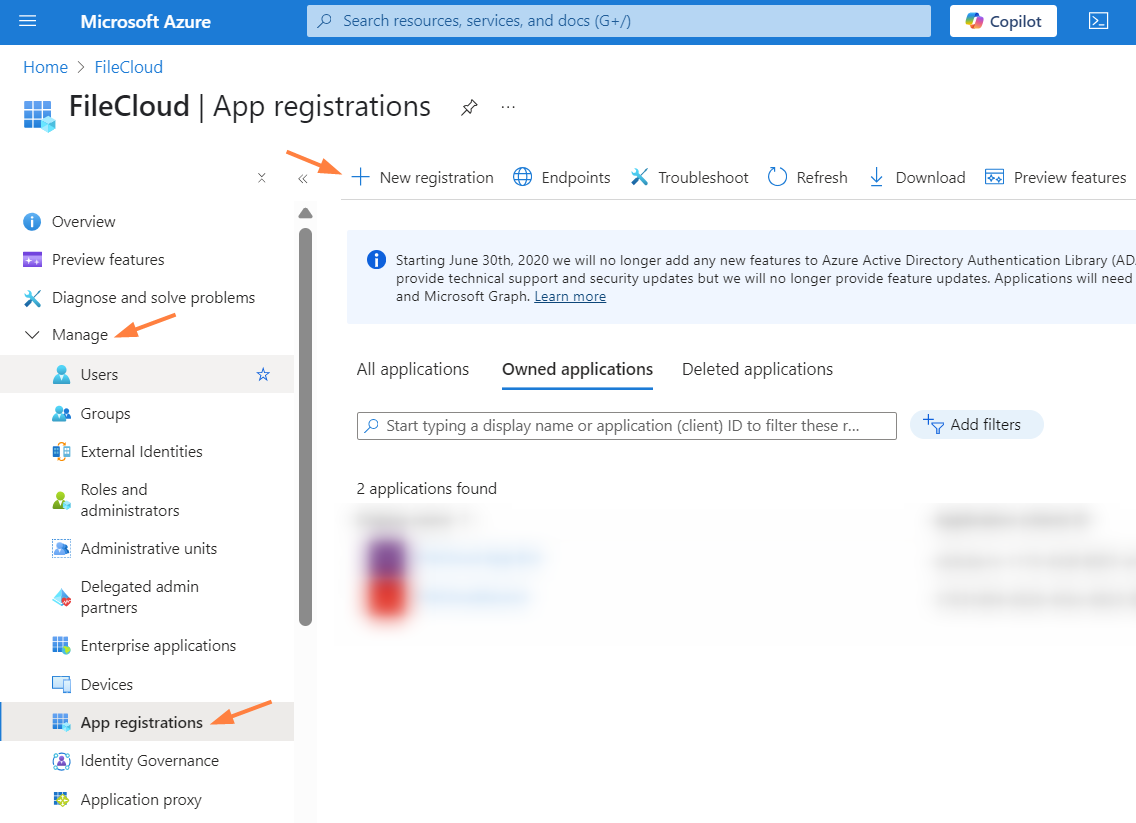
-
Enter a name for the application, and then click Register.
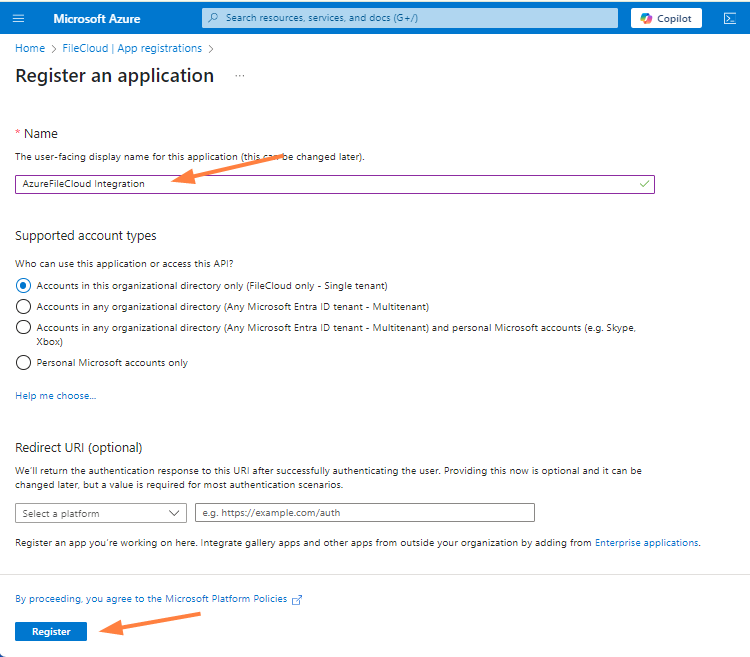
-
In the left navigation pane, go to Manage > API permissions, and then click Add a permission.
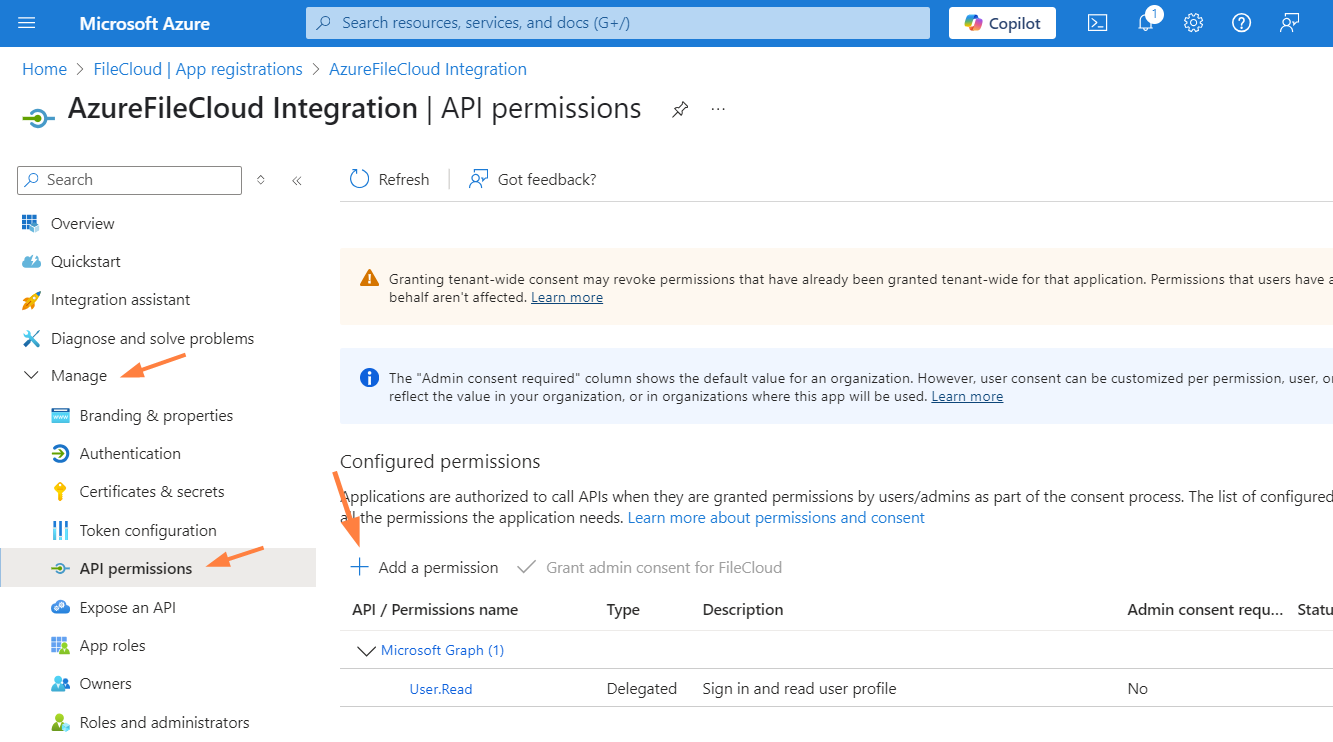
-
In the Request API permissions box, click Microsoft Graph.
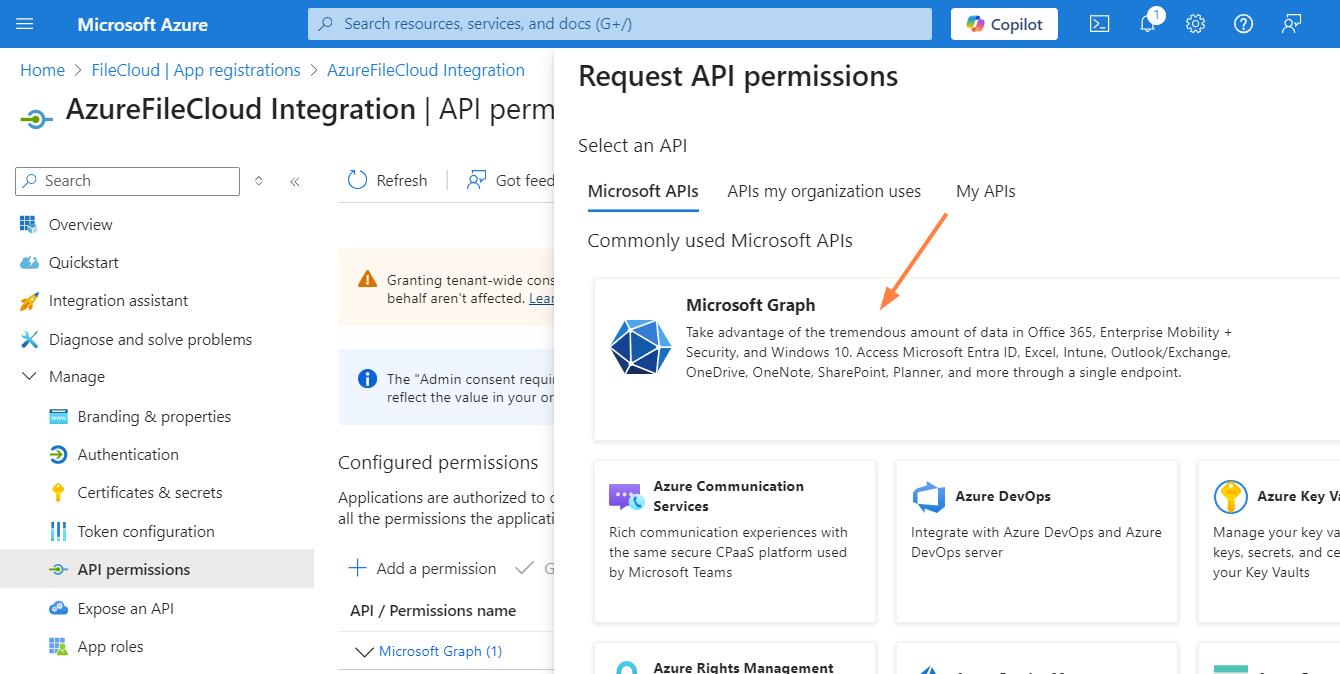
In the Request API Permissions box, you are prompted to choose a type of permission. -
First, select Delegated permissions, and request the permissions specified below.
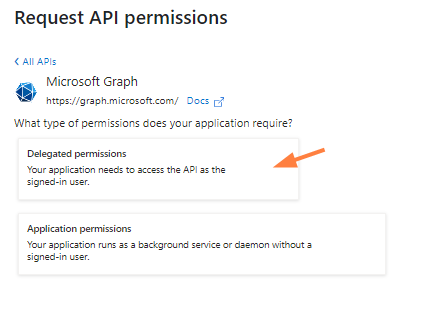
Delegated permissions to request:-
Directory.Read.All
-
Group.Read.All
-
GroupMember.Read.All
-
User.Read
-
User.Read.All
-
-
Search for the permission type in the Select permissions search bar to find it more quickly, and then check the permissions.
-
When you are done checking all of the above permissions, click Add permissions.
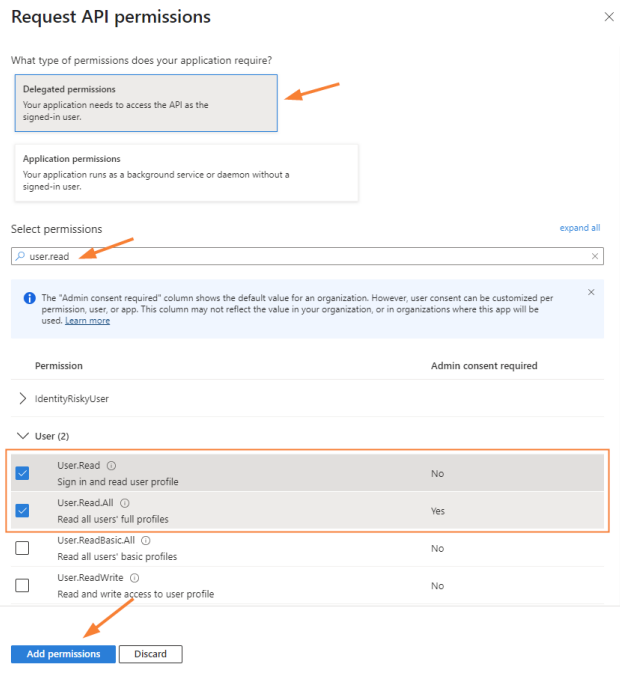
Now, in the Request API permissions box, choose Application permissions, and request the permissions specified below:
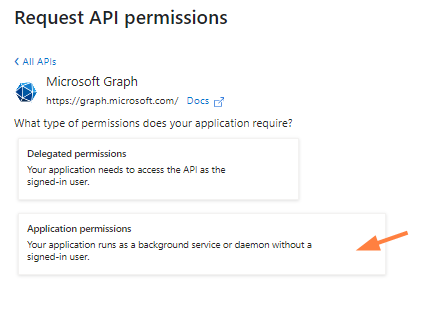
Application permissions to request:-
Directory.Read.All
-
Group.Read.All
-
GroupMember.Read.All
-
User.Read.All
-
User.ReadBasic.All
-
-
Repeat steps 7 and 8 to request the Application permissions.
Initially, most of the permissions show that permission has not been granted. -
Above the list, click Grant admin consent for [Tenant name], and when prompted, click Yes.
Note: If you are not a global admin, you must ask your global admin to grant the API permissions for you.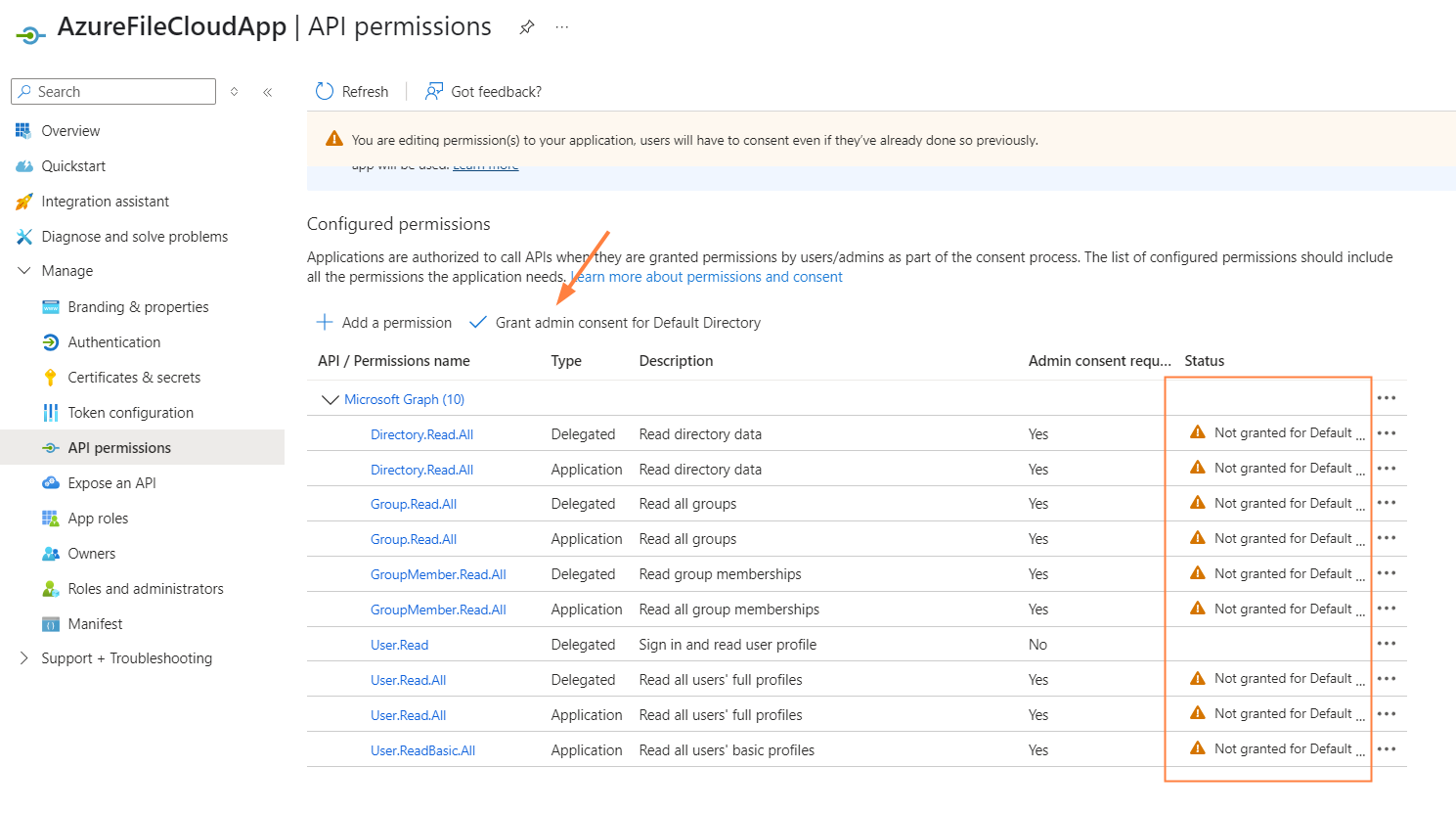
When all of your permissions have been granted, your list of permissions should appear similar to: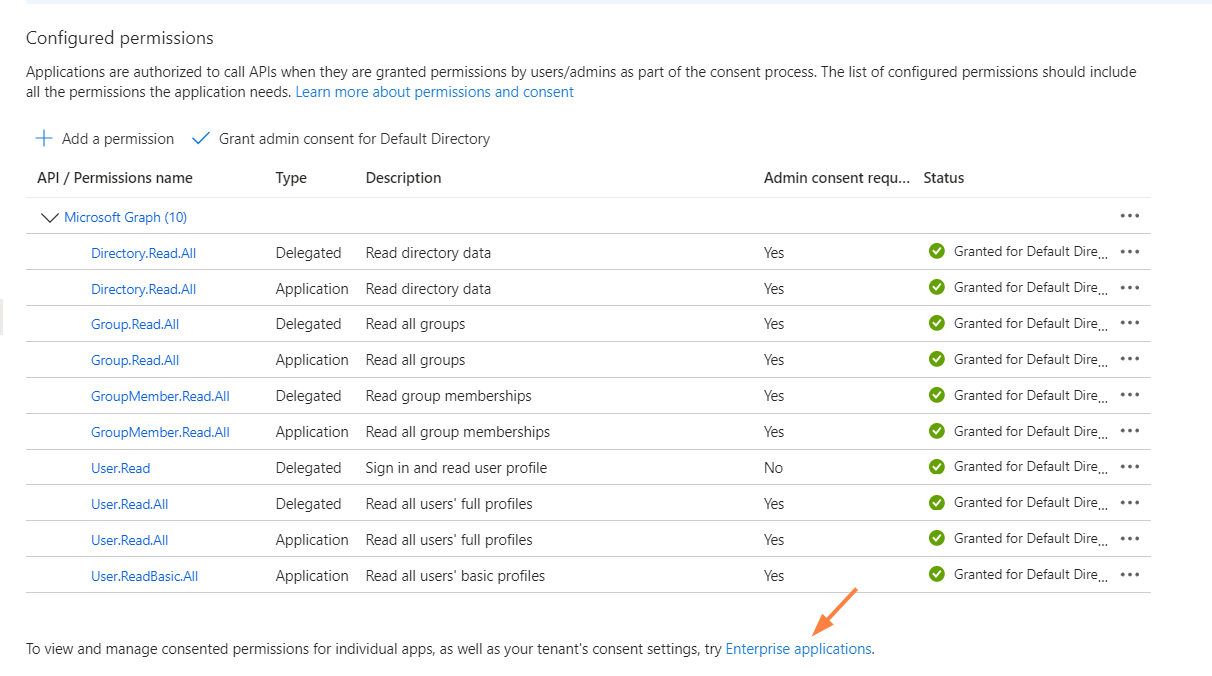
-
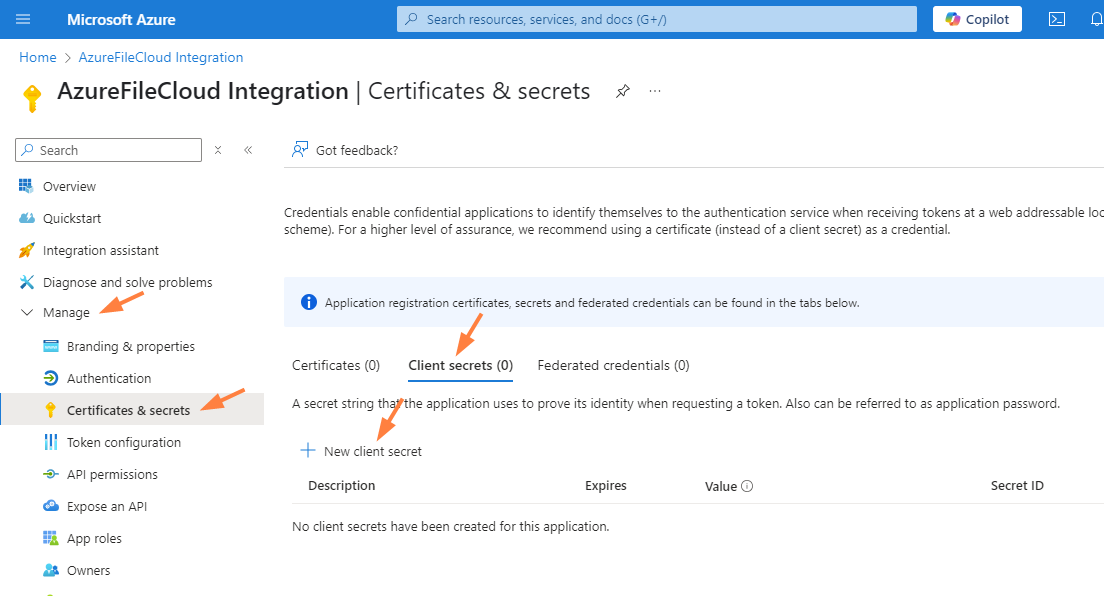
Now, in the left navigation pane, go to Manage > Certificates & secrets, and click the Client secrets tab.
-
Click New client secret.
-
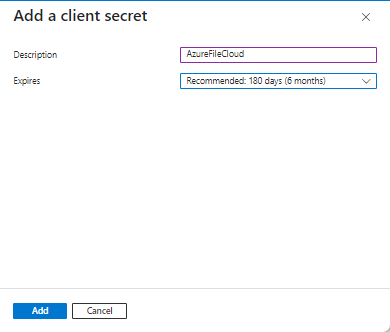
In the Add a client secret box, enter a description for the client secret, and choose an expiration date, then click Add.
-
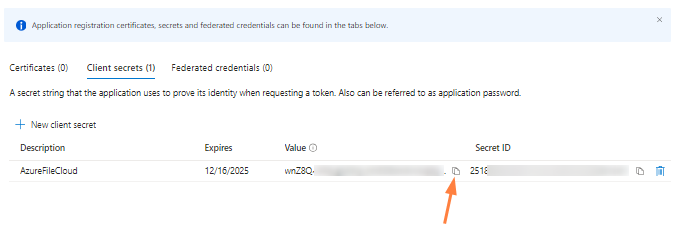
Click the copy icon next to Value and save it. You will use it to fill in the Client Secret field in FileCloud.
-
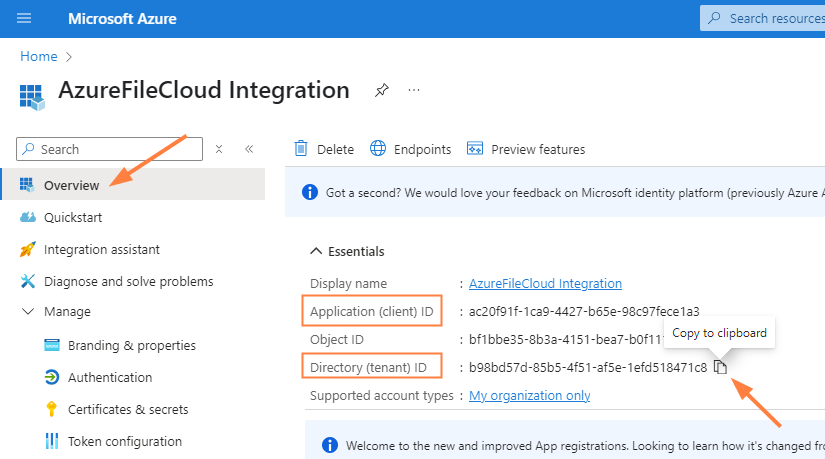
In the left navigation pane, click Overview.
-
Hover over Directory (tenant) ID and click the copy icon. Save the Directory (tenant) ID. You will use it to fill in the Tenant ID field in FileCloud.
-
Hover over Application (client) ID and click the copy icon. Save the Application (client) ID. You will use it to fill in the Client ID field in FileCloud
To enter the integration values into the FileCloud side, see SSO API: Configure Import of SSO Groups and Users.