.svg)
Before completing the following procedures, configure Apache Web Server. See SSO Configuration Step 1 on the page SAML Single Sign-On Support for configuration instructions.
As an administrator, you can integrate CYBERARK SSO via SAML into FileCloud. Once integrated your users will be able to access FileCloud with their CYBERARK credentials.

|
CYBERARK is a cloud-based platform
|
In this integration scenario:
-
CYBERARK must be configured as an Identity Provider (IdP)
-
FileCloud will act as the Service Provider (SP)
Configure FileCloud with CYBERARK
-
In CYBERARK, create a new web app.
-
Open a browser and log in to your CYBERARK admin portal.
-
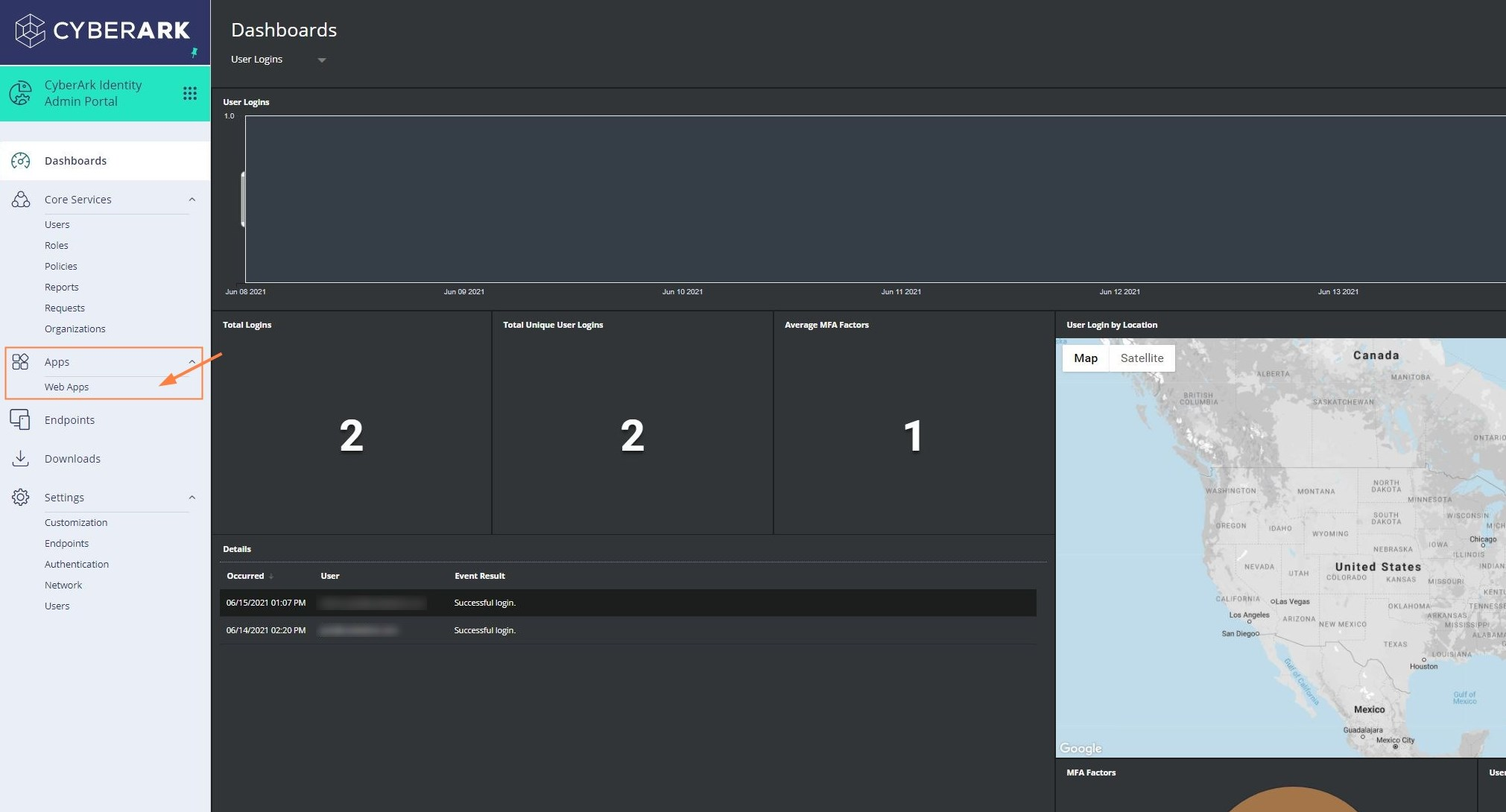
From the left navigation pane, click Web Apps.
-
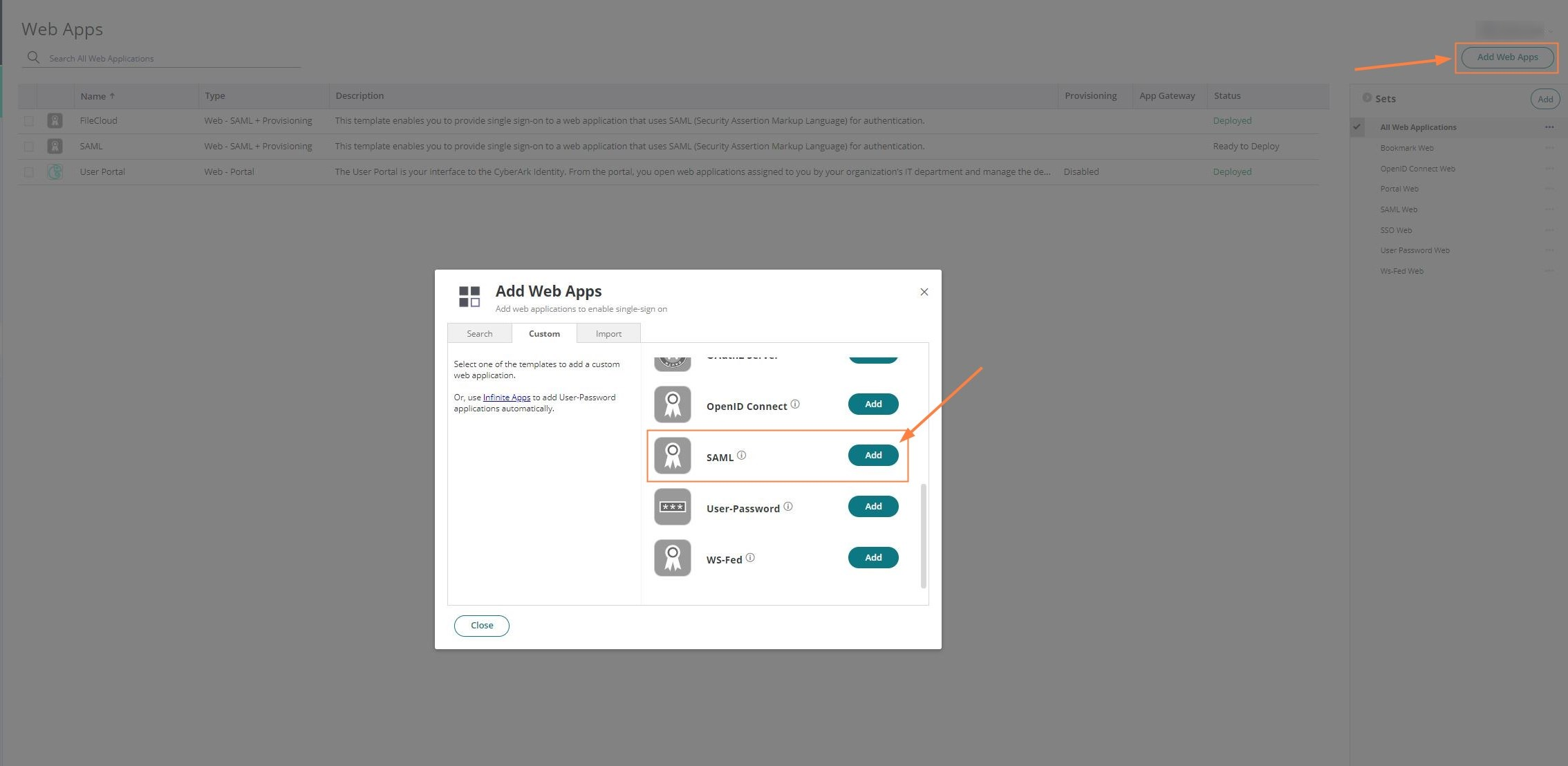
On the Web Apps screen, in the top right corner, click Add Web Apps.
-
In the Add Web Apps popup, select the Custom tab and scroll down until you find SAML, and click Add. A confirmation panel may appear. Click Yes, and then close to access the added SAML Web App.
-
-
In CYBERARK, configure the added SAML Web App.
-
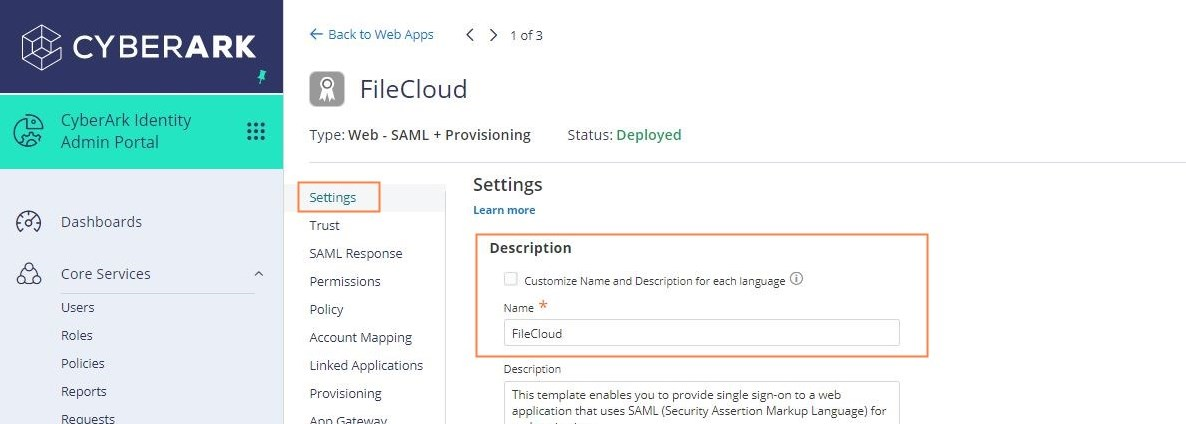
Click Settings in the navigation panel. In Description, enter a meaningful name such as FileCloud SSO. Click Save at the bottom-center of the screen.
-
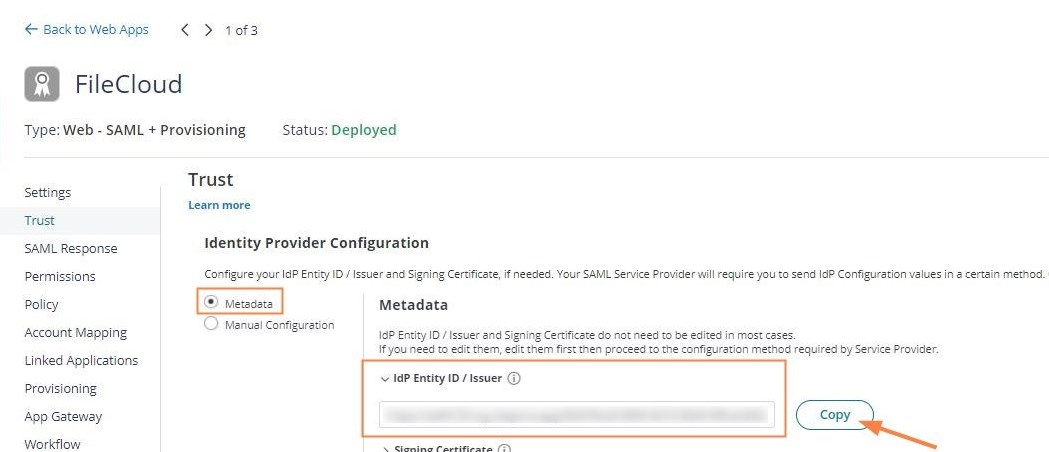
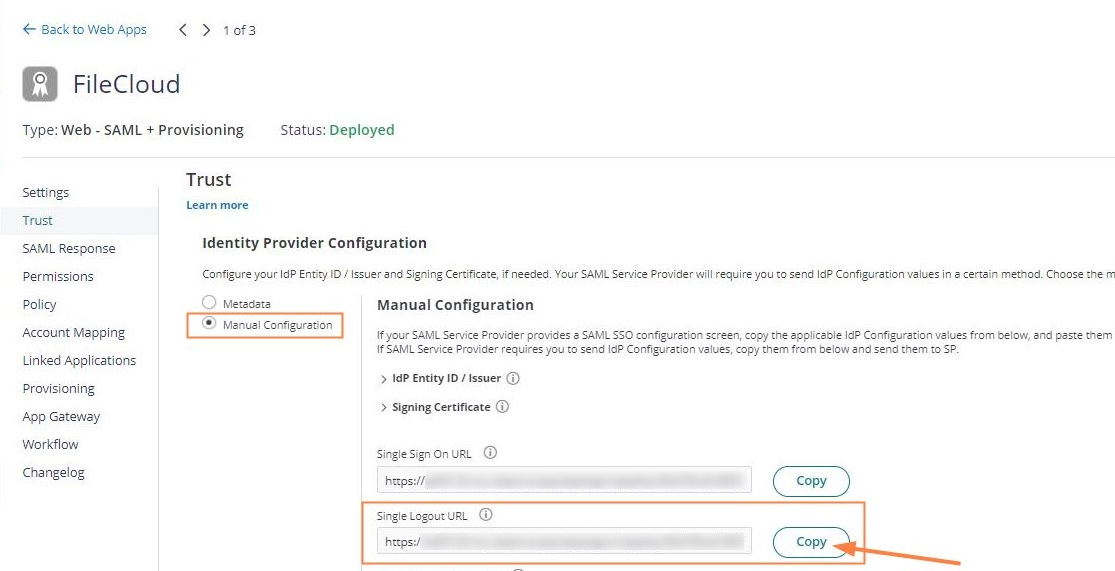
Click Trust in the navigation panel, and download the metadata file.
-
Under Identity Provider Configuration, expand IdP Entity ID /Issuer and copy the URL into a notepad.
-
Select Manual Configuration, and copy the Single Logout URL into a notepad as it will be used in the next steps.
-
Access the SAML Response tab in the navigation panel, and add the following attribute values:
uid = LoginUser.Username
mail = LoginUser.Email
givenName = LoginUser.DisplayName
sn = LoginUser.Shortname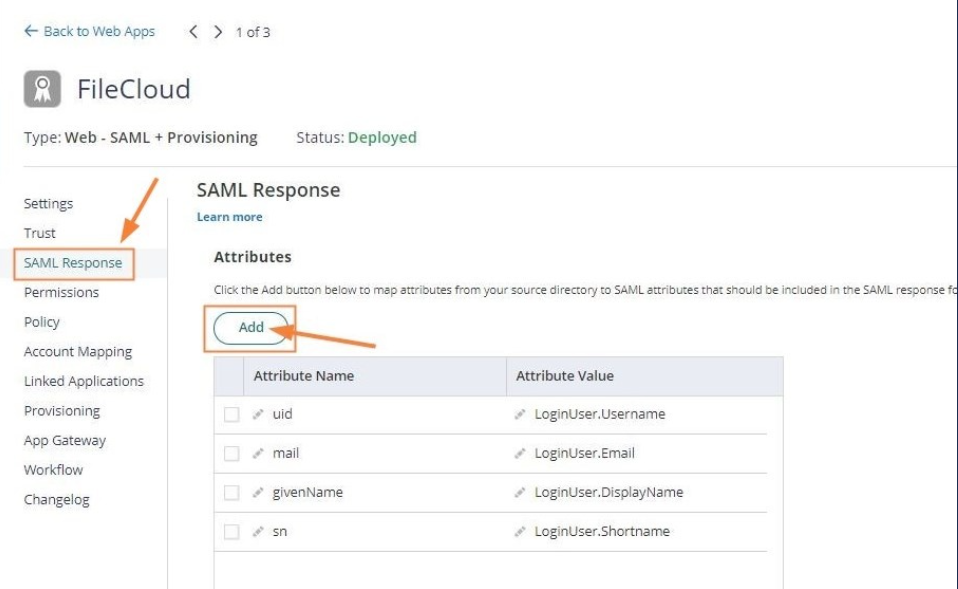
-
-
Export the metadata file into FileCloud and configure SSO.
-
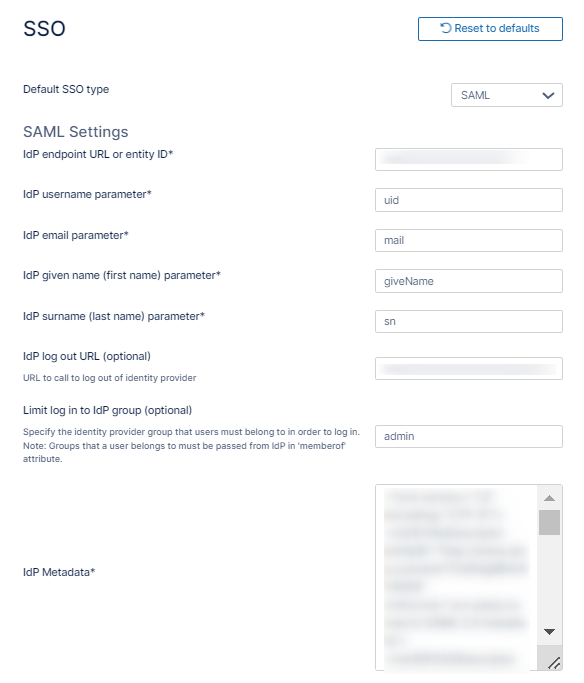
In the FileCloud admin portal's left navigation bar, scroll down and click Settings. Then, on the Settings navigation page, click SSO Unknown Attachment .
The SSO page opens.-
Configure the following attributes:
IdP Username Parameter = uid
IdP Email Parameter = mail
IdP Given Name Parameter = givenName
IdP Surname Parameter = sn -
Paste the Single Logout URL copied in step 2d into IdP Log Out URL (Optional)
-
Paste the IdP Entity ID/Issuer URL copied in step 2c into Idp Endpoint URL or EntityID
-
Open the metadata file downloaded in step 2b, and copy its content into IdP Metadata.
-
Fill in the other settings on the page as shown in SAML Single Sign-On Support.
-
Click Save.
-
-
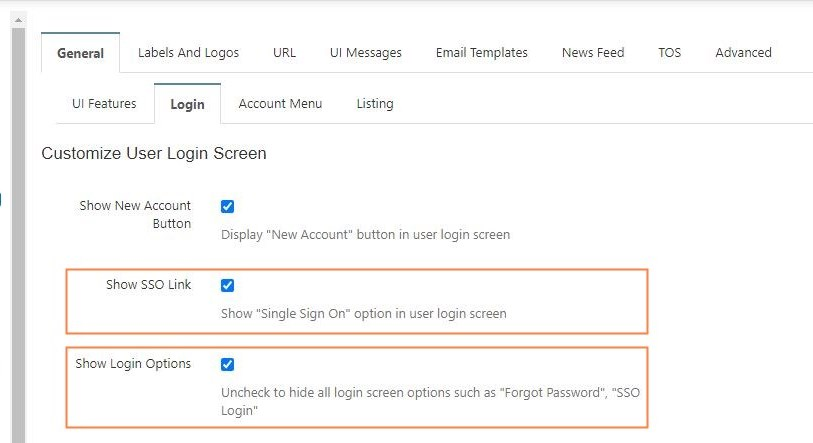
Enable SSO Login. In the FileCloud admin portal, go to Customization > General > Login. Enable Show SSO Link and Show Login Options.
-
Configure the service provider in CYBERARK.
-
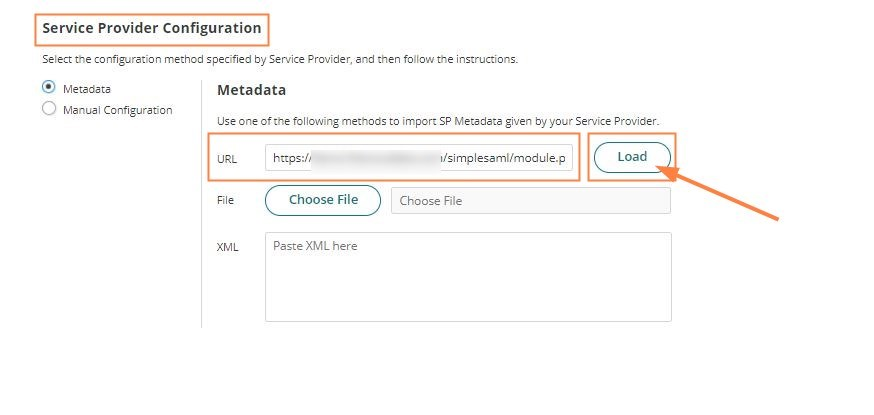
Click the Trust tab in the navigation panel for the Web App, and scroll down to Service Provider Configuration.
-
In URL, add the following: https://YOUR-FILECLOUD-URL/simplesaml/module.php/saml/sp/metadata.php/default-sp and click Load to download FileCloud's metadata.
-
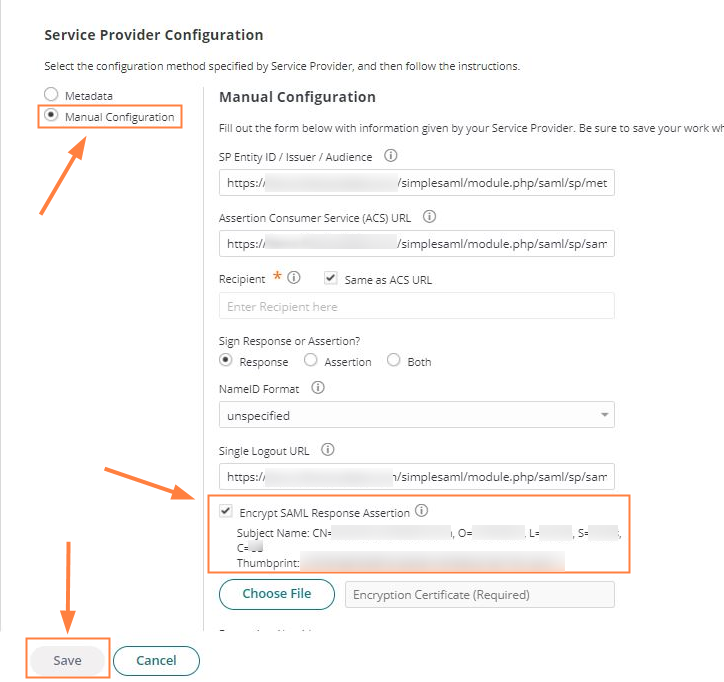
Once you have loaded FileCloud's metadata, change the settings from Metadata to Manual Configuration and disable Encrypt SAML Response Assertion. Click Save.
-
-
Complete CYBERARK SSO integration.
-
Access FileCloud's user portal and click Login In with SSO.
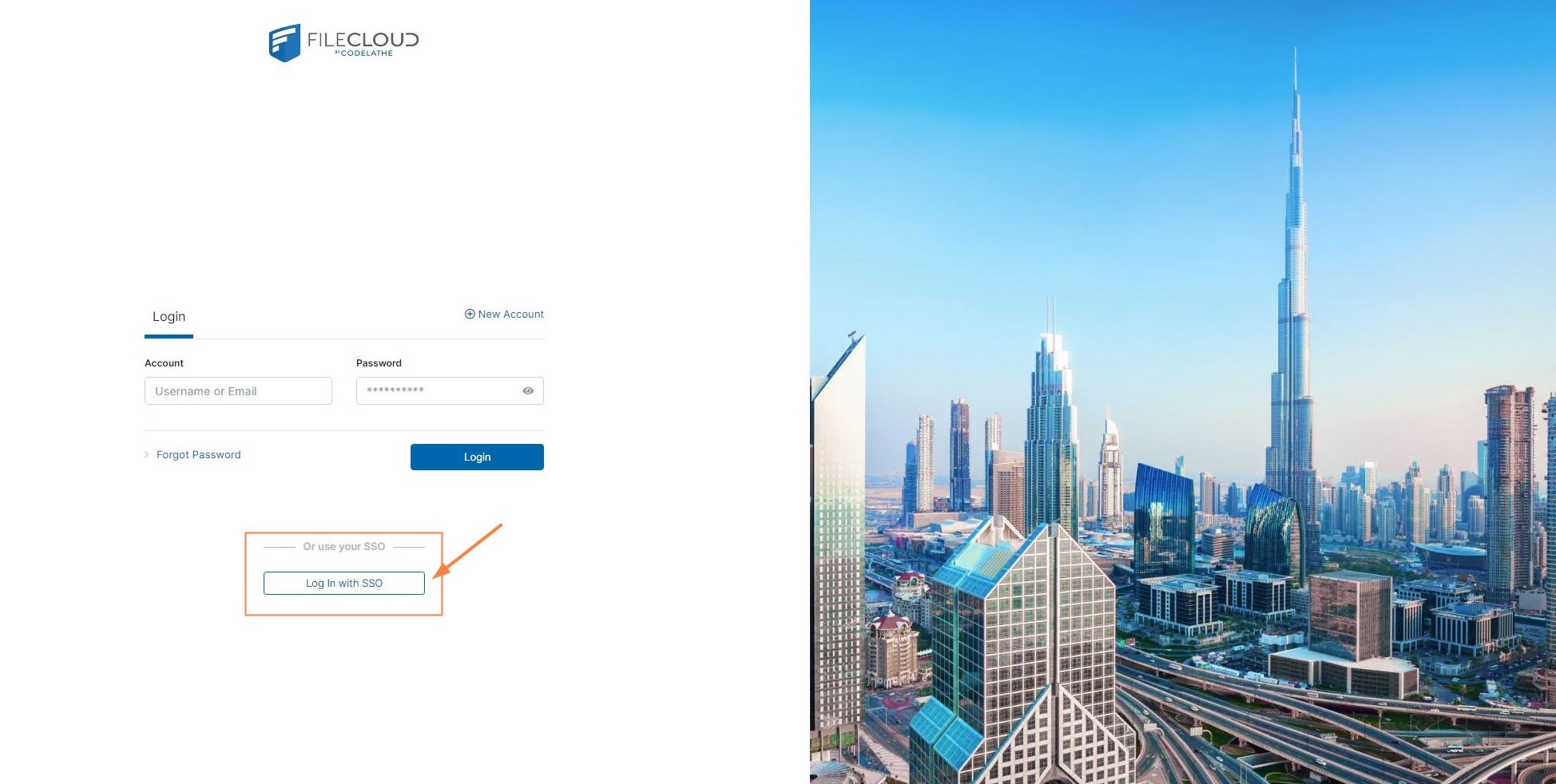
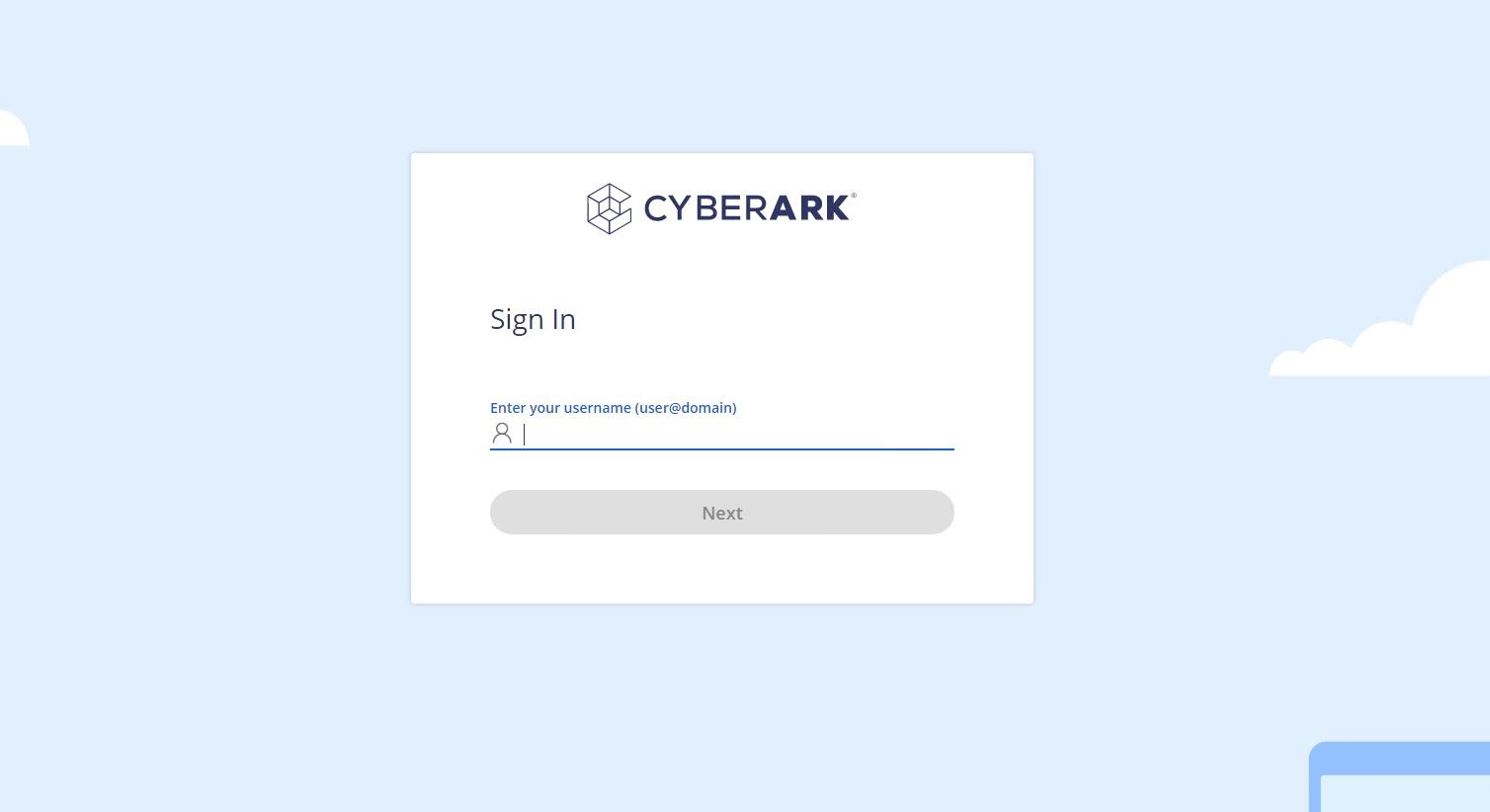
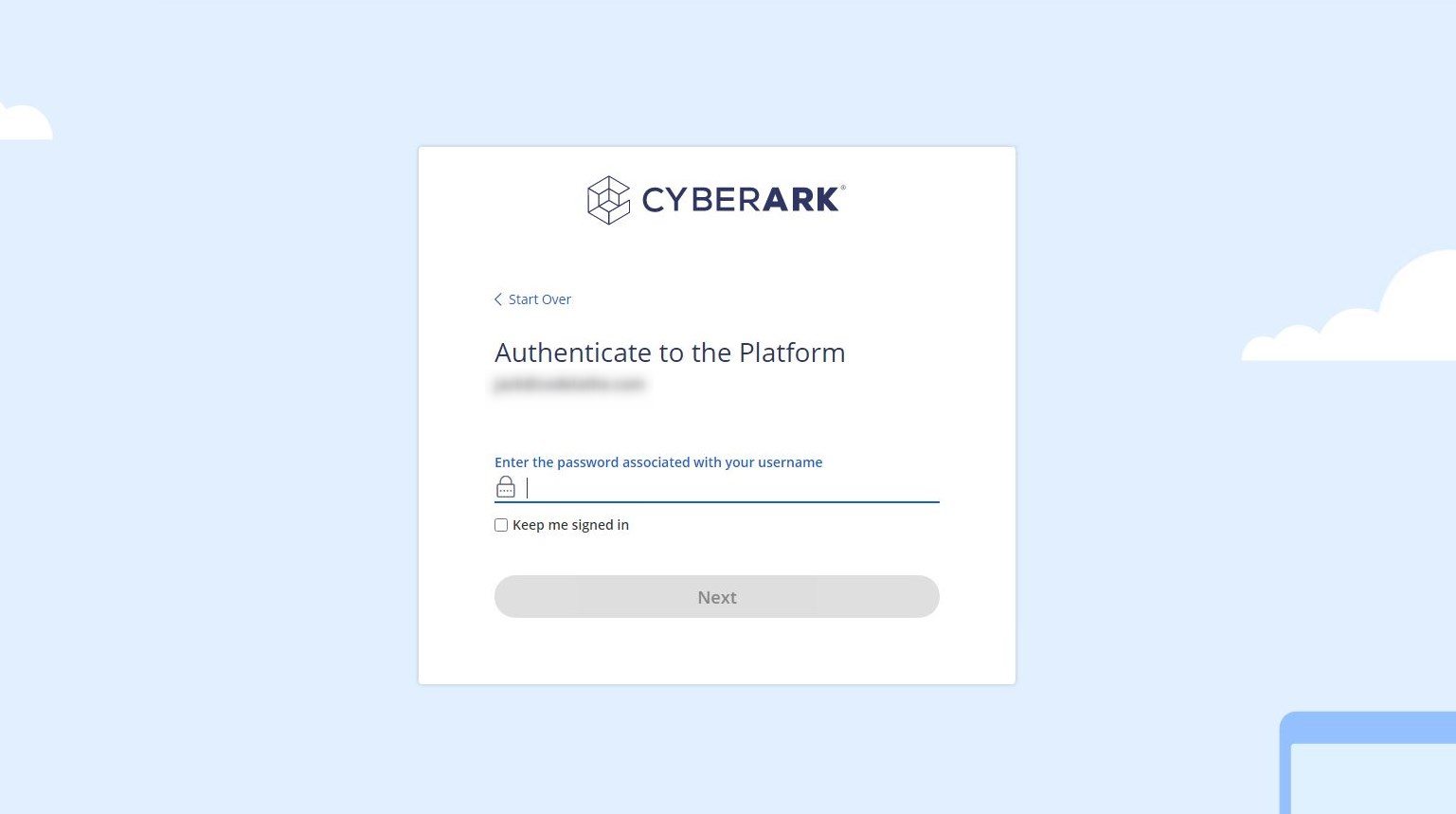
You are redirected to your CYBERARK login page.
-
Complete your user authentication.
You are redirected to FileCloud.
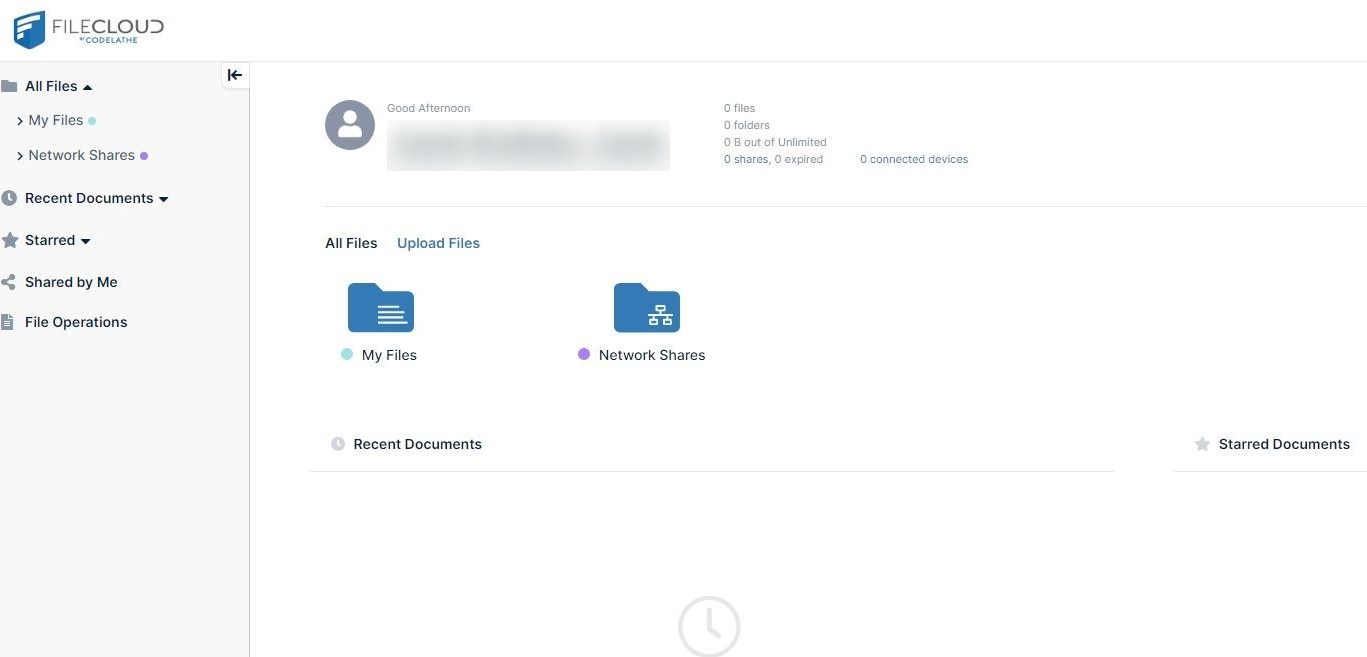
Now you can use single sign-on with CYBERARK from FileCloud.
-