.svg)
Version 23.241 of FileCloud has dropped support for Shibboleth 1.3 and SAML 1.1, and updated SimpleSAML to version 2.x. If you upgrade from a version below FileCloud 23.241 and your FileCloud build uses SSO, follow the instructions in Configuring SSO after updating from a version older than 23.241 in Windows: Upgrading Versions <23.252 to the Latest Version or Linux: Upgrading from Versions <23.252 to the Latest Version or SSO will not work correctly in your system.
Note: As of FileCloud Version 20.3.2, to achieve high availability, you can configure FileCloud to support multiple memcache servers.
You can use SAML SSO to control the authorization and authentication of hosted user accounts that can access FileCloud Web based interface.
-
SAML is an XML-based open standard data format for exchanging authentication and authorization data between parties.
-
FileCloud supports SAML (Security Assertion Markup Language) based web browser Single Sign On (SSO) service
-
FileCloud acts as a Service Provider (SP) while the Customer or Partner acts as the identity provider (IdP). FileCloud SAML SSO service is based on SAML v2.0 specifications.
SSO Login Diagram
SSO Login Diagram
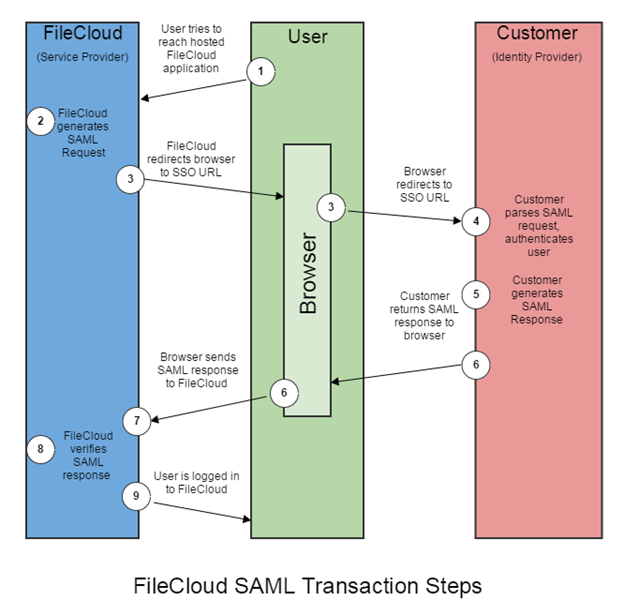
The following process explains how the user logs into a hosted FileCloud application through customer-operated SAML based SSO service.
-
The user attempts to reach the hosted FileCloud application through the URL.
-
FileCloud generates a SAML authentication request. The SAML request is embedded into the URL for the customer’s SSO Service.
-
FileCloud sends a redirect to the user’s browser. The redirect URL includes the SAML authentication request and is submitted to customer’s SSO Service.
-
The Customer’s SSO Service authenticates the user based on valid login credentials.
-
The customer generates a valid SAML response and returns the information to the user’s browser.
-
The customer SAML response is redirected to FileCloud.
-
The FileCloud authentication module verifies the SAML response.
-
If the user is successfully authenticated, the user will be successfully logged into FileCloud.
When the IdP successfully authenticates the user account, the FileCloud (SP) authentication module verifies that the user account exists in FileCloud.
If the user account does not exist in FileCloud, then a new user account is created and the user is logged into FileCloud.
SSO Configuration Steps
In order to successfully configure SAML SSO, the following steps must be followed.
-
Configure Apache server by adding the Alias directive to the simplesaml.php configuration file.
Pre-requisite: The mcrypt module must be installed on the FileCloud Server.
In Windows, it should be installed by default.
In Linux, if mcrypt is not installed, it must be installed
To add the Alias directive:
The following are the typical entries in Linux and windows.
You can change these settings if the FileCloud is installed under a different WEB ROOT Folder
Windows-
Navigate to the following directory
c:\xampp\apache\conf\extra -
Open the following file for editing
httpd-filecloud.conf -
Add the following line at the end of the file:
Alias /simplesaml "/xampp/htdocs/thirdparty/simplesaml/public" -
Save the file, and then use the FileCloud Control Panel to stop and start the Webserver.
Ubuntu: -
Open one of the the following files for editing:
/etc/apache2/sites-enabled/000-default.conf for HTTP (for port 80)
/etc/apache2/sites-enabled/default-ssl.conf for HTTPS (for port 443) -
Add the following line within <VirtualHost *:80> for HTTP connection or <VirtualHost *.443> for HTTPS connection.
You can place it under the line DocumentRoot /var/www/html:Alias /simplesaml /var/www/html/thirdparty/simplesaml/public -
To restart the apache webserver, run one of the following commands:
service apache2 restartOR
systemctl restart apache2
RHEL: -
Open one of the the following files for editing:
/etc/httpd/conf/httpd.conf (for port 80)OR/etc/httpd/conf.d/ssl.conf (for port 443) -
Add the following line within <VirtualHost *:80> for HTTP connection or <VirtualHost *.443> for HTTPS connection. You can place it under the line DocumentRoot /var/www/html.
Alias /simplesaml /var/www/html/thirdparty/simplesaml/public -
To restart the webserver, run one of the following commands:
service httpd restartOR
systemctl restart httpd
-
-
Replace the default key pair with your own.
Plan a maintenance window for this change because single sign-on will not work until your identity provider has the new certificate.
If you replace the private key on its own or update FileCloud without updating your identity provider, users may not be able to sign in with single sign-on.
-
Generate a new private key and a matching certificate:
openssl req -x509 -newkey rsa:3072 -sha256 -nodes -days 3650 \ -keyout saml.pem -out saml.crt -subj "/CN=<your FileCloud hostname>" -
Place the new saml.crt and saml.pem files in the samlcerts folder under WWWROOT/resources/.
If the samlcerts folder does not exist, create it.
For multi-tenant deployments or deployments with multiple identity providers, use the per-site folder structure described in Setting Up and Configuring Certificates when Upgrading SSO. -
Only if you previously uploaded a certificate on your identity provider, replace the new certificate (or refreshed Service Provider metadata) to your identity provider, and remove the old certificate.
-
3. Ensure the correct FileCloud URL is set and uses HTTPS
-
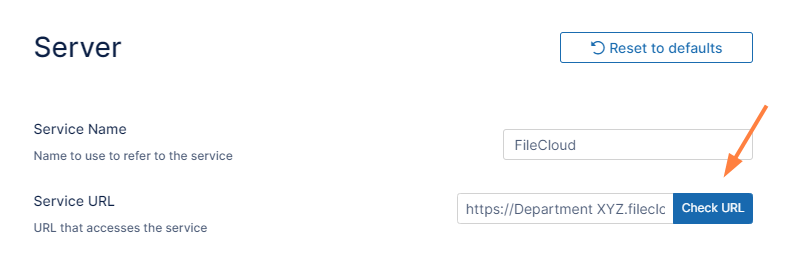
In the FileCloud admin portal's left navigation bar, scroll down and click Settings. Then, on the Settings navigation page, click Server

The Server settings page opens. -
In the Server URL field, confirm that your URL begins with HTTPS.
-
Click Check URL to make sure your URL is valid.
4. Set SAML as the default single sign-on method in FileCloud
To set the SSO type in FileCloud:
-
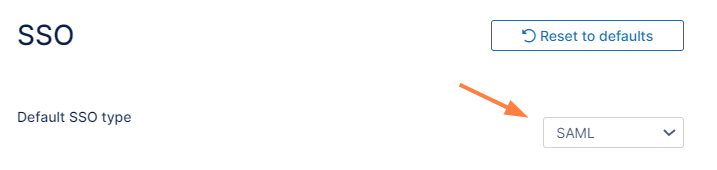
In the FileCloud admin portal's left navigation bar, scroll down and click Settings. Then, on the Settings navigation page, click SSO

The SSO page opens. -
In Default SSO Type, select SAML.
5. Configure IdP settings in FileCloud
Note: If you are using Active Directory Federation Services (ADFS) Support for authentication, see ADFS Single Sign-On Support.
To configure IdP settings in FileCloud:
-
In the FileCloud admin portal SSO settings page, fill in the settings under SAML Settings.
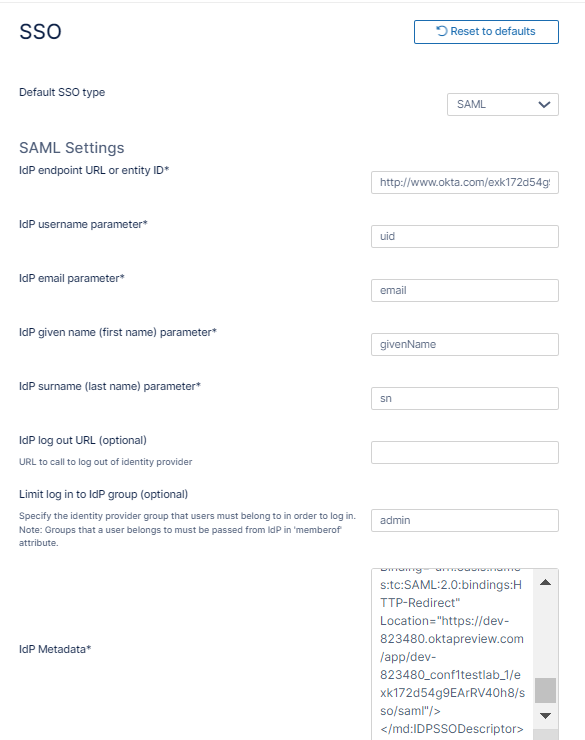
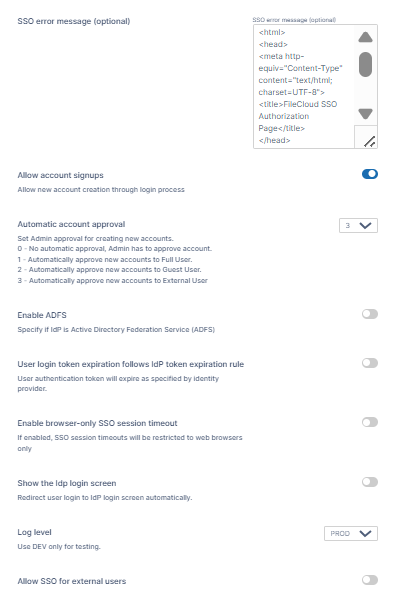
Use the following table to understand the IdP settings.
|
FileCloud Parameters |
IdP Settings |
|---|---|
|
IdP End Point URL |
Identity Provider URL |
|
IdP Username Parameter |
Identifies the Username (must be unique for each user)
NOTE: The username must be unique. If username sent by Idp is in email format, the email prefix will be used for username. The email prefix in this case must be
|
|
IdP Email Parameter |
Identifies the email of the user (must be unique) Default value: mail |
|
IdP Given Name Parameter |
Identifies the given name of the user Default value: givenName |
|
IdP Surname Parameter |
Identifies the surname of the user Default value: sn |
|
IdP Log Out URL (Optional) |
URL for logging out of IdP. This is required if you are syncing groups on every login. |
|
Limit Logon to IdP Group |
IdP Group Name
|
|
Show the IdP login screen |
Identifies which Logon screen the user will see:
|
|
IdP Metadata |
Identity Provider metadata in XML Format |
|
SSO Error Message (Optional) |
Custom error message that appears when a login is invalid. Enter in HTML format, and use the variable ^MESSAGE^, which shows error details when SSO login fails.
<h1>^MESSAGE^</h1>
|
|
Allow Account Signups |
When TRUE, during the login process, if the user account does not exist, a new FileCloud user account is created automatically. |
|
Automatic Account Approval |
This setting works with the Allow Account Signups setting to determine:
See Integrating Multiple IDPs for help configuring multiple IDPs with automatic account approval settings specific to each one.
|
|
Enable ADFS |
If enabled, identifies IdP as Active Directory Federation Service. |
|
User login token expiration match IdP expiration |
If enabled the user token expiration will be set based on Idp expiration settings If not enabled user token expiration will be set based on FileCloud Session Timeout
Default: No (Not enabled) |
|
Enable Browser-Only SSO Session Timeout
|
If enabled, SSO session timeouts apply to browser sessions but not to client sessions. |
|
Show the IdP login screen |
If enabled, automatically redirect user to Idp log-in screen. |
|
Log Level |
Set the Log mode for the SAML Calls. Default Value: prod (Do not use DEV for production systems) |
|
Allow SSO for external users
|
Only appears if feature is included in license.
|
7. Enable the SSO link on the login page
You can customize the user log-in screen to display the SSO log-in option along with the direct log-in option or to only display the SSO log-in.
To display the SSO log-in option along with the direct log-in option:
-
From the left navigation pane, click Customization.
-
Select the General tab, and then the Login sub-tab.
-
Check Show SSO Link and Show Login Options.
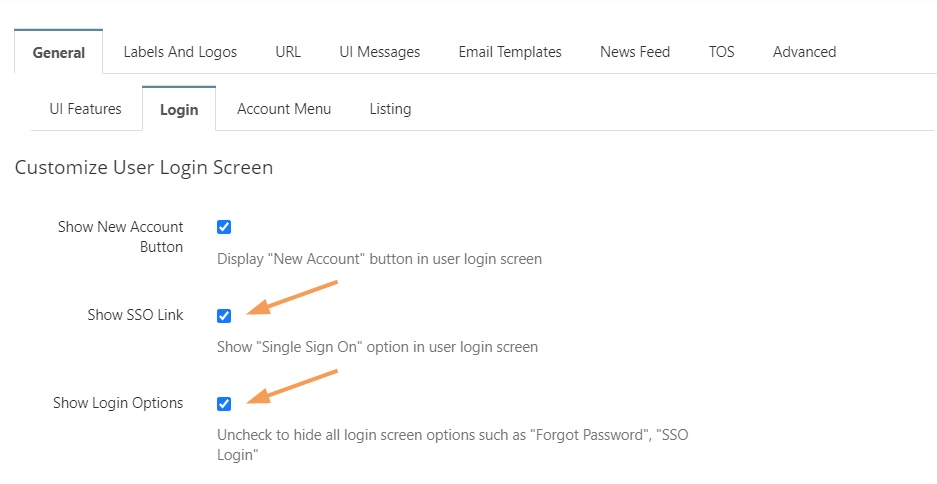
-
Save your changes.
Now, when users access the user portal log-in page, they will see:
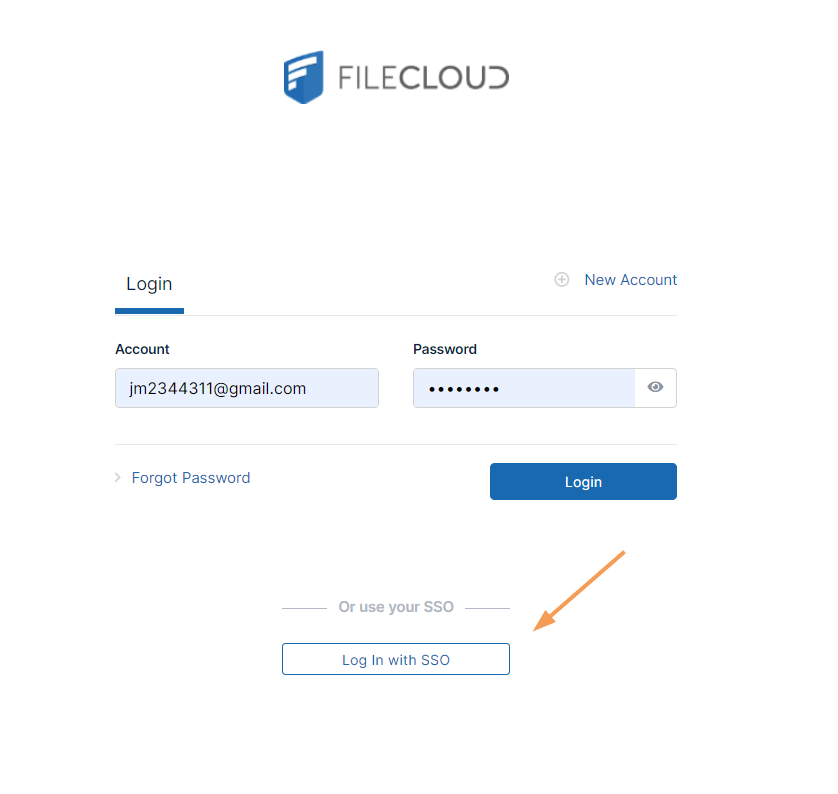
On clicking the Single Sign-On link on the login page, the user is redirected to the SAML SSO Service web page.
The SSO log-in option in the admin portal:
FileCloud admin interface also supports Single Sign-On.
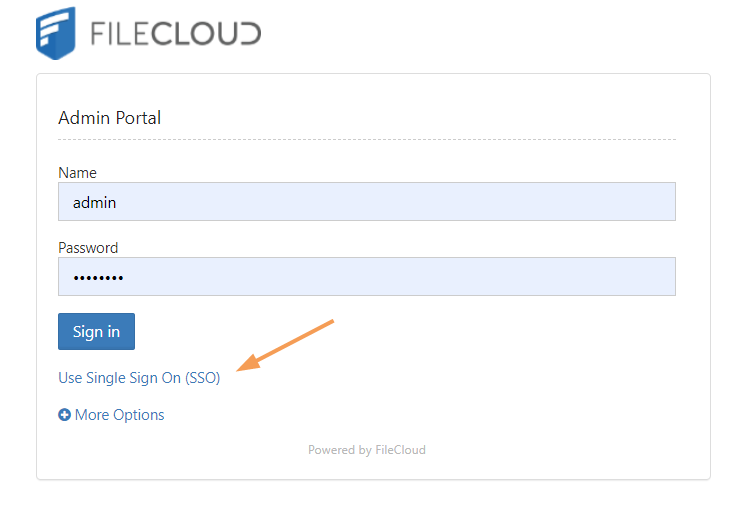
Default admin portal log-in screen
To only display the SSO log-in option:
In order to skip the FileCloud login page and send the user directly to the SAML SSO page you must add a setting to the cloudconfig.php file, as shown below. You can configure this option for the user portal login page and the admin portal login page.
To only display the SSO log-in option in the user portal:
This configuration option supports skipping the login page when the user accesses FileCloud with a domain name or with a full URL.
-
In the admin portal, go to Customization, and select the General tab, and then the Login sub-tab.
-
Check Show SSO Link and Show Login Options, and save your changes.
-
Open the configuration file:
Windows: XAMPP DIRECTORY/htdocs/config/cloudconfig.php
Linux: /var/www/config/cloudconfig.php -
To only display the SSO log-in option:
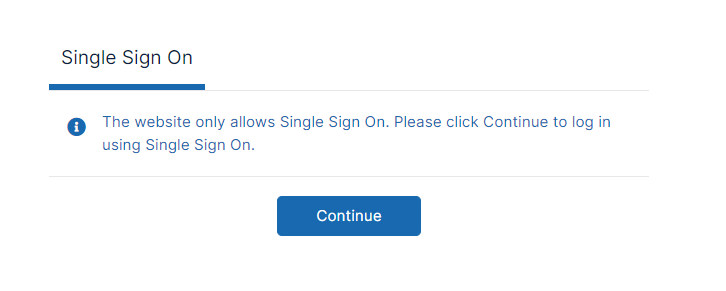
define("TONIDOCLOUD_SSO_DIRECT_ONLY", "1");When users enter the log-in page they will see:
To return to displaying other log-in options:
define("TONIDOCLOUD_SSO_DIRECT_ONLY", "0");
To display only SSO log-in in the admin portal:
FileCloud supports skipping the login page when the admin accesses FileCloud with a domain name or with a full URL.
-
Open the configuration file:
Windows: XAMPP DIRECTORY/htdocs/config/cloudconfig.php
Linux: /var/www/config/cloudconfig.php -
To only display the SSO log-in option:
Enter:
define ("TONIDOCLOUD_SSO_DIRECT_ONLY_ADMIN", "1");
Troubleshooting
Override the default SSO port
To override the default port:
-
Open cloudconfig.php:
Windows Location: XAMPP DIRECTORY/htdocs/config/cloudconfig.php
Linux Location: /var/www/config/cloudconfig.php -
Add the following line:
define("TONIDOCLOUD_SSO_FULLURL_OVERRIDE", "https://filecloud.test.com");
Use multiple memcache servers
In FileCloud Versions 20.3.2 and higher, you can use multiple memcache servers with SAML SSO to achieve high availability.
To use multiple memcache servers:
-
Open cloudconfig.php:
Windows Location: XAMPP DIRECTORY/htdocs/config/cloudconfig.php
Linux Location: /var/www/config/cloudconfig.php -
Add the following lines, including a hostname for each of the memcache servers.
In this example, the IP addresses of the servers are 79.97.83.70 and 79.97.83.71.
function SSO_MEMCACHED_SERVERS() {
return [
  [
    ['hostname' => '79.97.83.70']
  ],
  [
    ['hostname' => '79.97.83.71']
  ],
];
}
In HA environments with SSO, either point all FileCloud server nodes to the same memcache server or to the same memcache cluster.
Any of the following will break SSO:
-
Pointing each FileCloud server node to the local memcache server, IP 127.0.0.1
-
Point each FileCloud server node to a different memcache server.
-