.svg)
Since every operation is logged and displayed in the Audit screen, there may be times when you want to filter the events shown.
The audit log can also be sorted, trimmed, or filtered after exporting it to a CSV file. Exporting the audit log can also reduce the size taken up in the database.
Filtering your view of log entries does not trim or decrease the size of your log database.
If your log database is growing too large, you can:
Export Audit Logs
Configure What is Logged
Delete Audit Log EntriesCompact the Audit Database
How do you want to filter the Audit log?
Searches without a date range entered default to the last 7 days.
By a search term

To filter the audit log by searching:
-
Open a browser and log in to the admin portal.
-
From the left navigation panel, click Audit.
-
In the Search box, type in your key words.
By a regular expression search term
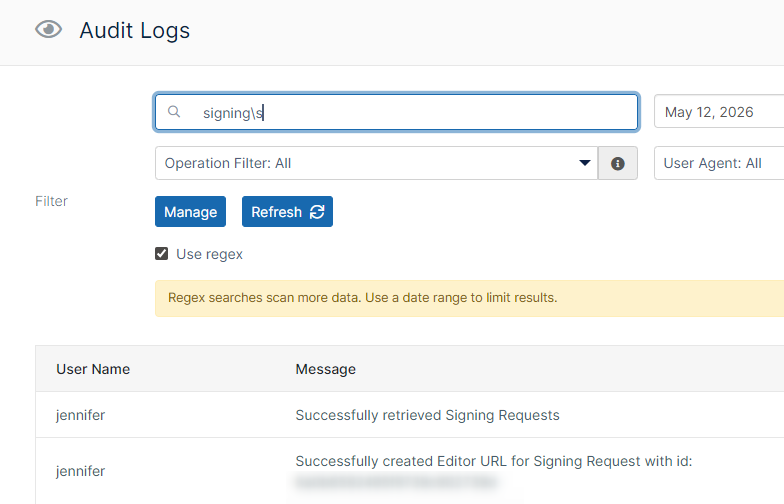
To filter the audit log by searching on a regular expression:
-
Open a browser and log in to the admin portal.
-
From the left navigation panel, click Audit.
-
Check Use regex.
-
Enter a date range.
Use regex requires a date range because it searches on more data and is resource-intensive.
In addition, the regex function does not search on the create date, so to filter by a date or date range, you must enter it in the date fields. -
In the Search box, enter your regular expression.
By start and end dates

To filter the audit log by date:
-
Open a browser and log in to the admin portal.
-
From the left navigation panel, click Audit.
-
In the Filter Start Date box, select a date or type in a date in the following format: YYYY-MM-DD.
-
In the Filter End Date box, select a date or type in a date in the following format: YYYY-MM-DD.
By an operation
The Audit log can be filtered by the following operations or actions that occur on the FileCloud server:
|
Operation |
Description |
|---|---|
|
All |
Displays all operations logged by FileCloud Server
|
|
Common |
Displays 6 of the most commonly logged operations:
|
|
Deleted |
Displays logs created when a file or folder was moved to the recycle bin on the FileCloud Server site |
|
Uploaded |
Displays logs created when a file or folder was uploaded to the FileCloud Server site |
|
Downloaded |
Displays logs created when a file or folder was downloaded from the FileCloud Server site |
|
Metadata |
Displays logs created when a file or folder's metadata was added, edited or removed |
|
Files |
Displays logs created when a change is made to all the files on the FileCloud Server site |
|
Retention |
Displays logs of retention policy actions. |
|
DLP |
Displays logs for failed DLP rules. |
|
Moved |
Displays logs created when a file or folder was moved to another location in FileCloud. |
|
Virus removed |
Displays logs created when antivirus scanned an upload and removed a virus. |
|
No virus found |
Displays logs created when antivirus scanned an upload and found no virus. |
|
Automation Workflow |
Displays logs created when a share approval request created by an automation workflow was approved or rejected.
|

To filter the audit log by operation:
-
Open a browser and log in to the admin portal.
-
From the left navigation panel, click Audit.
-
In Operation Filter, select an action or group of actions.
By an agent
An agent is any client or device that connects or communicates with FileCloud Server.
You can select from the following user agents:
-
Web browser
-
Sync
-
Drive
-
Outlook
-
Office
-
iOS
-
Android
-
Workflow
-
Mqworker
-
FileCloud Desktop

To filter the audit log by agent:
-
Open a browser and log in to the admin portal.
-
From the left navigation panel, click Audit.
-
In User Agent, select a client or device.