.svg)
For security reasons, you can restrict user searches so that your users have to know the exact email address of the person they want to add to a share or a workflow. Alternatively, you can set this option to allow users to search for another user with just a known partial email address.
To access the User Account Search Mode Settings:
-
Open the User settings page.
To open the User settings page:
-
In the FileCloud admin portal's left navigation bar, scroll down and click Settings. Then, on the Settings navigation page, click Misc

-
In the inner navigation bar on the left of the Settings page, expand the Misc menu, and click User, as shown below.
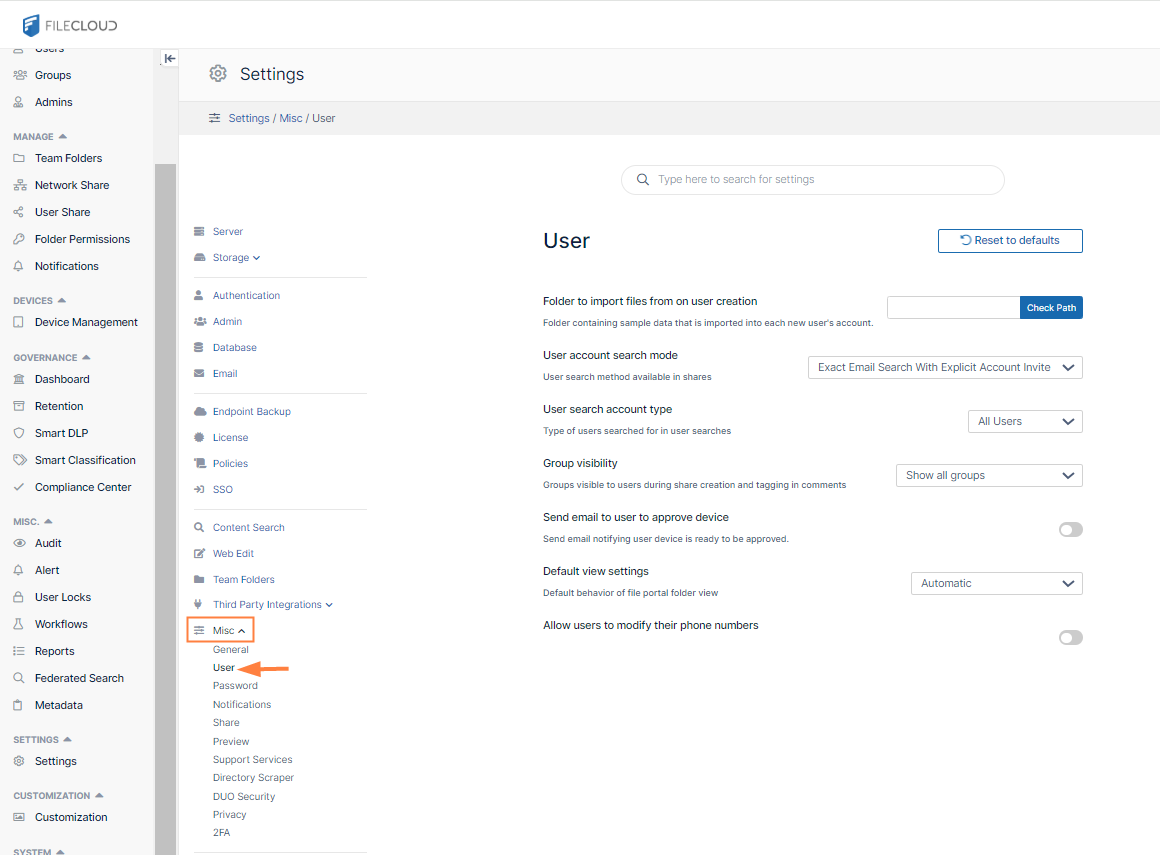
The User settings page opens.
-
-
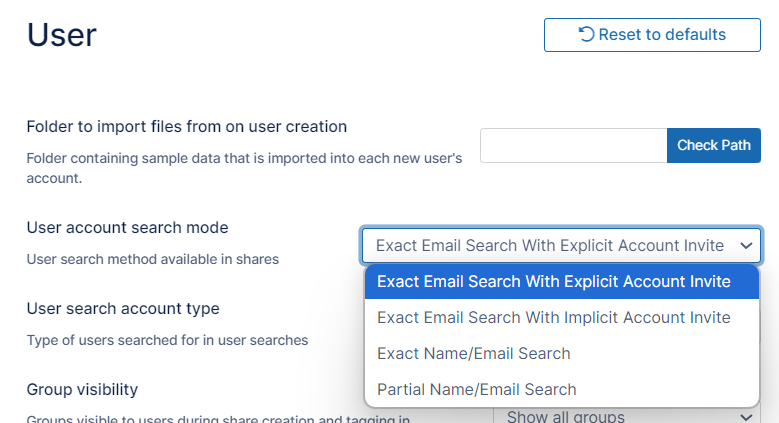
Click the User account search mode drop-down list:
-
Choose a search mode, and click Save.
Search Mode
Example
When this search mode is set by admin, the following behavior will be seen during sharing by users:
Exact Email Search With Explicit Account Invite
JoeCarpenter@MyFileCloud.com
-
Only email search is allowed
-
If the email doesn't exist in the system, an explicit invite option will be shown
-
With this option, a user may still figure out other users that exist in the system
Exact Email Search With Implicit Account Invite
-
Only email search is allowed
-
If the email doesn't exist in the system, then the system will send an invite to the entered email address without notifying the user
-
With this option, a user cannot figure out other users that exist in the system
Exact Name / Email Search
Joe Carpenter
-
Both name and email search is allowed
-
No partial matches are allowed.
-
If the name doesn't exist in the system, the system will not give the user option to invite the specified user
-
If the email doesn't exist in the system, the system will give the user option to invite the specified user
Partial Name / Email Search
Joe C
-
Both name and email search is allowed
-
Partial matches are allowed
-
If the name doesn't exist in the system, the system will not give the user option to invite the specified user
-
If the searched email doesn't exist in the system, the system will give the user option to invite the specified user
-