.svg)
FileCloud for Outlook Add-in configuration settings can be configured remotely by specifying the configuration XML using policies.
For most clients, if the user changes the configuration locally, then the remote settings configured by the Administrator will override those settings the next time the client refreshes its settings.
To set FileCloud's Outlook add-in device configuration for a policy:
-
In the FileCloud admin portal's left navigation bar, scroll down and click Settings. Then, on the Settings navigation page, click Policies

The Policies settings page opens.
.png?cb=f11a08db8bd48fc3b7c4186cbd5a4c98)
-
Edit the policy of the users whose client device settings you want to modify.
-
Click the Device Configuration tab.
-
Paste or type in the following remote device configuration XML in Device Configuration replacing <!-- XML for outlookaddin App --> with any parameters from the table below.
<xml>
	<outlookaddin>
            <settings>
        	<!-- XML for outlookaddin App -->
            </settings>
	</outlookaddin>
</xml>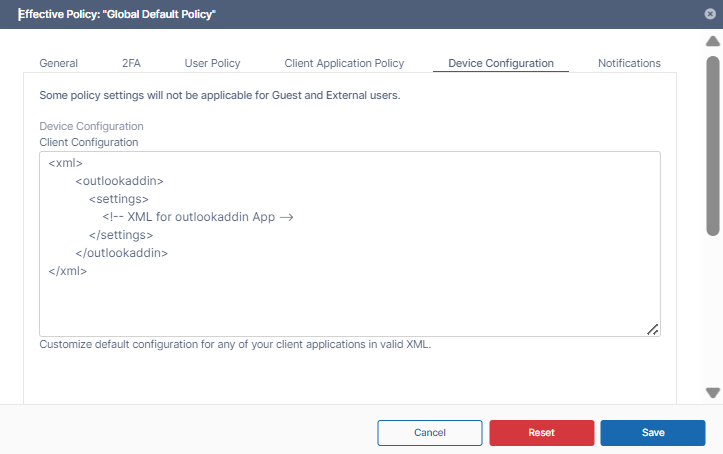
Supported parameters for the FileCloud Outlook add-in. All parameters are optional. Add one of more of these parameters (as XML tags) in the <settings> tags in the above XML.
Parameter (XML Tag)
Value
Example
autoupload
Whether autoupload is on or off. 0 = off, 1= on
<autoupload>1</autoupload>
autouploadsize
The minimum size in MB an attachment must be to be automatically uploaded
<autouploadsize>3</autouploadsize>
serverurl
FileCloud server URL
<serverurl>http://www.yourdomain.com</serverurl>
sharetype
Share Type 0 = Public Share, 1= Password Protected Share
<sharetype>0</sharetype>
sharetext
Share Text in HTML. Ensure to use CDATA to accomodate special characters in xml
<sharetext><![CDATA[Attachment: #filename#<br/>Download link: <a href='#url_link#'>#filename#</a><br/>#password#]]></sharetext>
proxyserver
Proxy Server URL
<proxyserver>http://proxyserverurl.com</proxyserver>
proxyusername
Proxy Server Username
<proxyusername>proxyserverusername</proxyusername>
proxypassword
Proxy Server Password
<proxypassword>proxyserverpassword</proxypassword>
proxyport
Proxy Server Port
<proxyport>9000</proxyport>
ssllevel
Require strict SSL verification of VERIFY_STRICT or VERIFY_NONE
<ssllevel>VERIFY_STRICT</ssllevel>
sslverify
Connect only TLS 1.2 server. Empty string or TLSV1_2_CLIENT_USE
<sslverify><sslverify>
To set default values for auto upload:
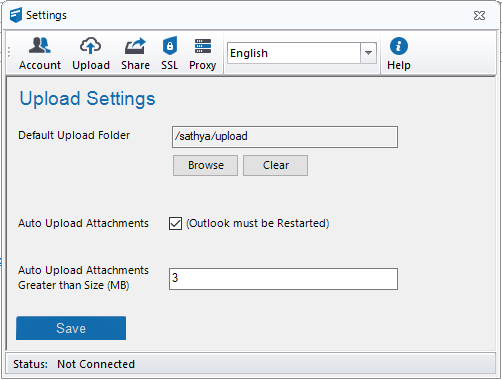
In the Outlook add-in device configuration, you can set the default values for Auto Upload Attachments and Auto Upload Attachments Greater than Size (MB).
Follow the instructions above for setting the device configuration, and enter values: for <autoupload> and <autouploadsize>, for example:
<xml>
	<outlookaddin>
            <settings>
        		<autoupload>1</autoupload>
				<autouploadsize>3</autouploadsize>
            </settings>
	</outlookaddin>
</xml>
When the Outlook Add-in is opened, and Settings > Upload is accessed, the Auto Upload Attachments and Auto Upload Attachments Greater than Size (MB) settings appear as:
 Tips and Tricks
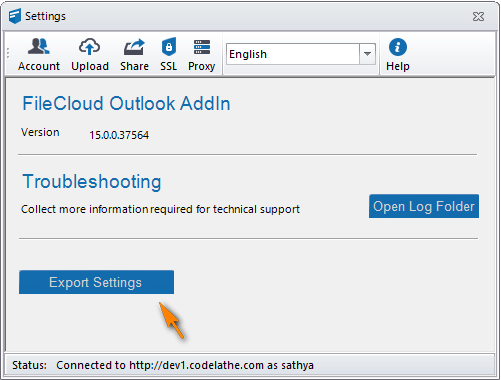
The easiest way to get the configuration XML for sync apps is by configuring an Outlook Add-in as needed and then exporting the configuration.
Show me how...