.svg)
You can share a folder with a user who does not have a FileCloud account yet but wants one.
This is called a Private share because:
-
You are only allowing specific users with a FileCloud account to access your folder and all its contents.
When you invite a new user to share your folder and all its contents, the following process occurs:
-
You share a file and invite a new user to create a FileCloud account.
-
Enter the new user's email address, invite them to the share, and then send them an email with a link to create an account.
-
The new user uses the link to create their own FileCloud account.
-
After the new user signs in, they have a Full Access FileCloud account.
-
The new user can access the folder and all its contents. Their ability to manage the folder and its contents is determined by the permissions you set.
To share a folder with users who do not have a FileCloud account
-
In the user portal, navigate to the folder you want to share.
-
Hover over the folder and click the Share icon.

The Share link dialog box opens.
In the Sharing Permissions section, Allow selected users or groups is selected.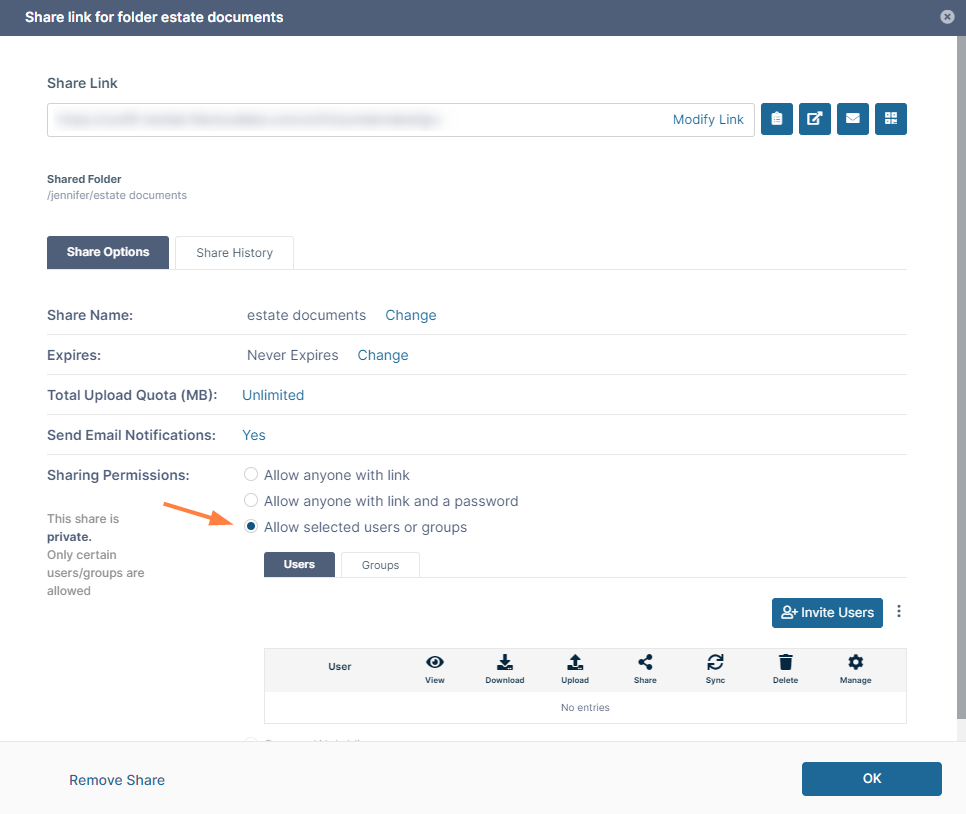
-
To invite a new user to the share:
-
In the Users tab, click Invite Users.
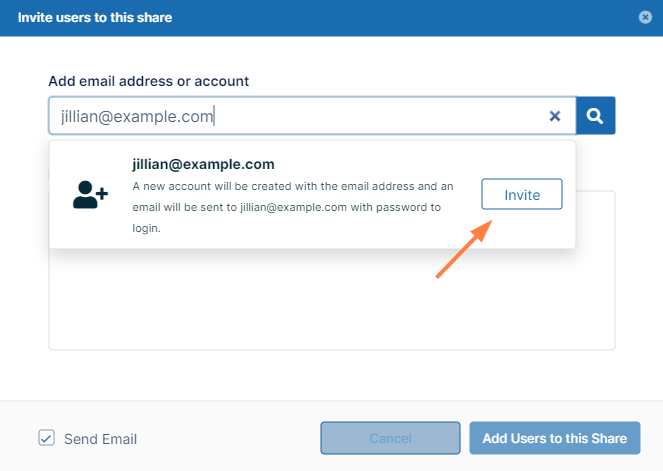
The Invite users to this share dialog box opens. -
In the search bar, type in the user's email address.
The system does not find the email address and displays an Invite button.
-
Click Invite.
-
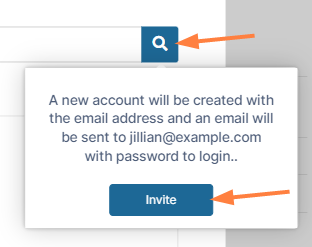
Alternately, click the search icon, and in the new account message, click Invite.
-
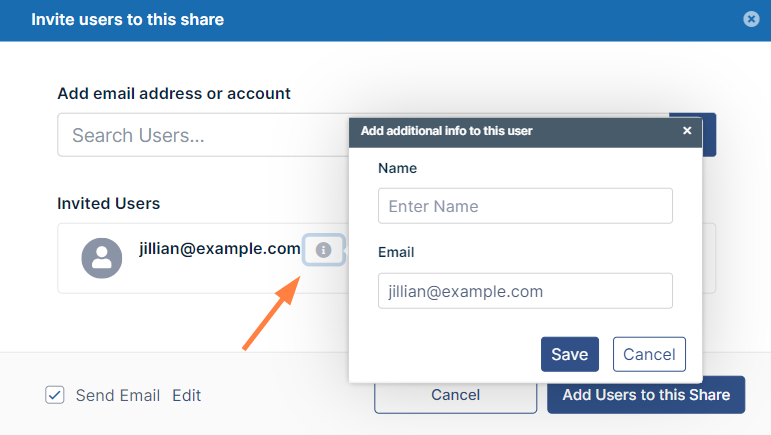
To add or change display name or phone number for a user, click the i icon:
-
-
Add any number of new or existing users to the share.
To add existing users, see Share a Folder Privately. -
Leave Send email checked.
-
Click Add Users to this Share.
You may be prompted to add additional information for new users: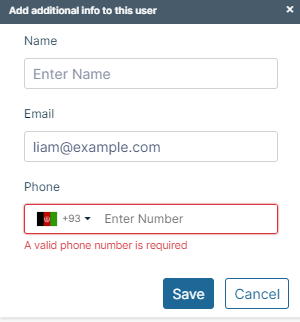
-
Enter the requested information and click Save, then click Add Users to this Share again.
The users are added to a Sharing Permissions section of the Share link dialog box. By default the users can view and download the share. -
Check and uncheck the Sharing Permissions boxes to make any changes to the permissions.
For information about each permission, see Private Share Permissions for Folders.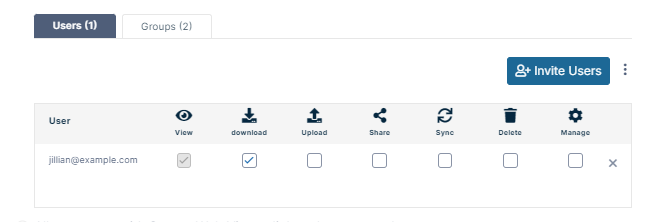
-
How the invited user signs up for an account
The invited user receives an email similar to:
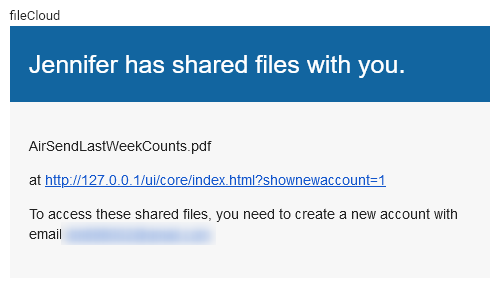
When the user clicks the link, the following window opens:
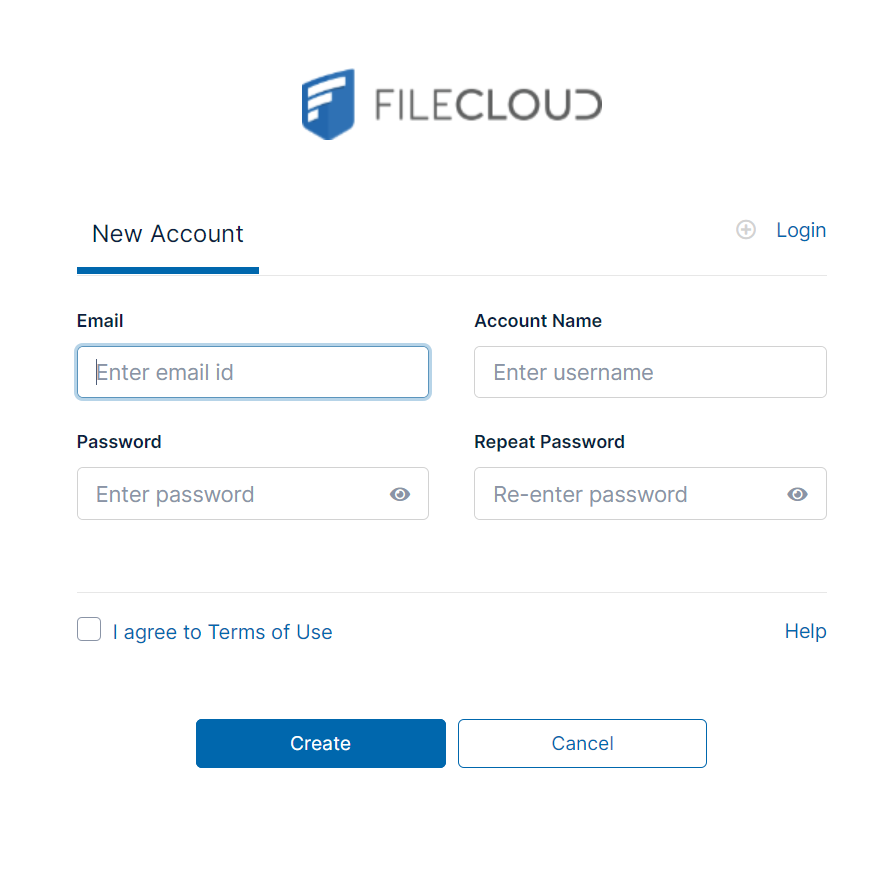
The user creates the account using the form, and can then log in to FileCloud and navigate to the Shared with Me folder to view the share.
Note: Depending on your configuration the user may be asked to respond to an email to confirm the new account before logging in.