.svg)
To disable users' ability to download folders from the user portal, see the setting Disable Folder Download at General Customization.
As an administrator, you can manage the files that are stored on your FileCloud Server site. This allows you to protect and maintain your system.
Can I download all of a user's files at once?
-
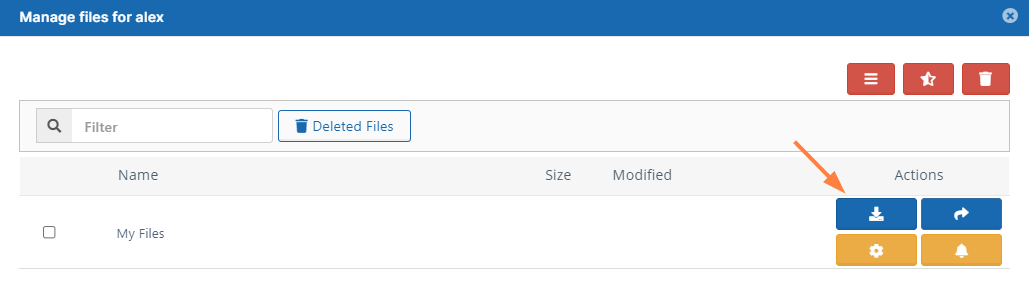
You can easily download all of a user's files by downloading the My Files folder.
-
Folders are first zipped and then downloaded.
Can I download an older version of a file?
If the user has uploaded changes to a file, you can:
-
download the latest version
-
download a previous version
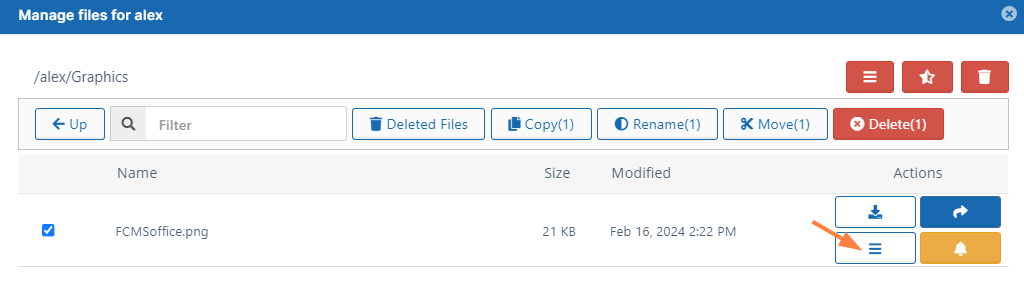
In the Manage files dialog box, click the Versions button.
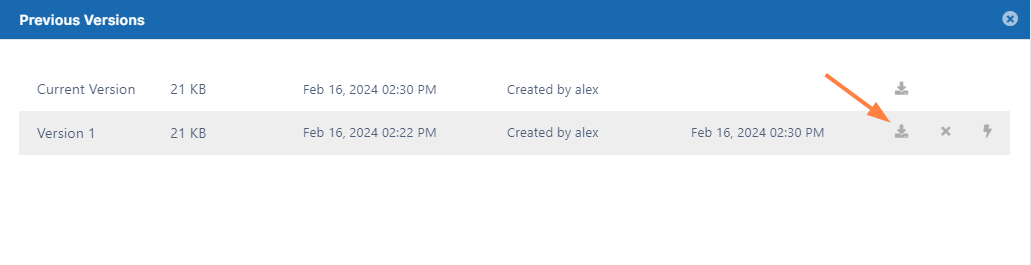
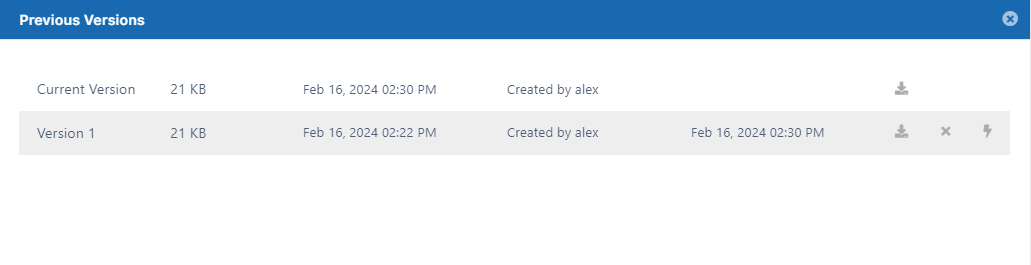
Find the version you want to download and click its Download icon.
If you have older versions on your site, you may:
-
Restore the previous version of a file and make it live
-
Remove previous versions to save space
To download user folder and files:
-
Open a browser and log on to the Admin Portal.
-
From the left navigation menu, select Users.
-
On the Manage Users page, select a user, and then click the Edit icon

-
On the User Detail dialog box, click Manage Files.
The Manage Files for <User> window opens. -
Navigate to the folder or file you want to download.
-
To download the latest version of a file, click the Download icon

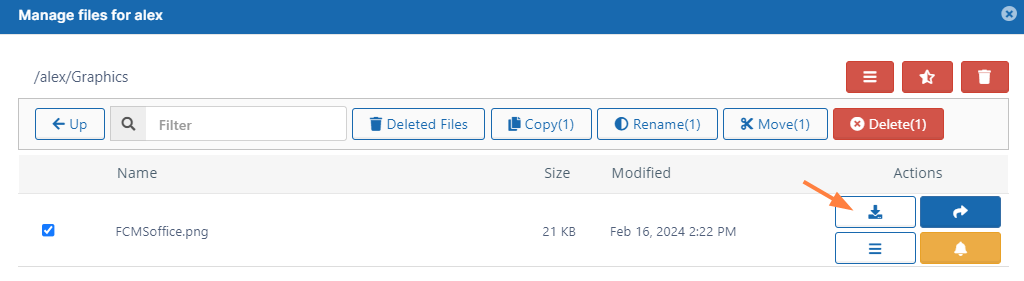
OR
To download an earlier version, click the Version icon
Then select the version from the list and then click the Download icon