.svg)
This action:
-
Is recorded in the Audit log as: "Action performed by ADMIN"
-
CANNOT be undone
As an administrator, you can remove files that were not completely uploaded. This can free up storage space.
If a user tries to upload a file and for some reason the action is only partially completed, the file is saved in a folder for partial uploads.
-
Partial uploads are saved in case a network connection is lost and the user wants to continue the upload when connectivity is restored.
-
Incomplete user uploads are never shown in the Manage Files listing.
-
Over a period of time, these partial uploads can occupy lots of space.
-
Admins can easily remove these partial uploads with the click of one button.
If a file upload is in progress:
-
It will not be removed, even if it only partially uploads, unless you use the In-transit option when removing partial uploads
-
You can use the In-transit option to cancel a partial upload in progress
To remove all incomplete user uploads:
-
Open a browser and log in to the admin portal.
-
From the left navigation menu, select Users.
-
On the Manage Users page, select a user, and then click the Edit icon.
-
In the User Detail dialog box, click Manage Files.
The Manage Files for <User> window opens. -
Click the Remove All Incomplete Uploads icon

.
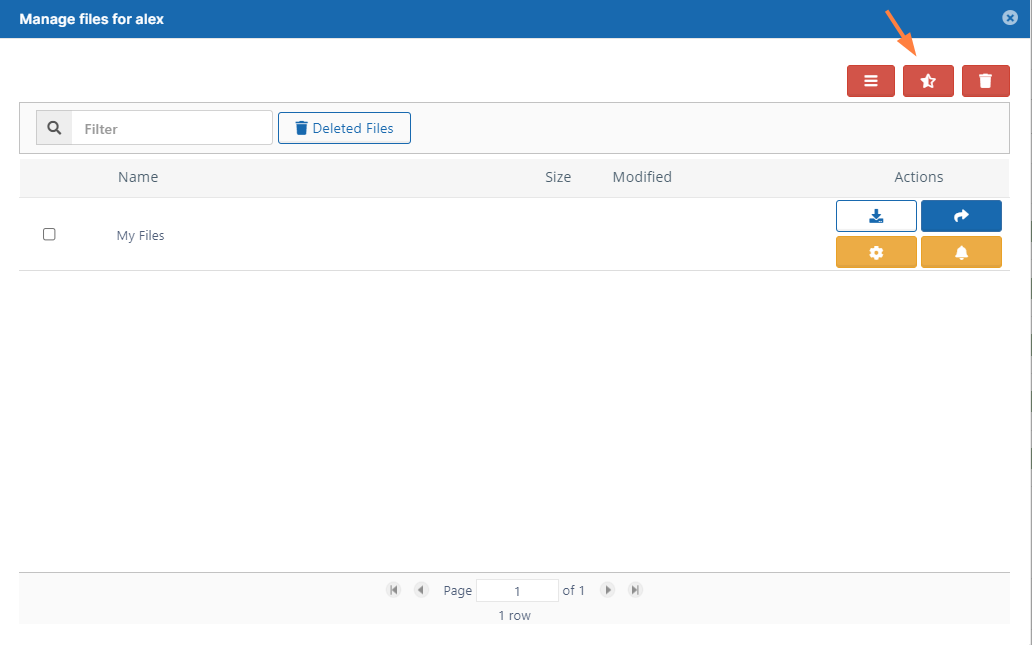
-
On the Incomplete Files dialog box, to also remove incomplete uploads in progress, select Include in-transit.
-
Click OK.
Incomplete downloads are removed.