.svg)
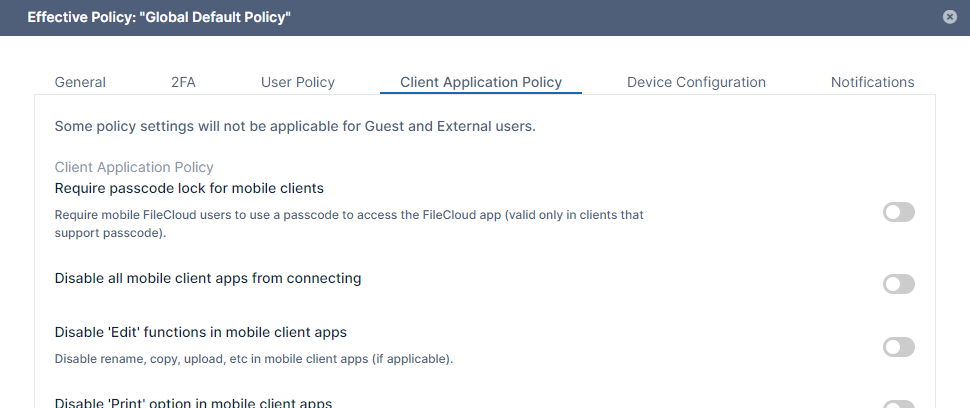
FileCloud allows customization of the client application (mobile clients) policies.
|
Type |
Description |
|---|---|
|
Require Passcode lock for mobile clients |
Force mobile clients to enable FileCloud app pincode. If the pincode is not enabled, the login is rejected with an appropriate message. |
|
Disable all mobile client apps from connecting |
Prevent login to FileCloud system using mobile client apps (users are allowed to login only via the web browser). |
|
Disable edit functions in mobile client apps |
Prevent delete, copy, and move operations from being performed from mobile client apps. |
|
Disable "Print" option in mobile client apps |
Prevent printing from mobile client apps (At this point only iOS app provides print function) |
|
Disable "Download" option in mobile client apps |
Prevent file downloads in mobile client apps. |
|
Disable "Open with" option in mobile client apps |
Hide option to open a file in third party apps. NOTE: In Android, all files are opened in third party apps and this setting has no effect. |
|
Disable "Share" options in mobile client apps |
Hide file and folder sharing from mobile client apps. |
|
Disable "Add to favorites" options in mobile client apps |
Hide "Add to favorites" option from mobile client apps |
You may override a policy when you are editing the user details for a specific user; however, the new policy settings apply to all users who are assigned that policy.
To change a policy through a user's details:
-
In the admin portal, go to Users.
-
Edit the user record.
-
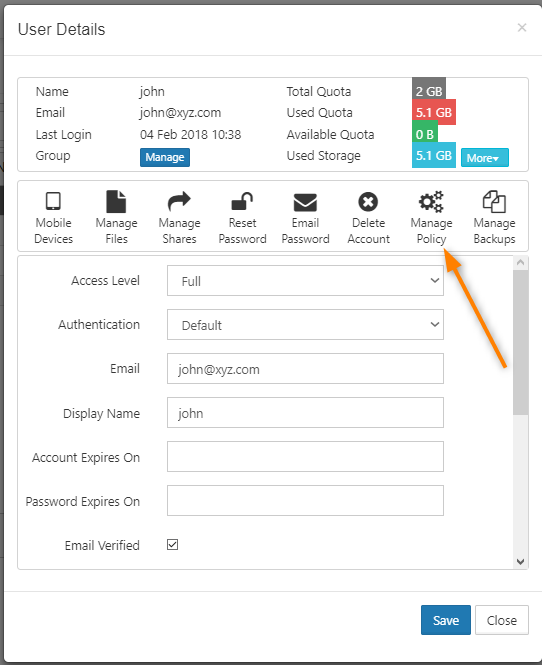
Click Manage Policy.
-
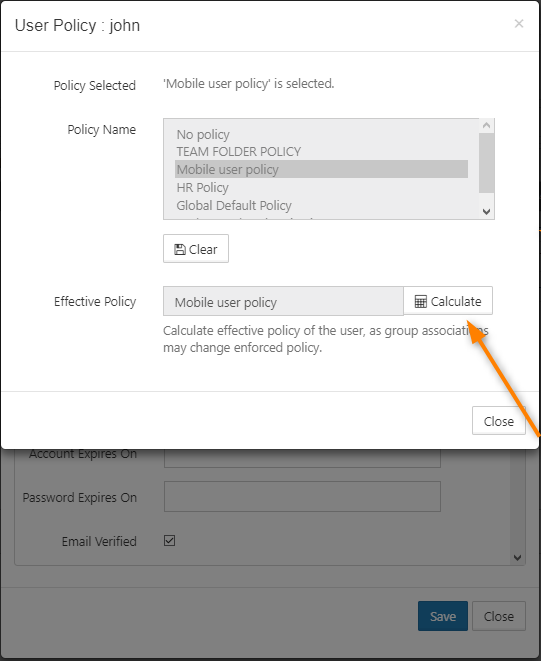
Next to Effective Policy, click Calculate.
-
Next to Effective Policy, click Open.
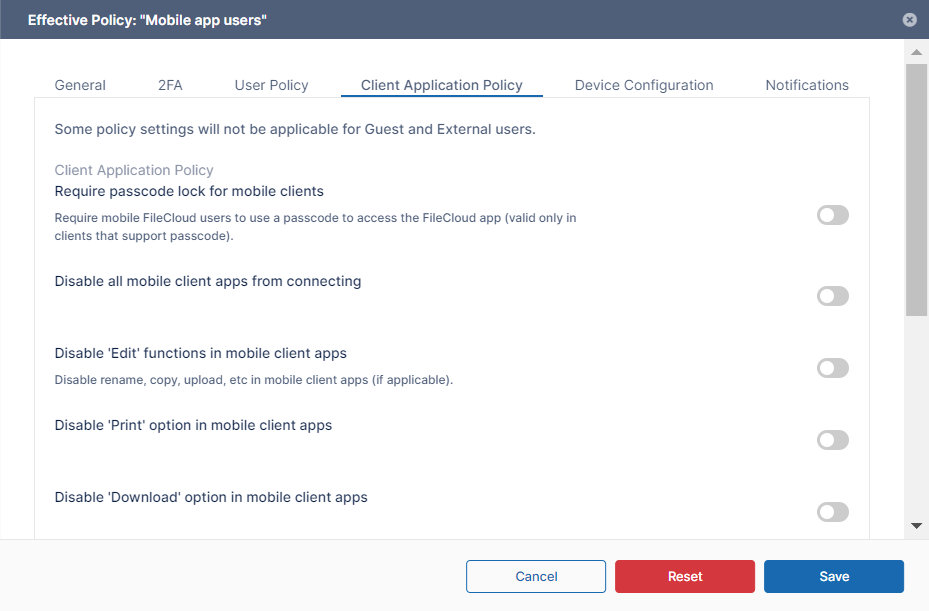
The policy opens.
-
Change the settings and click Save.
Note that the settings are changed for all users who belong to the policy.