.svg)
The ability to update and remove a user's profile picture is available in FileCloud Server version 18.2 and later.
As a FileCloud administrator, you can see user properties and change them as needed.
To see a user's details and what they have permission to do:
-
Open a browser and log on to Admin Portal.
-
From the left navigation panel, click Users.
-
In the users list, click on the row of the user you want whose details you want to view.
-
Click the edit icon.
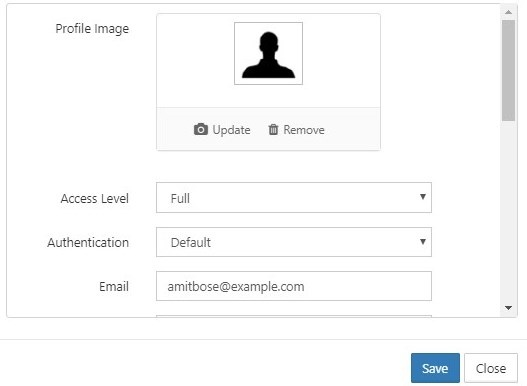
After you make any changes and save them, the new property will be in effect immediately.
For example, after an administrator increases the storage quota for an account, the increased storage is available to the user as soon as the administrator clicks Save.
|
Editable Property |
Description |
|---|---|
|
Profile Image |
You can choose a new picture or remove the current one.
|
|
Access Level |
This is the access level set for this user. The possible values are:
Only accounts with enabled status can login into their account irrespective of their access level. Disabled accounts do not count towards the License Limit. For more information: |
|
Authentication |
This is the type of authentication used to verify the user's account. The possible values are: Default External (AD/LDAP) For more information: |
|
Total Quota (GB) |
Field to set the total storage quota for the user account. The value set must be in GB.. This value will override the global storage quota settings. |
|
|
Field to set the email ID for the user account. This value has to be unique for the FileCloud installation. |
|
Secondary Email |
Additional email account. |
|
Display Name |
Field to set an user readable name that will be used in various places such as email notifications etc. |
|
Account Expires On |
If this is date is set and the current date is past, the account will be disabled automatically and user cannot log into the system |
|
Password Expires On |
If "User Password Expires in Days" field in Password settings is configured, then any new account will have this value setup automatically and will require password change after the expiration date elapses.This value can be overridden by the administrator. NOTE: An automatic email notification is sent to the user 7 days and 1 day before the actual password expiry date. |
|
Email Verified |
Indicates if the entered email has been verified. If email is not verified, then account cannot be logged in until the verification is completed. |
|
Disable Sync (Automatic Sync of My Files and Network Folders) |
Allow or disable Automatic sync of "My Files" location and Network Folders Location |
|
Disable Sync (Offline Network Share Sync) |
Allow or disable offline access of network folders in FileCloud Sync |
|
Backup Path |
Allows override of the backup folder that the user can backup files and folders using the sync app or the media files from mobile apps |
|
Change Password on Login |
Forces the user to change the login password on first login to the user portal. 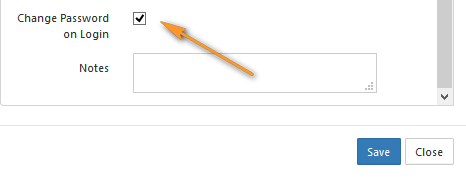
Note: This does not appear when the following setting, Creation Source, is set to SSO. |
|
Creation Source |
Where user was created. Options are:
|
|
Phone Number |
The user's phone number. This phone number is used for SMS-based multi-factor authentication (MFA). When a user logs in for the first time with SMS MFA enabled, they are required to re-enter their phone number, even if it has already been configured by an administrator. |
|
Notes |
This filed allows the user to enter notes for the user and also search the user based on notes. |