.svg)
This action:
-
Is recorded in the Audit log as: "Action performed by ADMIN"
-
Cannot be undone
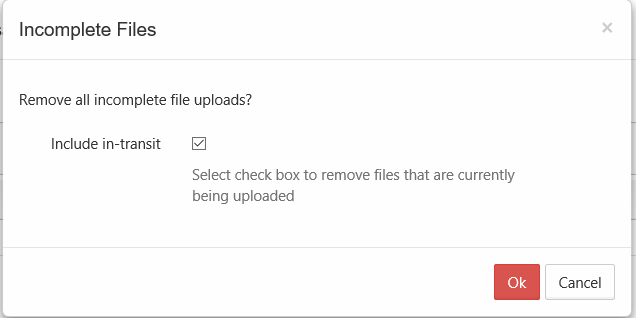
As an administrator, when a user is uploading a file and you want to cancel the upload, if it is only partially completed, you can cancel it using the Remove All Incomplete Uploads button using the Include in-transit option.
-
This is useful if you discover the file is infected and want to stop the upload
-
If the file is too large or contains inappropriate content, you can cancel the upload before it completes
To stop all partial user uploads from completing:
-
Open a browser and log on to the Admin Portal.
-
From the left navigation menu, select Users.
-
On the Manage Users page, select a user, and then click the Edit icon.
-
On the User Detail dialog box, click Manage Files.
The Manage Files for <User> window opens. -
Click the Remove all incomplete uploads icon

-
On the Incomplete Files dialog box, select the Include in-transit checkbox.
-
Click OK.