.svg)
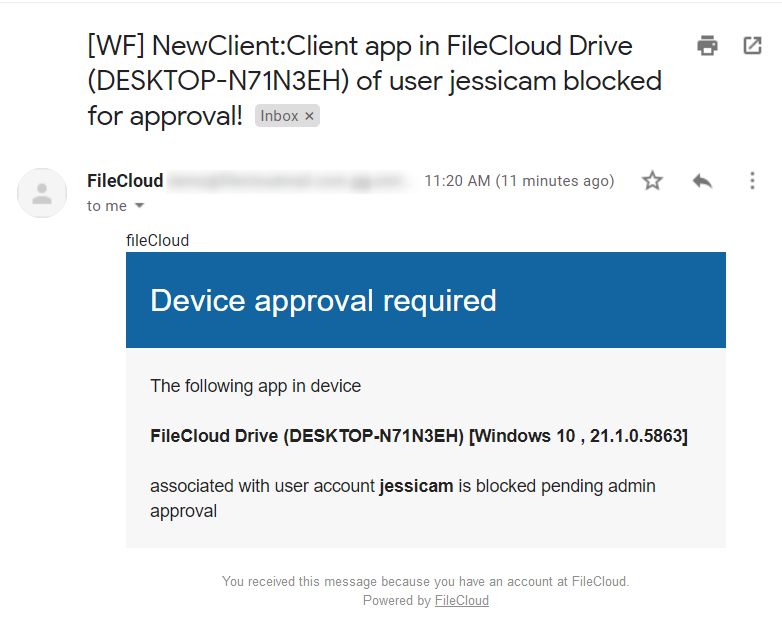
This workflow recipe blocks the connection of a new app or device until it is approved by an administrator.
-
When a new app or device tries to connect to FileCloud, the action is unblocked ONLY after admin approval.
-
In the Admin Portal, you can see the devices in BLOCKED status, awaiting ADMIN approval.
To create a workflow that requires admin approval for all clients:
-
Login to Admin Portal
-
Navigate to Workflow on the left navigation
-
Tap on the Add Workflow button
-
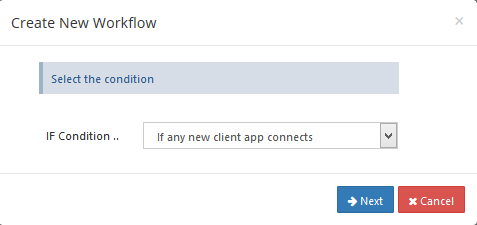
Set the If Condition "If any new client app connects"
-
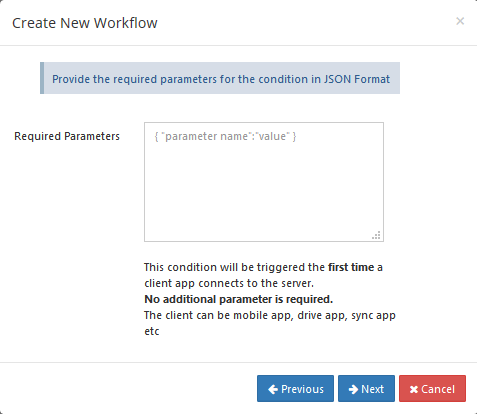
Click Next, no required parameters are to be given as ,the condition triggers for any client app that connects to FileCloud.
-
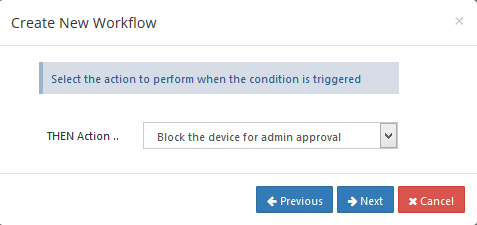
Click Next, to give the THEN action
-
Click on Next, No parameters are required for this action
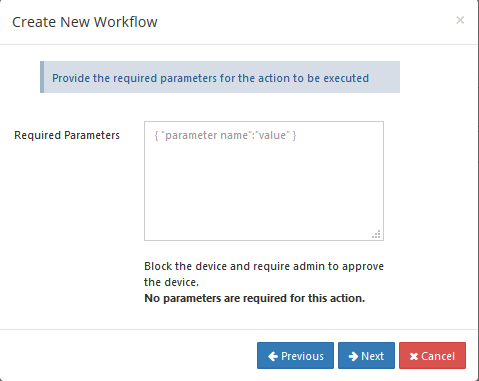
-
Click on Next, to give workflow name
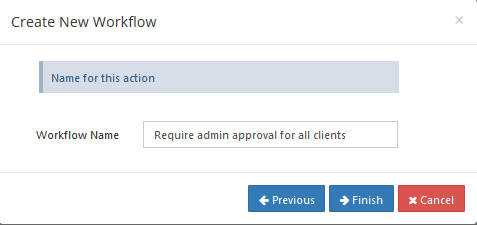
-
In the admin dashboard, the Devices tab will show the status of the devices awaiting Admin approval. The Admin is also sent an email.
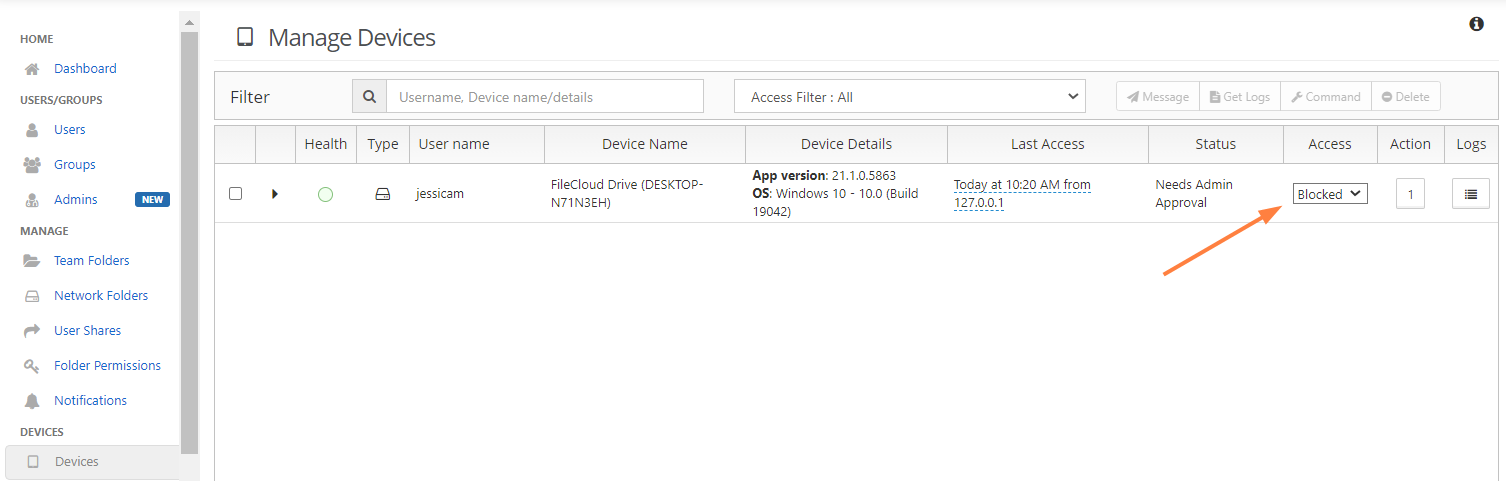
-
An email will be sent to the user trying to connect to FileCloud notifying the user that the device needs to be approved by the admin.