.svg)
How do I access the search window?
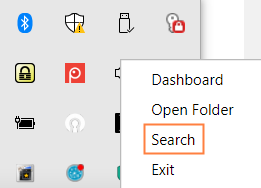
Initiating search from the Drive system tray
The taskbar Search option opens the basic Search
|
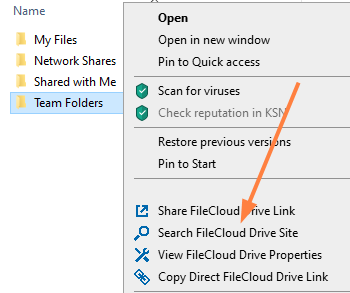
Initiating search from the Drive folder
|
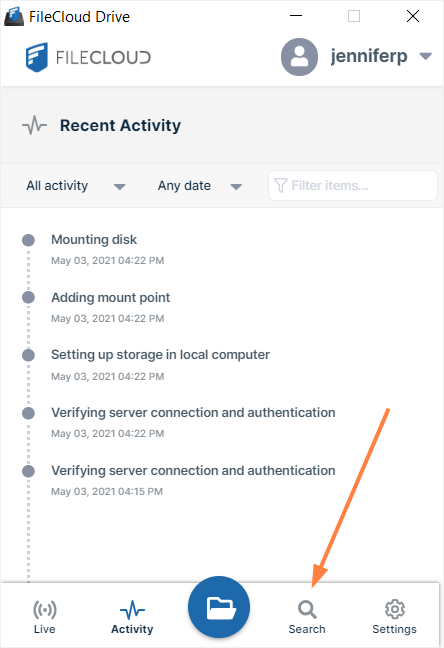
Initiating search from the dashboard
|
Basic and Advanced Search
|
Basic search view |
Advanced search view |
|
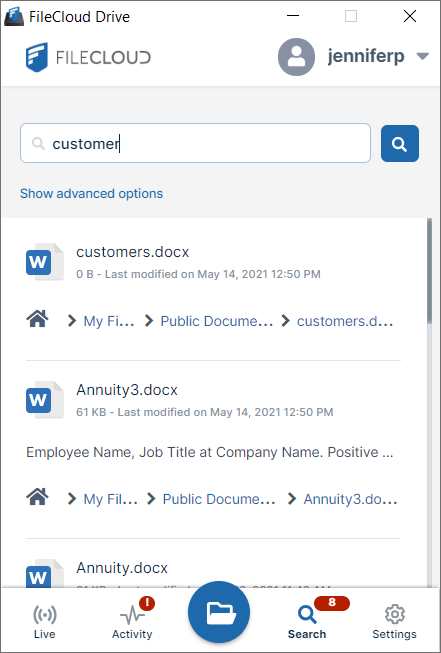
Enter a search term, and click Enter. The files and folders returned are listed in the lower portion of the Search window. By default, file names, content, and metadata are searched. To include folders in the search or to filter the search, click Show advanced options.
|
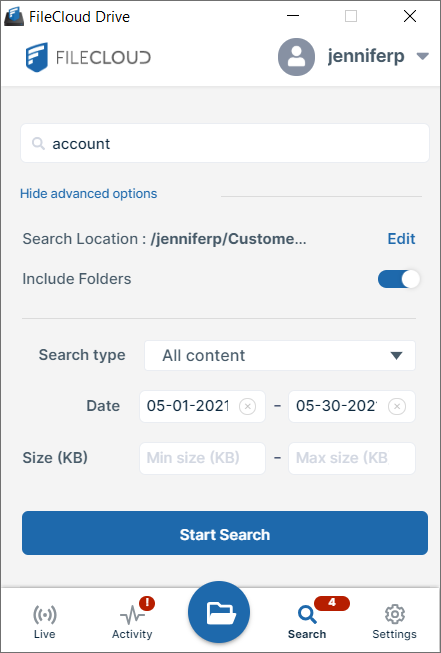
Click Show advanced options in the basic search to view the advanced options fields. Configure any of the advanced options:
Click Start search to begin the search. The results appear in the basic search view. The number of items found appears in the red oval near the Search icon at the bottom of the view.
|
|
|
|---|
Accessing items after searching
After your search results are returned, you can access any location in the item's path in content explorer by clicking on it.
|
Click here: 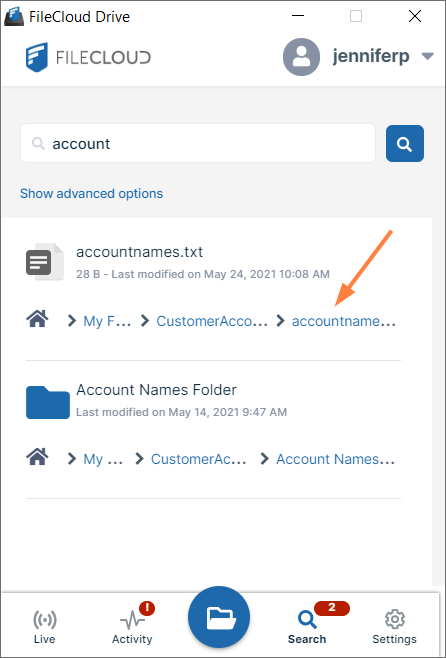
|
To open here: 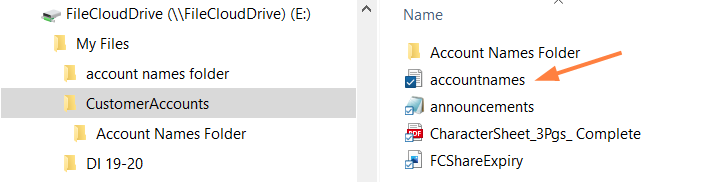
|
Also see: