.svg)
FileCloud version 23.261.2 and above require an OnlyOffice secret key of 256 characters minimum. If you are using OnlyOffice and have a secret key that is less than 256 characters, regenerate it so that it is the required length, and replace the value in the Web edit settings.
For OnlyOffice integration to be effective, the OnlyOffice URL must be accessible over HTTPS with a valid SSL certificate and chain certificate.
FileCloud supports web based document editing using OnlyOffice. The following procedures assume you have already installed OnlyOffice.
Configuring FileCloud with OnlyOffice
-
In the FileCloud admin portal's left navigation bar, scroll down and click Settings. Then, on the Settings navigation page, click web Edit

The Web Edit settings page opens. -
In WOPI Client Type, choose Only Office.
The screen displays OnlyOffice settings.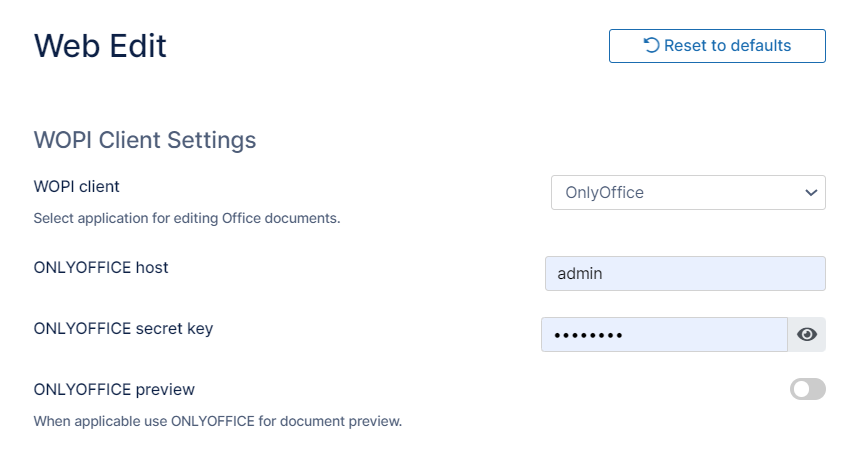
-
Enter the OnlyOffice host and OnlyOffice secret key.
-
To preview as well as edit supported file types in OnlyOffice, check OnlyOffice preview.
-
Click Save.
-
Add the OnlyOffice Server to the Content Security Policy in the .htaccess file.
-
Open the .htacess file:
Windows: C:\xampp\htdocs\.htaccess
Linux: /var/www/html/.htaccess -
Find the line: Header set Content-Security-Policy, and add your url without http or https, for example youronlyoffice.serveraddress.com to the url's listed for script-src and frame-src:

-
Save your changes.
Now users can Web edit with OnlyOffice.
-