.svg)
Permission rules: How permissions interact
-
Whichever is more restrictive, share permissions or folder-level permissions, apply.
-
Inheritance of folder-level permissions is turned on by default for all folders and sub-folders.
-
Subfolders inherit the folder-level permissions of their immediate parent folders.
-
If you manually turn off inheritance for a folder, its subfolders still have inheritance turned on.
-
-
In a share, greatest share permissions given to a user or the user's group apply.
-
In folder-level permissions, user permissions override permissions of a group the user is in.
-
When a user belongs to multiple groups with conflicting permissions, the effective permissions are the enabled permissions from all their groups combined.
To enable users to set folder-level permissions:
First enable folder-level security settings, then enable setting folder-level permissions in the user policy.
1. Enable folder-level permissions in Misc > General settings
To enable folder-level permissions in your system:
-
In the FileCloud admin portal's left navigation bar, scroll down and click Settings. Then, on the Settings navigation page, click Misc

By default, General settings are opened. -
Enable Apply folder-level security.
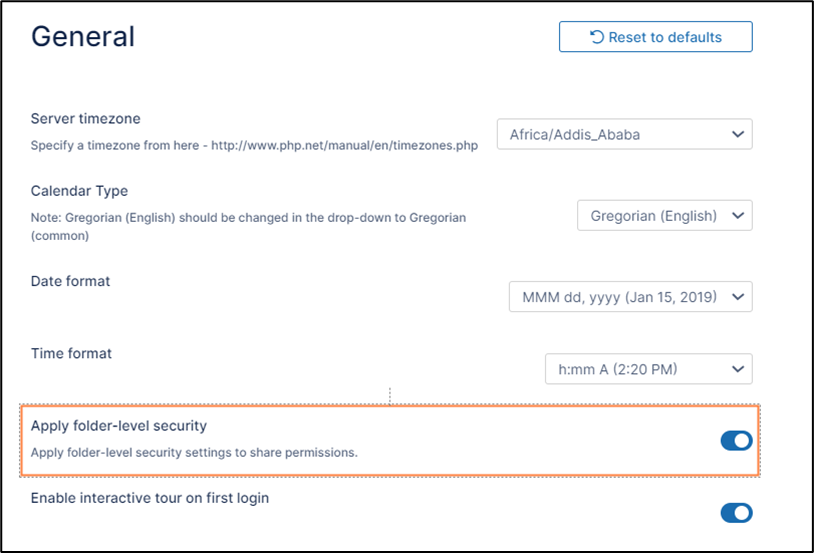
Now, folder-level permissions can be set.
2. Enable users to set folder permissions in their user policies
-
In the FileCloud admin portal's left navigation bar, scroll down and click Settings. Then, on the Settings navigation page, click Policies

The Policies settings page opens. -
Click the Edit icon in the row for the users' policy.
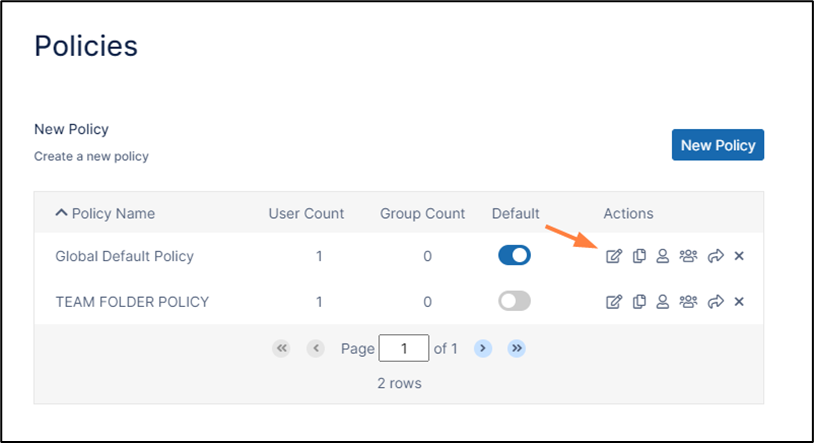
The Policy Settings dialog box opens. -
Click the User Policy tab.
-
Scroll down to the setting Allow Folder Level Security and set it to yes.
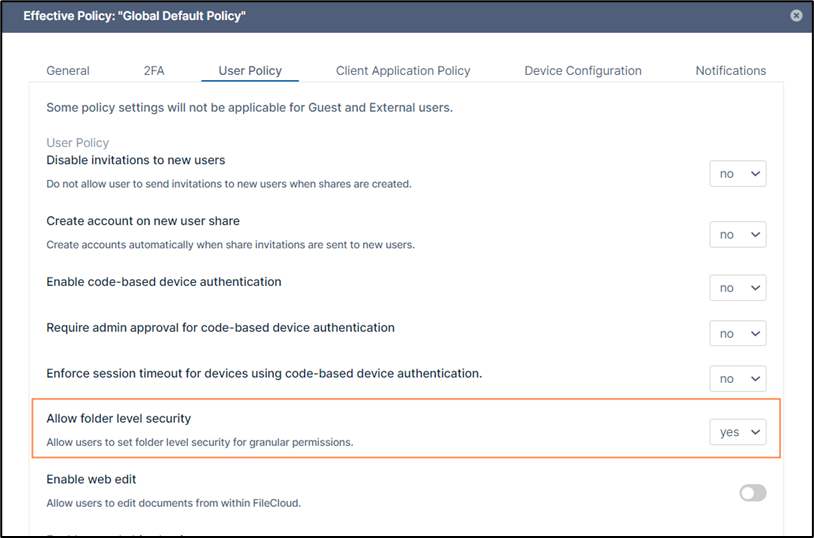
-
Click Save.
How a user sets folder permissions
How a user sets folder permissions
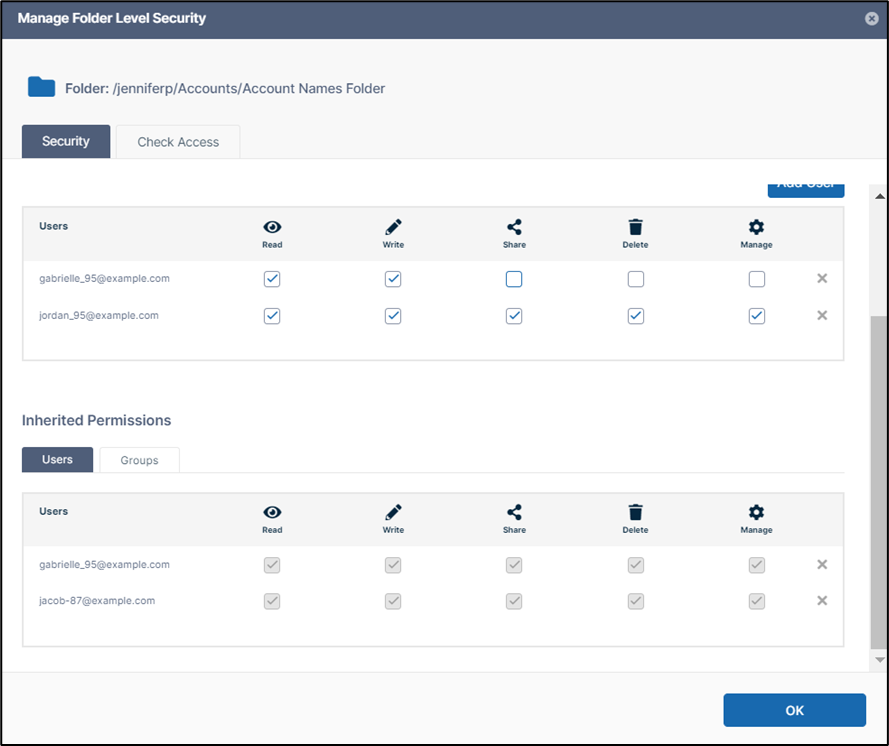
Once a user is permitted to set folder-level permissions, they can select a folder's checkbox and click the Security tab in the right panel. In the Security tab, the user clicks Manage Security to open the Manage Folder Level Security checkbox.
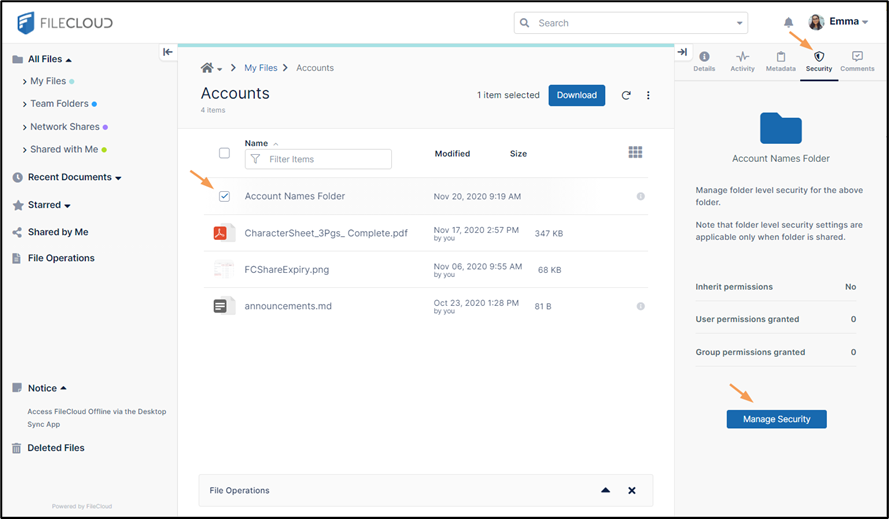
They can then add users and select one or more of the following folder-level permissions:
|
Permission |
Description |
|---|---|
|
Read |
|
|
Write |
|
|
Delete |
|
|
Share |
|
|
Manage |
|
See Set Permissions on Folders in the User Dashboard for more information.