.svg)
You can use file locking to:
-
See if you have the file locked for editing
-
Easily turn locking on and off
-
Prevent or enable downloads of this file
Locking is critical for shared files, since another user can also open the file and make changes.
-
When one user opens a file, DocIQ automatically locks the file for editing.
-
The lock is shown right in the Office application you are using to edit the file.
FAQ's
How do I know the status of a lock?
To see the lock status:
-
In a Microsoft Office application, open a file saved to your Sync folder.
-
In the DocIQ panel, under the file name, location, and date information, you can see the lock status.
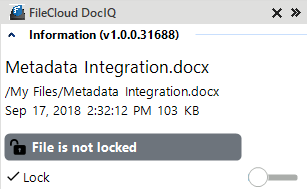
File is not locked when:
|
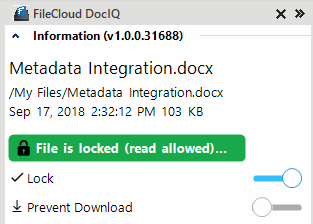
File is locked (read allowed) when:
|
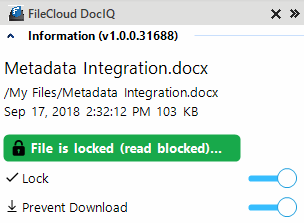
File is locked (read blocked) when:
|
The following table describes what each lock status means and how it impacts what you can do with the file and others you have shared it with.
|
Lock Status |
Access by lock owner |
Access by others |
|---|---|---|
|
File is locked (read allowed) |
Read and Modification allowed |
Only read is allowed, no modification is allowed |
|
File is locked (read blocked) |
Read and Modification allowed |
No Read and Modification is allowed |
|
File is not locked |
Read and Modification allowed |
Read and Modification allowed |
When does the lock status change?
In the following scenario:
-
When a supported file from Sync or Drive is opened
-
When automatic lock on an open file is enabled
DocIQ will automatically attempt to lock the file, with read allowed status.
For a file with a Read Blocked status:
If USER1 has locked (read blocked) the file:
-
FileCloud Sync will not download the file for USER2
However, if USER2 has already downloaded the file, then:
-
FileCloud Sync will allow DocIQ to open the file
-
FileCloud Drive will not allow the file to be opened by USER2, unless Drive has already cached the file
You can use the following table to understand the status of lock:
|
Action |
Doc IQ Lock Enabled |
Prevent Download |
Lock Status Before Open |
Lock Status After Open |
Lock Status After close |
|---|---|---|---|---|---|
|
An unlocked file is opened by USER1 |

|

|
File is not locked |
File is locked (read allowed) by USER1 |
File is not locked |
|
An unlocked file is opened by USER1 |
|
|
File is not locked |
File is not locked |
File is not locked |
|
|
|||||
|
A file locked by USER1 is opened by USER1
|
|
|
File is Locked (Read Allowed) by User 1 |
File is Locked (Read Allowed) by USER1 |
File is not locked |
|
A file locked by USER1 is opened by USER1
|
|
|
File is Locked (Read Allowed) by User 1 |
File is Locked (Read Allowed) by USER1 |
File is not locked |
|
A file locked by USER1 is opened by USER1
|
|
|
File is Locked (Read Blocked) by USER1 |
File is Locked (Read Blocked) by USER1 |
File is not locked |
|
|
|||||
|
A file locked by USER1 is opened by USER2
|
|
|
File is Locked (Read Allowed) by USER1 |
File is Locked (Read Allowed) by USER1 |
File is Locked (Read Allowed) by USER1 |
|
A file locked by USER1 is opened by USER2
|
|
|
File is Locked (Read Allowed) by USER1 |
File is Locked (Read Allowed) by USER1 |
File is Locked (Read Allowed) by USER1 |
|
A file locked by USER1 is opened by USER2
|
|
|
File is Locked (Read Blocked) by USER1 |
File is Locked (Read Blocked) by USER1 |
File is Locked (Read Blocked) by USER1 |
How can I prevent another using from downloading a file I am working on?
When you lock a file, you can block other users from reading the file by enabling Prevent download.
If another user, USER2, attempts to download the file, USER2 will see the following conditions:
-
The file cannot be downloaded from the FileCloud User Portal
-
FileCloud Sync will not download the file that is locked and read-blocked.
-
FileCloud Drive will not open the file that is locked and read-blocked.
-
DocIQ will open the file from a Sync path when file is already available in the Sync client (previously downloaded).
-
DocIQ will open the file from a Drive path when the Drive client allows a file to be opened.