.svg)
Disclaimer
The following script has been created with the purpose of providing you with an example of how to install/mass deploy FileCloud Sync without user interaction and at the same time to automate the FileCloud's mass deployment configuration for the end user.
Requirements
-
The PowerShell script, Bat file or Executable depending on your preference must be ran with elevated admin privileges.
-
In case there is any download restriction created by your Firewall you will need to add https://patch.codelathe.com to your allow list.
-
FileCloud Sync must not be installed, If so proceed on uninstalling it and delete the folder under C:\Users\%username%\AppData\Roaming\FileCloudSyncData\client
-
You will need to update the script to customize and or add any mass deployment configuration needed, the ones provided are used for demonstration purposes. For example to update the URL you will need to modify line 134 to reflect your own URL rather than https://your-filecloud-url.com
What does the Script do?
The script below will accomplish the following actions when executed.
-
Change the Execution Policy on PowerShell to allow the scripts execution without any user intervention.
-
Validate if there is any log file under the name FileCloudSync_SilentInstaller.log within the C drive if so it will delete it and recreate it.
-
Validate if FileCloud Sync is already installed, If so the script will exit.
-
Create a directory under the C drive called FileCloudSync in which it will be used to download the FileCloud installer.
-
Download FileCloudSync.msi directly from FileCloud's server.
-
Validate if the installer has completely download and ensure that the installer was not altered during transit, this is done by validating the installers AES 256 hash. If the hash is not the same the installer will exit.
-
Proceed on silently installing FileCloud Sync without the need of any user input or interaction.
-
Create the registry entry for FileCloud's Mass Deployment configuration
-
Create the needed keys to assign the predefined settings based on FileCloud's Mass Deployment documentation
-
Once completed it will start FileCloud Sync, Delete the folder created, Delete the FileCloud Sync installer and Exit.
FileCloud Sync Installation & Mass Deployment automation - Video
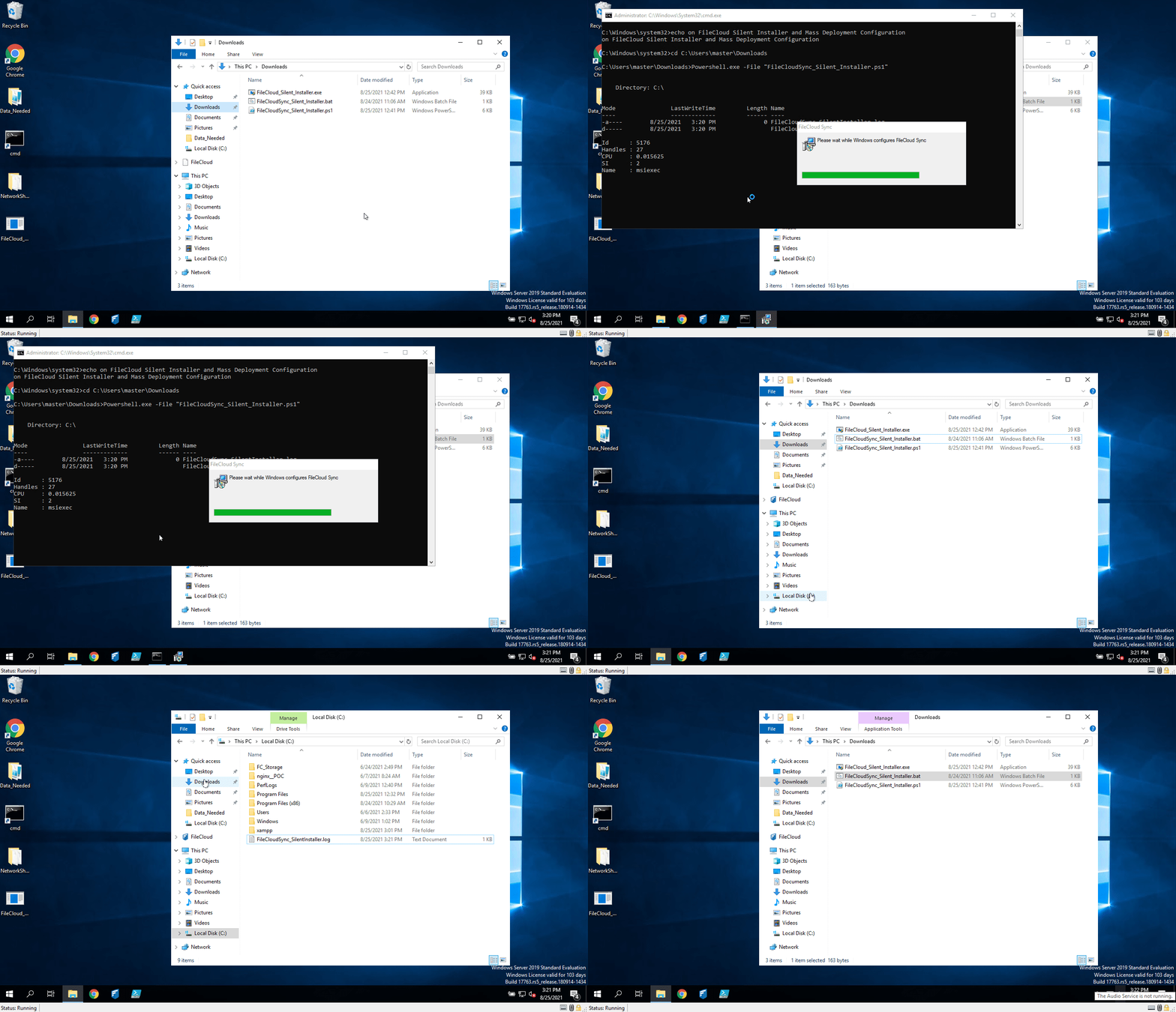
FileCloud Sync Installation & Mass Deployment automation - Script
FileCloud's Sync and Mass Deployment PowerShell script
####Silent FileCloud Sync Installation & Mass Deployment Configuration####

##Allows the script to be executed without user consent##
set-ExecutionPolicy RemoteSigned -Force


### Sets the absolute path for the log file##
$Logfile = 'C:\FileCloudSync_SilentInstaller.log'


##Validates if the log file already exists if so it deletes it and creates a new log file##
if (Test-Path -Path "C:\FileCloudSync_SilentInstaller.log") {
    Remove-Item 'C:\FileCloudSync_SilentInstaller.log' -Recurse
    New-Item -Path "c:\" -Name "FileCloudSync_SilentInstaller.log" -ItemType "file"
    "#########Created log file and started loggin#########" | Out-File $Logfile -Append
    "Set-Execution Policy Successful" | Out-File $Logfile -Append
}
else {
    New-Item -Path "c:\" -Name "FileCloudSync_SilentInstaller.log" -ItemType "file"
    "#########Created log file and started loggin#########" | Out-File $Logfile -Append
    "Set-Execution Policy Successful" | Out-File $Logfile -Append
}


##Check if FileCloud Sync is already installed if its installed cancel the installation else continue##
if (Test-Path -Path "C:\Users\$env:USERNAME\AppData\Roaming\FileCloudSyncData\client") {
    "FileCloud Sync is already installed, Unable to proceed with the installation" | Out-File $Logfile -Append
    clear
    Write-Warning "FileCloud Sync is already installed, Please uninstall FileCloud Sync in order to proceed"
    $Input = Read-Host -Prompt "Press any key to Exit"
    Exit
}
Else {


    ##Create the directory where FileCloud Sync will be downloaded##
    Try {
        if (Test-Path -Path "C:\FileCloudSync") {
            Remove-Item 'C:\FileCloudSync' -Recurse
            "Folder already exists, Deleted Folder under C:\FileCloudSync " | Out-File $Logfile -Append
            New-Item -Path "c:\" -Name "FileCloudSync" -ItemType "directory" -ErrorAction Stop
            "Created folder under C:\FileCloudSync " | Out-File $Logfile -Append

        }
        else {
            New-Item -Path "c:\" -Name "FileCloudSync" -ItemType "directory" -ErrorAction Stop
        }
    }
    Catch {
        $message = $_
        "ERROR $_ " | Out-File $Logfile -Append
    }


    ##Downloads the FileCloud Sync Installer into the directory created###
    Try {
        "Downloading FileCloud Sync.msi installer" | Out-File $Logfile -Append
        $url1 = "https://patch.codelathe.com/tonido/live/installer/x86-win32/FileCloudSync2.msi"
        $output1 = "C:\FileCloudSync\FileCloudSync2.msi"
        $start_time = Get-Date
        Import-Module BitsTransfer
        Start-BitsTransfer -Source $url1 -Destination $output1
    }
    Catch {
        $message = $_
        "ERROR $_ " | Out-File $Logfile -Append
    }


    ##Validates if FileCloud has downloaded completely based on the file hash##

    $hashSrc = "9B0F053DF45605E1CA819396D66B046310FE386BCF1B00A3F1B3B685B6FF29CA"
    $fileToCheck = "C:\FileCloudSync\FileCloudSync2.msi"
    $hashDest = Get-FileHash $fileToCheck -Algorithm "SHA256"

    Try {
        if ($hashSrc.Hash -ne $hashDest.Hash) {
            "FileCloud Sync Installer downloaded successfully" | Out-File $Logfile -Append
        }
        else {
            "FileCloud Sync Installer was NOT downloaded or it has not been download completely" | Out-File $Logfile -Append
            Exit
        }
    }
    Catch {
        $message = $_
        "ERROR $_ " | Out-File $Logfile -Append
    }


    ##Installs FileCloud Sync silently without needing any end-user interaction##
    Try {
        Start-Process -Wait -FilePath "C:\FileCloudSync\FileCloudSync2.msi" -ArgumentList '/quiet', '/passive', '/n' -passthru -ErrorAction Stop
        "FileCloud Installation Started" | Out-File $Logfile -Append
    }
    Catch {
        $message = $_
        "ERROR $_ " | Out-File $Logfile -Append
    }


    ##Adds the needed registry keys to configure Mass Deployment##
    cd HKLM:\

    Try {
        set-location -path HKLM:\SOFTWARE\ -ErrorAction Stop
    }
    Catch {
        $message = $_
        "ERROR $_ " | Out-File $Logfile -Append
    }


    # Create the path within the registry
    Try {
        Get-Item -Path 'HKLM:\SOFTWARE\' | New-Item -Name 'CodeLathe\FileCloud\DefaultCfg\' -Force -ErrorAction Stop
        "Creating registry entry" | Out-File $Logfile -Append
    }
    Catch {
        $message = $_
        "ERROR $_ " | Out-File $Logfile -Append
    }

    # Create the needed keys to assign the predefined settings
    Try {
        New-ItemProperty -Path 'HKLM:\SOFTWARE\CodeLathe\FileCloud\DefaultCfg' -Name 'url' -Value "https://your-filecloud-url.com" -PropertyType String -Force
        New-ItemProperty -Path 'HKLM:\SOFTWARE\CodeLathe\FileCloud\DefaultCfg' -Name 'allowcentralmgmt' -Value "1" -PropertyType String -Force
        "Creating predefined parameters" | Out-File $Logfile -Append
    }
    Catch {
        $message = $_
        "ERROR $_ " | Out-File $Logfile -Append
    }


    # Exits the registry
    Pop-Location

    #Start FileCloud Sync#
    Try {
        Start-Process -FilePath "C:\Program Files\FileCloud Sync\cloudsync.exe"
        "Starting FileCloud Sync" | Out-File $Logfile -Append
    }
    Catch {
        $message = $_
        "ERROR $_ " | Out-File $Logfile -Append
    }


    ##CleanUp- Deletes the folder created and the installer within#
    Try {
        Remove-Item 'C:\FileCloudSync' -Recurse
        "Deleting FileCloudSync download folder under C:\FileCloudSync " | Out-File $Logfile -Append
    }
    Catch {
        $message = $_
        "ERROR $_ " | Out-File $Logfile -Append
    }

    ##Installation Completed - Closes PowerShell##
    "Installation Completed" | Out-File $Logfile -Append

    stop-process -Id $PID
    exit
}
FileCloud Drive Installation & Mass Deployment automation - Video
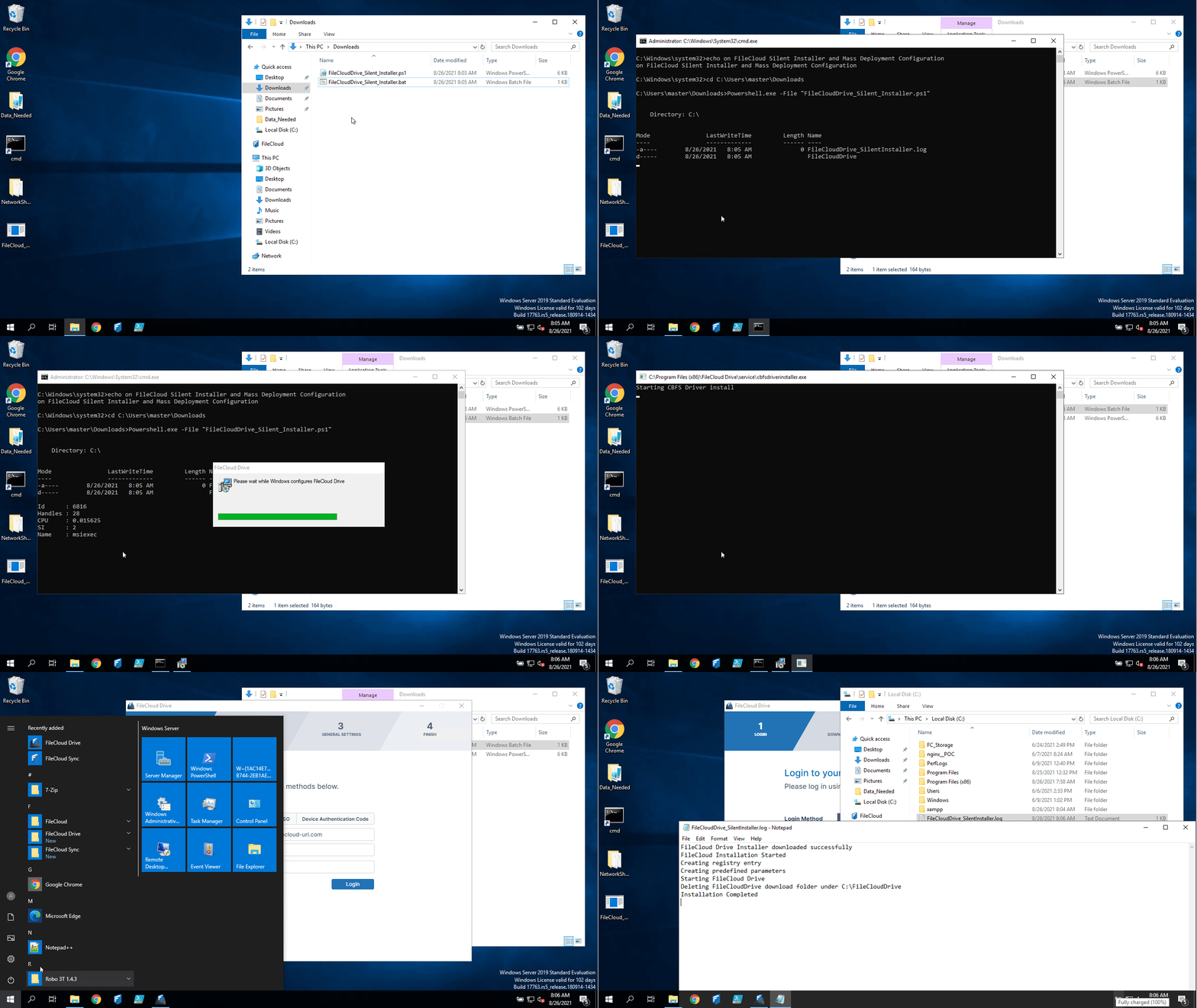
FileCloud Drive Installation & Mass Deployment automation - Script
FileCloud Drive Installation & Mass Deployment automation
####Silent FileCloud Drive Installation & Mass Deployment Configuration####

##Allows the script to be executed without user consent##
set-ExecutionPolicy RemoteSigned -Force


### Sets the absolute path for the log file##
$Logfile = 'C:\FileCloudDrive_SilentInstaller.log'


##Validates if the log file already exists if so it deletes it and creates a new log file##
if (Test-Path -Path "C:\FileCloudDrive_SilentInstaller.log") {
    Remove-Item 'C:\FileCloudDrive_SilentInstaller.log' -Recurse
    New-Item -Path "c:\" -Name "FileCloudDrive_SilentInstaller.log" -ItemType "file"
    "#########Created log file and started loggin#########" | Out-File $Logfile -Append
    "Set-Execution Policy Successful" | Out-File $Logfile -Append
}
else {
    New-Item -Path "c:\" -Name "FileCloudDrive_SilentInstaller.log" -ItemType "file"
    "#########Created log file and started loggin#########" | Out-File $Logfile -Append
    "Set-Execution Policy Successful" | Out-File $Logfile -Append
}


##Check if FileCloud Drive is already installed if its installed cancel the installation else continue##
if (Test-Path -Path "C:\Users\$env:USERNAME\AppData\Roaming\FileCloudDriveData\client") {
    "FileCloud Drive is already installed, Unable to proceed with the installation" | Out-File $Logfile -Append
    clear
    Write-Warning "FileCloud Drive is already installed, Please uninstall FileCloud Drive in order to proceed"
    $Input = Read-Host -Prompt "Press any key to Exit"
    Exit
}
Else {


    ##Create the directory where FileCloud Drive will be downloaded##
    Try {
        if (Test-Path -Path "C:\FileCloudDrive") {
            Remove-Item 'C:\FileCloudDrive' -Recurse
            "Folder already exists, Deleted Folder under C:\FileCloudDrive " | Out-File $Logfile -Append
            New-Item -Path "c:\" -Name "FileCloudDrive" -ItemType "directory" -ErrorAction Stop
            "Created folder under C:\FileCloudDrive " | Out-File $Logfile -Append

        }
        else {
            New-Item -Path "c:\" -Name "FileCloudDrive" -ItemType "directory" -ErrorAction Stop
        }
    }
    Catch {
        $message = $_
        "ERROR $_ " | Out-File $Logfile -Append
    }


    ##Downloads the FileCloud Drive Installer into the directory created###
    Try {
        "Downloading FileCloud Drive.msi installer" | Out-File $Logfile -Append
        $url1 = "https://patch.codelathe.com/tonido/live/installer/x86-win32/FileCloudDrive2eSetup.msi"
        $output1 = "C:\FileCloudDrive\FileCloudDrive2eSetup.msi"
        $start_time = Get-Date
        Import-Module BitsTransfer
        Start-BitsTransfer -Source $url1 -Destination $output1
    }
    Catch {
        $message = $_
        "ERROR $_ " | Out-File $Logfile -Append
    }


    ##Validates if FileCloud has downloaded completely based on the file hash##

    $hashSrc = "1FCD2F88DD7615E68A2AD935AECCE4D04DD61ED769E52008002B1F7CA3CB7A17"
    $fileToCheck = "C:\FileCloudDrive\FileCloudDrive2eSetup.msi"
    $hashDest = Get-FileHash $fileToCheck -Algorithm "SHA256"

    Try {
        if ($hashSrc.Hash -ne $hashDest.Hash) {
            "FileCloud Drive Installer downloaded successfully" | Out-File $Logfile -Append
        }
        else {
            "FileCloud Drive Installer was NOT downloaded or it has not been download completely" | Out-File $Logfile -Append
            Exit
        }
    }
    Catch {
        $message = $_
        "ERROR $_ " | Out-File $Logfile -Append
    }


    ##Installs FileCloud Drive silently without needing any end-user interaction##
    Try {
        Start-Process -Wait -FilePath "C:\FileCloudDrive\FileCloudDrive2eSetup.msi" -ArgumentList '/quiet', '/passive', '/n' -passthru -ErrorAction Stop
        "FileCloud Installation Started" | Out-File $Logfile -Append
    }
    Catch {
        $message = $_
        "ERROR $_ " | Out-File $Logfile -Append
    }


    ##Adds the needed registry keys to configure Mass Deployment##
    cd HKLM:\

    Try {
        set-location -path HKLM:\SOFTWARE\ -ErrorAction Stop
    }
    Catch {
        $message = $_
        "ERROR $_ " | Out-File $Logfile -Append
    }


    # Create the path within the registry
    Try {
        Get-Item -Path 'HKLM:\SOFTWARE\' | New-Item -Name 'CodeLathe\FileCloud\DefaultCfg\' -Force -ErrorAction Stop
        "Creating registry entry" | Out-File $Logfile -Append
    }
    Catch {
        $message = $_
        "ERROR $_ " | Out-File $Logfile -Append
    }

    # Create the needed keys to assign the predefined settings
    Try {
        New-ItemProperty -Path 'HKLM:\SOFTWARE\CodeLathe\FileCloud\DefaultCfg' -Name 'url' -Value "https://your-filecloud-url.com" -PropertyType String -Force
        New-ItemProperty -Path 'HKLM:\SOFTWARE\CodeLathe\FileCloud\DefaultCfg' -Name 'allowcentralmgmt' -Value "1" -PropertyType String -Force
        "Creating predefined parameters" | Out-File $Logfile -Append
    }
    Catch {
        $message = $_
        "ERROR $_ " | Out-File $Logfile -Append
    }


    # Exits the registry
    Pop-Location

    #Start FileCloud Drive#
    Try {
        Start-Process -FilePath "C:\Program Files\FileCloud Drive\clouddrive.exe"
        "Starting FileCloud Drive" | Out-File $Logfile -Append
    }
    Catch {
        $message = $_
        "ERROR $_ " | Out-File $Logfile -Append
    }


    ##CleanUp- Deletes the folder created and the installer within#
    Try {
        Remove-Item 'C:\FileCloudDrive' -Recurse
        "Deleting FileCloudDrive download folder under C:\FileCloudDrive " | Out-File $Logfile -Append
    }
    Catch {
        $message = $_
        "ERROR $_ " | Out-File $Logfile -Append
    }

    ##Installation Completed - Closes PowerShell##
    "Installation Completed" | Out-File $Logfile -Append

    stop-process -Id $PID
    exit
}
FileCloud Outlook Addin Installation & Mass Deployment automation - Script
FileCloud Outlook Addin
####Silent FileCloud OutLook_Plugin Installation & Mass Deployment Configuration####

##Allows the script to be executed without user consent##
set-ExecutionPolicy RemoteSigned -Force


### Sets the absolute path for the log file##
$Logfile = 'C:\FileCloudOutlookplugin_SilentInstaller.log'


##Validates if the log file already exists if so it deletes it and creates a new log file##
if (Test-Path -Path "C:\FileCloudOutLook_Plugin_SilentInstaller.log") {
    Remove-Item 'C:\FileCloudOutLook_Plugin_SilentInstaller.log' -Recurse
    New-Item -Path "c:\" -Name "FileCloudOutLook_Plugin_SilentInstaller.log" -ItemType "file"
    "#########Created log file and started loggin#########" | Out-File $Logfile -Append
    "Set-Execution Policy Successful" | Out-File $Logfile -Append
}
else {
    New-Item -Path "c:\" -Name "FileCloudOutLook_Plugin_SilentInstaller.log" -ItemType "file"
    "#########Created log file and started loggin#########" | Out-File $Logfile -Append
    "Set-Execution Policy Successful" | Out-File $Logfile -Append
}


##Check if FileCloud OutLook_Plugin is already installed if its installed cancel the installation else continue##
if (Test-Path -Path "C:\Users\$env:USERNAME\AppData\Roaming\FileCloudOutlookAddIn") {
    "FileCloud OutLook_Addin is already installed, Unable to proceed with the installation" | Out-File $Logfile -Append
    clear
    Write-Warning "FileCloud OutLook_Plugin is already installed, Please uninstall FileCloud OutLook_Plugin in order to proceed"
    $Input = Read-Host -Prompt "Press any key to Exit"
    Exit
}
Else {


    ##Create the directory where FileCloud OutLook_Plugin will be downloaded##
    Try {
        if (Test-Path -Path "C:\FileCloudOutLook_Plugin") {
            Remove-Item 'C:\FileCloudOutLook_Plugin' -Recurse
            "Folder already exists, Deleted Folder under C:\FileCloudOutLook_Plugin " | Out-File $Logfile -Append
            New-Item -Path "c:\" -Name "FileCloudOutLook_Plugin" -ItemType "directory" -ErrorAction Stop
            "Created folder under C:\FileCloudOutLook_Plugin " | Out-File $Logfile -Append

        }
        else {
            New-Item -Path "c:\" -Name "FileCloudOutLook_Plugin" -ItemType "directory" -ErrorAction Stop
        }
    }
    Catch {
        $message = $_
        "ERROR $_ " | Out-File $Logfile -Append
    }


    ##Downloads the FileCloud OutLook_Plugin Installer into the directory created###
    Try {
        "Downloading FileCloud OutLook_Addin.exe installer" | Out-File $Logfile -Append
        $url1 = "https://patch.codelathe.com/tonidocloud/live/installer/FileCloudOutlookAddIn.exe"
        $output1 = "C:\FileCloudOutLook_Plugin\FileCloudOutLookAddin.exe"
        $start_time = Get-Date
        Import-Module BitsTransfer
        Start-BitsTransfer -Source $url1 -Destination $output1
    }
    Catch {
        $message = $_
        "ERROR $_ " | Out-File $Logfile -Append
    }


    ##Validates if FileCloud has downloaded completely based on the file hash##

    $hashSrc = "0789F44D02453BEF3A7E9B533325CD90584BF37C5FC0F8F09611A5B7D417F505"
    $fileToCheck = "C:\FileCloudOutLook_Plugin\FileCloudOutLookAddin.exe"
    $hashDest = Get-FileHash $fileToCheck -Algorithm "SHA256"

    Try {
        if ($hashSrc.Hash -ne $hashDest.Hash) {
            "FileCloud OutLook_Plugin Installer downloaded successfully" | Out-File $Logfile -Append
        }
        else {
            "FileCloud OutLook_Plugin Installer was NOT downloaded or it has not been download completely" | Out-File $Logfile -Append
            Exit
        }
    }
    Catch {
        $message = $_
        "ERROR $_ " | Out-File $Logfile -Append
    }


    ##check if outlook is running if so kills it before proceeding.

    Try {
        $app = 'OUTLOOK'

        $process = Get-Process $app -ErrorAction SilentlyContinue
        if ($process) {
            Stop-Process $process -Force
            Write-Output "$app has been stopped."
        }
        else {
            Write-Output "$app is not running."
        }
    }
    Catch {
        $message = $_
        "ERROR $_ " | Out-File $Logfile -Append
    }


    ##Installs FileCloud OutLook_Plugin silently without needing any end-user interaction##
    Try {
        Start-Process -Wait -FilePath "C:\FileCloudOutLook_Plugin\FileCloudOutlookAddIn.exe" -ArgumentList '/VERYSILENT', '/SUPPRESSMSGBOXES' -passthru -ErrorAction Stop
        "FileCloud Installation Started" | Out-File $Logfile -Append
    }
    Catch {
        $message = $_
        "ERROR $_ " | Out-File $Logfile -Append
    }

    ##Adds the needed registry keys to configure Mass Deployment##
    cd HKLM:\

    Try {
        set-location -path HKLM:\SOFTWARE\ -ErrorAction Stop
    }
    Catch {
        $message = $_
        "ERROR $_ " | Out-File $Logfile -Append
    }


    # Create the path within the registry
    Try {
        Get-Item -Path 'HKLM:\SOFTWARE\' | New-Item -Name 'CodeLathe\FileCloud\DefaultCfg\' -Force -ErrorAction Stop
        "Creating registry entry" | Out-File $Logfile -Append
    }
    Catch {
        $message = $_
        "ERROR $_ " | Out-File $Logfile -Append
    }

    # Create the needed keys to assign the predefined settings
    Try {
        New-ItemProperty -Path 'HKLM:\SOFTWARE\CodeLathe\FileCloud\DefaultCfg' -Name 'url' -Value "https://your-filecloud-url.com" -PropertyType String -Force
        New-ItemProperty -Path 'HKLM:\SOFTWARE\CodeLathe\FileCloud\DefaultCfg' -Name 'allowcentralmgmt' -Value "1" -PropertyType String -Force
        "Creating predefined parameters" | Out-File $Logfile -Append
    }
    Catch {
        $message = $_
        "ERROR $_ " | Out-File $Logfile -Append
    }


    # Exits the registry
    Pop-Location

    ##CleanUp- Deletes the folder created and the installer within#
    Try {
        Remove-Item 'C:\FileCloudOutLook_Plugin' -Recurse
        "Deleting FileCloudOutLook_Plugin download folder under C:\FileCloudOutLook_Plugin " | Out-File $Logfile -Append
    }
    Catch {
        $message = $_
        "ERROR $_ " | Out-File $Logfile -Append
    }

    ##Installation Completed - Closes PowerShell##
    "Installation Completed" | Out-File $Logfile -Append

    stop-process -Id $PID
    exit
}
Creating a .bat file to execute the script
Once created your PowerShell script based on the example above you can automate its execution by creating a .bat file, for details view the example below.
-
Using a notepad or a text editor create a new file with the following content
C++echo on FileCloud Silent Installer and Mass Deployment Configuration cd C:\Users\%username%\Downloads Powershell.exe -File "FileCloudSync_Silent_Installer.ps1" -
Once done save the file as a .bat
-
Before executing it you will need to have both, the .bat file and the .ps1 file on the same location as per this example it should be under Downloads.
-
Right-click run as administrator.
Converting the PowerShell script to an executable
Once created your PowerShell script based on the example above you can automate its execution by creating an executable file, for details view the example below.
-
Run PowerShell as an administrator and run the following to install and import the ps2exe module
PowerShellInstall-Module ps2exe -
Once the above is completed enter "Y" to install the Module

-
Once the module has been installed you can convert the .ps1 to .exe by running the following command
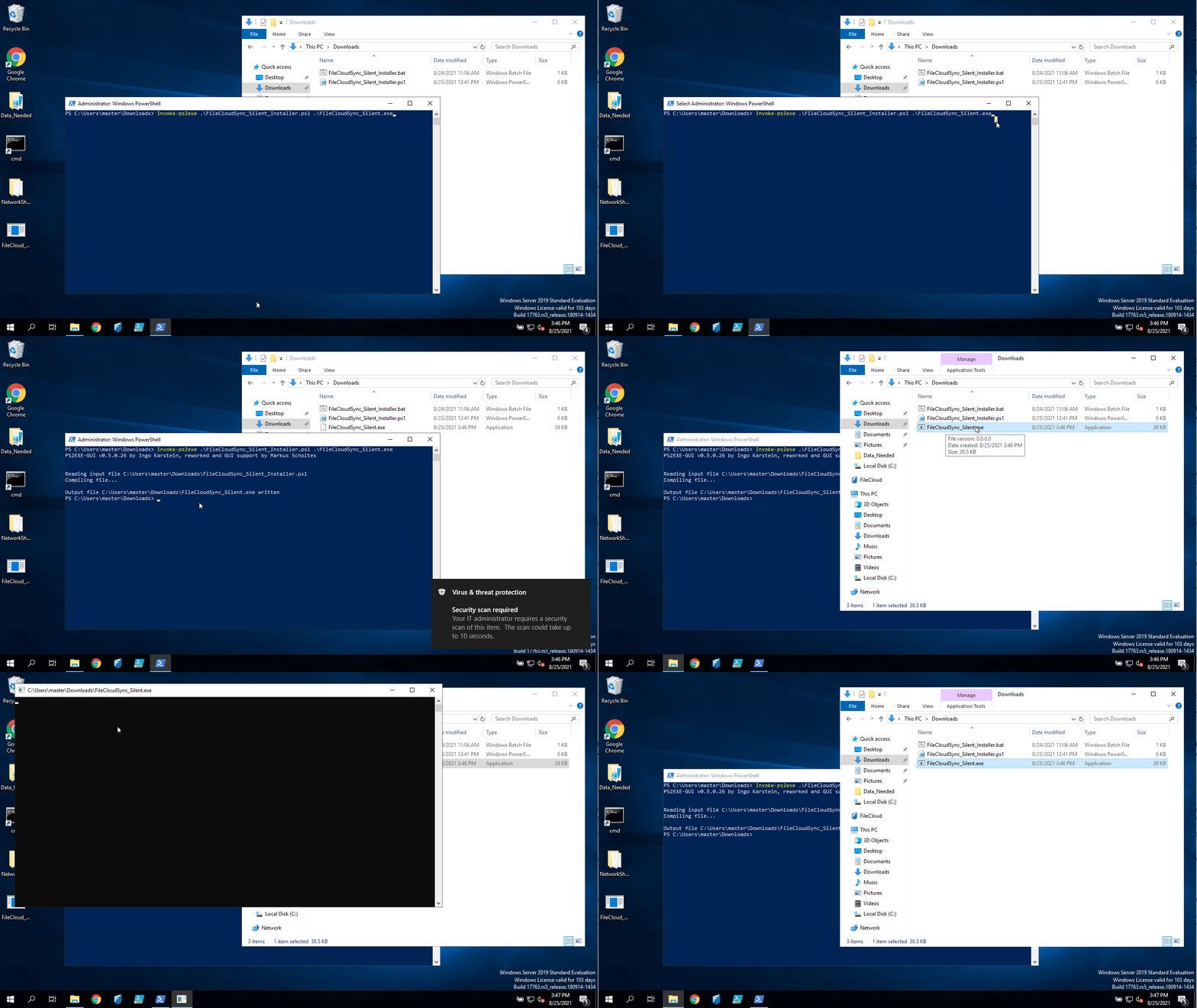
PowerShellInvoke-ps2exe .\NAME-OF-YOUR-SCRIPT.ps1 .\FileCloud_Silent_Installer_and_Mass_Deployment.exe -
Your end result should be a executable for details, review the following: