.svg)

Do you have an error code?

Large ZIP Files Do Not Open in LINUX
Problem
Folders downloaded as ZIP (> 4GB) do not open properly in LINUX. When a folder or multiple files are downloaded from web UI, they will be downloaded as a zip archive. If the total size of the zip files is greater than 4 GB, then the zip will be malformed.
Cause
This is a known issue with PHP.
Resolution
To support ZIP files larger than 4 GB:
1. Open the configuration file:
WWWROOT/config/cloudconfig.php
2. Add the following line:
define("TONIDOCLOUD_ZIP_IMPL", "ZIP64" );
This workaround only resolves the issue on Linux. Switching to this ZIP implementation on Windows does not allow support of zip archives larger than 4 GB.
File Path is Too Long
Problem
This issue applies only to:
-
Existing network folders which are mapped through FileCloud and not managed storage
-
FileCloud running on a Windows Server
When you are opening a file or uploading a file to your FileCloud folder, you might get an error that the file path is too long or you may be unable to upload the file.
For example:
-
If you try to open the file directly from a folder (FileCloud Sync folder or FileCloud Drive folder) using Acrobat reader or another application, you will see an error message telling you that path is too long.
-
You cannot copy or drag and drop a file to the path (FileCloud Sync folder or FileCloud Drive folder) if the file path exceeds 255 characters. You may still be able to upload the file directly using the FileCloud user portal and it is syncing properly.
-
You may still be able to upload the file directly using the FileCloud user portal. This will also sync the file properly.
Sample Error Message:
|
|
|---|
 The file path is too long. Please specify a shorter file name or save to a location that has a shorter path.
Cause
There is a known limitation in Windows that path lengths cannot exceed 255 characters.
For more information, read the Microsoft Windows documentation on:
Naming Files, Paths, and Namespaces
Resolution
To fix this problem use the prefix \\?\ in front of your Network Folder path. Using this prefix enables you to use paths of up to 1024 characters.
With the prefix, the path is formatted as:
\\?\C:\[Network Folder name]
Note: FileCloud Drive and FileCloud Sync can handle paths of up to 32,000 characters in Windows. However, in some cases, this may be limited by the application or the server.
Issues with File System Objects and Unicode
Problem
The multiple ways Unicode uses to represent a visually indistinguishable glyph using different but equivalent representations can cause many sorts of unexpected behaviors.
These behaviors are normally seen in the following situations:
-
Working on files between Windows and Mac
-
Files that have unicode strings
For example, if a given file in FileCloud is stored in NFC form and edited and re-uploaded from Mac OSX, that file gets uploaded as NFD, leading to two visually indistinguishable files being stored by FileCloud in a single folder.
Cause
There are some special considerations when working with Unicode strings. Unicode can have multiple ways to represent a visually indistinguishable glyph using different but equivalent representation for example there are many different Unicode forms (NFC, NFD, NFKD, NFKC) to represent Unicode strings.
Refer to Wikipedia for more detailed information.
This can cause non-trivial and complex issues when working with File System Objects (like files and folders) in FileCloud across filesystems.
|
Operating System |
Standard Normalization |
Details |
|---|---|---|
|
Windows |
NFC [1] but others work |
Windows can work with all 4 forms Unicode normalization and therefore can have four different versions of same visually similar file name â?.txt in a single folder |
|
Mac OSX |
NFD (closest form) |
Mac OSX represents all files/folders in NFD form. Only a single file can exist with a given unicode string (irrespective of normalization) |
Resolution
-
FileCloud uses NFC as the preferred format to store file names and folder names, however, there will never be a case where there will be 100% NFC format used for all files. The reason is that many different clients can behave differently when they upload data into FileCloud. For example: Some third party clients can still push NFD normalized strings.
-
FileCloud disallows creation of two filenames or folders with visually indistinguishable glyphs in the same path or location
Normalization Handling
|
Client |
Normalization Form |
Automatic Conversion |
Notes |
|---|---|---|---|
|
Web Browser |
Uploads any Form |
File names and Folder Names automatically converted to NFC.
|
|
|
Sync App |
Uploads only NFC format. |
None |
On Windows, non-NFC files from server are downloaded but ignored. New non-NFC format files are ignored and are not synced.
|
|
Drive App |
Uploads any Form |
None |
|
|
iOS Image Uploads |
Uploads NFD Form |
None |
|
|
iOS Sync |
Uploads only NFC format |
None |
|
|
Android |
Uploads any Form |
None |
|
|
Outlook & Office Add-On (from 12.0) |
Uploads only NFC format |
None |
|
Configuring Options to Control Normalization Form Handling Behavior
Any kind of Normalization behavior on the server requires the php_intl extension to be installed and active on your server.
To control whether any automatic conversion to NFC is done or not:
-
Navigate to the WWWROOT\config folder.
-
Open the cloudconflig.php file.
-
Add the following line:
define("TONIDO_DISABLE_UTF8NORMALIZATION", 1);
4. Save the changes.
5. Restart the server.
Converting Existing Files or Folder Names to NFC
You can obtain a script from Technical support called:
-
normalization.php
This script can convert existing files or folder names to NFC normalization form.
To run the conversion script:
-
Save the script file normalization.php in the following folder:
WWWROOT/resources/backup folder
2. To use the PATH variable, which refers to FileCloud paths, look for a line similar to /USERNAME. This is the place where all files and folders are used for a specific username. (e.g. /john)
To check a specific path
c:\xampp\php\php.exe normalization.php -p PATH

To fix the issues in a specific path
c:\xampp\php\php.exe normalization.php -p PATH -f 1

An optional hostname can be provided for multi-tenant solutions
c:\xampp\php\php.exe normalization.php -p PATH -h HOSTNAME
File Upload Failure (Storage Error)
Problem
Sometimes, Upload fails with message "Storage Error"

Cause
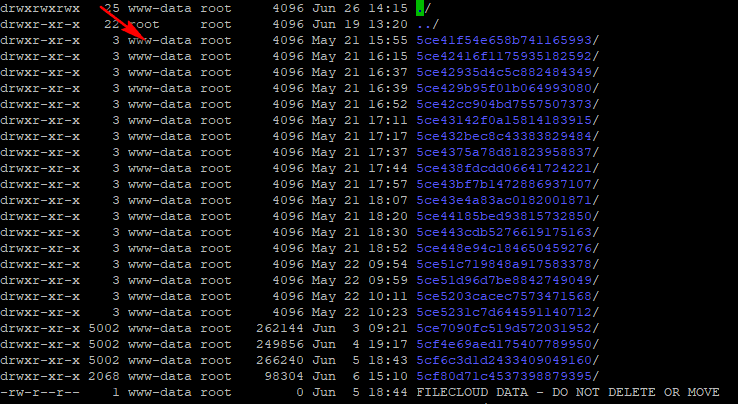
This is caused because the Storage path that is set in the admin portal doesn't have Web (www-data) Permissions
Resolution
Change the permission of the Storage Path (eg. . /opt/fileclouddata)
Use the following command to change the permission of the storage path
chown -R www-data directory/filename