.svg)
While you are working in the FileCloud Android app, you can use your phone to scan a document and add it to FileCloud as a .pdf or .jpg file.
-
Go to My Files or navigate to a My Files sub-folder.
-
Tap

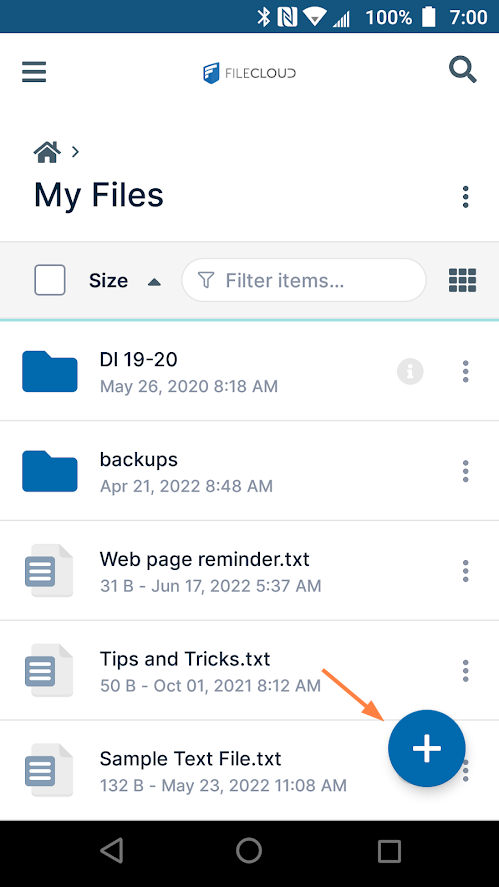
Add content options open. -
Tap Scan document.
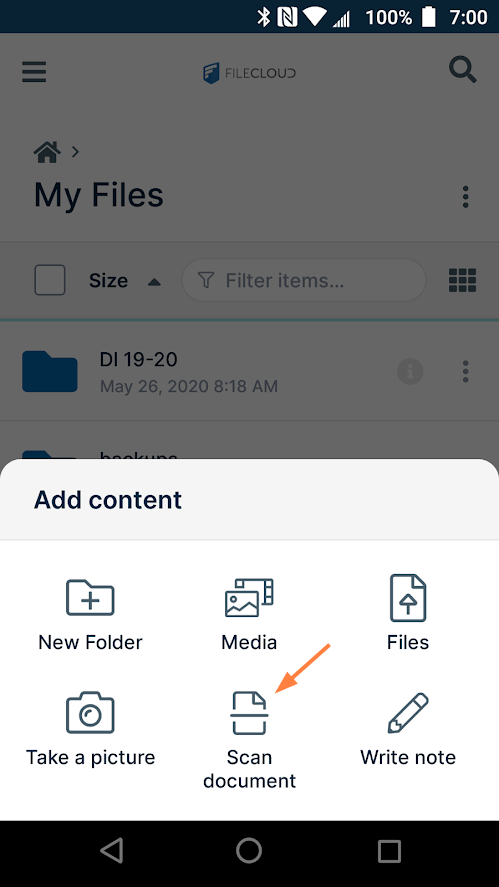
A scan screen opens. -
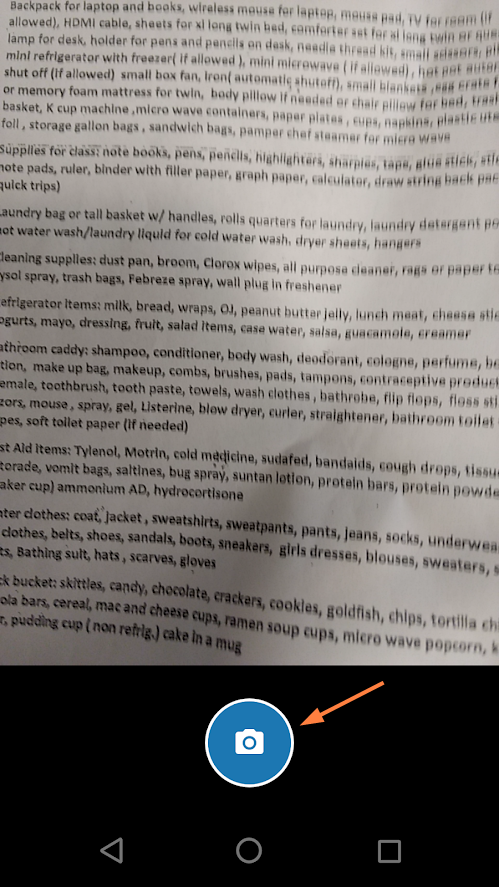
Position the document, and tap the Camera button to scan it.
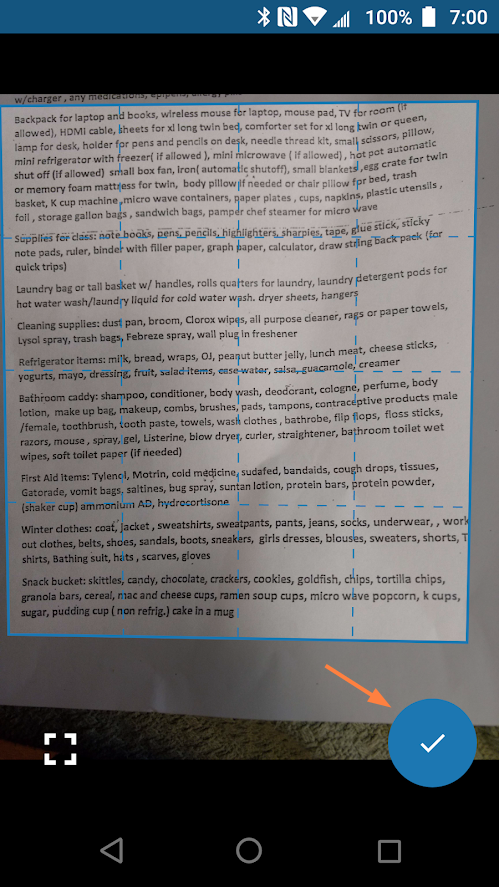
The screen displays the borders of your selection for you to adjust. -
Adjust the borders to include the text you want, and click the check button.
-
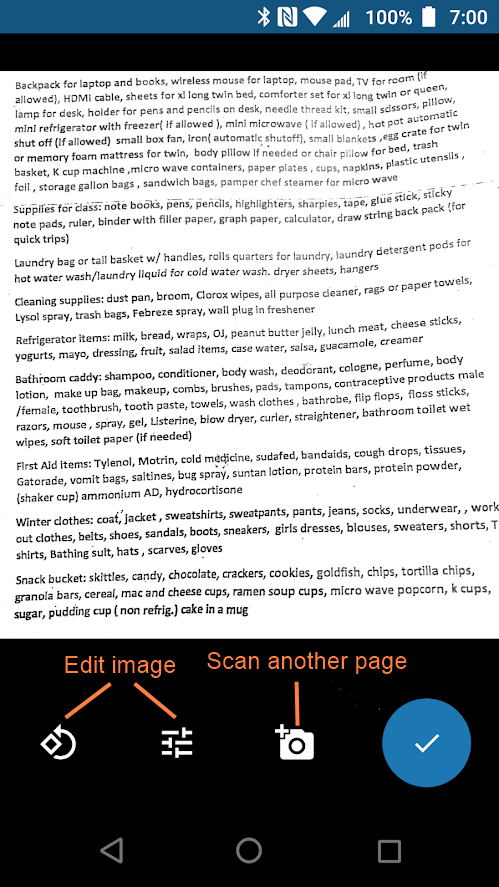
To make adjustments to the image, use the edit buttons below the image.
-
To scan another page, use the camera+ button below the image.
-
Then tap the check button to save the scanned image.
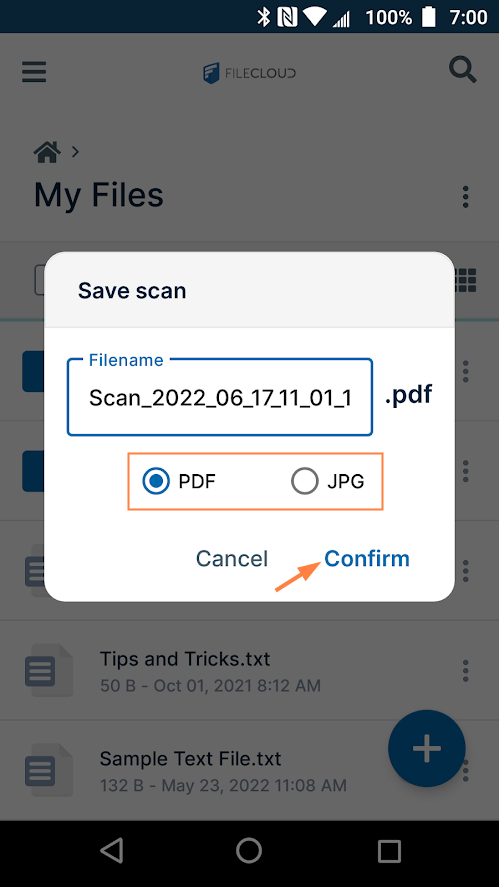
A Save scan dialog box opens. -
You may change the file name, If you have only scanned one page, you are prompted to choose to save it as a pdf or jpg file; if you have scanned multiple pages, you can only save them as a pdf file.
-
Click Confirm.
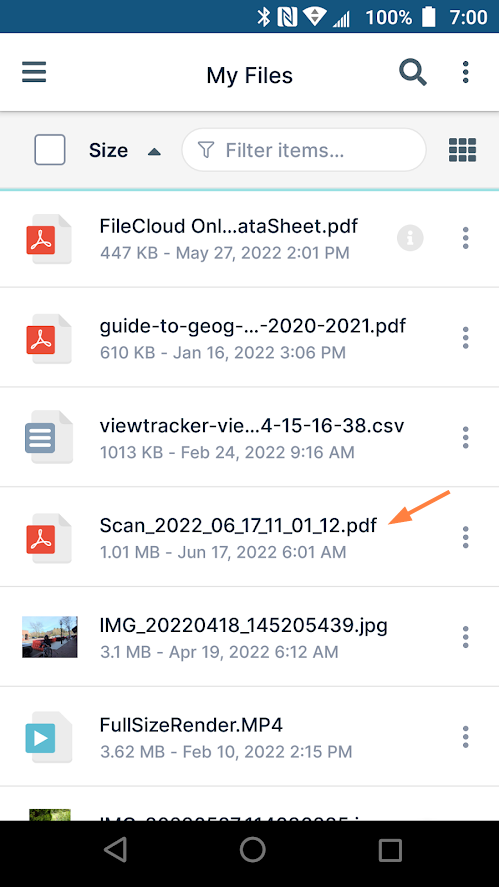
The file is saved in FileCloud.