.svg)
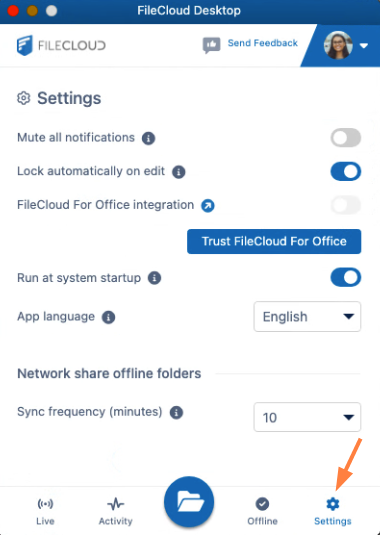
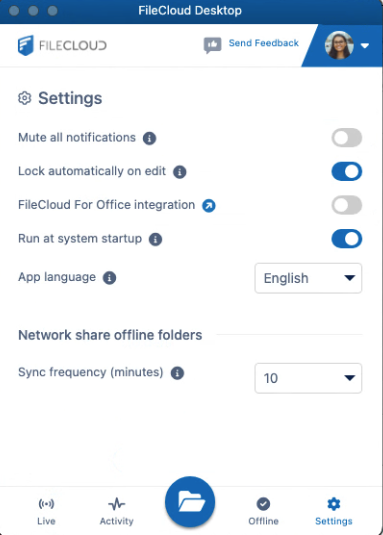
To change your settings in FileCloud Desktop, click the Settings tab at the bottom of the dashboard.
|
|
|
Setting |
Description |
|
|---|---|---|
|
Mute all notifications |
When enabled, all notifications sent from FileCloud Desktop are turned off. Default is disabled. |
|
|
Lock automatically on edit |
When enabled, files opened for edit through FileCloud Desktop are locked, and other users cannot edit them. When the files are closed they are unlocked again. Default is enabled. |
|
|
FileCloud For Office Integration/
|
FileCloud for Office is an add-in that allows users to automatically:
When you initially install FileCloud Desktop, the Trust FileCloud for Office button appears. Click it to use FileCloud for Office.
|
|
|
Run at system startup |
When enabled, begin running FileCloud Desktop when the system starts. Default is enabled. |
|
|
App language |
User interface language. Change to any of the language options. Default is English. |
|
|
Network share offline folders
|
Interval between automatic sync events for Network Folders. Choose any interval in the drop-down list. Default is 10 minutes.
|
|