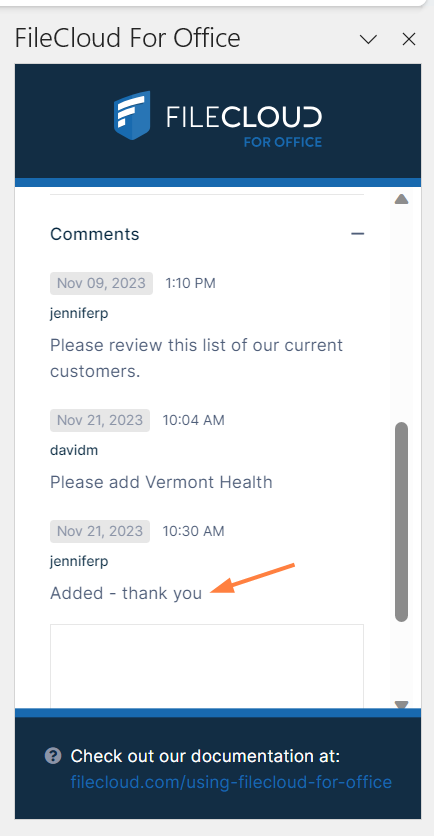
.svg)
FileCloud for Office is an MS Office add-in for Word, Excel, and PowerPoint which can be used in both Windows and macOS with FileCloud Sync, FileCloud Drive, and FileCloud Desktop. It is available in FileCloud beginning with version 23.1.
For instructions on how to install FileCloud for Office, see Using FileCloud for Office.
If a user is viewing details of an auto-locked file in FileCloud for Office and clicks refresh, the file may be unlocked. To avoid confusion, we recommended that users do not use FileCloud for Office when auto-locking is enabled.
Before using FileCloud for Office with FileCloud Desktop for Windows
The first time you install FileCloud Desktop for Windows, you must:
-
In your cloudconfig.php file, set your cookie same-site value to None.
For help, see Improving Cookie Security. -
Confirm that you trust FileCloud for Office and enable it as shown in the following procedure.
To confirm that you trust FileCloud for Office and enable it:
-
After you log in to FileCloud Desktop for Windows, click the Settings tab.
-
Then, click the Trust FileCloud for Office button.
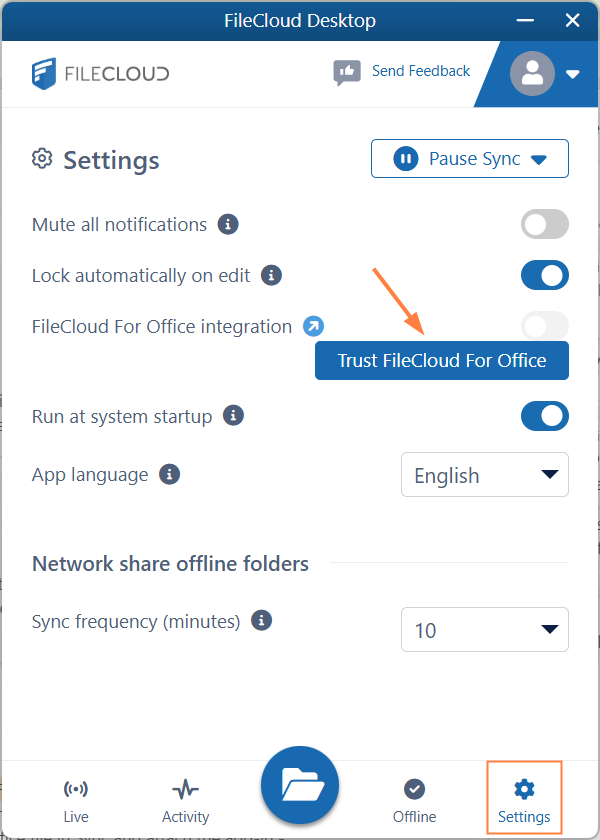
The Trust FileCloud for Office button disappears, and the slider for FileCloud For Office integration becomes accessible, and is enabled by default. Leave enabled to be able to use FileCloud for Office.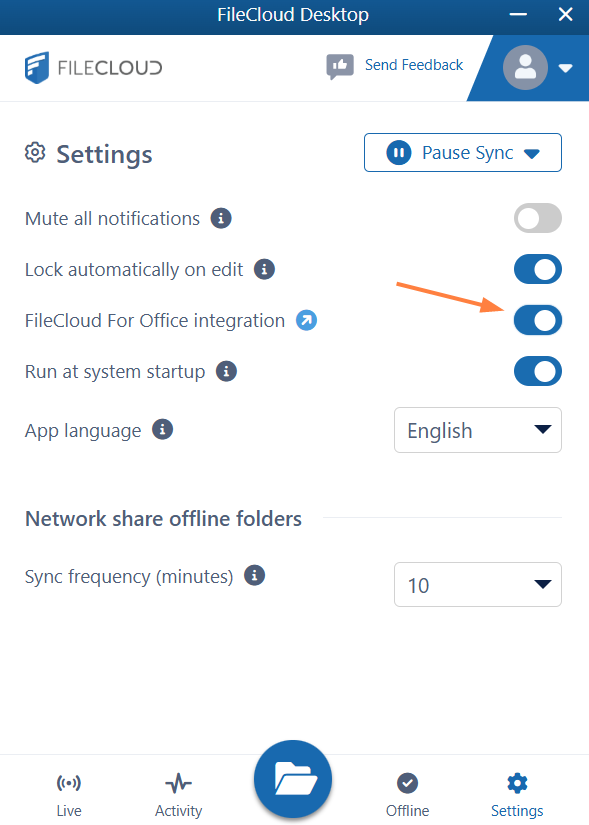
FileCloud for Office is now enabled, but to use it in Office files, you must attach the add-in to each type of Office file from your FileCloud Desktop directory.
Working with FileCloud for Office in FileCloud Desktop for Windows
The FileCloud for Office task panel displays information about a file and enables you to:
-
Lock or unlock a file.
-
Prevent or allow download of a file while locked.
-
Share a file.
-
Manage file versions, and view file details and metadata.
Lock or unlock a file
Locking and unlocking files
You can use the file locking function in FileCloud for Office to:
-
See if you have a file locked for editing
-
Turn a file lock on or off
-
Prevent or enable downloads of a locked file
If a shared file is not locked when you open it for edit, another user can also open the file and make changes.
To avoid this, by default, FileCloud for Office automatically locks files for editing when they are opened.
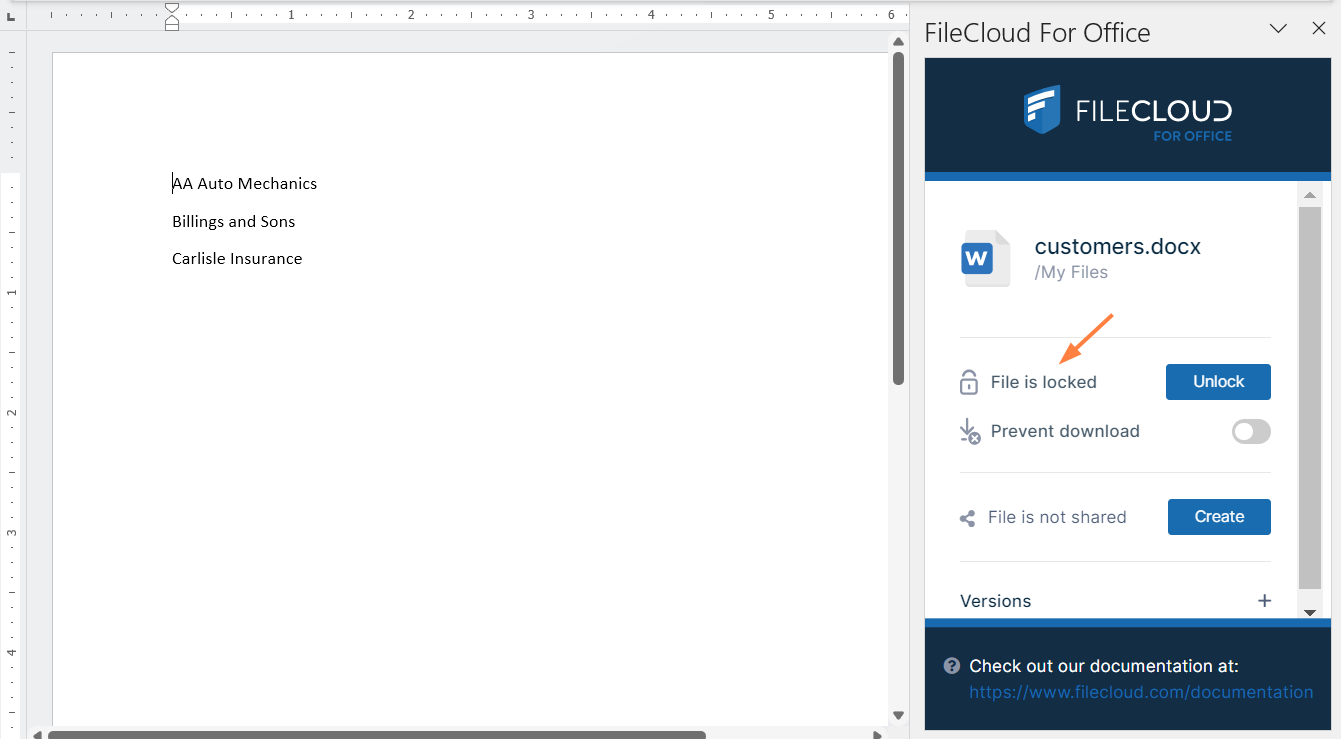
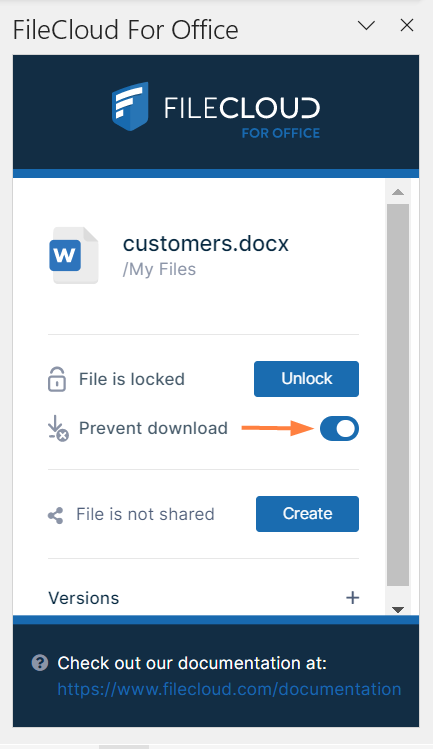
When you open an Office file in your client directory, the FileCloud for Office panel shows File is locked, and by default, users are allowed to download or read the file (Prevent download is disabled).
-
To prevent other users from downloading or reading the file while it is locked, click the Prevent download slider.
-
To unlock the file while you have it opened for edit, click Unlock. Now other users can modify as well as view and download the file.
Note: Prevent download cannot be enabled when the file is unlocked.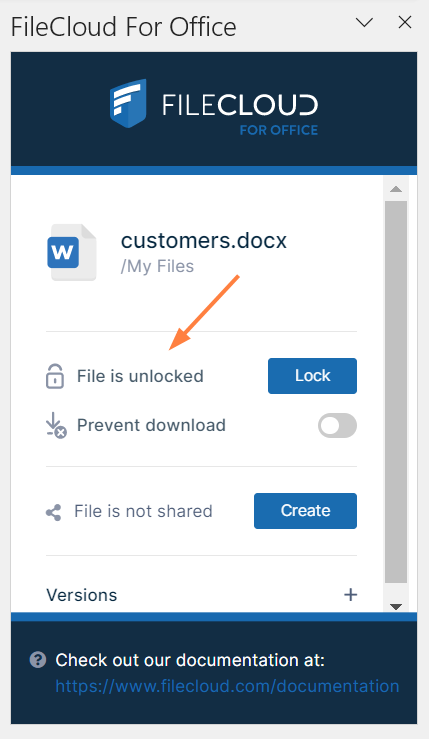
The following table describes what each lock status means and how it impacts what you and others you have shared the file with can do with the file.
|
Lock Status |
Access by lock owner |
Access by others |
|---|---|---|
|
File is locked (download allowed) |
Read and modification allowed |
Only read is allowed, no modification is allowed |
|
File is locked (download prevented) |
Read and modification allowed |
Neither read nor modification is allowed |
|
File is not locked |
Read and modification allowed |
Read and modification allowed |
For a locked file with download (read) prevented:
If USER1 has locked (and read blocked) the file:
-
The FileCloud client will not download the file for USER2
However, if USER2 has already downloaded the file in Sync or Drive, then:
-
FileCloud Sync will allow FileCloud for Office to open the file.
-
FileCloud Drive will not allow the file to be opened by USER2, unless Drive has already cached the file.
If an admin prevents file locking after a user has locked a file in a client:
-
The lock is automatically removed from the file
-
Additional files cannot be locked using FileCloud for Office, and when you attempt to lock a file, an error message similar to the following appears:
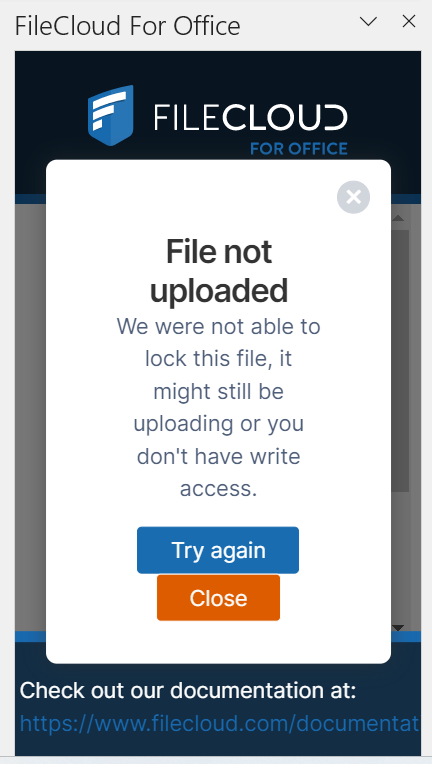
If you are an admin and want to disable locking, see Managing User Locks.
You can use the following table to understand the status of lock:
|
Action |
Doc IQ Lock Enabled |
Prevent Download |
Lock Status Before Open |
Lock Status After Open |
Lock Status After close |
|---|---|---|---|---|---|
|
An unlocked file is opened by USER1 |

|

|
File is not locked |
File is locked (read allowed) by USER1 |
File is not locked |
|
An unlocked file is opened by USER1 |
|
|
File is not locked |
File is not locked |
File is not locked |
|
|
|||||
|
A file locked by USER1 is opened by USER1
|
|
|
File is Locked (Read Allowed) by User 1 |
File is Locked (Read Allowed) by USER1 |
File is not locked |
|
A file locked by USER1 is opened by USER1
|
|
|
File is Locked (Read Allowed) by User 1 |
File is Locked (Read Allowed) by USER1 |
File is not locked |
|
A file locked by USER1 is opened by USER1
|
|
|
File is Locked (Read Blocked) by USER1 |
File is Locked (Read Blocked) by USER1 |
File is not locked |
|
|
|||||
|
A file locked by USER1 is opened by USER2
|
|
|
File is Locked (Read Allowed) by USER1 |
File is Locked (Read Allowed) by USER1 |
File is Locked (Read Allowed) by USER1 |
|
A file locked by USER1 is opened by USER2
|
|
|
File is Locked (Read Allowed) by USER1 |
File is Locked (Read Allowed) by USER1 |
File is Locked (Read Allowed) by USER1 |
|
A file locked by USER1 is opened by USER2
|
|
|
File is Locked (Read Blocked) by USER1 |
File is Locked (Read Blocked) by USER1 |
File is Locked (Read Blocked) by USER1 |
Share a file
Sharing a file
To share a file or folder that is opened with FileCloud for Office:
-
In the FileCloud for Office panel, click Create.
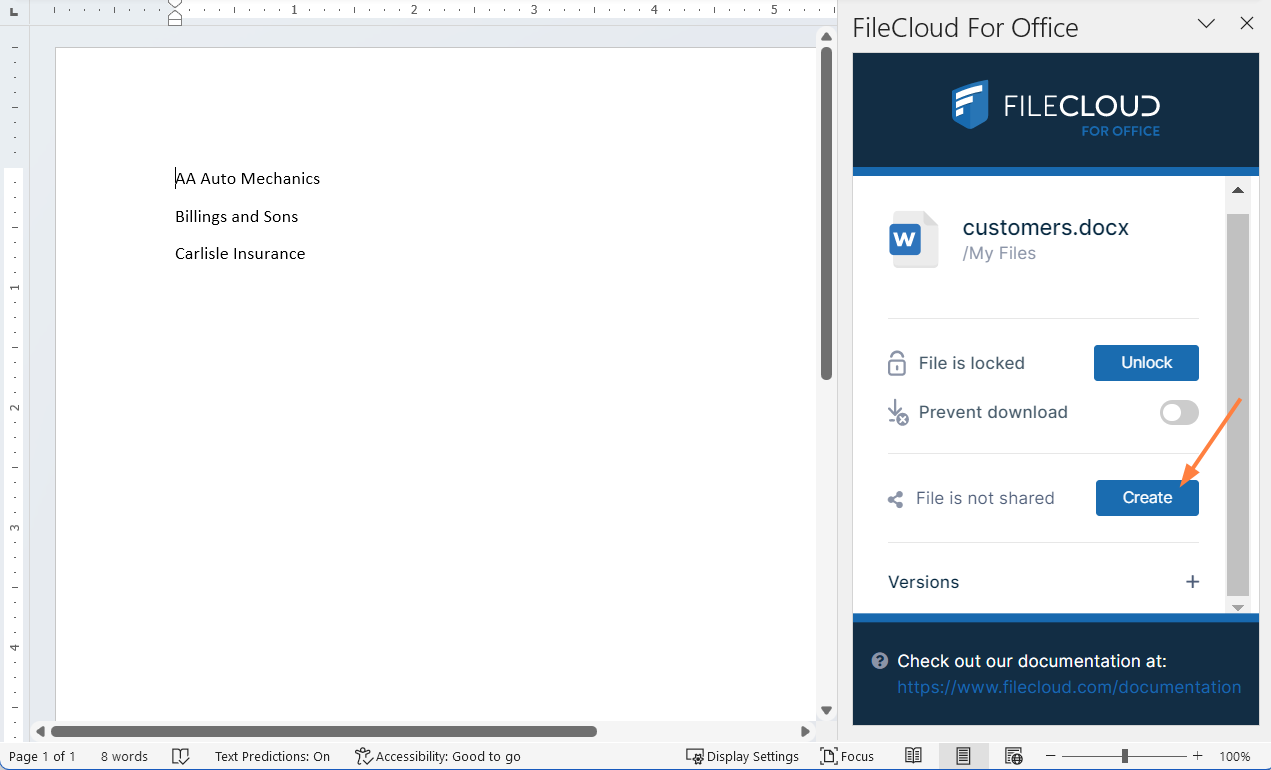
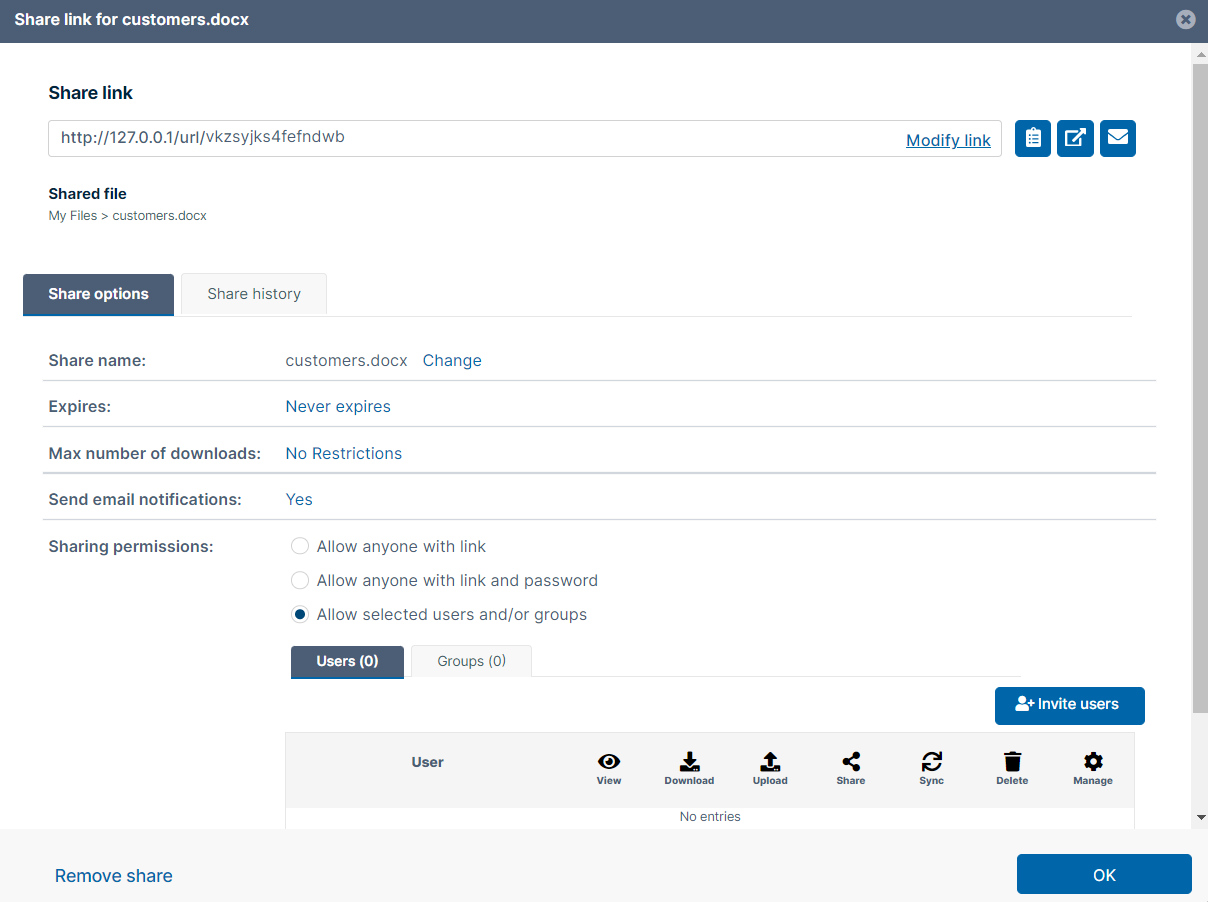
A Share Link screen that is nearly identical to the one in the user portal opens:
-
Share the file using the same settings and options that you would for a share in the user portal. See Sharing Files and Folders for help.
Note: The option for downloading the share QR code, which is available for shares created from the user portal, is not available for shares created in FileCloud for Office.
After you have shared the file, the FileCloud for Office panel displays details of the share: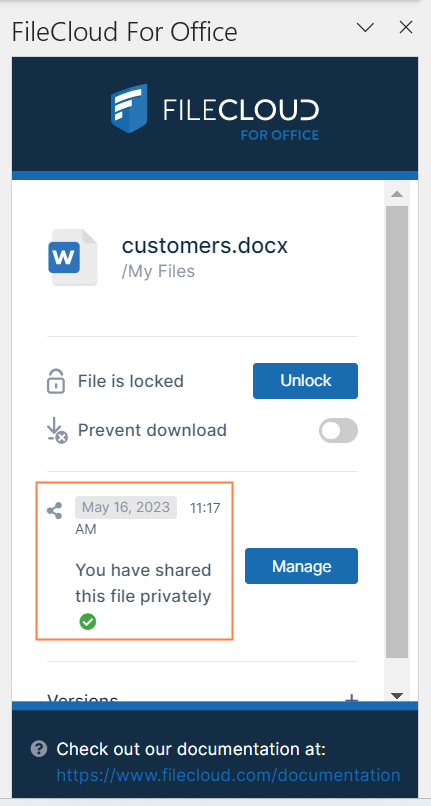
-
Click Manage to change the options or permissions in the share.
Download versions, view details and metadata
Downloading versions, viewing details, viewing metadata
Versions
To view a file's version information in FileCloud for Office:
-
At the bottom of the FileCloud for Office panel, click the + across from Versions.
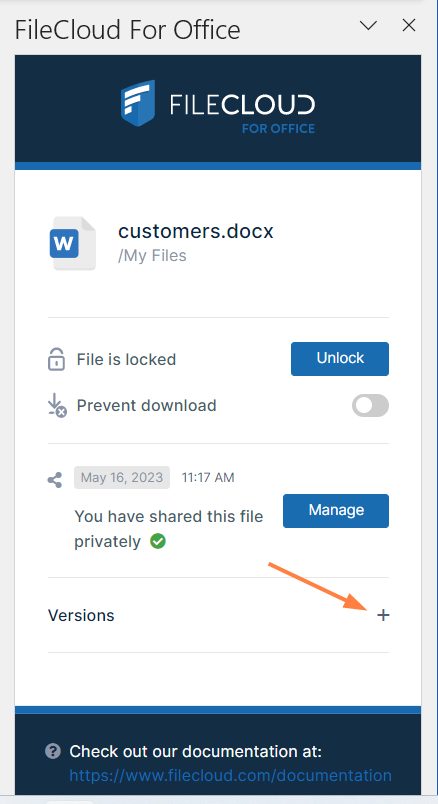
The expanded Versions section shows you version information about the file.
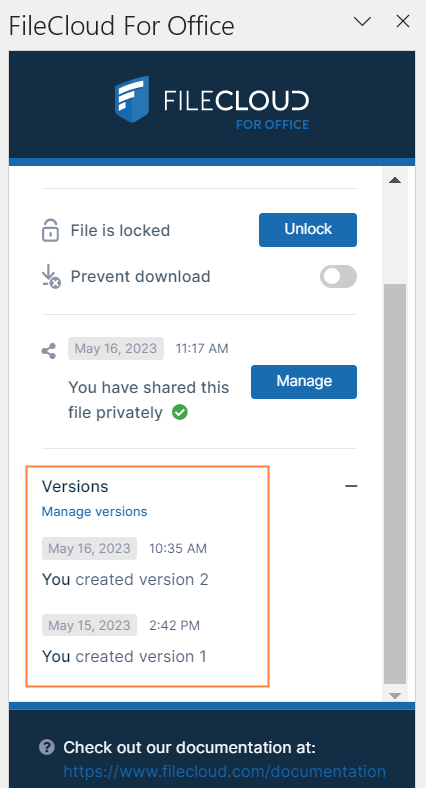
To download file versions in FileCloud for Office:
-
In the Versions section of the FileCloud for Office panel, click Manage versions.
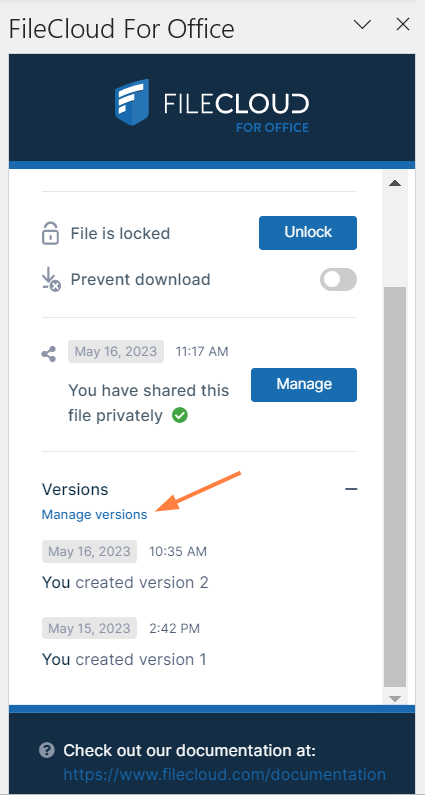
The Properties dialog box opens to the Versions tab.
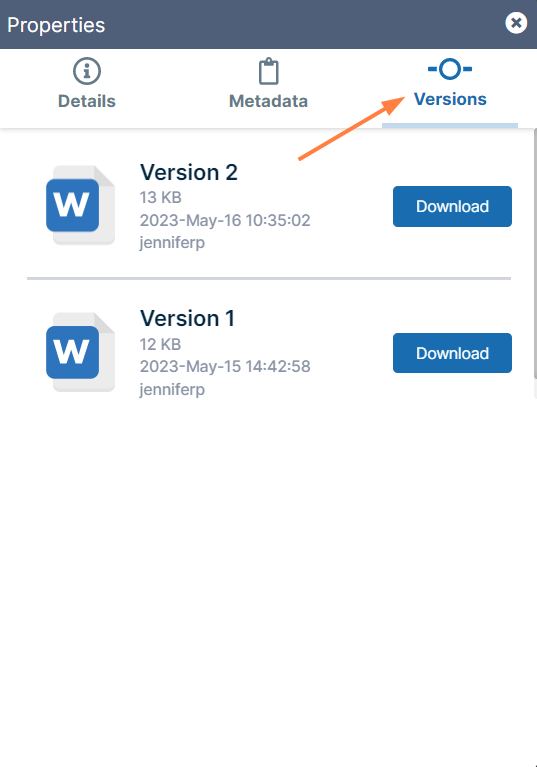
-
Click Download for the version that you want to download, and save it.
Details
To view file details:
-
In the Versions section of the FileCloud for Office panel, click Manage versions.
The Properties dialog box opens to the Versions tab. -
Click the Details tab.
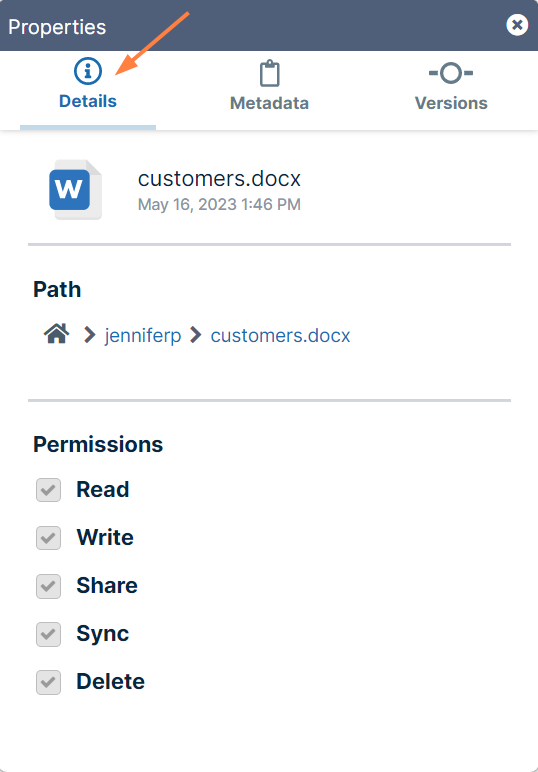
The details shown are the filename and type, the last modified date, the path of the file in FileCloud, and your permissions for the file.
Metadata
To view metadata information for the file:
-
In the Versions section of the FileCloud for Office panel, click Manage versions.
-
The Properties dialog box opens to the Versions tab.
-
Click the Metadata tab.
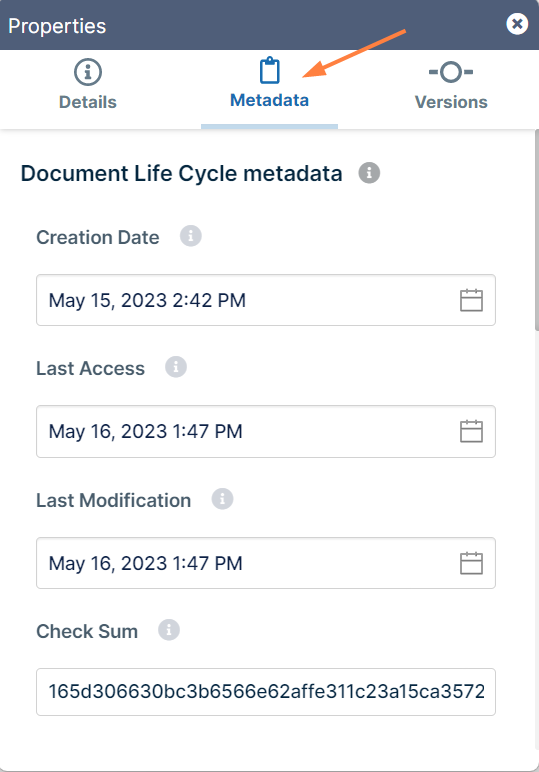
Each metadata set applied to the file is listed with the values for its fields.
FileCloud for Office log locations
View and add comments
Viewing and adding comments
Comments added to files and folders in FileCloud for Office also appear in the user portal and any of the other client apps.
To view and add comments in FileCloud for Office:
-
If Comments is not visible in the FileCloud for Office panel, scroll down to the bottom of the panel.
-
Click the + across from Comments.
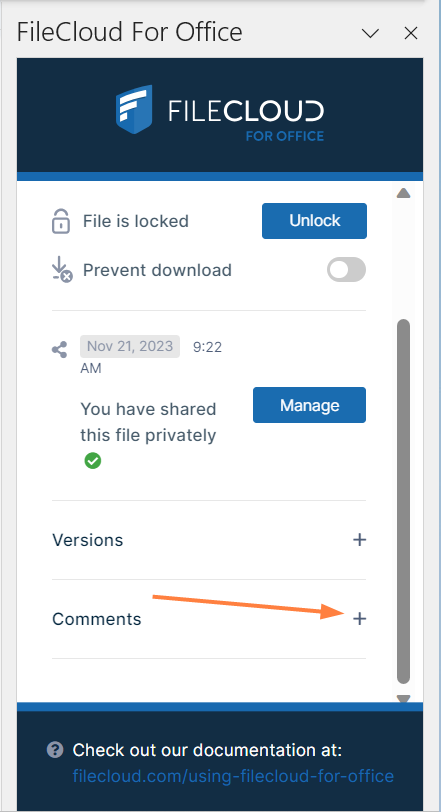
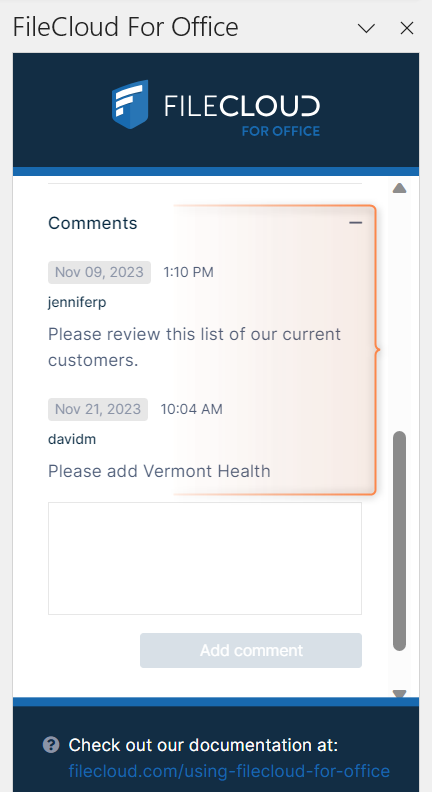
Any existing comments added to the file or folder here or anywhere else in FileCloud appear above the Comments box.
-
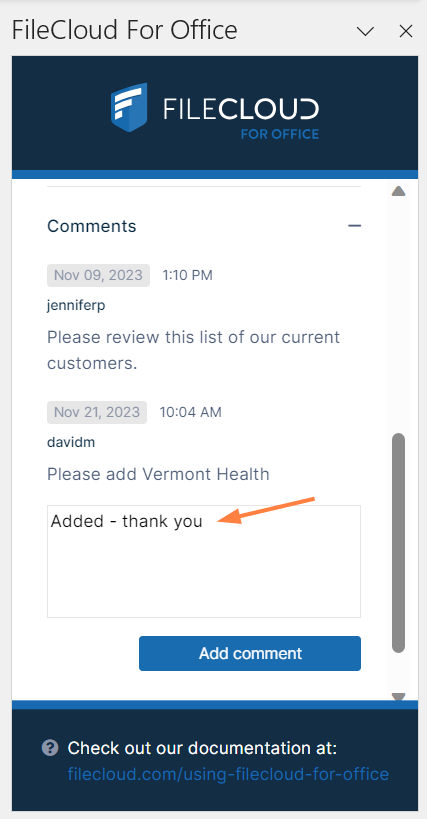
To add a new comment, click inside the Comments box and enter the comment.
-
Click Add comment.
The comment is added.