Breadcrumbs

Mass Deployment Configuration for FileCloud Desktop for Windows

You can configure mass deployment settings for FileCloud Desktop for Windows either by configuring Windows registry keys or through Remote client management (RMC).

To configure mass deployment settings using registry keys

FileCloud Desktop for Windows supports mass deployment configuration using two registry keys located in the HKEY_LOCAL_MACHINE\SOFTWARE\FileCloud\FileCloudDesktop\ registry path for the targeted device.

  • Default configuration key - The key HKEY_LOCAL_MACHINE\SOFTWARE\FileCloud\FileCloudDesktop\DefaultCfg contains the default settings for FileCloud Desktop for Windows. 

  • Override configuration key - The key HKEY_LOCAL_MACHINE\SOFTWARE\FILECLOUD\FileCloudDesktop\OverrideCfg contains the override settings for FileCloud Desktop for Windows. Use these settings to modify the default behavior of the application or to enforce specific settings. 

FileCloud Desktop first reads the settings in the default configuration key and then checks for the presence of an override configuration key. If an override key is found, its settings override those of the default key. The overridden default settings cannot be modified through the user interface and appear grayed out.

The configuration keys include setting names (Name in the code, as shown below) and values (Data in the code, as shown below).

The following sample of the default configuration key shows the default Data value for each setting.

Key Name:          HKEY_LOCAL_MACHINE\SOFTWARE\FileCloud\FileCloudDesktop\DefaultCfg
Class Name:        <NO CLASS>
Last Write Time:   6/8/2023 - 3:42 PM
Value 0
  Name:            serverurl
  Type:            REG_SZ
  Data:            https:://yourfilecloudserverurl.com

Value 1
  Name:            profilename
  Type:            REG_SZ
  Data:            yourusername

Value 2
  Name:            runatstartup
  Type:            REG_SZ
  Data:            1

Value 3
  Name:            loglevel
  Type:            REG_SZ
  Data:            information

Value 4
  Name:            language
  Type:            REG_SZ
  Data:            en

Value 5
  Name:            logintype
  Type:            REG_SZ
  Data:            0

Value 6
  Name:            mutenotifications
  Type:            REG_SZ
  Data:            1

Value 7
  Name:            pinningenabled
  Type:            REG_SZ
  Data:            1


Configuration key setting Names and allowed Data values

Setting (Name)

Description

Allowed values (Data)

serverurl

URL of FileCloud site.

Valid URLs using "http" or "https" 

profilename

User login name.

User login name (any non-empty string)

runatstartup

Run FileCloud Desktop for Windows on system startup.

0 (disabled)
1 (enabled) default

loglevel

Level of details stored in log files, where information is the least detailed, and trace is the most detailed.

"information" default
"debug"
"trace"

language

Language of the FileCloud Desktop for Windows user interface.

Value

Language

nl

Dutch

en

English (default)

de

German

es

Spanish

pt

Portuguese

fr

French

ar

Arabic

it

Italian

ru

Russian


logintype

Login method used

0 (username/password) default
1 (device authentication)
2 (SSO)

mutenotifications

Suppress display of notifications in FileCloud Desktop

0 (disabled, notifications are shown) default
1 (enabled, notifications are not shown)

pinningenabled

Enables storing files locally from Windows Explorer (displays Always keep on this device in the Windows Explorer context menu for folders and files). 
Note

0 (disabled, option is not shown)
1 (enabled, option is shown) default

FileCloud Desktop only applies valid values. If a Name or Data value is not supported, the application skips it and logs a warning message. 

To configure mass deployment settings through RMC

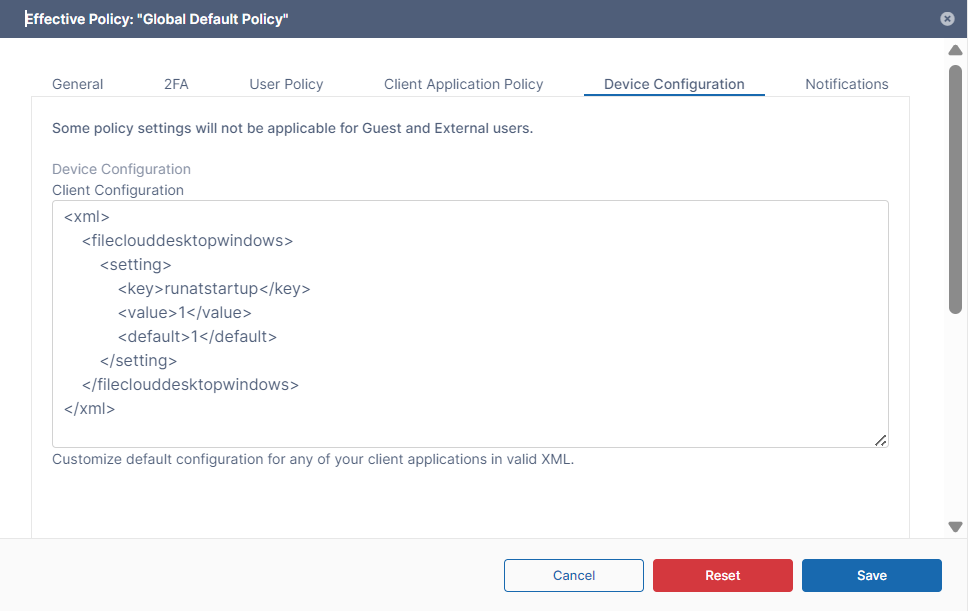
You can configure client device settings for FileCloud Desktop for Windows remotely by specifying the configuration XML in the Device Configuration tab of FileCloud policies.

For most clients, if the user changes the configuration locally, then the remote settings configured by the Administrator will override those settings the next time the client refreshes its settings.

  1. In the FileCloud admin portal's left navigation bar, scroll down and click Settings. Then, on the Settings navigation page, click Policies  PoliciesIcon.png .
    The Policies settings page opens.

    PoliciesListing (1).png
  2. Edit the policy of the users whose client device settings you want to modify.

  3. Click the Device Configuration tab.

  4. Paste or type in the remote device configuration XML in Device Configuration using any number of parameters from the table below.

    <xml>
        <fileclouddesktopwindows>
            <setting>
                <key>runatstartup</key>
                <value>1</value>
                <default>1</default>
            </setting>
        </fileclouddesktopwindows>
    </xml>
    

    configDesktopForWindows.png
    <default> is an optional tag that indicates if the setting can be changed through the user interface. 
    A value of 1 indicates the setting is a default and can be changed by the user through the user interface.
    A value of 0 (or omission of <default>) indicates that the setting is overridden and cannot be changed by the user through the user interface.

Supported parameters for FileCloud Desktop for Windows. All parameters are optional. Add one of more of these parameters (using  <key>, <value>, and <default> tags) in the <setting> tags in the XML.

Key

Description

Values

runatstartup

Run FileCloud Desktop for Windows on system startup.

0 (disabled)
1 (enabled) default

loglevel

Level of details stored in log files, where information is the least detailed, and trace is the most detailed.

"information" default
"debug"
"trace"

language

Language of the FileCloud Desktop for Windows user interface.

Value

Language

nl

Dutch

en (default)

English 

de

German

es

Spanish

pt

Portuguese

fr

French

ar

Arabic

it

Italian

ru

Russian

mutenotifications

Suppress all notifications on FileCloud Desktop.

0 (disabled, notifications are shown) default
1 (enabled, notifications are not shown) 

Example:

The code below shows example settings:

<xml>
<fileclouddesktopwindows>
  <setting>
    <key>runatstartup</key>
    <value>1</value>
    <default>1</default>
  </setting>
  <setting>
    <key>loglevel</key>
    <value>debug</value>
  </setting>
  <setting>
    <key>language</key>
    <value>en</value>
  </setting>
  <setting>
    <key>mutenotifications</key>
    <value>0</value>
  </setting>
</fileclouddesktopwindows>
</xml>

In this example:


  • The application runs at startup (runatstartup = 1, default = 1). Default value.

  • The log level is set to "debug" (loglevel = debug). Overridden value.

  • The language is set to "en" (language = en). Default value.

  • Notifications are not muted (mutenotifications = 0). Default value.

If a key is not supported or a value is incorrect, the application skips it and logs a warning message.


Precedence of settings

Settings take precedence in the following order, from lowest to highest:

  1. Default registry key

  2. RMC default

  3. User preferences 

  4. Override registry key

  5. Override RMC settings