.svg)
Administrators must configure FileCloud to use Solr before it can be used for advanced search.
-
Configure FileCloud with the URL of the Solr server and the port number.
-
Create an index to allow Solr to search the files in managed storage.
-
Configure Solr in the Content Search tab.
Configure a Single Site
Follow these steps to configure FileCloud with Solr after it is installed.
-
In the FileCloud admin portal's left navigation bar, scroll down and click Settings. Then, on the Settings navigation page, click Content Search

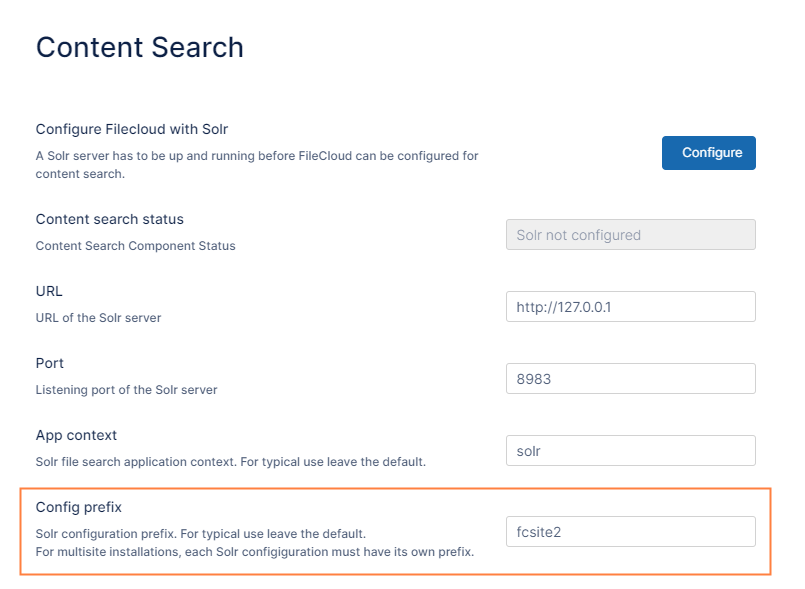
The Content Search settings page opens.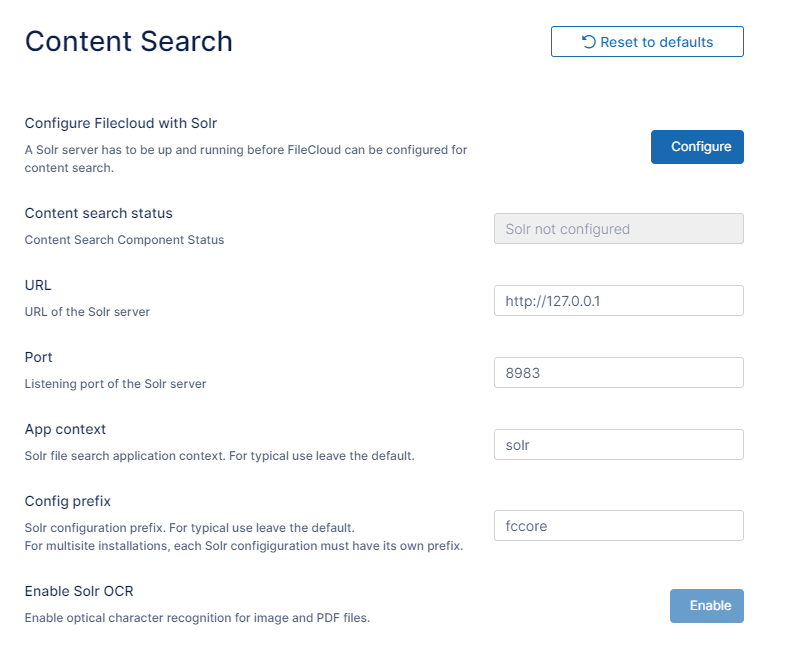
-
Update the settings depending on your environment.
|
Parameter |
Remarks |
|---|---|
|
Content search status |
This is a read-only field that displays the status of FileCloud Solr configuration. |
|
URL |
The http url of the Solr server. Default value is http://127.0.0.1. If Solr is installed on a different server, use its IP address.
|
|
Port |
Port number of the Solr server. Default value is 8983. If Solr is running on a different port, update this value. |
|
App context |
This is the application context under which the Solr server is hosted. Default value is solr. |
|
Config prefix |
Unique prefix for the current sites configuration. Default value is fccore.
|
|
Enable Solr OCR |
Enables optical character recognition so search can find matches in images. |
-
Click Configure to configure FileCloud with Solr, using the entered information.
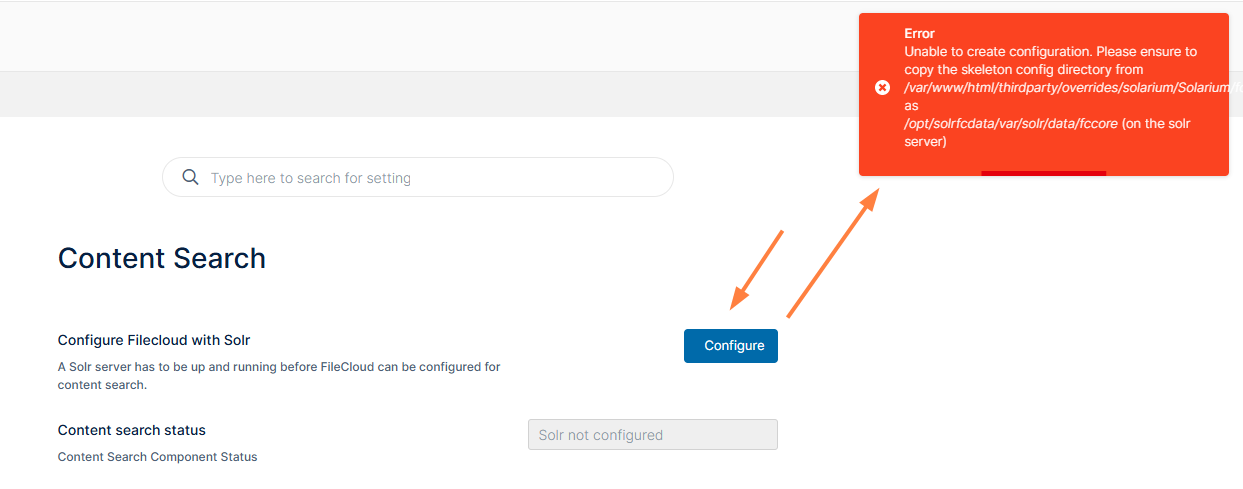
If this fails, a message may appear that prompts you to copy a configuration directory from a source directory to a target directory.
If the message appears, follow the instructions to copy the template folder. In the following example, the folder <FileCloud web root>/thirdparty/overrides/solarium/Solarium/fcskel should be copied to <FileCloud web root>/server/solr and renamed fccore.Directories and target folder name for your environment might be different.
-
If you are prompted to copy the configuration directory, after you copy it, click the Configure button again.
Upon successful configuration, a new field appears and shows the index status of all Managed Storage files.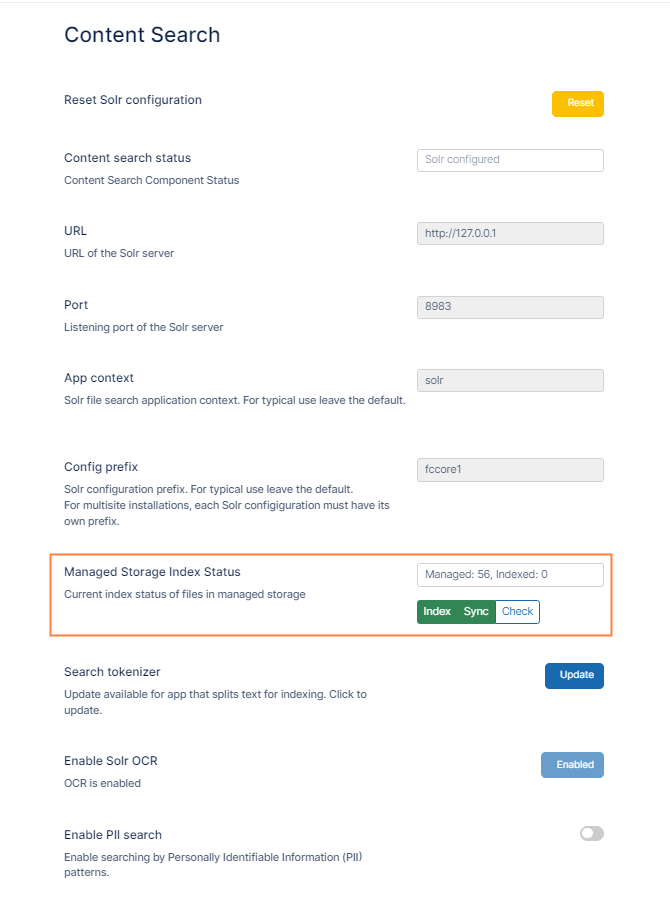
If it is a fresh installation, each new file is indexed when it is uploaded.
If it is an existing installation, managed files already exist. Though the new files will be indexed, the existing files have to be indexed separately. -
To index existing files, click the Index button.

-
When the button appears as Reindex, click the Check button to see the number of indexed files and the number pending indexing.
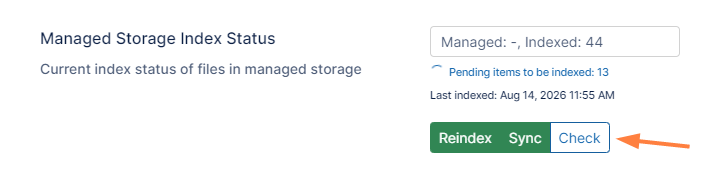
To refresh the numbers indexed or to see if indexing is complete, click the Check button again.
Note: The user interface will not automatically show that syncing has completed; you must click Check to see if all files have been synced.
Configure a Multi-Site
Multi-site Solr configuration is similar to single site configuration. After a new site is created, repeat the above steps, but in the Config Prefix field, specify a unique prefix for the new site.
This configures Solr with a separate index database for each new site.
Indexing Network Folders
Unlike managed storage, Network Folder files exist outside of FileCloud and therefore changes occurring in the network folders might not be propagated into FileCloud.
Monitoring such changes are important in the following scenarios:
-
Faster searching
-
Content Search
-
Automatic Realtime Syncing of Network Folders
-
Pattern Searches for GDPR
For these scenarios, you must index network folders and keep them indexed as files and folders change.
-
To index network folders, the FileCloud Helper service is required

3. Enable and Configure PII Search
To enable and configure PII Search:
-
In the FileCloud admin portal's left navigation bar, scroll down and click Settings. Then, on the Settings navigation page, click Content Search
The Content Search settings page opens. -
Scroll down to the Enable PII Search field and enable it.
The Manage PII Patterns section opens.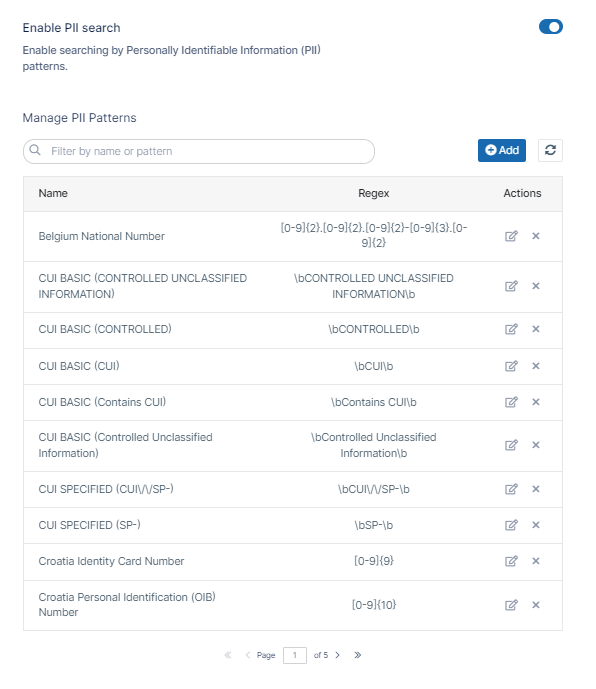
In the Manage PII Patterns section, you can add, edit, search for, and remove patterns.
-
To add a new pattern to the list, in the Manage PII Patterns section, in the top right corner, click Add.
-
To edit an existing pattern, in the Manage PII Patterns section, click the edit icon (

-
To remove an existing pattern, in the Manage PII Patterns section, click the delete icon (x) for the pattern.
-
Pattern format
A pattern contains the following information:
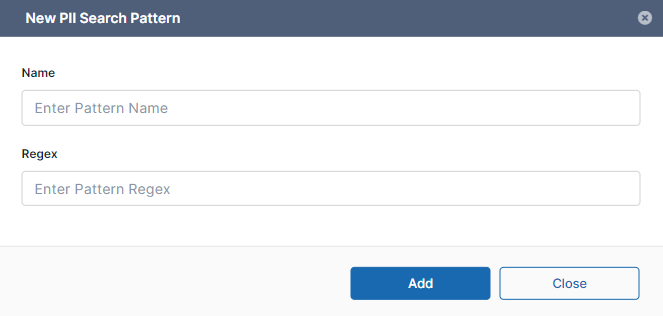
Regex is short for regular expression. This is a special alphanumeric string used to describe a search pattern.
If you need to create a new pattern or edit an existing one, use the following table to understand the Regex format used by FileCloud.
|
|
Name |
Input Type |
Length of Input |
RegEx Format |
|---|---|---|---|---|
|
Description |
Identifies the type of protected information |
|
|
[Type]{Length} |
|
Numerical Example |
U.S. Social Security Number |
0-9 (can contain any number 0-9) |
3 (for the first number) 2 (for the second number) 4 (for the third number) |
[0-9]{3}-[0-9]{2}-[0-9]{4} 012-34-5678 |
|
Letter example |
Poland Passport |
a-zA-Z 0-9 |
2 letters (followed by) 7 numbers |
[a-zA-Z]{2}[0-9]{7} ME0123456 |