.svg)
Administrators can change the FileCloud storage type after FileCloud has been installed but before any data has been stored.
-
When changing the storage type from local to GCP object storage, the files and folders that have been already stored in local storage will not be automatically moved to S3 storage.
-
In this case, the administrator must manually export files and folders from local storage before changing the storage type, and then manually import them after changing the storage type.
-
Only change the FileCloud storage type for new installations.
-
Do not change the FileCloud storage type if FileCloud has been in use and data is already stored.
-
Be careful when changing the storage path; If done improperly it could lead to data loss.
-
The GCP Bucket should NEVER be modified outside of the FileCloud subsystem.
-
Do not add, edit, or modify files directly using GCP tools. Doing so will destabilize your FileCloud installation.
To change the FileCloud storage path from LOCAL to GCP object storage:
1. Enable GCP object storage
NOTES:
Although FileCloud does not have an explicit connector for GCP object-based storage, the Amazon S3 connector can be used.
In this step you will need to access WWWROOT. It is typically located at:
|
Windows |
Linux |
|---|---|
|
c:\xampp\htdocs |
/var/www/html |
To enable GCP object storage as the backend:
-
To make sure that your server does not have any time variations, set up the time on your server to be synchronized.
-
Open the following file for editing:
WWWROOT/config/cloudconfig.php -
Find the following line:
define("TONIDOCLOUD_STORAGE_IMPLEMENTATION", "local"); -
Change it to:
define("TONIDOCLOUD_STORAGE_IMPLEMENTATION", "amazons3"); -
Save and close the file.
-
Find the following file:
WWWROOT/config/amazons3storageconfig-sample.php -
Rename it to:
WWWROOT/config/amazons3storageconfig.php
Nothing needs to be added or edited in amazons3storageconfig.php
2. Configure Credentials
To configure Digital Ocean S3 Credentials
-
In the FileCloud admin portal's left navigation bar, scroll down and click Settings. Then, on the Settings navigation page, click Storage

The Managed Storage settings page opens by default. -
Type in or select the settings for your environment. See the table below for information about each setting.
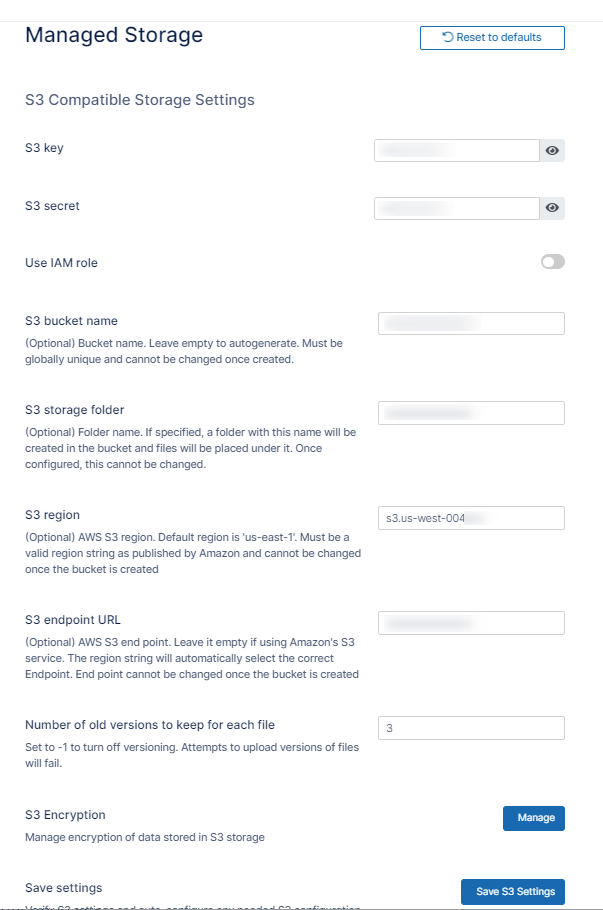
-
Click Save S3 Settings.
-
Enter values for Number of old versions to keep for each file, and, if you are using encryption, click Manage for S3 Encryption to set the encryption type.
-
Click Save.
|
Field |
Description |
|---|---|
|
S3 Key |
Your GCP HMAC authentication key. |
|
S3 Secret |
Your GCP HMAC authentication secret. |
|
Use IAM role |
When checked, the S3 Key and S3 Secret fields disappear and the IAM role is used to connect to the S3 bucket. |
|
S3 Bucket Name |
Provide a bucket name. The bucket should be new (in some circumstances, a previously used bucket in FileCloud can be used). It is important that the S3 bucket is never modified outside of the FileCloud subsystem, The bucket name is case sensitive; make sure you are using the exact name of the bucket. |
|
S3 Storage Folder |
Optional: All files are stored inside this root storage folder (it is created automatically). |
|
S3 Region |
Optional: Provide the region string. Generally use: auto |
|
S3 End Point URL |
This is the S3 endpoint. note that for each region there is a specific endpoint URL. Generally, it is: |
|
Number of old versions to keep for each file |
When a user uploads a new version of a file, it is saved, and the latest Number of old versions to keep for each file versions are kept. When set to -1, versioning is disabled and attempts to upload versions of a file fail. |
|
S3 Encryption |
By default encryption type is: Google-managed keys. For this integration, only Google-managed key encryption is supported. No additional actions are needed in FileCloud. |
-
To fill in the remainder of the settings, see Setting up FileCloud Managed S3 Storage.
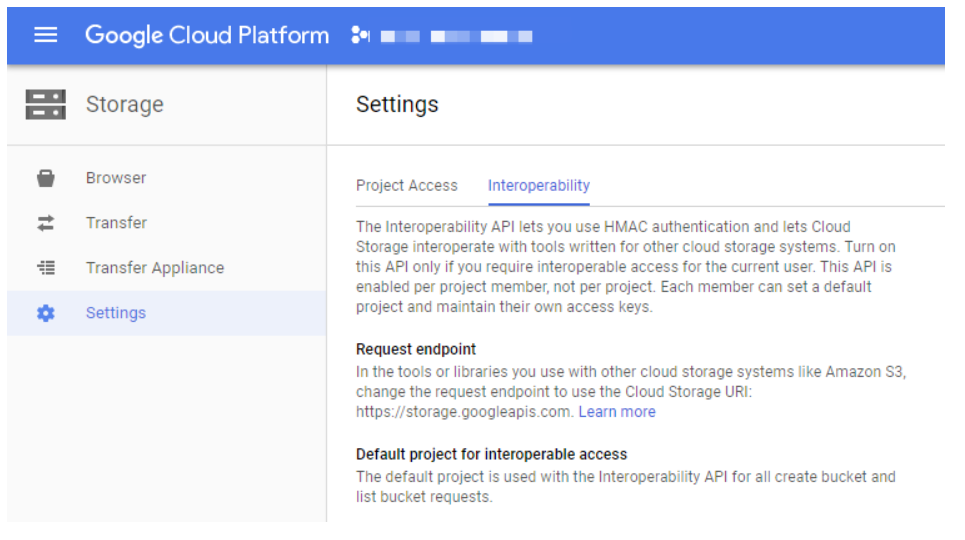
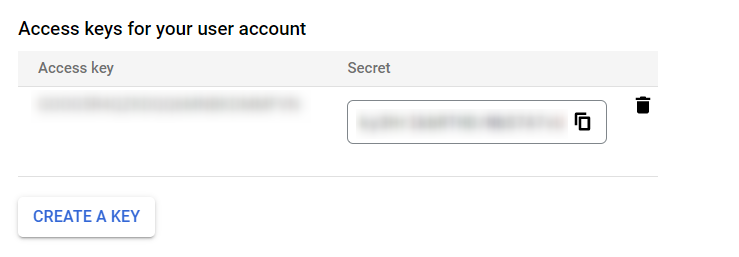
To enable HMAC access key for a bucket, go to Google cloud storage > Settings, and select the Interoperability tab. You should see an empty list and a CREATE A KEY button.
Troubleshooting: