.svg)
Administrators must index the files in managed storage to allow Solr to search the files.
You have the following options when working with an index:
-
Index. After you configure content search, use this option to index any files that are already in managed storage. After this initial indexing action, each new file is indexed when it is uploaded.
-
Reindex. Use this option to remove the existing index data completely and do a fresh indexing of all managed storage files. This option is only available after the system has been indexed at least once.
-
Sync. Use this whenever there is mismatch between the number of managed files and the number of indexed files. Sync only indexes the files that are not already indexed.
-
Check. This displays the latest status of the managed store index and the counts of files indexed and pending indexing.
What do you want to do?
Initially index files
If you configure content search on a fresh install of FileCloud before you have stored content in managed storage, you do not have to click Index. This button only indexes unindexed files that exist in managed storage. Once indexing has is initiated, files are indexed automatically when they are uploaded to FileCloud.
To initially index files:
-
Configure Content Search as described in Configure Content Search for Managed Storage.
If Managed Storage Index Status shows a number of files after Managed, but 0 files after Indexed, you are required to index the files existing in managed storage.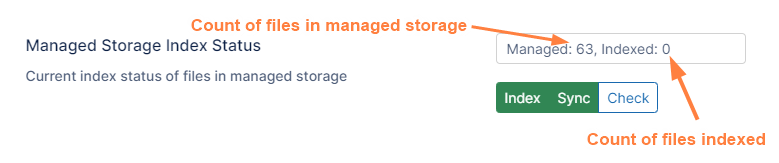
-
Scroll down and click the Index button.
Sync unindexed files
Sync can be done whenever there is mismatch between the number of managed files and the number of indexed files.
Sync will only index the files that are not already indexed.
To index files not yet indexed:
-
In the FileCloud admin portal's left navigation bar, scroll down and click Settings. Then, on the Settings navigation page, click Content Search

The Content Search settings page opens. -
Scroll down and click the Sync button.

Do a complete re-index
Use the Reindex button to remove the existing index data completely and do a fresh indexing of all managed storage files.
The Reindex button is available after the system has been indexed at least once.
To reindex managed storage:
-
In the FileCloud admin portal's left navigation bar, scroll down and click Settings. Then, on the Settings navigation page, click Content Search
The Content Search settings page opens. -
Scroll down and click the Reindex button.

Check the status of the index
Use the Check button to see the status of indexing after you click Index, Reindex, or Sync.
To check the index status:
-
In the FileCloud admin portal's left navigation bar, scroll down and click Settings. Then, on the Settings navigation page, click Content Search
The Content Search settings page opens. -
Click Index, Reindex, or Sync.
-
While indexing is in progress, click the Check button.
The Managed Storage Index Status field shows the number of files indexed at this point, and the current index status below it shows the number of files remaining to be indexed.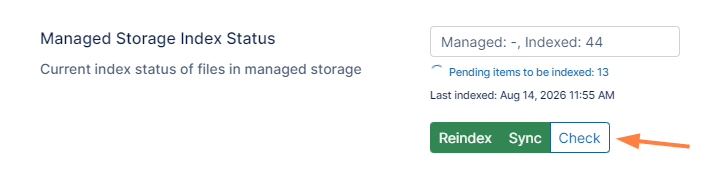
-
Click the Check button again to refresh the count and to see if indexing has completed.
Note: The user interface will not automatically show that syncing has completed; you must click Check to see if all files have been synced.