.svg)
Expressions are available in FileCloud beginning in version 23.253.
Many admin workflows allow you to set up custom conditions in workflows based on user, path owner, and share properties. These conditions (referred to as expressions) must be written in regular expression syntax. They greatly expand your ability to customize workflows.
For example, you can expand the IF statement in a workflow to check if a user is a member of a certain group or has a certain policy, or to check if a share is a folder or file share.
Specifically, the additional conditions available for you to include can be based on:
-
the user’s or the path owner’s group, policy, email (or domain), or name
-
the share owner’s group, policy, email (or domain), or name, the type of share (public or private), and the type of item shared (folder vs. file).
The list of available expression variables for each workflow is shown in its wizard. You can view a list of all available variables in the tables under Guide to expression variables and operators, below.
As an example, in the following workflow, which uses the IF condition If a file is added or updated, the user and path context variables are supported, but not the share context variables. Below the variables, the available regular expression operators and examples are listed.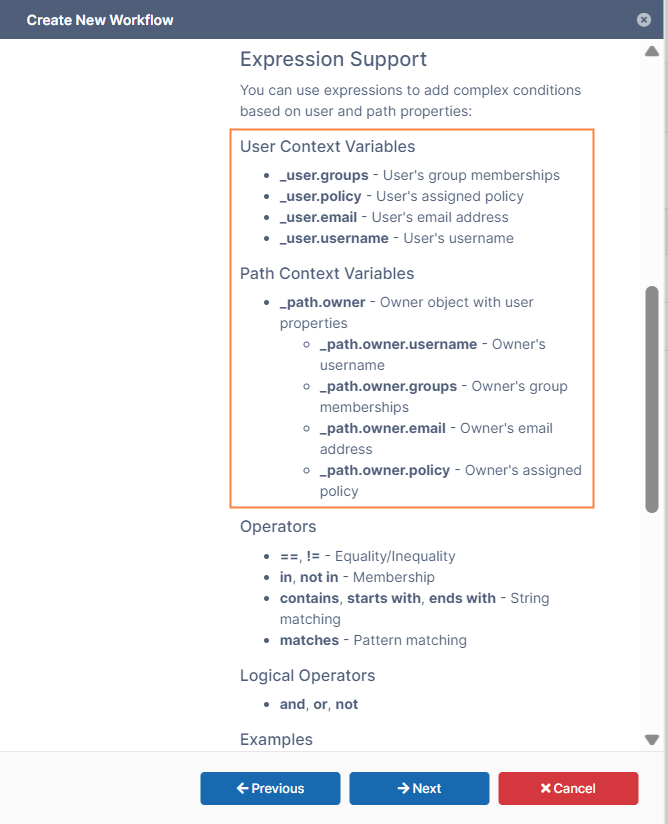
The examples help you use the proper syntax when adding conditions:

The variables available depend on the workflow, and not all workflows have variables available.
To create an IF statement with an expression condition
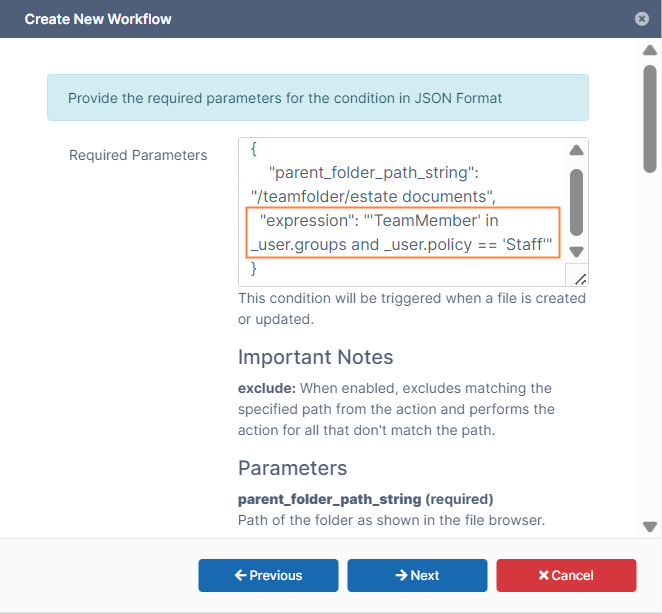
The IF statement we are setting up in this example uses an expression to specify a user’s group and policy. The IF statement requires that the user who added or updated a file must also be in the group TeamMember and have the policy Staff.
-
In the admin portal, go to the Workflows page, and click Add Workflow.
-
In the Create New Workflow dialog box, choose an IF condition.
This example uses the condition If a file is added or updated.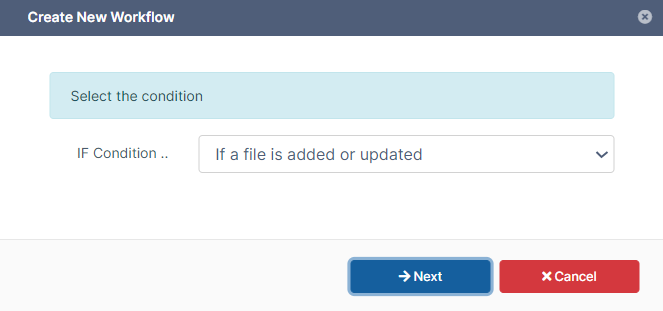
-
Click Next.
-
The only required parameter is parent_folder_path_string, so begin by entering it into the Required Parameters box.
This example uses the Team Folder estate documents.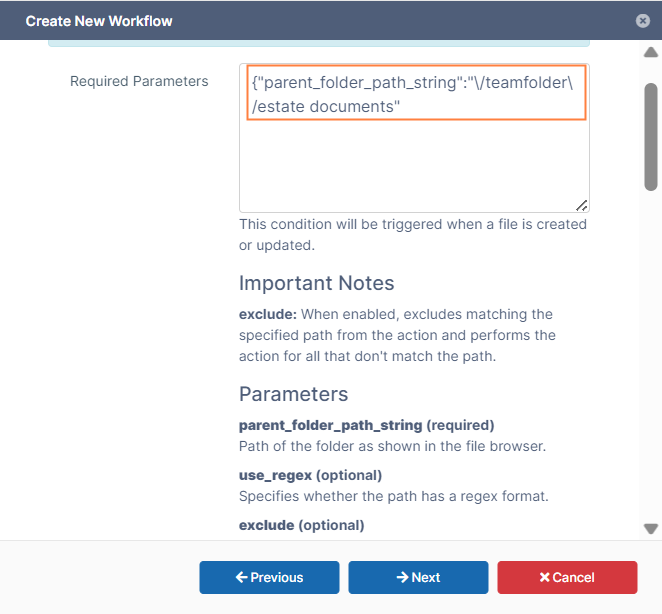
Scroll down to Expression Support to see the supported context variables. In this case the user and path context variables are supported.
To specify the user’s group and policy, use the variables _user.groups and user.policy.
-
Add the variables and values.
-
Click Next.
-
Choose the appropriate THEN action, and add the parameters.
This example uses a THEN action that sends an email to a specific user, and specifies the user’s email address.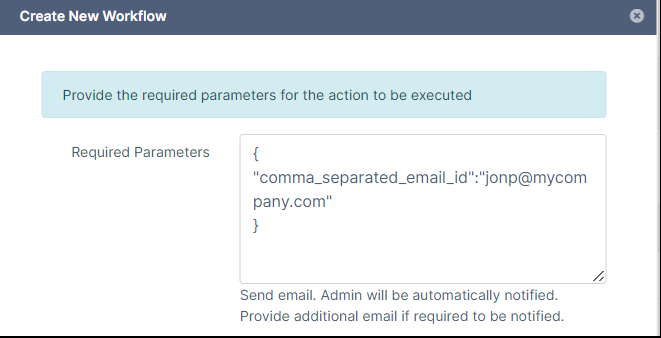
-
Click Next, and enter a name for the workflow, then click Finish.
The workflow is saved.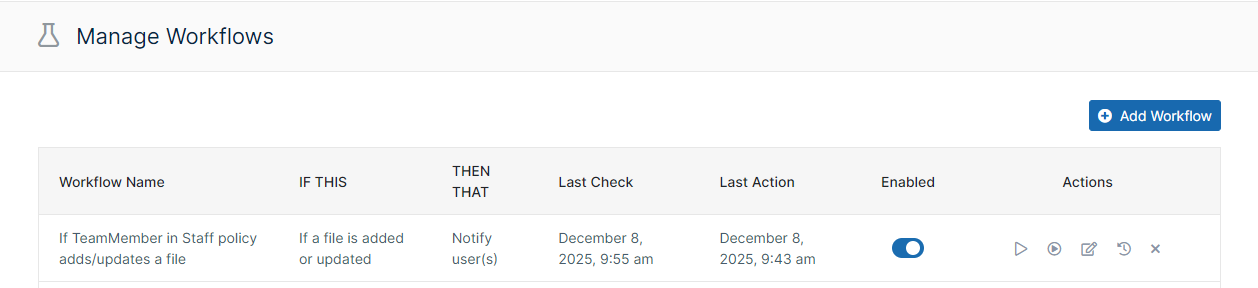
-
Test the workflow by having a user in the TeamMember group who has the policy Staff add or update a file in the Team Folder estate documents.
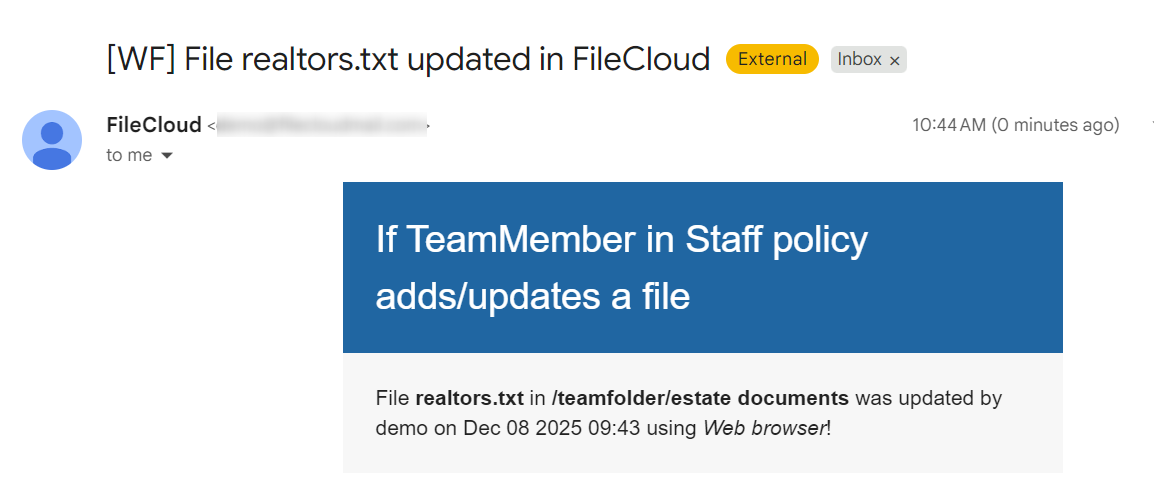
The user specified will receive an email notification similar to the following one if the workflow is effective: