.svg)
The instructions on this page show you how to authenticate to multiple AD servers by separately configuring each of the AD servers in your domain forest. To configure authentication of all of the AD servers in your domain forest using the Global Catalog (GC), see Authenticate Users Across Trusted AD Domains.
Although the latest versions of the Windows Server operating system handle large numbers of objects more efficiently, there are many reasons why organizations implement multidomain forests.
An example of this is a university.
-
In the Faculty of Science, there are different departments or schools, such as the school of physics and the department of botany
-
For political or organizational reasons it might have been decided that each department or school should have its own domain that is a part of the overall university forest
-
Active Directory gives organizations the ability to create domain namespaces that meet their needs
For more information on using multidomain AD infrastructure, on the Microsoft Web site, read AD Directory Services Getting Started.
Enable multiple AD server authentication
To enable multiple AD server authentication, configure settings in the following places:
-
adconfig.php file
-
Admin Dashboard
To enable multiple AD server authentication:
-
In the FileCloud admin portal's left navigation bar, scroll down and click Settings. Then, on the Settings navigation page, click Authentication

The Authentication settings page opens. -
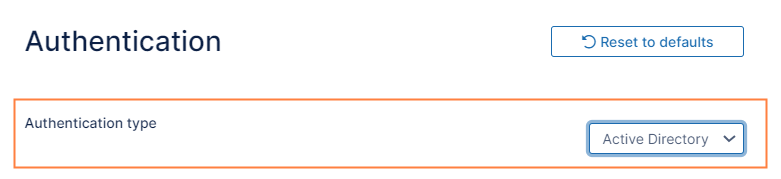
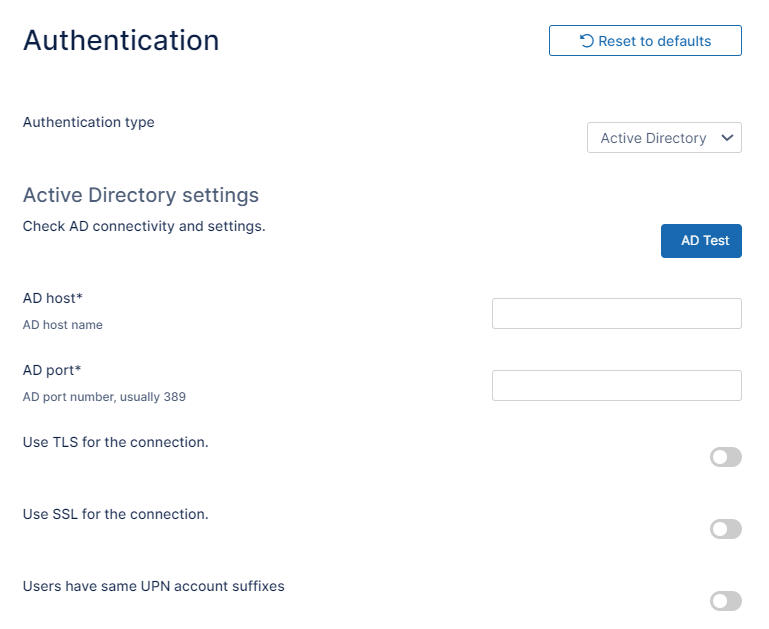
Under Authentication, change Authentication type to Active Directory, and click Save.
Additional fields appear.
-
Fill in the fields as instructed on the page Active Directory Authentication.
-
Create a file called adconfig.php in one of the following locations, depending on your OS:
Windows Location c:\xampp\htdocs\config\adconfig.php Linux Location /var/www/htdocs/config/adconfig.ph -
Add the information for the other AD servers using the following example.
Do not add the same AD server detail that was already configured in Admin Dashboard.
<?php
/* Configuration values for ActiveDirectory Authentication */
// ... Multi-AD Server Support, set to 1 to enable additional AD servers
define("TONIDOCLOUD_MULTI_AD_ENABLE", 1);
//=============== SITE 1 ==============================
define("TONIDOCLOUD_AD_HOST_1", "ADSERVERHOST" ); // < ActiveDirectory Host
define("TONIDOCLOUD_AD_PORT_1", 389 ); // < ActiveDirectory port
define("TONIDOCLOUD_AD_ACCOUNTSUFFIX_1", "@mysite.internal"); // < User Login Name Suffix
//define("TONIDOCLOUD_AD_LOGONNAMEPREFIX_1","SST"); // use this if prefix is needed. Note use only prefix or suffix
define("TONIDOCLOUD_AD_BASEDN_1", "DC=mysite,DC=internal"); // < User Search DN
define("TONIDOCLOUD_AD_MAILATTRIBUTE_1", "mail"); // < Mail Attribute
define("TONIDOCLOUD_AD_LIMIT_GROUP_1", ""); // < If you want login users to be limited to a specific AD group
define("TONIDOCLOUD_AD_USETLS_1", false); //<< If you want to use TLS set true, default is false, both SSL and TLS can't be true
define("TONIDOCLOUD_AD_USESSL_1", false); //<< If you want to use SSL set true, default is false, both SSL and TLS can't be true
define("TONIDOCLOUD_AD_ACCOUNTNAME_1", "Administrator"); // < Account name for Admin Operations
define("TONIDOCLOUD_AD_ACCOUNTPASSWORD_1", "adminpassword"); // < Account Password for Admin Operations
define("TONIDOCLOUD_AD_USEADMINBINDING_1", "0"); // < Account name for Admin Operations
define("TONIDOCLOUD_AD_ADMINACCOUNTNAME_1", ""); // < AD Service Account Username
define("TONIDOCLOUD_AD_ADMINACCOUNTPASSWORD_1", ""); // < AD Service Account Password
//=============== SITE 2 ==============================
define("TONIDOCLOUD_AD_HOST_2", "ADSERVERHOST2" ); // < ActiveDirectory Host
define("TONIDOCLOUD_AD_PORT_2", 389 ); // < ActiveDirectory port
define("TONIDOCLOUD_AD_ACCOUNTSUFFIX_2", "@mysite2.internal"); // < User Login Name Suffix
//define("TONIDOCLOUD_AD_LOGONNAMEPREFIX_1","SSK"); // use this if prefix is needed. Note use only prefix or suffix
define("TONIDOCLOUD_AD_BASEDN_2", "DC=mysite2,DC=internal"); // < User Search DN
define("TONIDOCLOUD_AD_MAILATTRIBUTE_2", "mail"); // < Mail Attribute
define("TONIDOCLOUD_AD_LIMIT_GROUP_2", ""); // < If you want login users to be limited to a specific AD group
define("TONIDOCLOUD_AD_USETLS_2", false); //<< If you want to use TLS set true, default is false, both SSL and TLS can't be true
define("TONIDOCLOUD_AD_USESSL_2", false); //<< If you want to use SSL set true, default is false, both SSL and TLS can't be true
define("TONIDOCLOUD_AD_ACCOUNTNAME_2", "Administrator"); // < Account name for Admin Operations
define("TONIDOCLOUD_AD_ACCOUNTPASSWORD_2", "adminpassword"); // < Account Password for Admin Operations
define("TONIDOCLOUD_AD_USEADMINBINDING_2", "0"); // < Account name for Admin Operations
define("TONIDOCLOUD_AD_ADMINACCOUNTNAME_2", ""); // < AD Service Account Username
define("TONIDOCLOUD_AD_ADMINACCOUNTPASSWORD_2", ""); // < AD Service Account Password
?>
Now additional users from these domains can also login into FileCloud.
To allow duplicate usernames for different domains
If you are using SSO, SSO API, or Active Directory (AD) to import users, FileCloud uses the imported user’s email username (the portion before @) as the FileCloud username. However, by default, FileCloud does not allow creation of users with the same usernames.
If any of your users have multiple email addresses, there may be a situation where the email username (the portion before @) is the same but the domains are different in their multiple emails. In this case, FileCloud will attempt to convert the second email username (and any further emails with the same username) to the FileCloud username, which will fail because the username already exists.
However, if the multiple email addresses actually represent different users, you may use the following setting to enable creation of multiple users:
-
Open cloudconfig.php at
-
Windows: xampp/htdocs/config/cloudconfig.php
-
Linux: /var/www/config/cloudconfig.php
-
-
Add the following and save:
define("TONIDOCLOUD_ALLOW_DUPUSERNAMES",1);Now:
If you create a a user with the username jocelynp and email jocelynp@gmail.com, FileCloud creates a user with the username jocelynp.
Next, if you attempt to create a user with the username jocelynp and email jocelynp@optimum.net, FileCloud creates a user with the username jocelynp_optimum. This follows for any subsequent emails with the same username and a unique domain.
Use encrypted AD account password in the configuration file
To encrypt an AD password using the adpasswordencryption tool:
-
Open a command line.
-
Enter the following:
Windows:$ cd C:\xampp\htdocs\resources\tools\security\ $ C:\xampp\php\php adpasswordencryption.phpLinux:
$cd /var/www/html/resources/tools/security/ php adpasswordencryption.php -
At the prompt, enter your password:
This tool encrypts an AD password string to be used in the adconfig.php configuration files of FileCloud Enter your password: [your-password-string] -
As instructed, copy the encrypted password string returned:
Carefully copy paste the following string to adconfig.php key TONIDOCLOUD_AD_ENC_ACCOUNTPASSWORD or TONIDOCLOUD_AD_ENC_ADMINACCOUNTPASSWORD: zk8aQV6+L1Q7kA7N6JGgj2MzNjRkNzMwMTU0OTY0MjAzMGVhNWI0NDM5NjIxMWI2N2UzMzRkZTcwNjE2YzgxOTk0YzVjNjI2ZGQ2NjgzMTZ1bTJBN0gwdmdabHYzQzlmQm9IZUN3PT0=
To paste the encrypted password into adconfig.php:
-
Navigate to the adconfig file:
Windows: xampp > htdocs > config
Linux: /var/www/htdocs/config -
Rename adconfig-sample.php file to adconfig.php.
-
To add an encrypted password for AD admin operations, add:
define("TONIDOCLOUD_AD_ENC_ACCOUNTPASSWORD", "encryptedpassword");To add an encrypted password for the ad service account, add:
define("TONIDOCLOUD_AD_ENC_ADMINACCOUNTPASSWORD", "encryptedpassword");
FileCloud will decrypt the passwords when it makes the directory calls.