.svg)
Multi-factor authentication (MFA) refers to the multi-step verification process that is available in FileCloud and designed to provide an extra layer of security. With this function, in order to access FileCloud, the user is required to know not only the password and username but also an extra security code that is made available to them. The FileCloud administrator can enable multi-factor authentication for the user portal, and also, separately, for the admin portal. This can be done regardless of the authentication type (default, AD, or LDAP).
FileCloud supports the following modes of delivering MFA codes:
-
Email
-
Google Authenticator TOTP Code
-
DUO Security (user portal only)
-
SMS OTP Security Code
Multi-factor authentication using TOTP (Google Authenticator or similar TOTP code generators)
These instructions are written using Google Authenticator as an example TOTP code generator, however, any TOTP apps such as Microsoft Authenticator, etc. can be used.
To set up MFA with Google Authenticator:
-
In the FileCloud user portal, choose TOTP (Authenticator App) when configuring MFA for the user portal. See Multi-Factor Authentication for User Portal for help.
-
In the FileCloud admin portal, choose TOTP Authentication when configuring MFA for the admin portal. See Two-Factor Authentication for Admin Portal for help
When a user logs in for the first time, they are provided with an option to set up Google Authenticator. This involves entering a code or scanning a QR Code into the the Google Authenticator client. See Log in Using Multi-Factor Authentication for more information.
Note that once Google Authenticator is set up using the user portal, other client devices can be used to connect to the FileCloud account.
Once MFA with Google Authenticator is set up for the first time, the user is no longer able to set it up again. Only the Administrator can clear the Google Authenticator setup.
MFA using SMS: Setting up Twilio as the SMS gateway provider
Currently, FileCloud has implemented Twilio as the default SMS Gateway Provider, although enterprise customers may add custom SMS providers and handlers to the system. In order to successfully use SMS security, admins must set up a Twilio account to receive the required security ID, authentication token and the phone number from which the codes will be sent.
-
Create a Twilio account.
Follow instructions at https://www.twilio.com/docs/sms to obtain the required SID, Auth Token and create a phone number. -
In the FileCloud admin portal, open the MFA settings page.
To open the MFA settings page
-
In the FileCloud admin portal's left navigation bar, scroll down and click Settings. Then, on the Settings navigation page, click Misc

-
In the inner navigation bar on the left of the Settings page, expand the Misc menu, and click MFA, as sho800wn below.
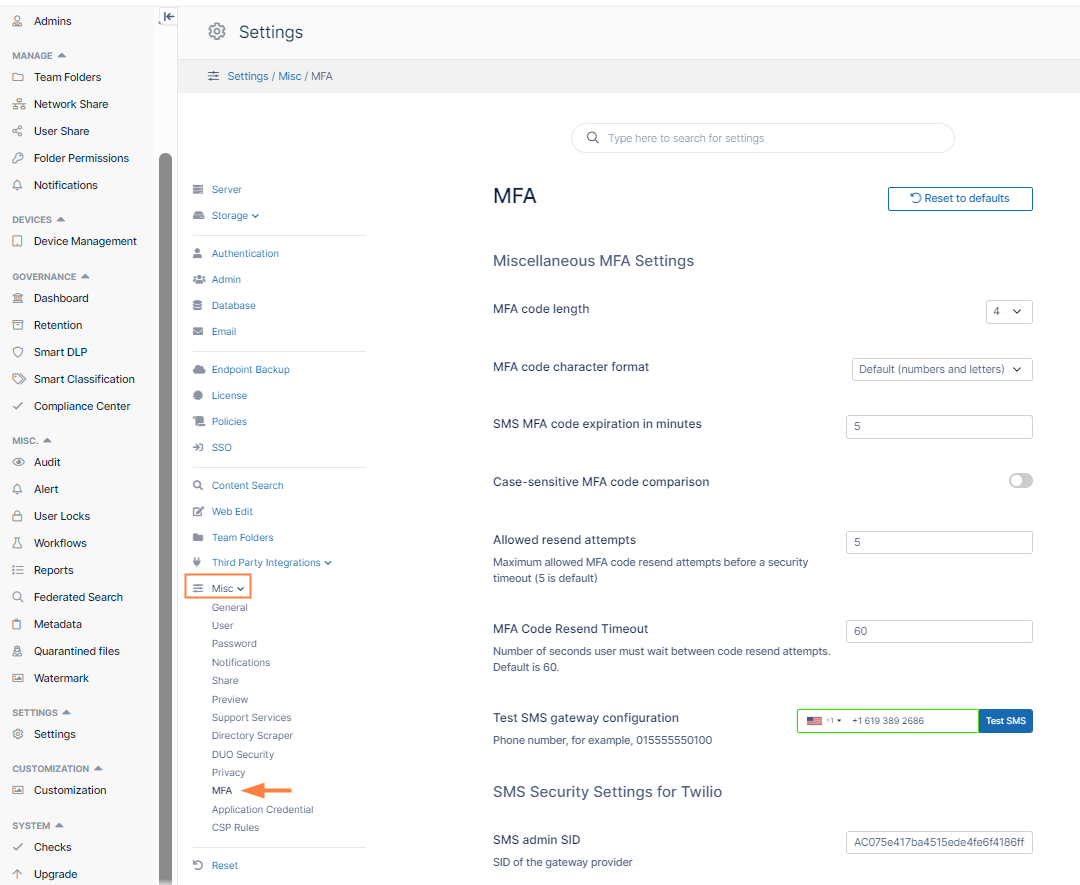
The MFA settings page opens.
-
-
Fill in the MFA settings.
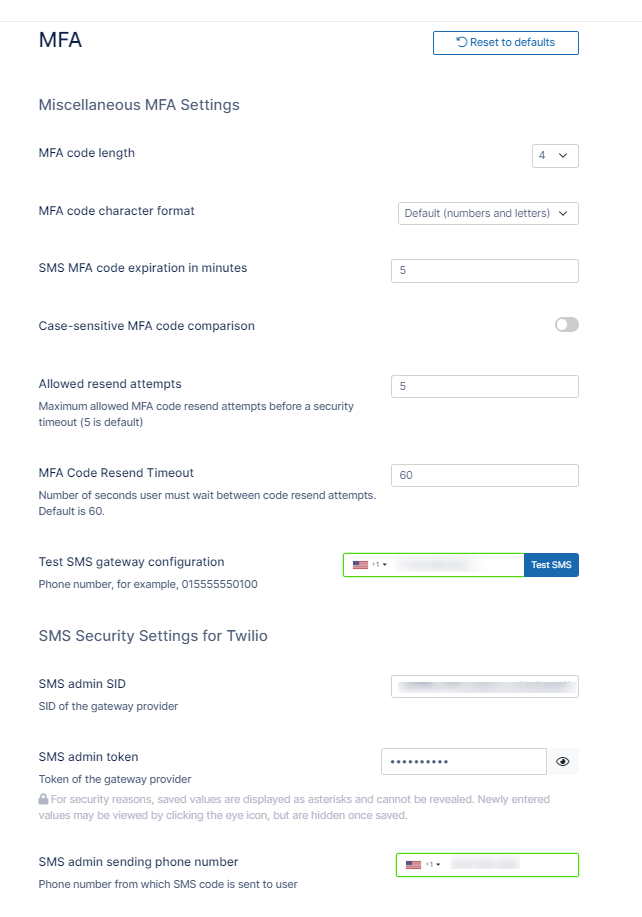
MFA code length - The number of letters and digits in the MFA code. Default is 4.
MFA code character format- Type of characters permitted in MFA code. Options are:
-
Numbers and letters (default)
-
Numbers
-
Letters
-
Uppercase letters
SMS MFA code expiration in minutes - How long, in minutes, the security code remains valid. Default is 10.
Case-sensitive MFA code comparison - When checked, the code entered is case-sensitive.
Allowed resend attempts - Number of times the user may resend the code before logging in is timed out for the time set in MFA Code Resend Timeout.. Default is 5.
MFA Code Resend Timeout - Number of seconds between Allowed resend attempts that the user must wait before attempting to resend again. Default is 30.
For example, if Allowed resend attempts is 5, and MFA Code Resend Timeout is 30, a user can attempt to resend a code 5 times and then is forced to wait 30 seconds before being able to attempt to resend the code another 5 times. If those attempts fail, the user is forced to wait another 30 seconds, and so on.
Test SMS gateway configuration - Enter a secure known phone number, and save the settings. Click Test SMS to check if your SMS configuration is valid.
SMS admin SID - SID of gateway provider.
SMS admin token - Token of gateway provider.
SMS admin sending phone number - Phone number from which SMS code is sent to user.
Once the setup is complete, set up the policy for users and choose the appropriate SMS gateway provider, similarly to other MFA methods.
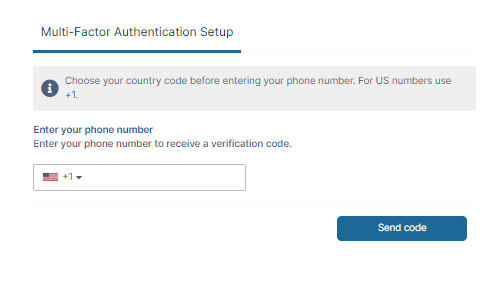
Users are required to set up a phone number once the SMS MFA Policy is enabled. Once the phone number is set up, client devices can be used to connect to the FileCloud account. Set up the phone number via the web UI or through your admin.
If users are required to use SMS with MFA, they will see the following dialog box during login after the policy is enabled:
Enable multi-factor authentication using SMS OTP security codes for specific user agents
FileCloud supports configuring multi-factor authentication using SMS OTP for specific user agents. For example, you could apply this configuration to mobile clients only, or to FileCloud Drive, FileCloud Sync, and Microsoft Outlook only.
-
Complete the instructions above in Multi-Factor Authentication using SMS OTP Security Codes.
-
Open cloudconfig.php at
-
Windows: XAMPP DIRECTORY/htdocs/config/cloudconfig.php
-
Linux: /var/www/config/cloudconfig.php
-
-
Add the following:
define("TONIDOCLOUD_TWOFA_REQUIRED_USERAGENT_LIST", "useragent1,useragent2, ... "); -
Replace the useragent values with any number of user agents from the following list:
-
Web browser
-
Android
-
iOS
-
FileCloud Desktop Windows
-
FileCloud Desktop macOS
-
MS Outlook
-
MS Office
-
MS Office Online
-
Cloud Sync
-
FileCloud Drive
-
Any white labelled FileCloud Sync/Drive product name
For example:
define("TONIDOCLOUD_TWOFA_REQUIRED_USERAGENT_LIST", "Android,iOS");
-
Multi-factor authentication validity for Email based MFA
MFA Code validity: 10 minutes.
This can be changed by adding a key with a different timeout as shown (This key can be added <WEBROOT>/config/cloudconfig.php).
define ("TONIDOCLOUD_2FA_EMAIL_EXPIRATION_MINUTES", "10");
This can be changed by adding a key with a different timeout as shown (This key can be added <WEBROOT>/config/cloudconfig.php).
define ("TONIDOCLOUDN_MINUTES", "5");
For Web Apps, The MFA validity period is tied to the Session Timeout
For Client apps (iOS , Android App, Drive and Sync) the MFA code will be required only on very first access and subsequent access will not require the code. If the record of that device is removed using "Remove Client Device Record" action, then subsequent access for that mobile device will require the MFA code.
For instructions specific to the admin portal or the user portal, see: