.svg)
Enable multi-factor authentication for user portal
To enable multi-factor authentication for logging into the user portal:
If you are planning to enable DUO Security as the multi-factor authentication mechanism, first set up FileCloud to use DUO Security Service (instructions below).
-
In the FileCloud admin portal's left navigation bar, scroll down and click Settings. Then, on the Settings navigation page, click Policies

The Policies page opens..png?cb=f11a08db8bd48fc3b7c4186cbd5a4c98)
-
Edit the policy for MFA users.
-
Click the MFA tab.
-
Enable Require multi factor authentication.
Additional fields appear for setting up MFA.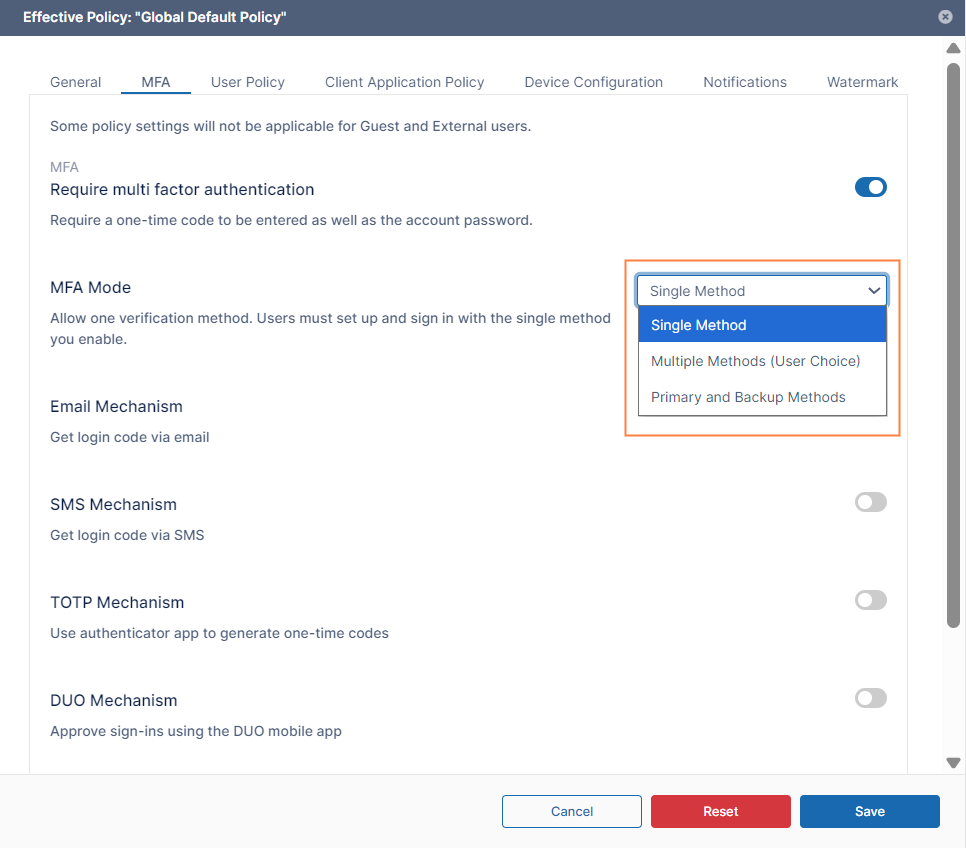
-
In the MFA Mode drop-down list, choose one of the options:
-
Single Method - Users must use the single authentication mechanism that you enable on this tab.
-
Multiple Methods (User Choice) - Users may choose one of the authentication mechanisms that you enable on this tab.
-
When this choice is selected, the option Show all selected options at every login appears below it.
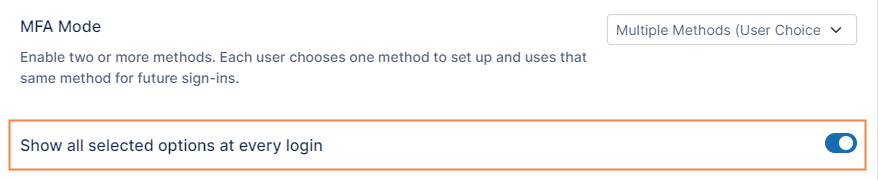
When disabled (default), only the method the user chooses initially is shown on each login. When enabled, all admin-enabled MFA methods are displayed on each login, and if the user chooses one that is not yet configured, they are prompted to configure it.
-
-
Primary and Backup Methods - Users may choose (and must set up) two of the authentication mechanisms that you enable on this tab, one as a primary method and one as a backup. On initial login, users choose the primary and secondary methods and do any set up necessary for them . On future logins, they are prompted to use the primary method on login, but can switch to the backup.
-
-
Depending on which of the methods you have chosen in MFA Mode, choose one or more of the following mechanisms:
-
Email Mechanism - Sends a one-time authentication code to the user’s email address.
-
SMS Mechanism - Sends a one-time authentication code via the user’s SMS number.
If you choose SMS Mechanism, an SMS Provider Setup field appears below it. Choose either Twilio, our default SMS gateway provider or Custom if you are adding a custom provider.
For more information about setting up your SMS provider, see Multi-factor authentication.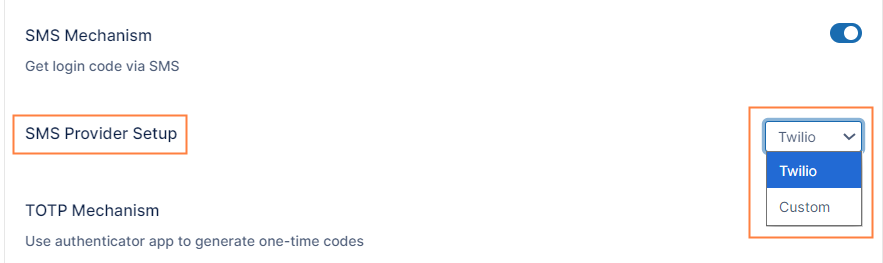
-
TOTP Mechanism - Generates a one-time authentication code via the user’s authentication app.
-
DUO Mechanism - Enables the user to use their DUO app to either get a one-time code.
-
6. If you choose SMS Security and users are permitted to create accounts, add the following setting that enables users to add a phone number when creating a share with an external user:
-
Open the configuration file:
Windows: XAMPP DIRECTORY/htdocs/config/cloudconfig.php
Linux: /var/www/config/cloudconfig.php -
Add the line:
define ("TONIDOCLOUD_ENABLE_2FA_SMS_SHARE_INVITES", TRUE);
What Users See
When you require multi-factor authentication for a certain policy, the choices given to users in that policy depend on both the MFA Method you choose and the MFA Mechanisms that you enable.
-
MFA Mode: Single Method
Mechanism enabled in this example: Email
When users in this policy log in, they see: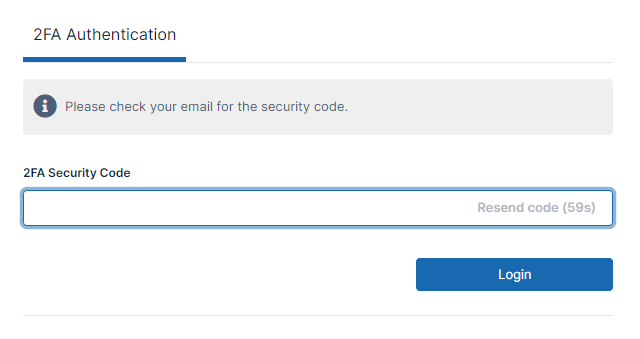
-
MFA Mode: Multiple Methods (User Choice)
Mechanisms enabled in this example: Email, SMS, TOTP, DUO
When users in this policy log in initially, they see: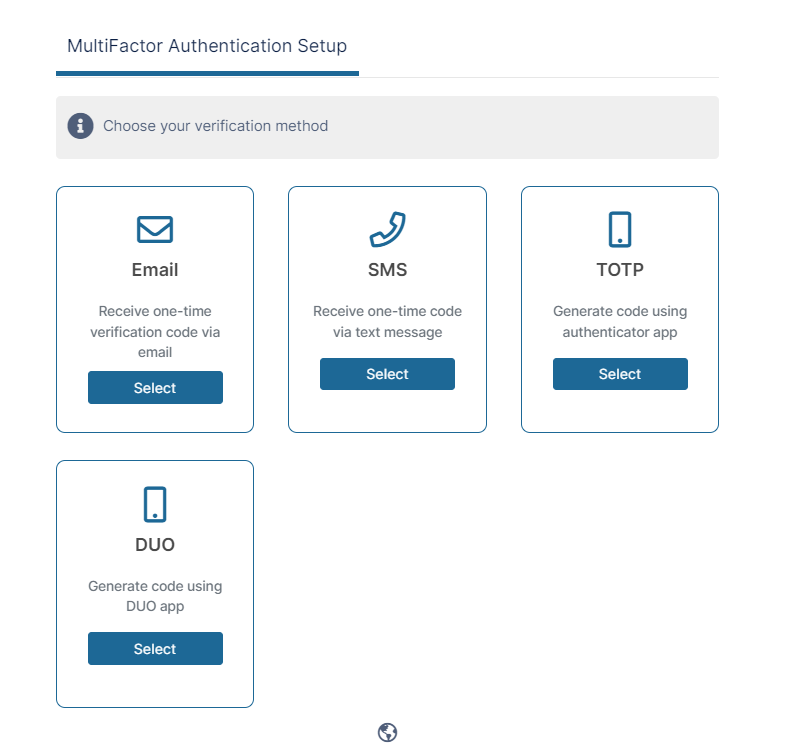
On subsequent logins:
-
They see the verification method they initially selected, if Show all selected options at every login was disabled.
-
They see all admin-enabled verification methods, if Show all selected options at every login was enabled.
-
-
MFA Mode: Primary and Backup Methods
Mechanisms enabled in this example: Email, TOTP, DUO
When users in this policy log in, they are prompted to choose a primary verification method: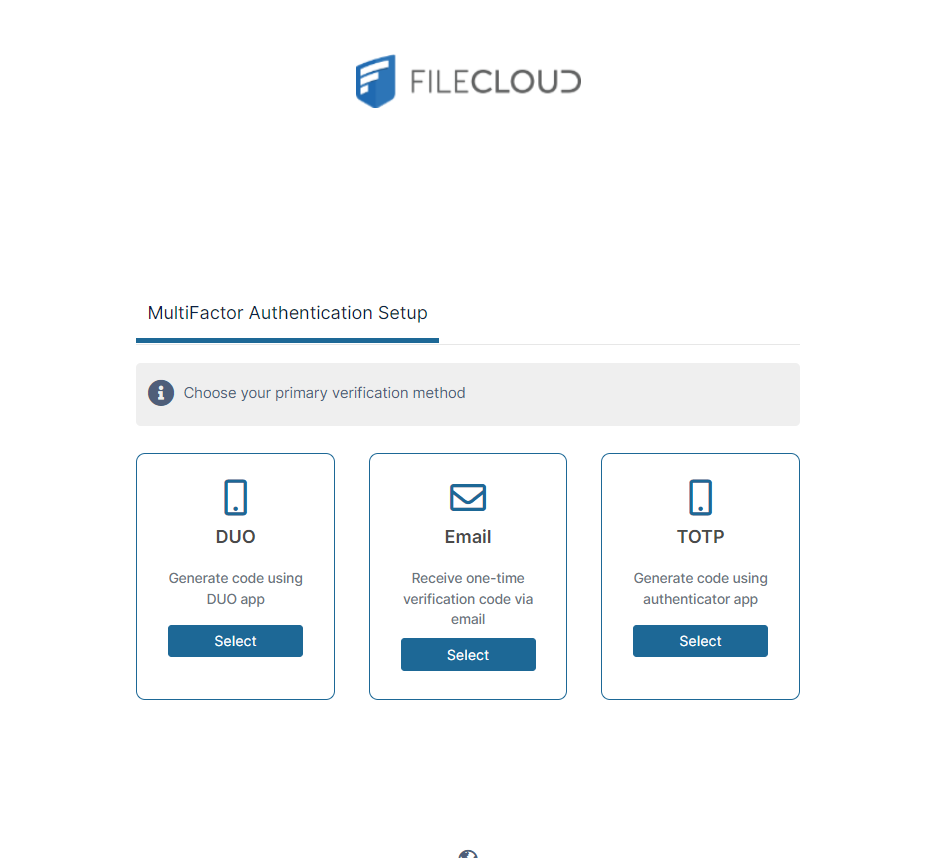
If, for example, a user selects Email, they are prompted to log in with a code sent through email, and then they are prompted to choose a secondary verification method:
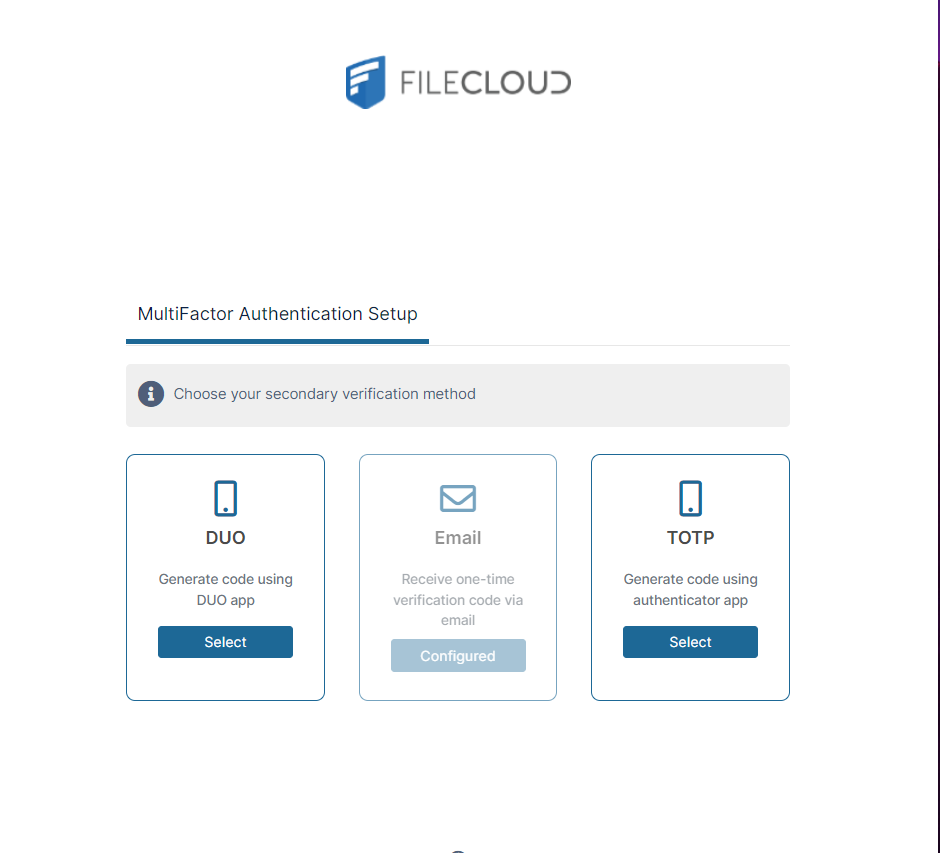
If the user chooses TOTP, they are prompted to set up TOTP login.
When they log in again, they are automatically prompted to enter a code sent to email, but they are also given the option of switching to TOTP: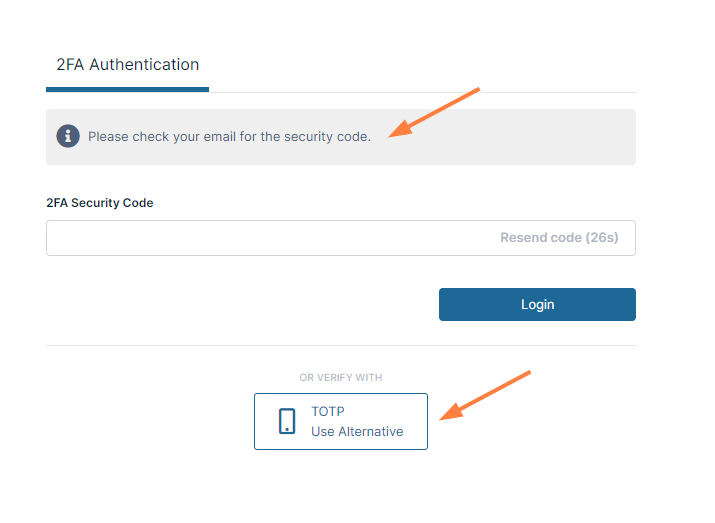
If you switch from Single Method to Multiple Methods or Primary and Backup Methods, the user’s chosen mechanism or primary mechanism automatically is made the same as their prior single mechanism unless you disable that mechanism as well. (For example, if you had set Single Method, Email Mechanism and changed to Multiple Methods with all mechanisms enabled, the user’s choice method would be Email Mechanism.
MFA with SMS: Configuring the SMS Gateway Provider
To use SMS for MFA, you must configure an SMS gateway provider to deliver the MFA codes. By default, FileCloud uses Twilio as the SMS gateway provider although enterprise customers may add custom SMS providers and handlers to the system. To configure Twilio with FileCloud, see Multi-Factor Authentication | MFA using SMS: Setting up Twilio as the SMS gateway provider
MFA using DUO security
FileCloud can be set up to use DUO security service to perform MFA. Note that DUO PUSH is not supported and requires code generated by DUO Mobile app to be entered to perform MFA.
The following steps are required to set up MFA using DUO.
-
ADD DUO Auth API
-
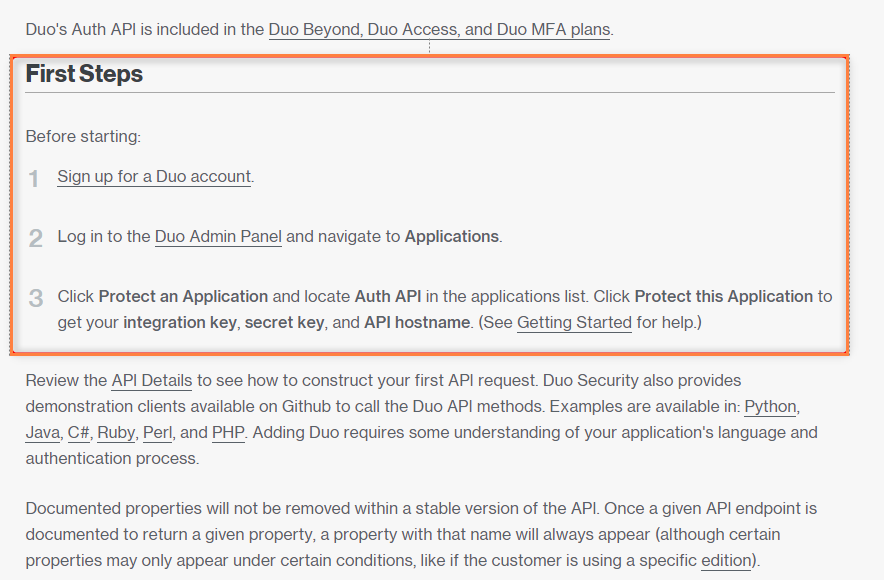
Follow instructions at https://duo.com/docs/authapi to get integration key, secret key, and API hostname.
-
In the FileCloud admin portal, open the DUO Security settings page.
To go to the Duo Security settings page
-
In the FileCloud admin portal's left navigation bar, scroll down and click Settings. Then, on the Settings navigation page, click Misc

-
In the inner navigation bar on the left of the Settings page, expand the Misc menu, and click DUO Security, as shown below.
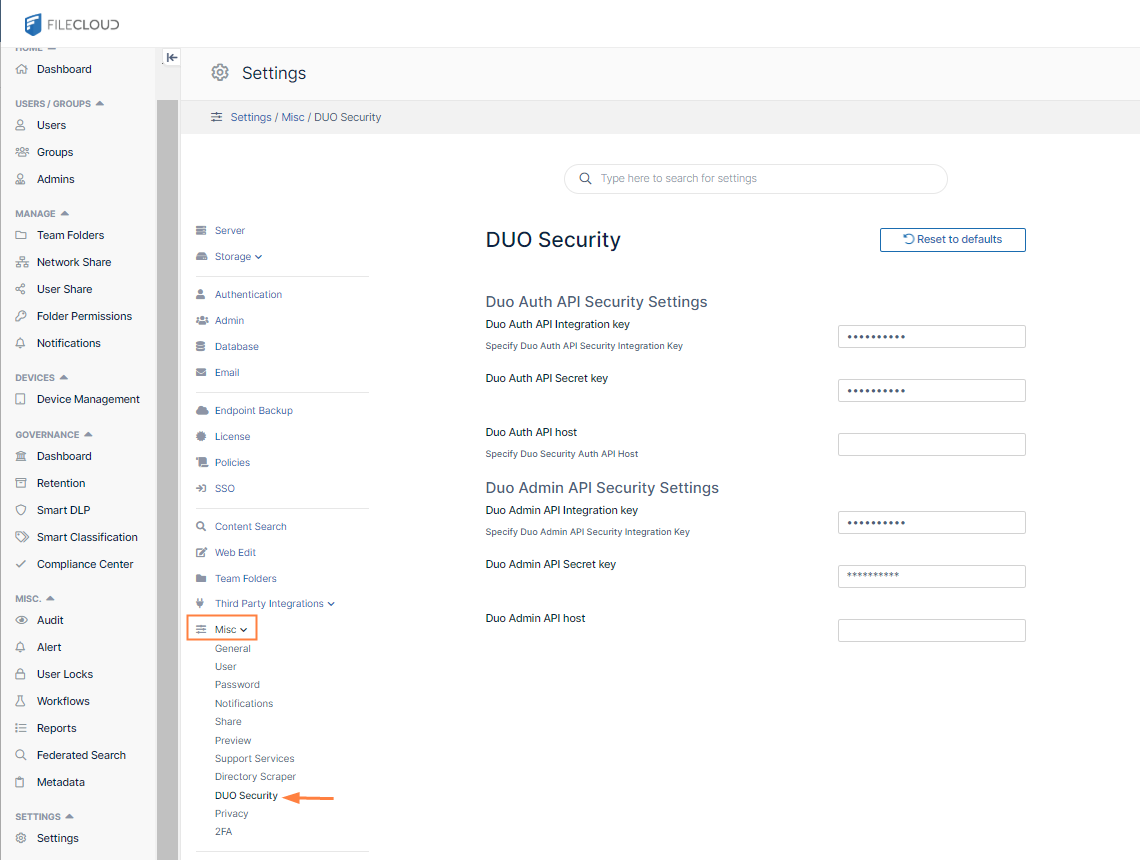
The DUO Security settings page opens.
-
-
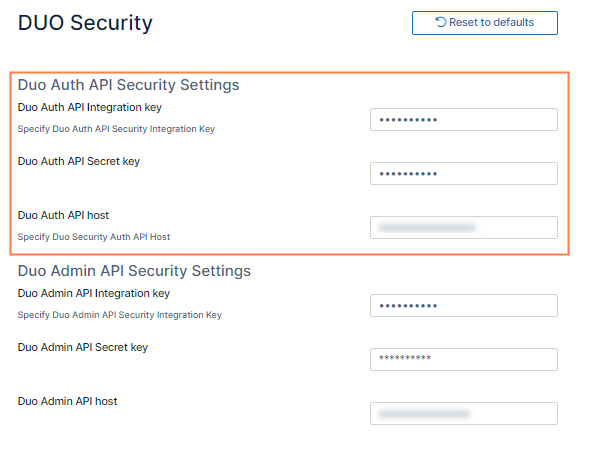
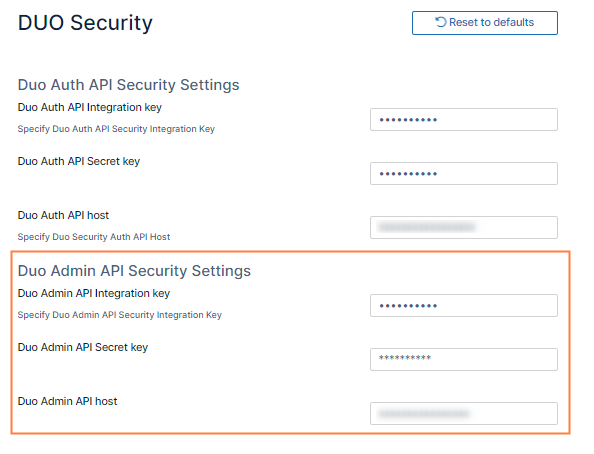
Fill in the Duo Auth API Security Settings fields on the page.
-
Add DUO Admin API
-
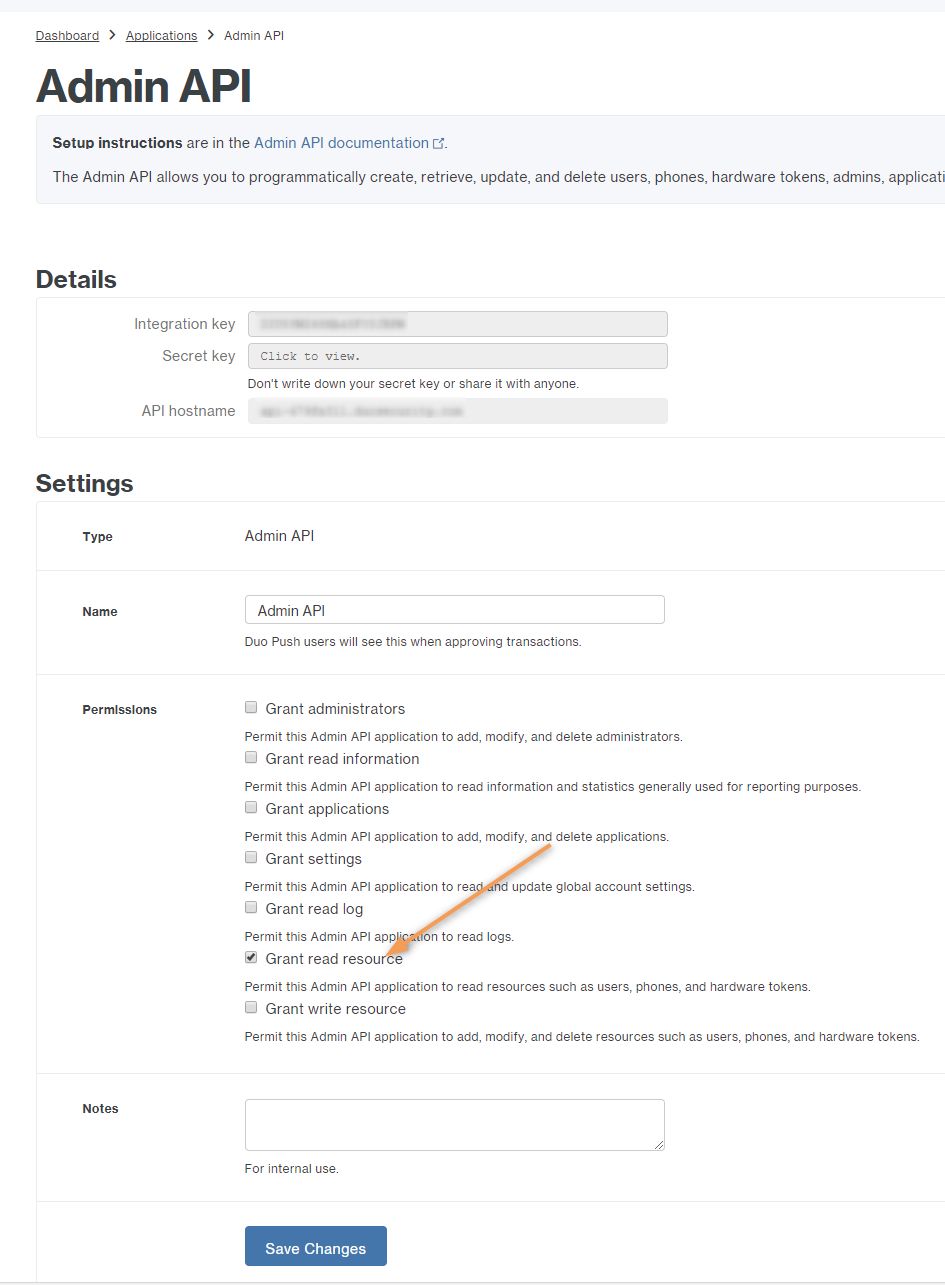
Follow instructions at https://duo.com/docs/adminapi to get values for integration key, secret key, and API hostname
-
Ensure it has Grant read resource permission.
-
In the FileCloud admin portal, go to the DUO Security settings page.
-
Fill in the Duo Admin API Security Settings fields on the page.
-
Now follow the instructions above to enable MFA and specify the MFA mechanism as Duo Security.
Note: When users who are enrolled in the Duo Admin Panel log in, they must use the text code from the default entry in their Duo App. When users who are not enrolled in the Duo Admin Panel attempt to log in, they are prompted to use a QR code scanner to enroll themselves, and then must use the text code from the entry they added in their Duo App. See Log in Using Multi-Factor Authentication for more information.
-
Reset TOTP or DUO settings for a user
When a user loses a TOTP (Google Auth) or DUO app enabled device or if they need to reset the code for any reason, you can reset the authenticator setup for that user using the following steps.
-
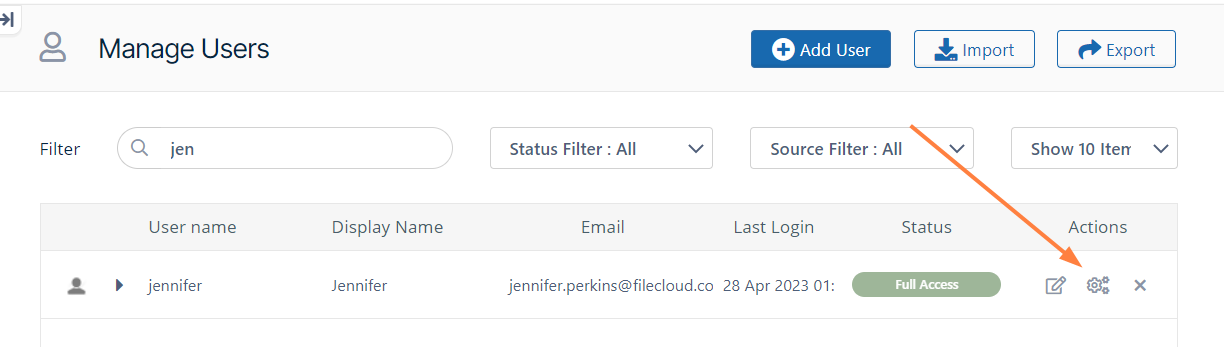
In the FileCloud admin portal, go to Users and click the Manage Policy icon in the row for the user.
-
Click the MFA tab.
-
Click the Reset User MFA to enable the user to reset their authenticator code.
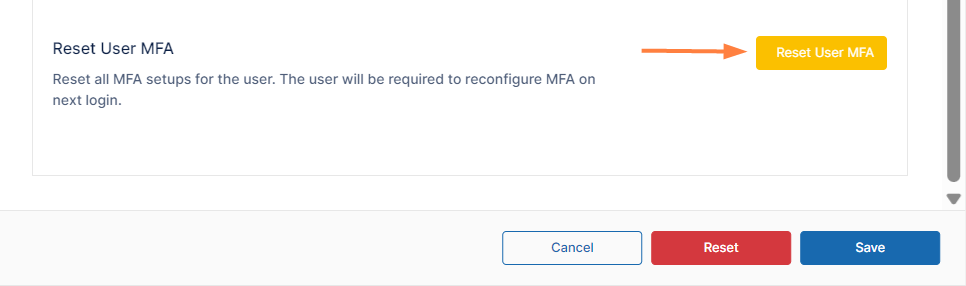
After the secret is reset, the user is not required to redo the DUO setup on initial login as FileCloud will import access tokens from DUO automatically.
New devices can be registered from the DUO Admin Panel using the DUO Enrollment Email feature.