.svg)
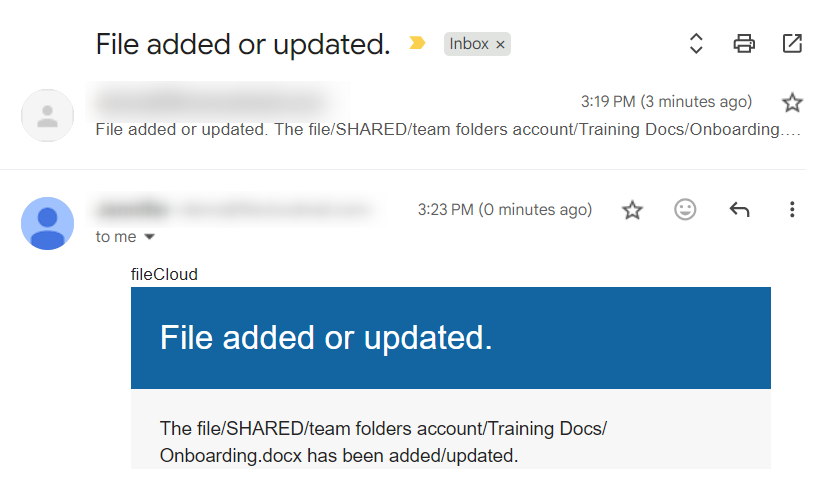
This page takes you through the steps for creating a workflow. In the example, when a file is created or updated on a specific path, an email is sent to a user to alert them that a file has been added or updated.
To create the workflow:
-
In the navigation panel, click Workflows.
The Workflows page opens. -
Click Create New Workflow.
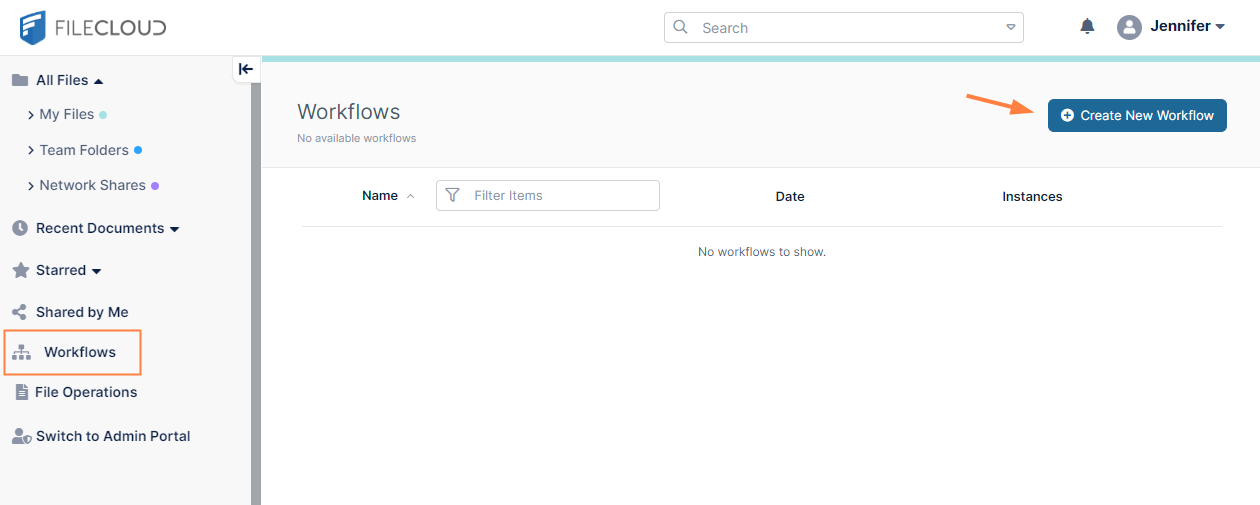
The drag-and-drop workspace opens. -
Click Click here to start.
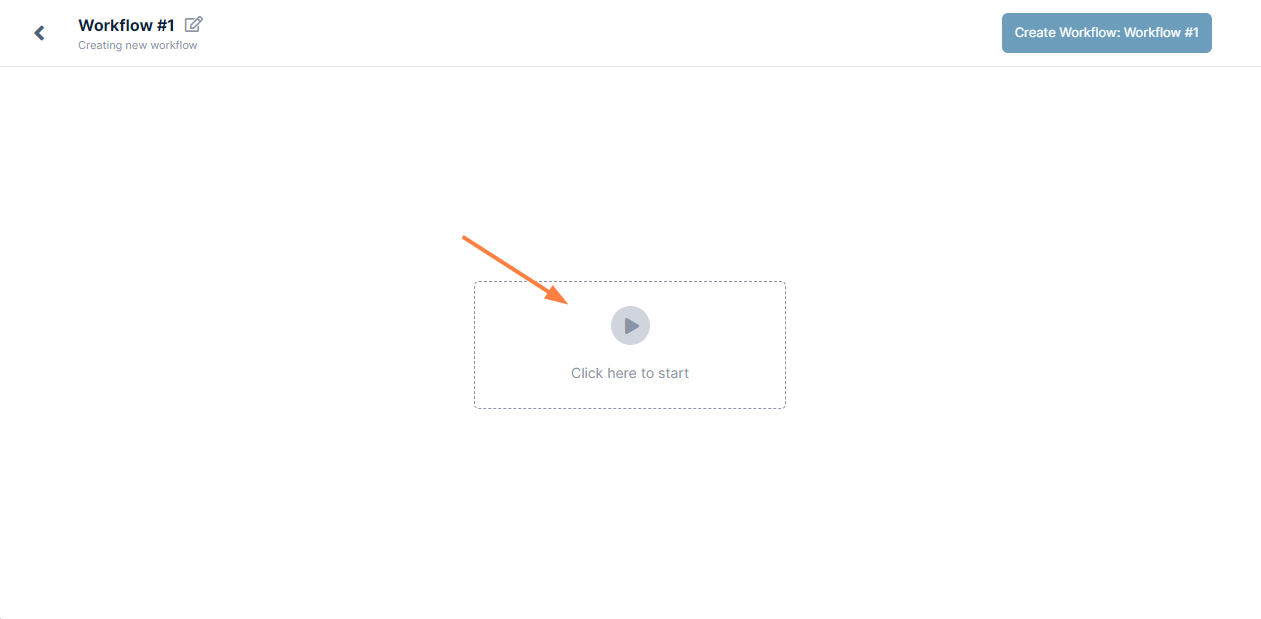
A list of triggers, events that initiate a workflow, appear.
For information about the different types of triggers, see Workflow Triggers. -
Click a trigger, and click Next.
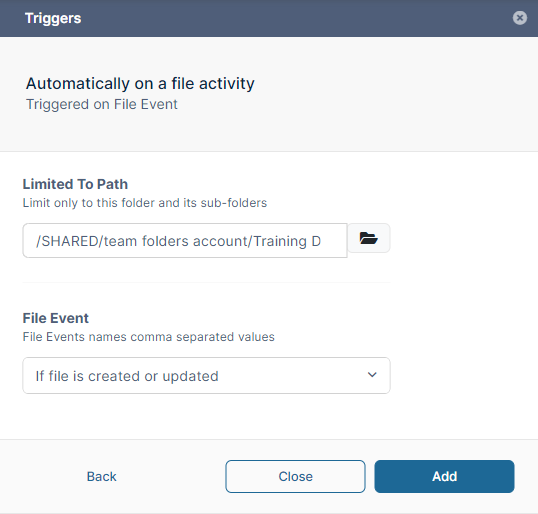
In the following example, we choose the trigger Automatically on a file activity, and click Next.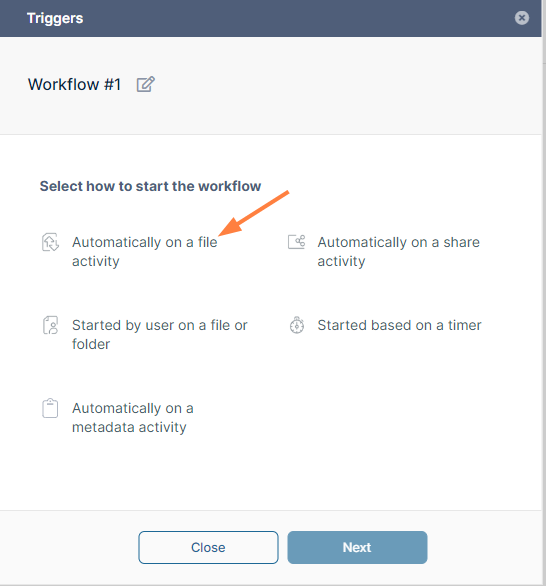
-
Since that trigger requires us to choose a file path and a file event, we select a path and choose the event If a file is created or updated, and then click Add.
An initial workflow appears on the drag-and-drop workspace.
-
Add a step to the workflow.
For more information about the types of steps you can add to workflows and step parameters, see Workflow Steps.
In the following example, we drag and drop the Send Email step to the plus sign between the workflows.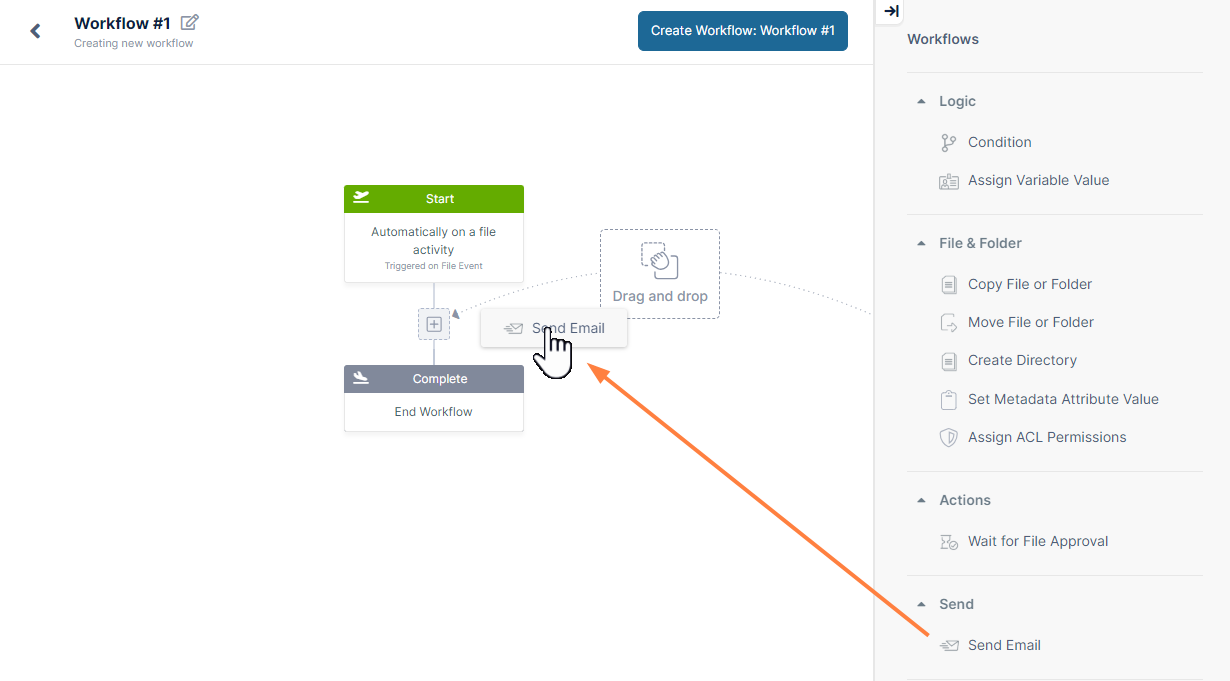
Once a step is added, parameters for the step open in the right panel.
-
Enter values in the parameters for the step.
In the example, we fill in values for the To recipient, the Subject of the email, and the email Body.
We include a variable in the Body of the email to make it more informative.
We add the full name of the new file including its path with the variable File full path.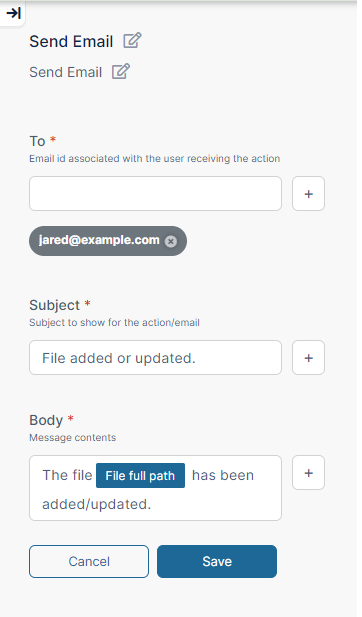
For more information about using variables, see Using Variables in Workflows.
-
Click Save to save the workflow details.
-
Repeat steps 6 through 8 to add any number of steps to the workflow.
-
In the upper-left corner of the drag-and-drop workspace, name the workflow, then click Create Workflow.
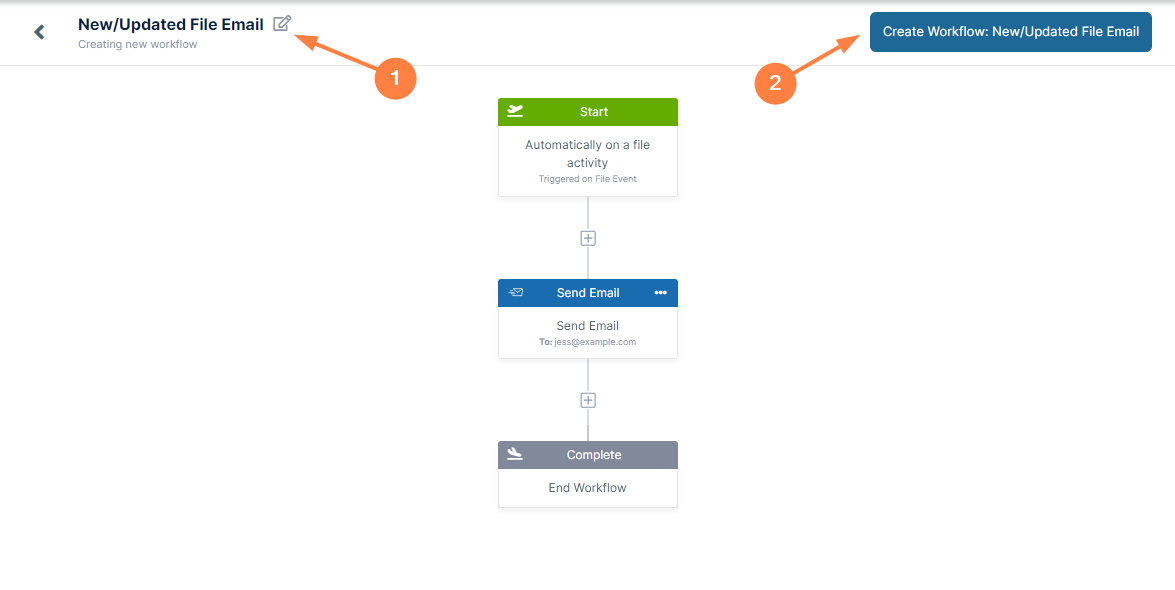
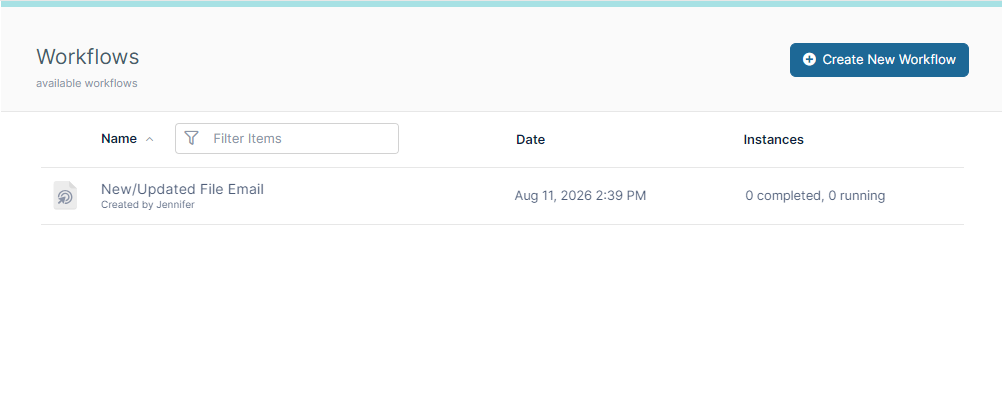
The workflow is created and you are returned to the Workflows listing, where the workflow now appears.
To test the workflow.
-
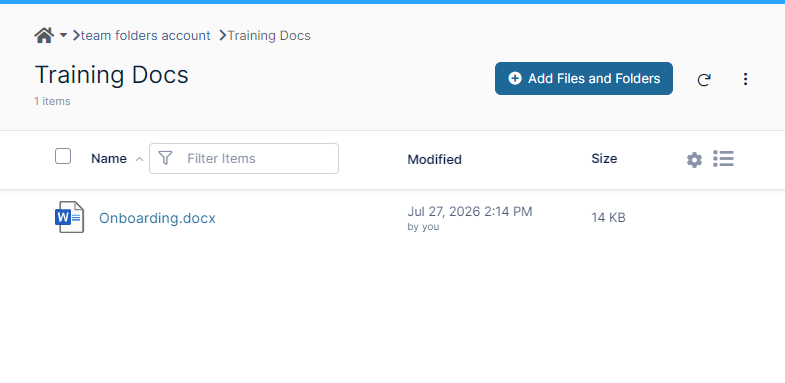
We trigger the New/Updated File Email workflow by adding the file Onboarding.docx to the folder Training Docs in Team Folders.
-
Next we confirm that the workflow was triggered by checking if an email was sent to the recipient we added.
We also check that our variable functions as expected by making sure the email includes the name and path of the new file.