.svg)
If you encounter problems with the FileCloud iOS app, refer to the information on this page.
Getting Device Logs
Getting the device logs is the first step towards understanding a problem and distinguishing between server-side issues and iOS issues.
Sharing log information with our support team will help us investigate your issue and solve it promptly.
To access the log files:
-
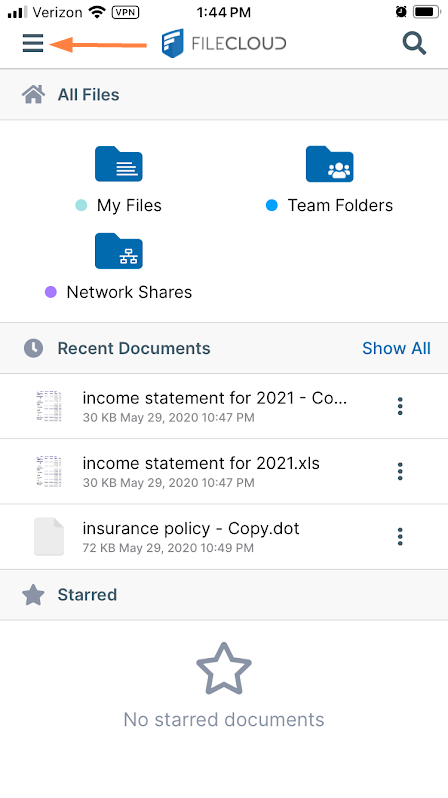
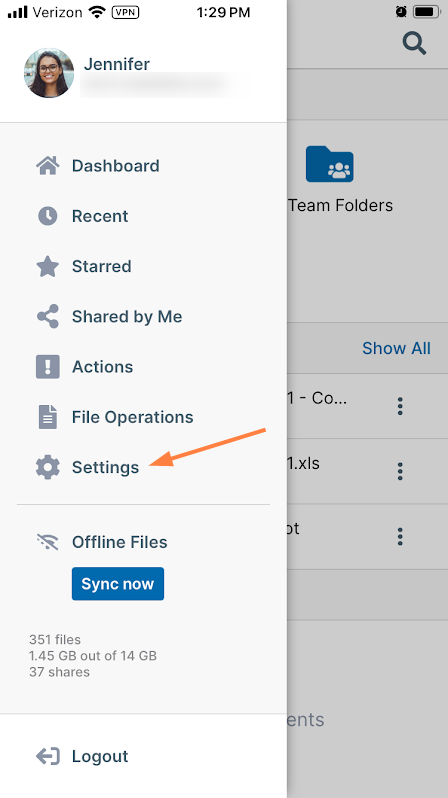
Log in to the app, and tap the menu icon in the upper left corner, then tap Settings.
-
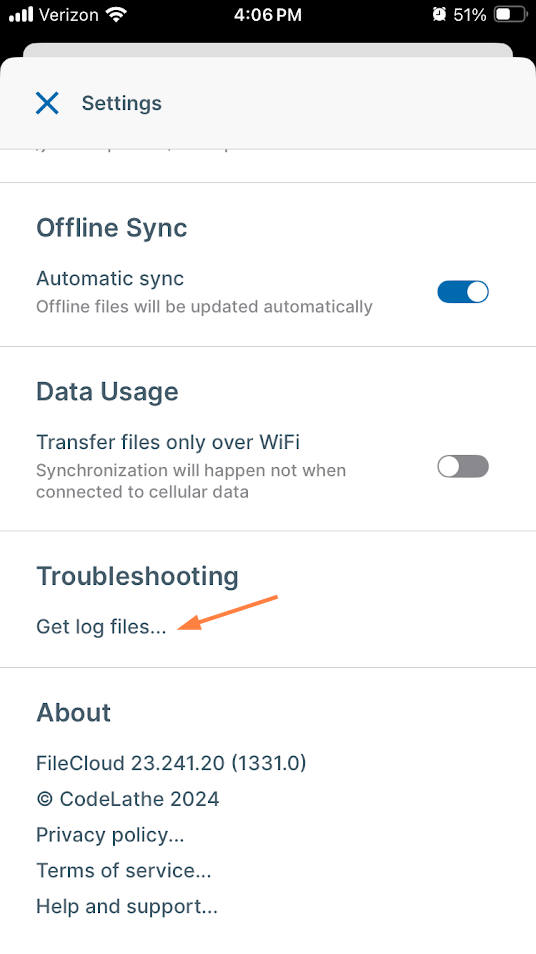
In Settings, scroll down, and tap Get log files.
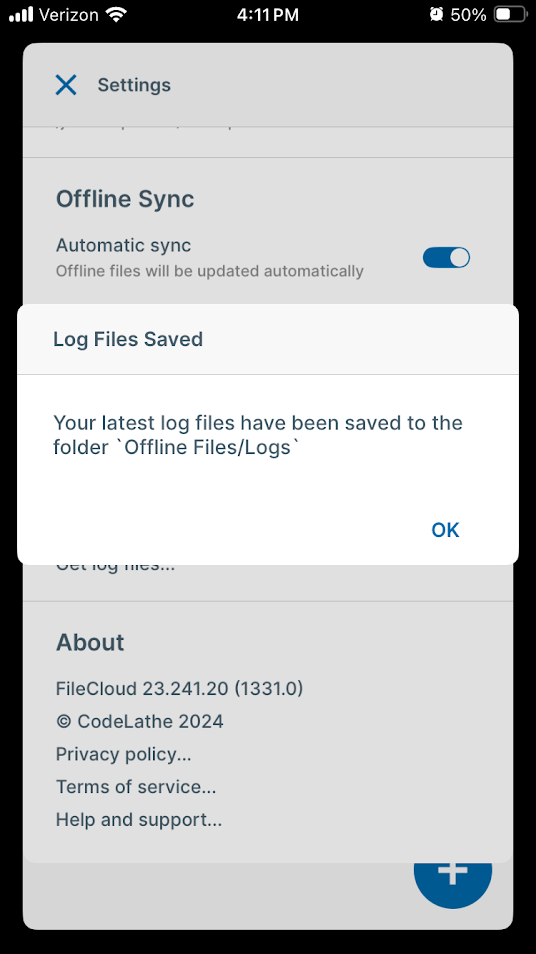
A message confirming that your log files have been saved to Offline Files/Logs appears.
Now, use the following procedure to download the log files.
To go to the log files from user settings:
-
Tap the menu icon in the upper left corner, then tap Offline files.
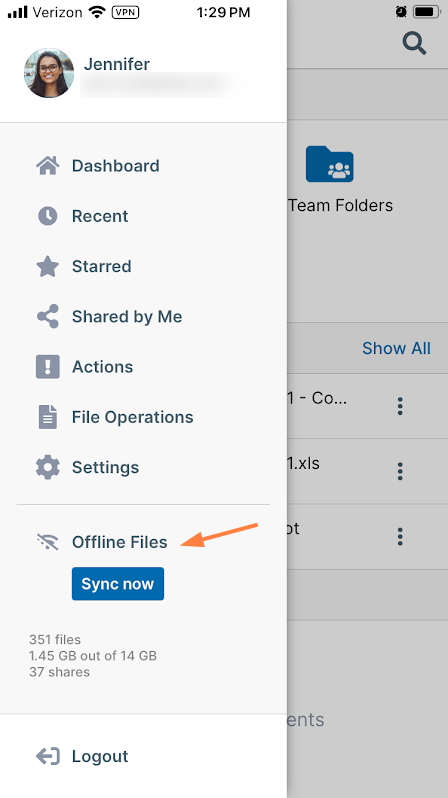
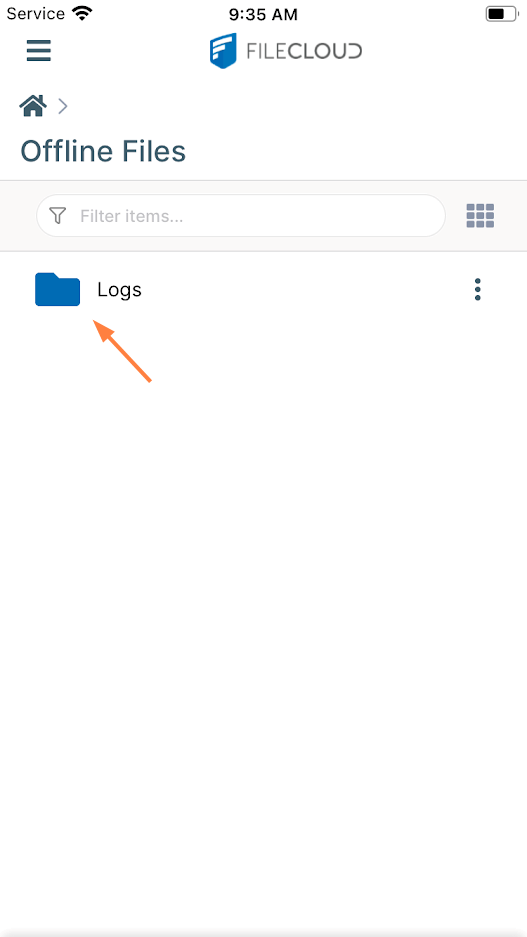
The Offline Files folder opens. Log files are stored in the Logs folder.
-
Tap the folder to access the log files.
-
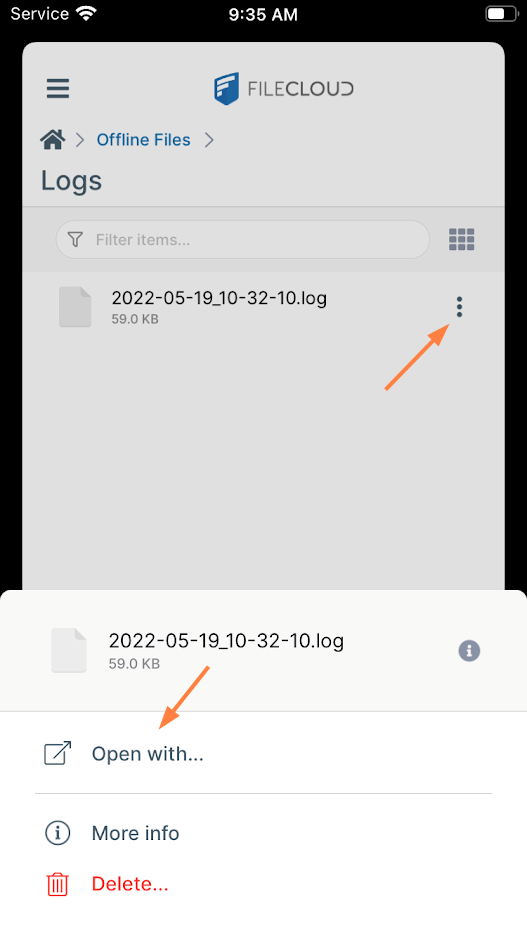
Tap the More (3-dot) icon for the log file that you want to send, and tap Open with to open or save it.
-
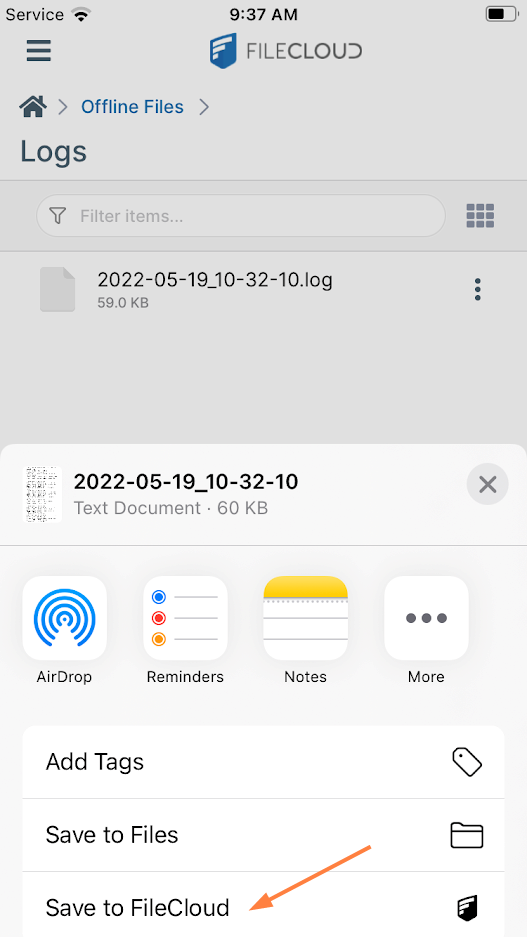
Save it to FileCloud or choose another option that enables you to download the file and send it to FileCloud Support.
 Your administrator can also get the logs from your device remotely.
Specific Errors
|
Issue |
Error |
Resolution |
|---|---|---|
|
iOS App Fails to Login |
"Invalid Configuration" Server plugin(s) missing or disabled |
|