.svg)
Administrators can integrate Amazon's AWS S3 buckets with FileCloud Server to give users access to this data inside FileCloud Server portals and clients.
There are a few limitations you should know about using Amazon S3 bucket network folders
-
There is no versioning support (version key is ignored and file is overwritten).
-
No real time network sync or indexed search is allowed (regular file search works).
To create a network share from an S3 bucket:
-
Open a browser and log in to the admin portal.
-
In the left navigation panel, select Network Folders.
-
On the Manage Network Folders window, click Add.
-
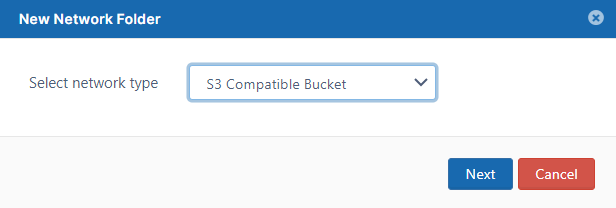
On the New Network Folder dialog box, in Select network type, select S3 Compatible Bucket, and then click Next.
-
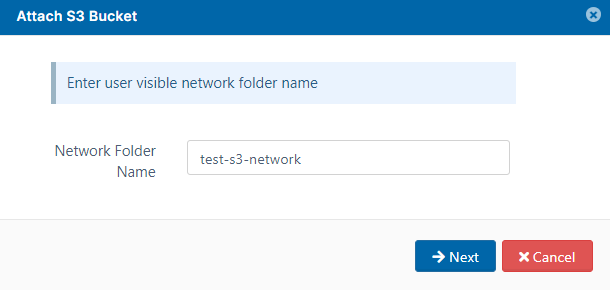
On the Attach S3 Bucket window, type in a unique Network Folder Name and then click Next.
-
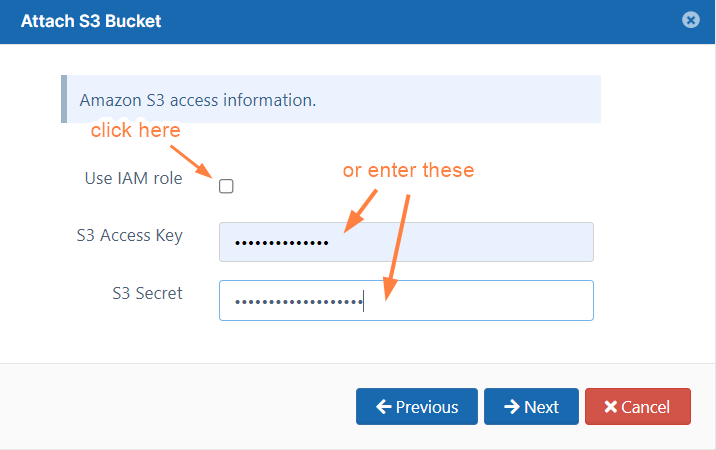
On the Attach S3 Bucket window, either check Use IAM role or type in authentication credentials in S3 Access Key and S3 Secret, and then click Next.
-
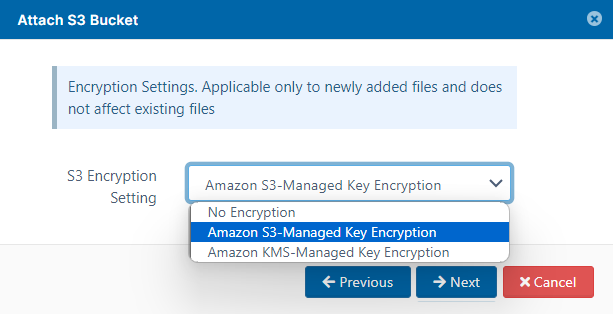
On the Attach S3 Bucket window, in S3 Encryption Setting select the type of encryption, and then click Next:
-
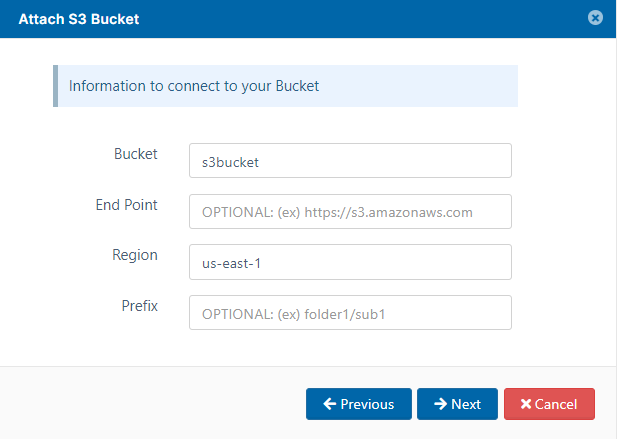
On the Attach S3 Bucket window, type in the Bucket name, Region, and optionally the End Point and Prefix.
-
Click Next.
-
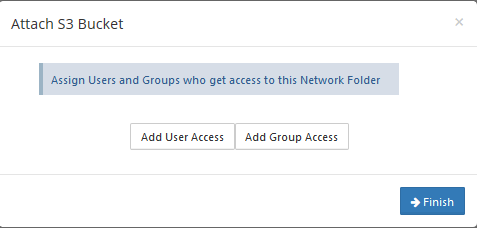
When the S3 bucket is mounted as a network share, permissions need to be assigned to users or groups to allow access.
The network share access can be granted to: