.svg)
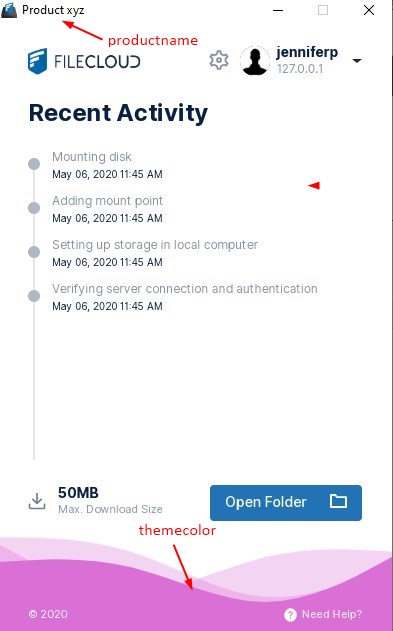
FileCloud Drive white label support enables service providers and partners to customize the theme color and product name on the Drive interface.
White label support requires the appropriate FileCloud subscription. It is available for FileCloud Enterprise Edition and FileCloud Service Provider Advanced/Premium Edition.
The Service Provider is responsible for providing the requested information and uploading the application.
Customizing FileCloud Drive
To customize FileCloud Drive:
-
Create an xml file named custom.xml with the following contents:
<?xml version="1.0" encoding="utf-8"?>
<customconfig>
<config>

<productname>Product xyz</productname>
<themecolor>#DA70D6</themecolor>
<updateurl>http://patch.codelathe.com/tonidodrive/live/filecloudmacdriveserversion.xml</updateurl>
<supporturl>http://getfilecloud.com</supporturl>

</config>
</customconfig>
The available custom tags are:
<productname>Product xyz</productname>
<themecolor>#DA70D6</themecolor>
The value for <themecolor> is a hex color code.
2. Save custom.xml in the folder: FileCloud Drive/service, where FileCloud Drive is your Drive installation folder.
3. Restart FileCloud Drive.
The custom.xml file in the code above produces the following custom interface:
Required information for Windows
The following elements are required:
|
Information |
Notes |
|
Product Name |
This is the name used to refer to the application. The default value is "FileCloudDrive", you can use any name that you want. Do not use spaces inside this name. |
|
Update URL |
This needs to be the URL to the publicly available XML file that stores information about the versions and the links to the new versions for downloads when a new version is found. Example :http://patch.codelathe.com/tonidodrive/live/fileclouddrive2eversion.xml
This XML must contain XML in the form |
|
Support |
Required Information for Mac
|
Information |
Notes |
|
Product Name |
This is the name used to refer to the application. The default value is "FileCloudDrive", you can use any name that you want. Do not use spaces inside this name. |
|
Update URL |
This needs to be the URL to the publicly available XML file that stores information about the versions and the links to the new versions for downloads when a new version is found. Example :http://patch.codelathe.com/tonidodrive/live/filecloudmacdriveversion.xml
This XML must contain XML in the form |
|
Support |
Icons
-
256x256 ICO file named "drive.ico"
-
256x256 ICNS file named "drive.icns"
-
188x44 png file named "brand.png"
-
32x32 png file named "drive@2x.png"
-
16x16 png file named "drive.png"
Samples attached here
drive.ico and drive.icns
brand.png



drive.png
