.svg)
FileCloud for Outlook can be installed for use with an on-premises Microsoft Exchange Server using the installation instructions on this page.
Currently supported features in Exchange Online vs. On-Premises Exchange
Note that currently, certain features available when using FileCloud for Outlook with Exchange Online are not available when using it with the on-premises Exchange Server as shown in the table below.
Specifically, on-premises Exchange Server currently supports Mailbox requirement set 1.5 or earlier, which does not support these features. In the future, if on-premises Exchange Server supports requirement set 1.8 or higher these features will become available.
|
Feature |
Exchange Online |
On-Premises Exchange |
Notes |
|---|---|---|---|
|
Save attachments to FileCloud |
✅ Available |
❌ Unavailable |
Footer displays "Saving attachments is not supported in this version of Outlook." in place of the folder controls, Save button, and Edit Attachment List button. |
|
Automatic upload of attachments |
✅ Available |
❌ Unavailable |
Does not run, even with a default folder set and Auto-Upload enabled. |
|
Attach a file from FileCloud to an email |
✅ Attaches as a real file |
⚠️ Attaches as a link |
On-premises skips the file/link chooser and shows: "This version of Outlook does not support attaching files. Files will be attached as links instead." |
|
Upload & Share |
✅ Available |
✅ Available |
No difference. |
|
Browsing, search, Recent, Starred, settings |
✅ Available |
✅ Available |
No difference. |
To install FileCloud for Outlook for use with an on-premises Exchange Server:
-
Go to https://store.office.com/app/download?assetid=WA200008392
A page of raw XML is returned. -
Save the raw XML.
-
Go to the Exchange admin center at https://[your exchange server]/ecp
-
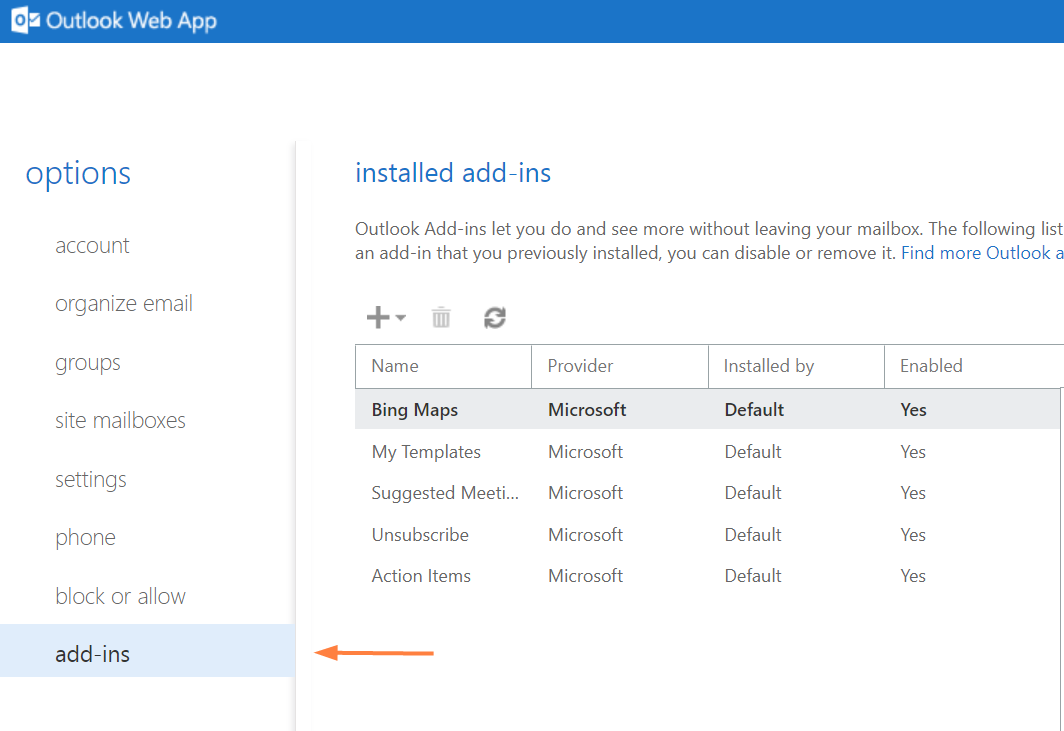
In the navigation pane, click Add-ins.
-
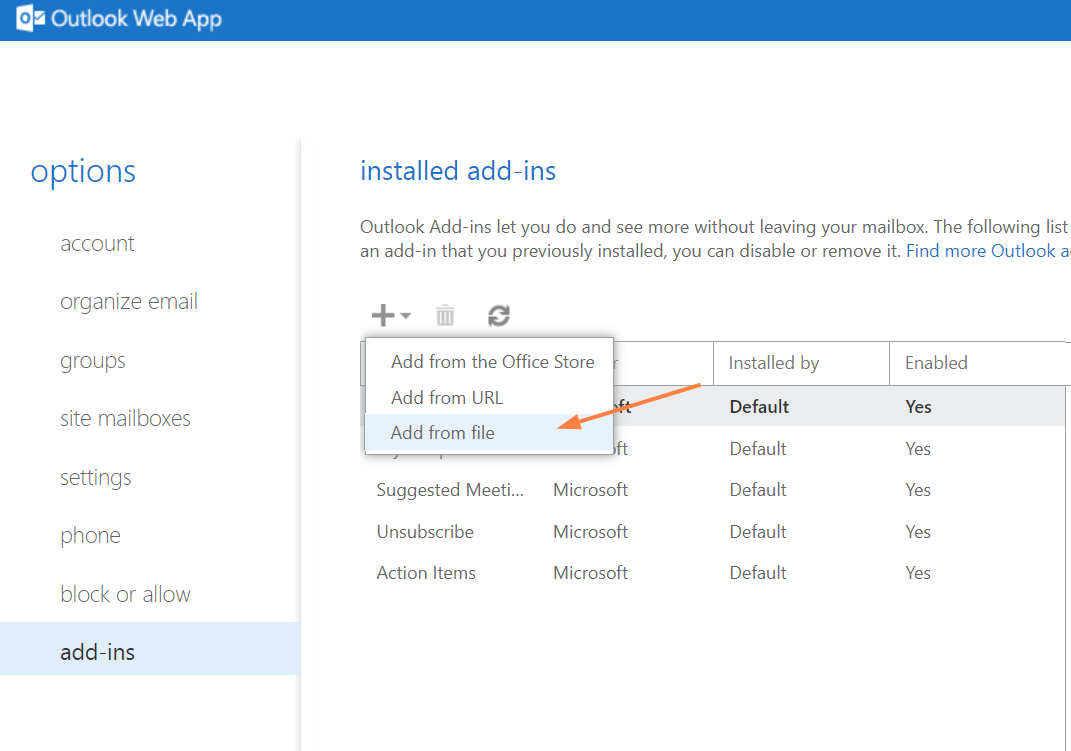
Click + above the list of add-ins, and choose Add from file.
-
Click Choose File and choose the manifest file you saved.
-
Click Next.
-
Click Install.
-
Once the file is installed, click Save.
The FileCloud for Outlook add-in is now available in Outlook. -
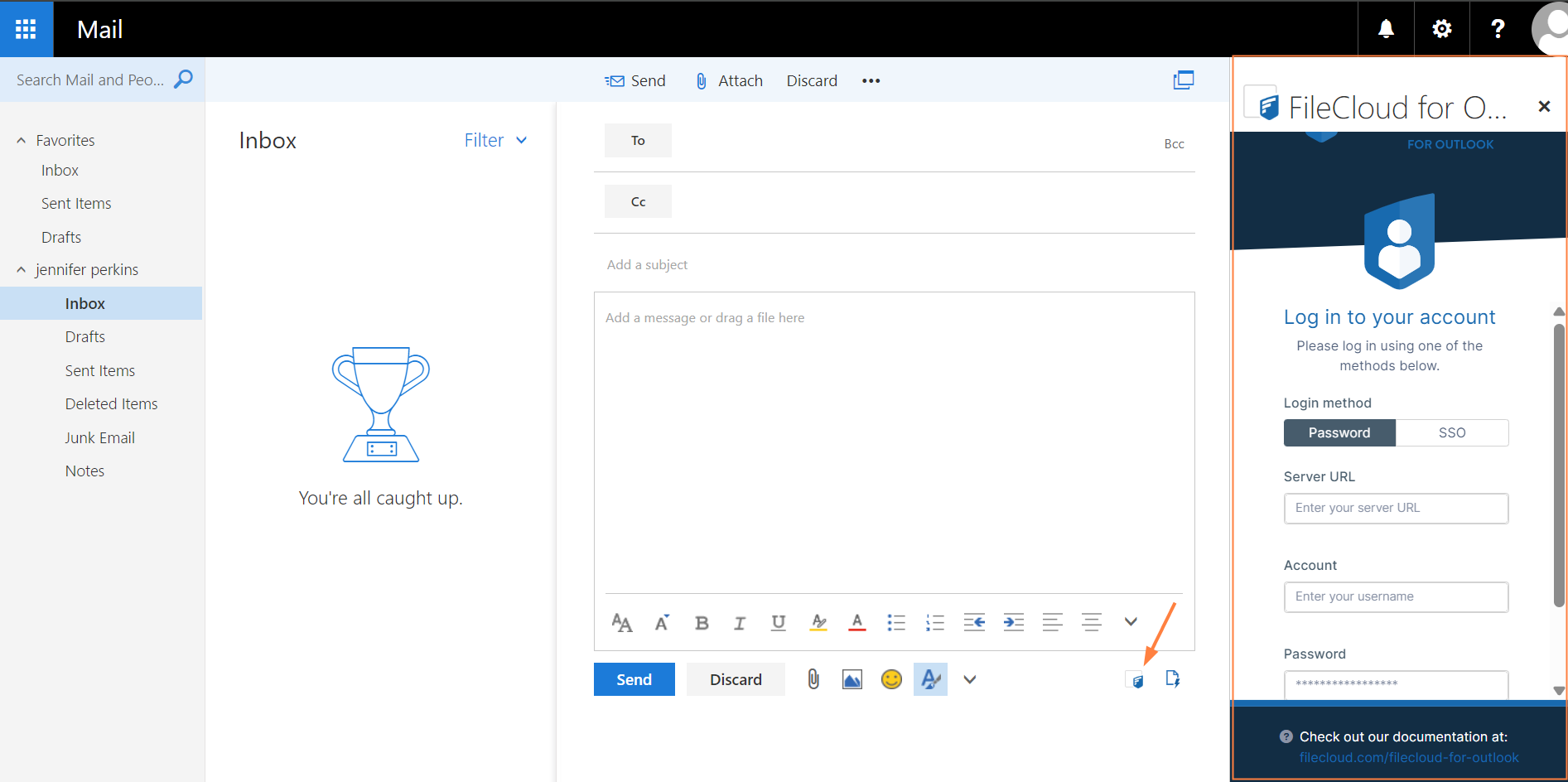
Click the icon at the bottom of an opened message to open the add-in: