.svg)
The Salesforce Plugin reached End-of-Life (EoL) on September 1, 2025, and support is no longer be generally available for the Salesforce Plugin.
No replacement product is planned.
Salesforce Integration
FileCloud makes files stored in any on-premises, public or hybrid cloud available within Salesforce. To configure this function, integrate FileCloud with Salesforce.
Key benefits:
-
Upload, download, access and share remote files from within Salesforce.
-
Store files on-premises or in the public cloud (Amazon AWS, Microsoft Azure). Access files securely inside Salesforce from anywhere.
-
Share files and collaborate with team members, even if they are not Salesforce users.
-
Integrate Salesforce with existing file servers and file permissions.
-
Get advanced file analytics about who has shared and downloaded files.
-
Link FileCloud content to specific Salesforce records.
Limitations
-
To be able to integrate FileCloud with Salesforce, you must have the Salesforce component in your license.
-
You cannot give External users access to FileCloud's integration with Salesforce.
-
Only one Salesforce account and one FileCloud account can be mapped together. Mapping occurs the first time the user logs in to FileCloud through Salesforce. If a user tries to map a second FileCloud account to a Salesforce account, or a second Salesforce account to a FileCloud account, an error message is returned.
To integrate FileCloud with Salesforce, create a Salesforce Team Folder in FileCloud. When you create Salesforce objects (Accounts, Cases, Contacts, etc.), sub-folders are created in the Salesforce Team Folder in FileCloud for each object.
You can access FileCloud in the Salesforce interface to access the an object's Team Folders to perform FileCloud operations on them.
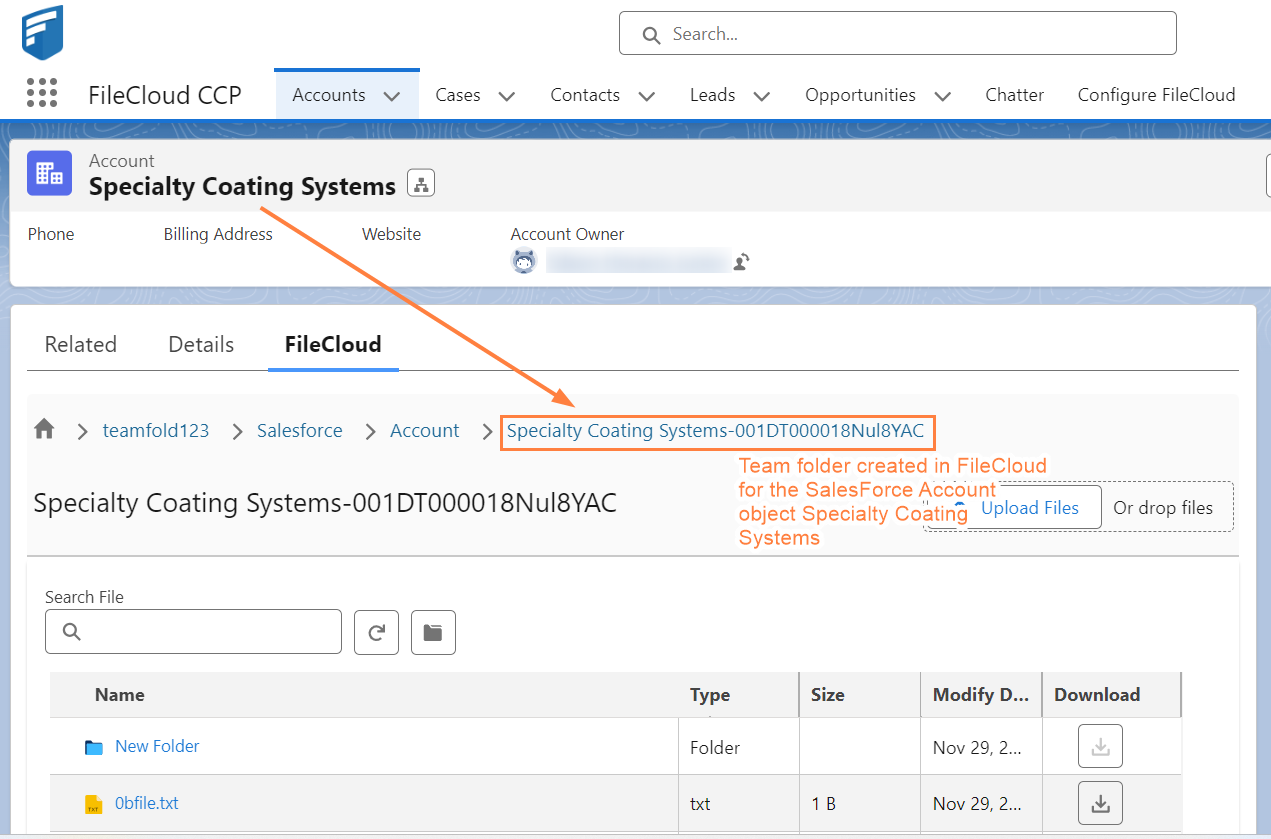
You can configure the Salesforce Team Folders so that only the owner (creator) of the object and users you have designated as managers have access to each object's Team Folder. If you do not add this configuration, anyone with access to the parent Salesforce Team Folder has access to all objects' Team Folders.
Adding FileCloud to Salesforce
Configuring FileCloud with Salesforce
After you install/integrate FileCloud with Salesforce, complete the following:
After you install/integrate FileCloud with Salesforce, complete the following:
-
First Contact FileCloud Support to enable integration with Salesforce in your FileCloud configuration.
-
Configure Salesforce in FileCloud.
-
In the FileCloud admin portal, open the Salesforce settings page.
In the FileCloud admin portal's left navigation bar, scroll down and click Settings. Then, on the Settings navigation page, click Third Party Integrations
-
In the inner navigation bar on the left of the Third Party Integrations page, expand the Third Party Integrations menu, and click Salesforce, as shown below.
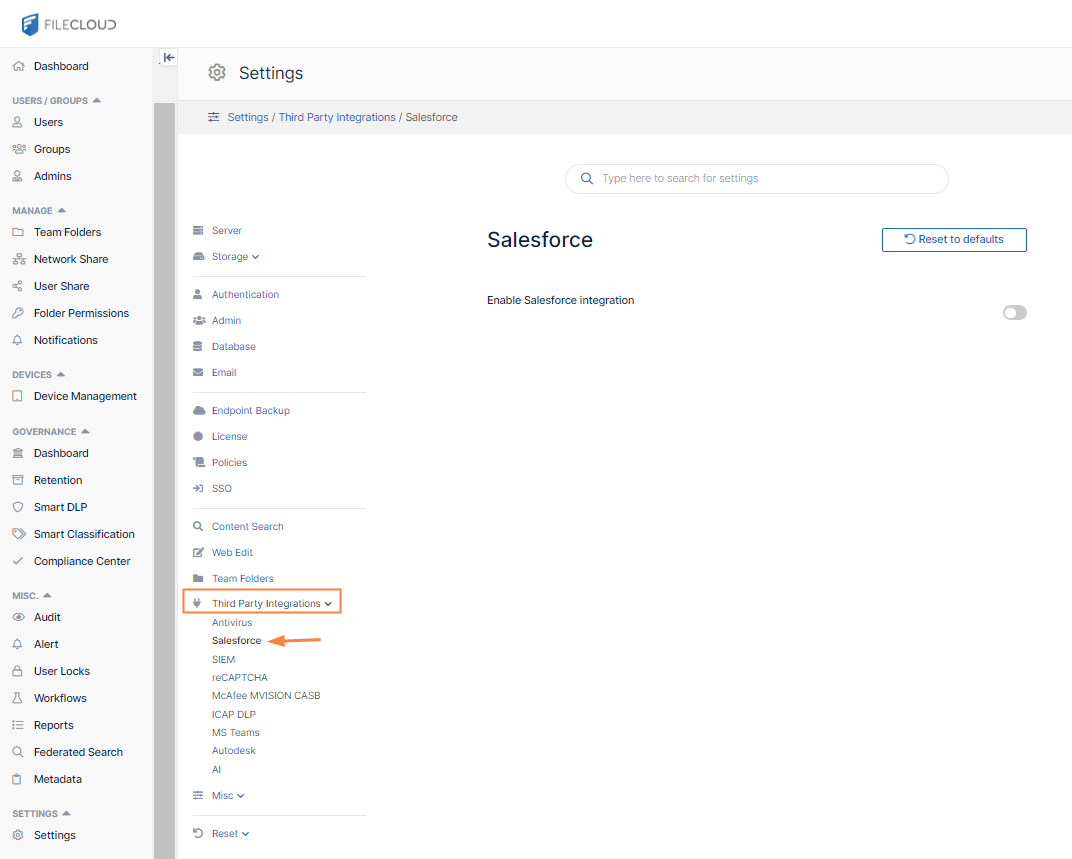
The Salesforce settings page opens.
-
-
-
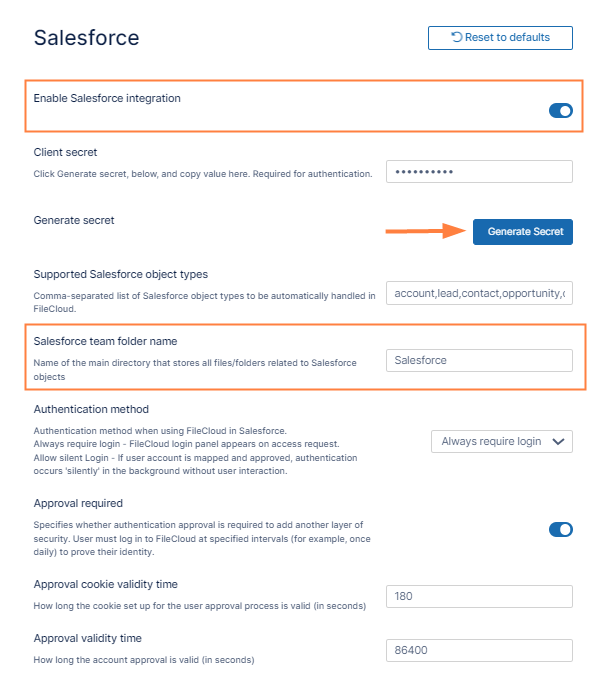
Enable the Enable Salesforce integration setting.
-
Click Generate Secret, then copy the key and click Save.
-
In FileCloud Team Folders, create a Team Folder named Salesforce. Sub-folders for your Salesforce objects will automatically be created in this Team Folder. (If you have given the folder another name, but make sure you change the folder name entered in Salesforce team folder name to match it.)
-
Configure which users have access to FileCloud's integration with Salesforce.
-
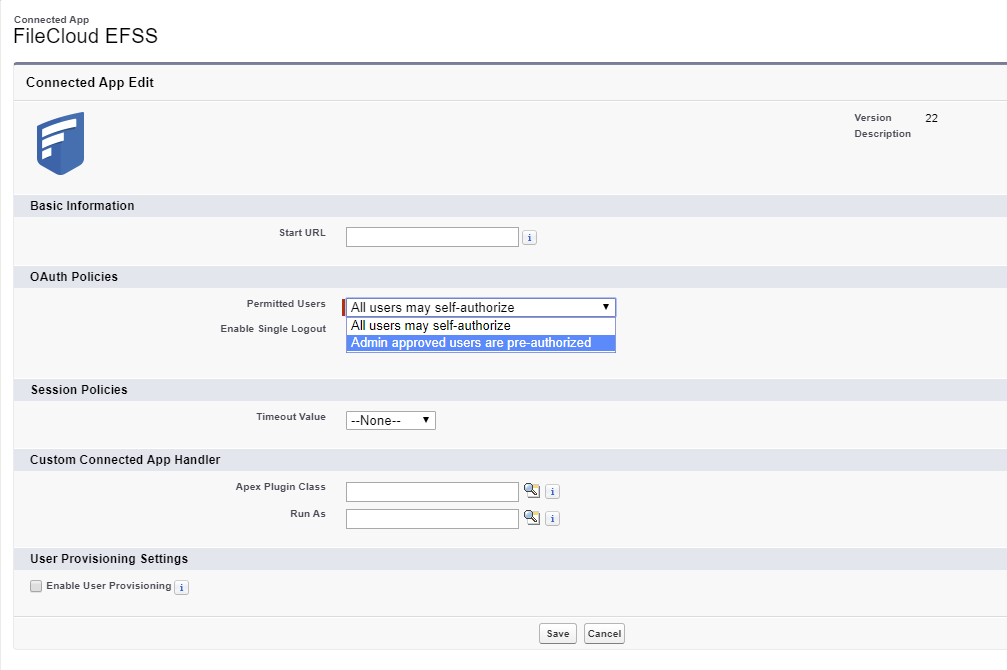
In the Salesforce App Manager, click the drop-down list across from FileCloud EFSS, and click Manage.
-
Click Edit Policies.
-
Under OAuth policies, in the Permitted Users drop-down list choose Admin approved users are pre-authorized.
-
Click Save.
-
-
Proceed with the configuration of FileCloud within Salesforce.
-
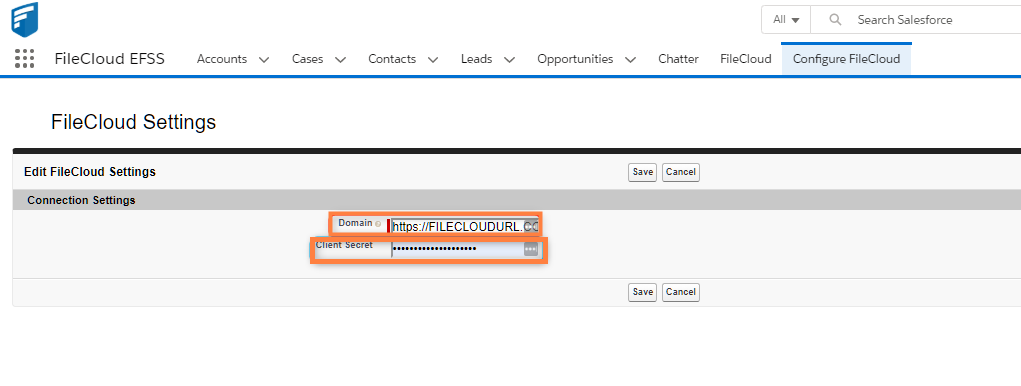
Access Salesforce and click on the Configure FileCloud tab.
-
On the Configure FileCloud tab click edit.
-
Add your FileCloud URL under Domain and paste the Secret Key generated in Step 2 into Client Secret.
-
Click Save.
-
-
Click the FileCloud tab (to the left of Configure FileCloud tab).
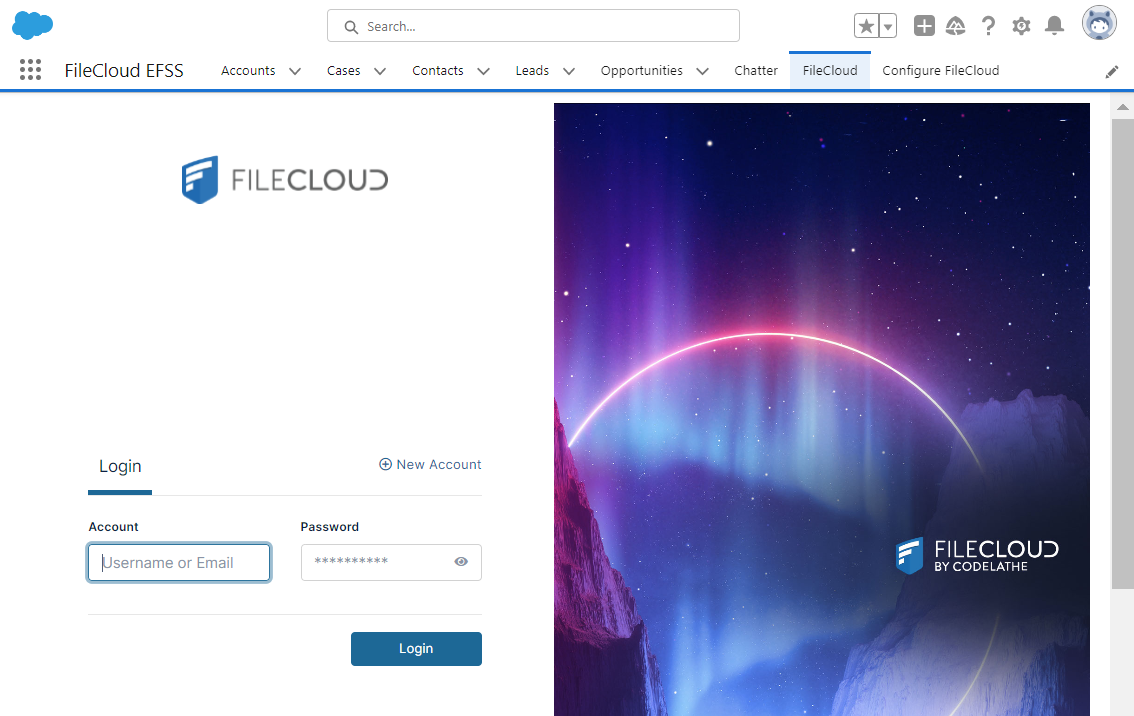
FileCloud should load and allow you to log in.