.svg)
You can sync files and folders, change settings, and review information in the main dashboard.
To access the main dashboard:
-
In the system tray, right click on the Sync icon, and choose Open.
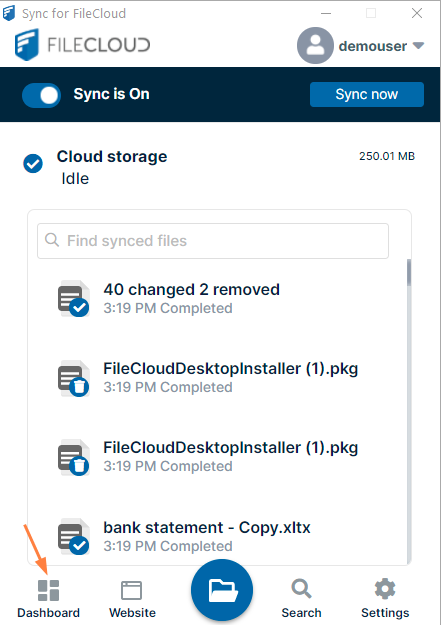
Sync's mini-dashboard opens. -
At the bottom of the mini-dashboard, click the Dashboard icon.
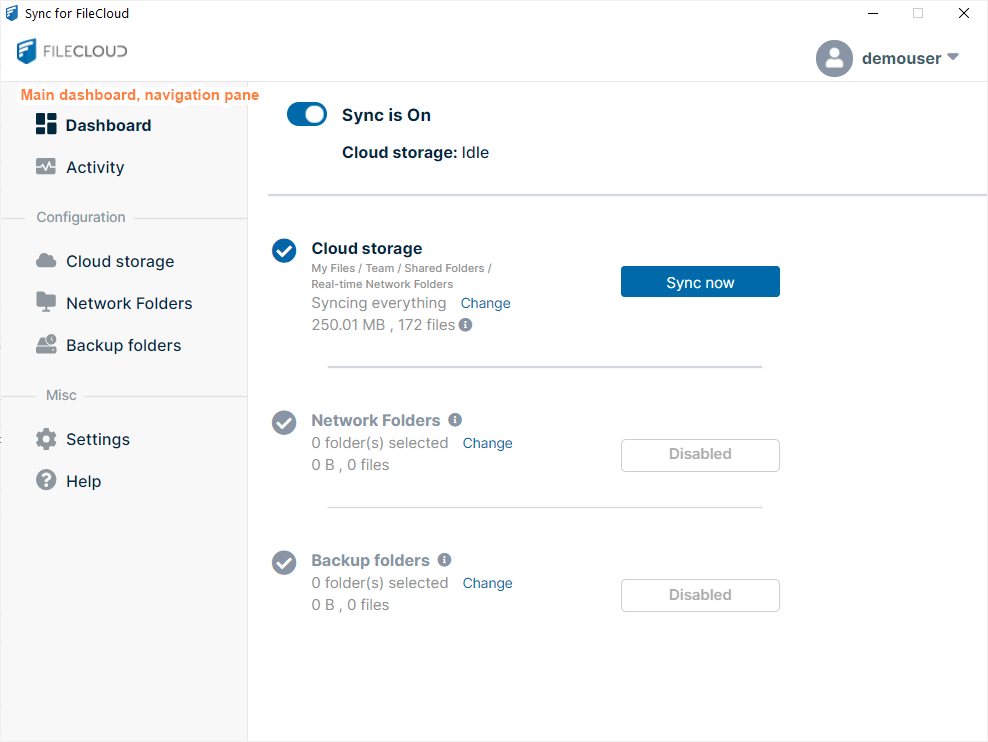
The main dashboard opens. It has several screens, which are listed in the left navigation pane. Click the name of a screen to open it.
Dashboard screen
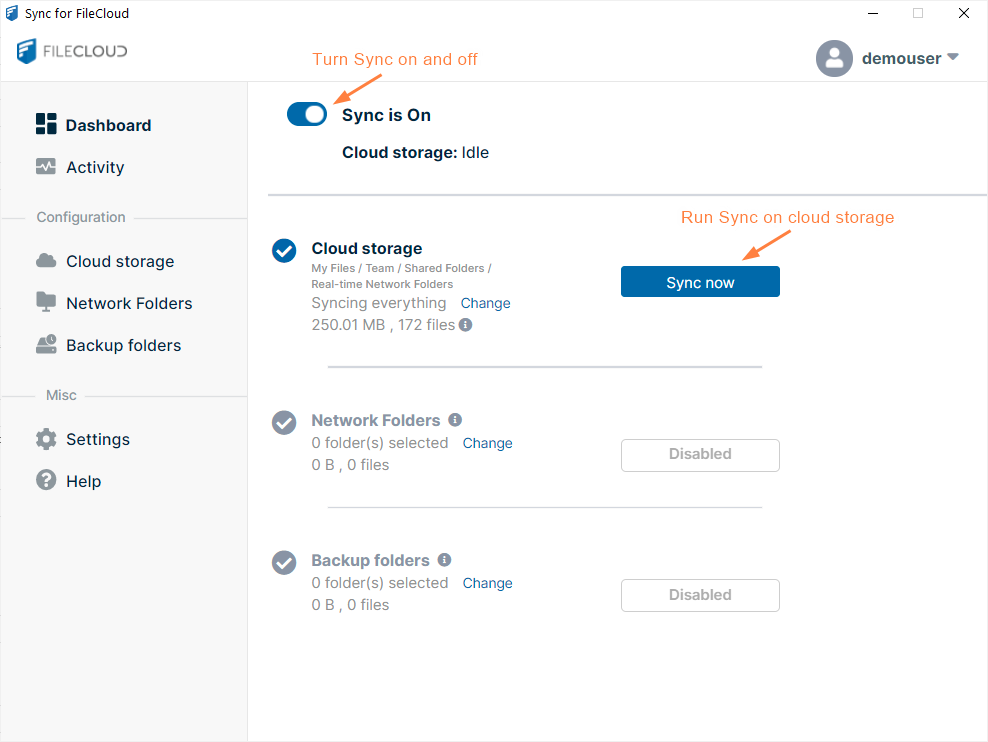
The Dashboard screen is the first screen that opens in the main dashboard. It displays Sync information and lets you turn Sync on and off as well as run Sync manually.
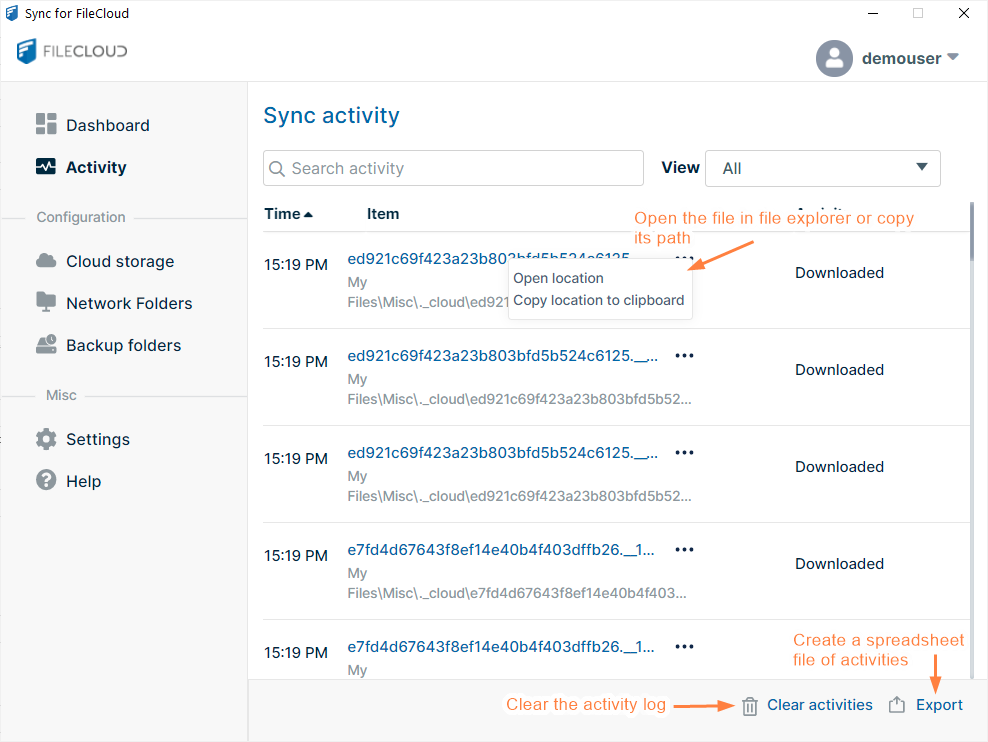
Activity screen
In the Activity screen, you can view the content of log files, and open files in file explorer.
For more information about the Activity screen, see View or Clear Log Messages in Sync.
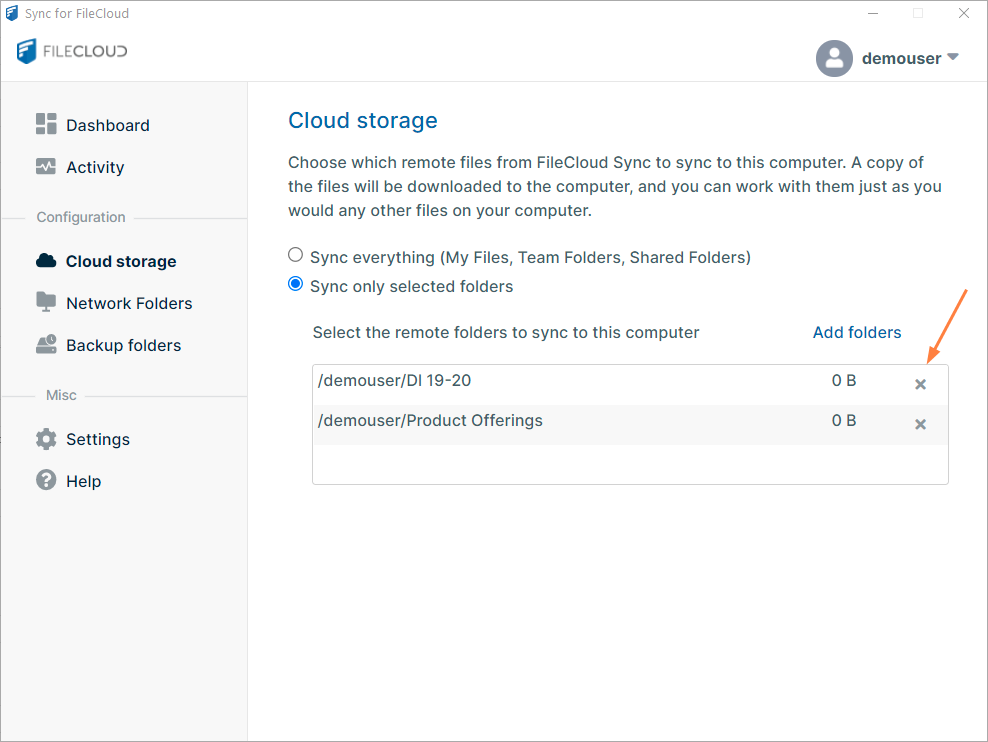
Cloud Storage screen
The Cloud storage screen enables you to view and change your Sync settings for FileCloud content in My Files, Team Folders, and Shared with Me.
For more information, see Cloud Storage: Selective Folder Sync.
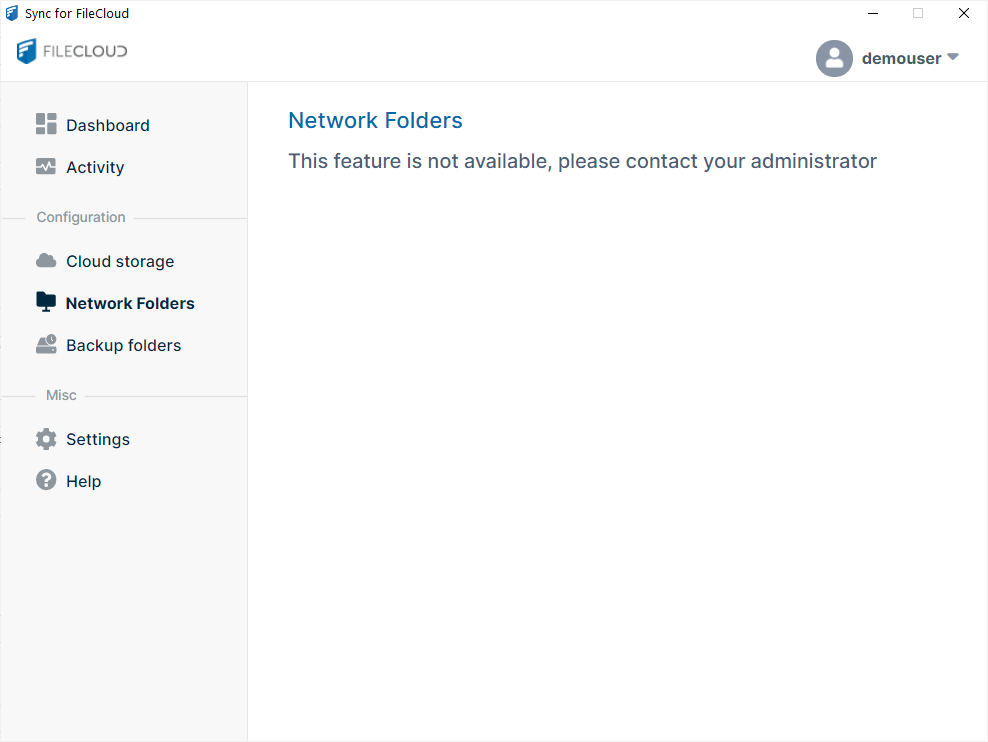
Network Folders screen
Most FileCloud Online users do not have access to Network Folders and see the following message on the Network Folders screen:
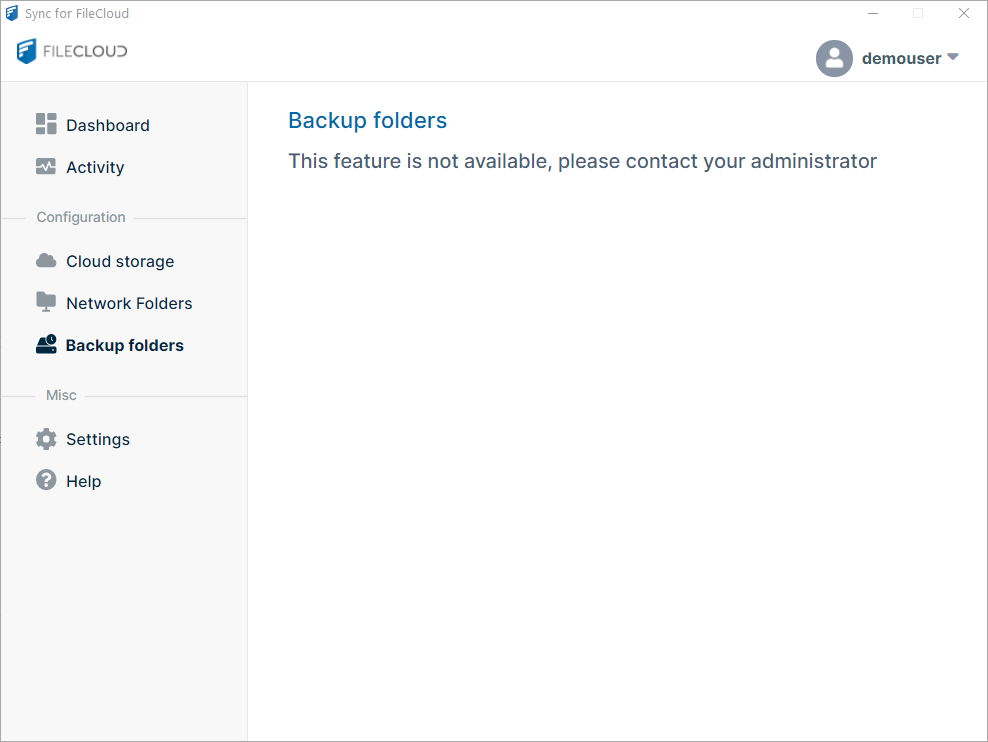
Backup folders screen
Most FileCloud Online users do not have access to the backup function in Sync and see the following message on the Backup folders screen:
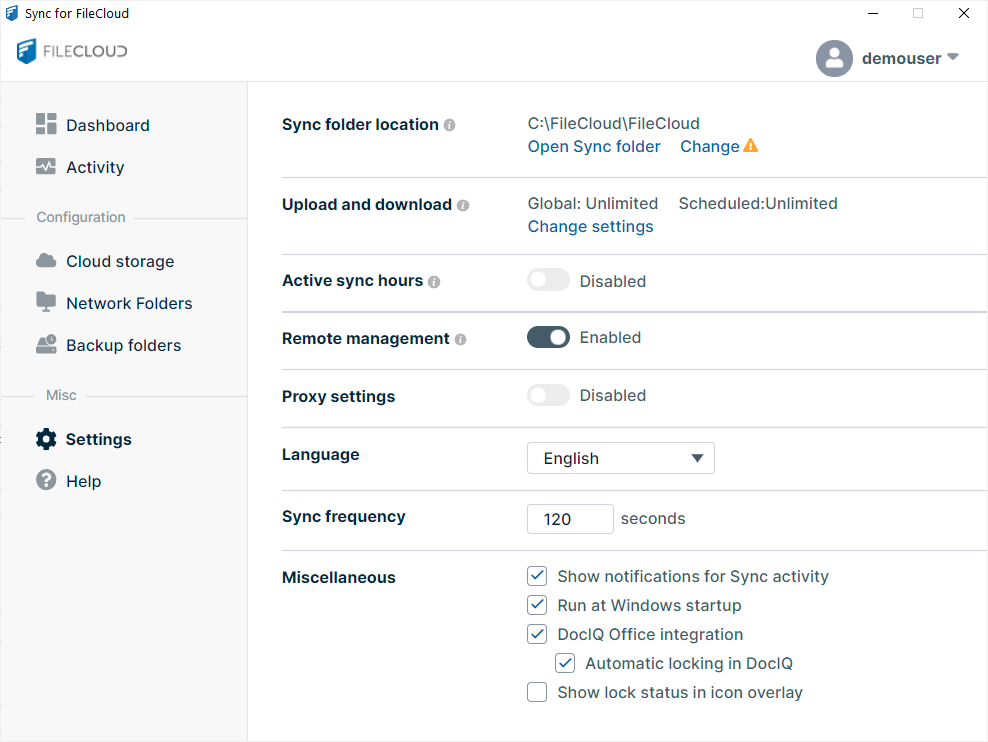
Settings screen
The Settings screen lets you view and change Sync settings.
For more information, see Sync Settings.
Help screen
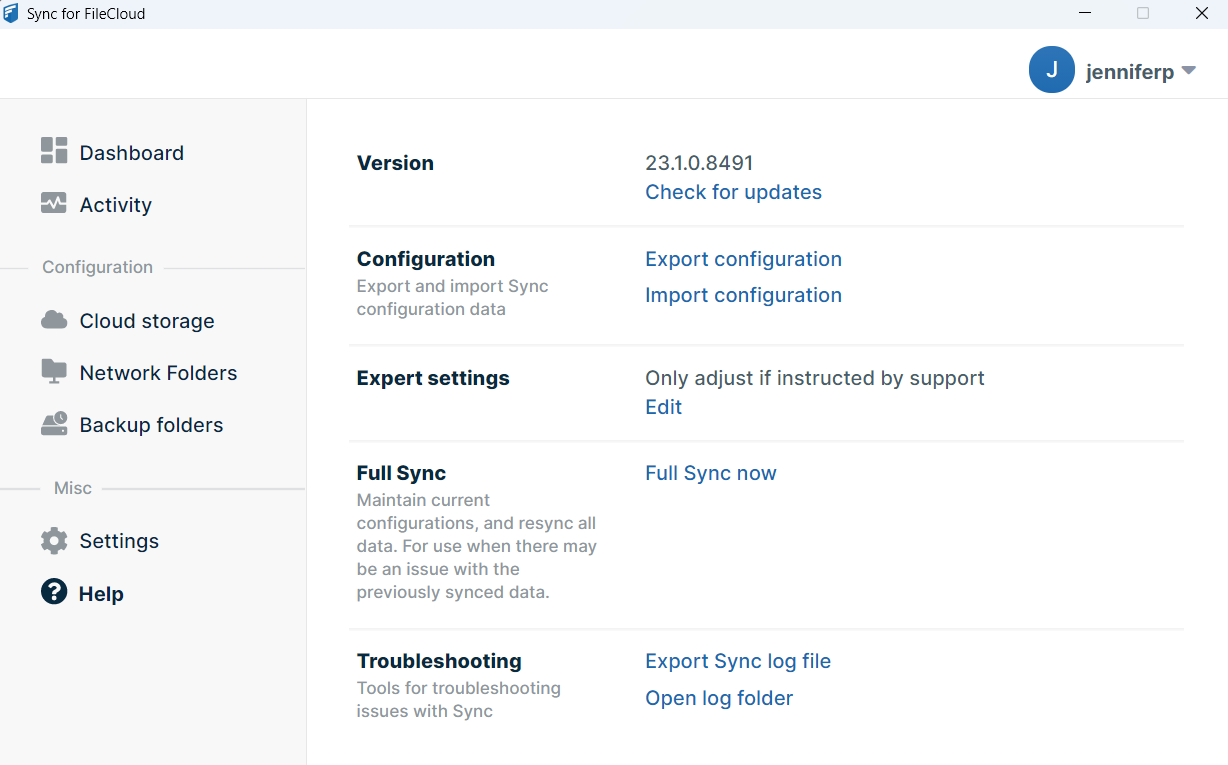
The Help screen lets you view log files, import and export Sync configuration, and check for Sync updates.
For more information, see Sync Logs.