.svg)
Before completing the following procedures, configure Apache Web Server. See SSO Configuration Step 1 on the page SAML Single Sign-On Support for configuration instructions.
As an administrator you can integrate Google and FileCloud so that your Google users can access their FileCloud account without having to enter their credentials a second time.
When FileCloud is integrated with Google, Google is configured as an Identity Provider (IdP) and FileCloud acts as the Service Provider (SP).
-
Log in to the Google Workspace Admin Center at admin.google.com.
-
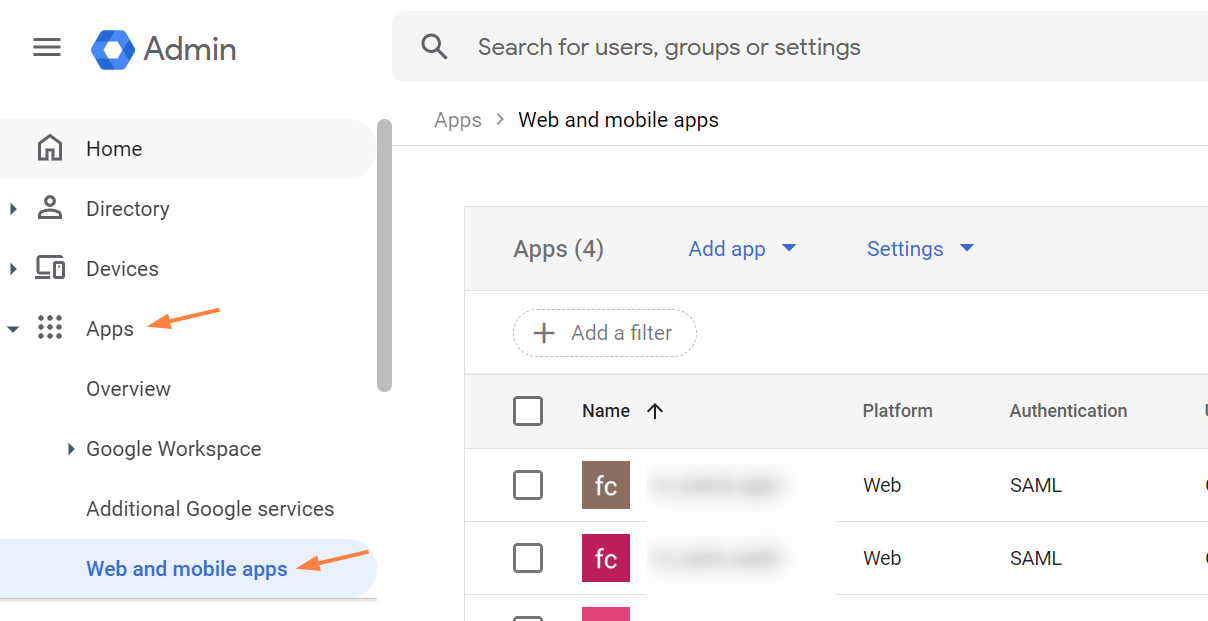
In the left navigation pane, go to Apps > Web and mobile apps.
-
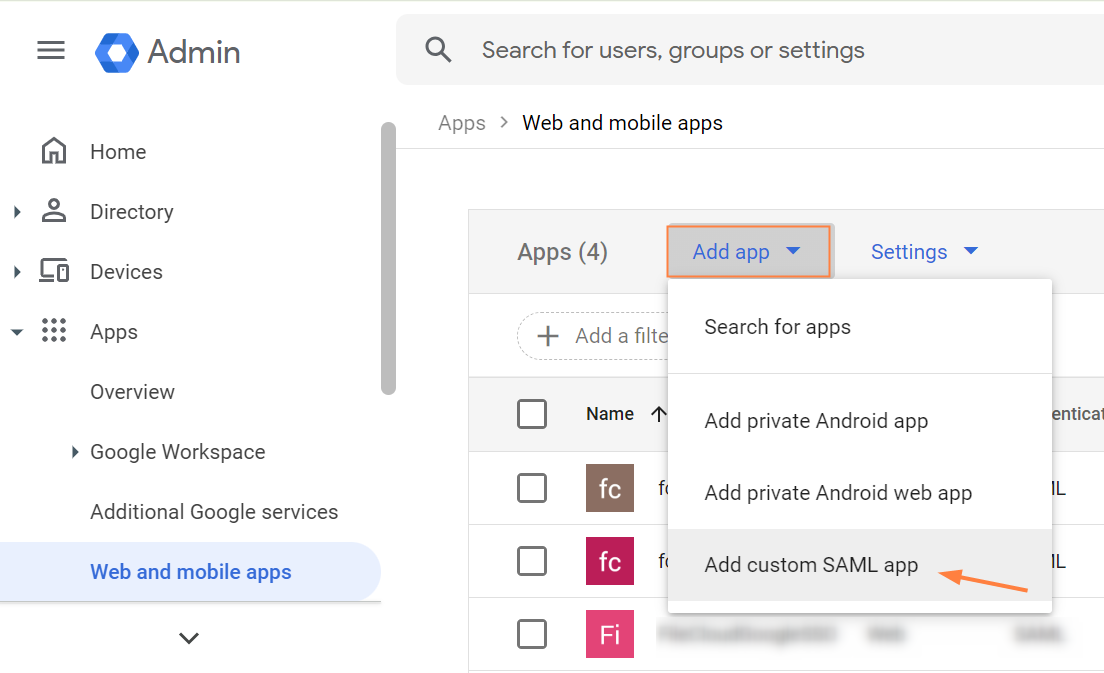
Click Add app and choose Add custom SAML app.
-
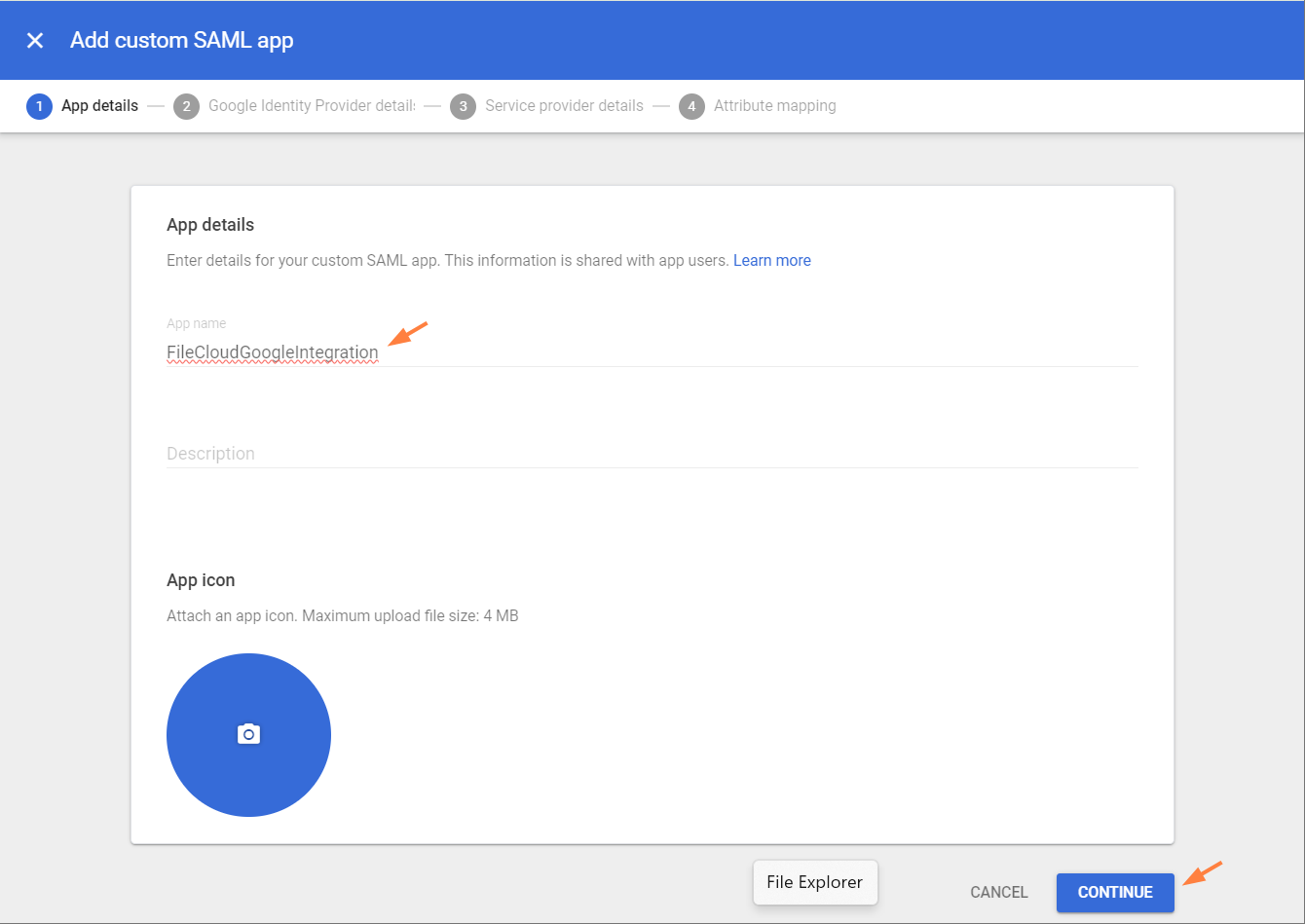
Enter an App name, and click CONTINUE.
-
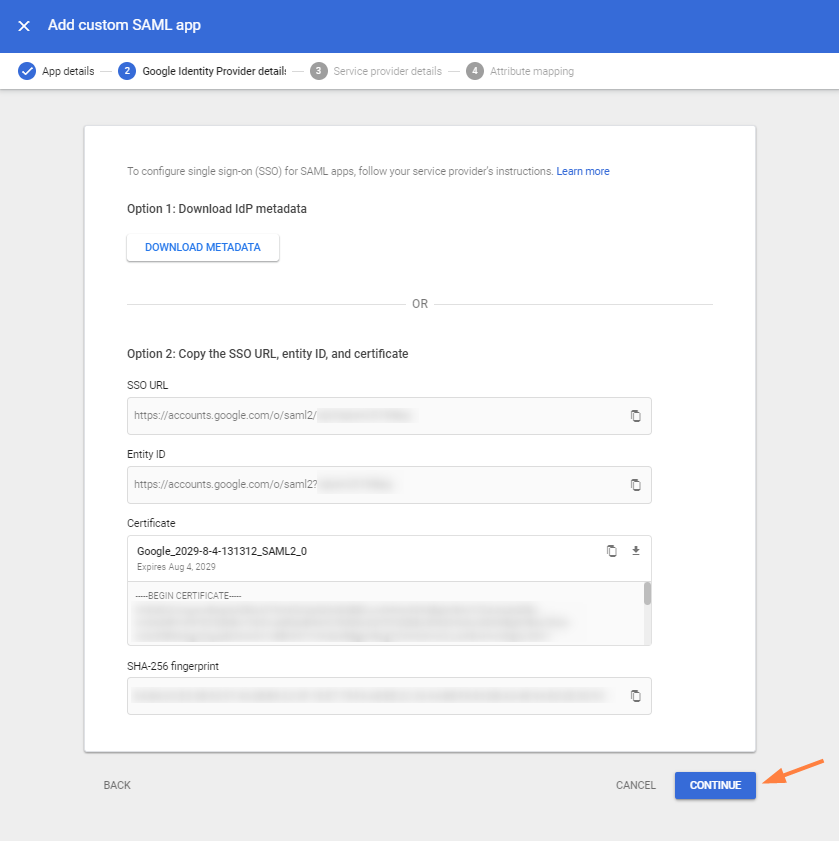
Click CONTINUE.
-
Fill in the fields as follows, replacing your-domain.com with your FileCloud domain. Click CONTINUE.
ACS URL: https://your-domain/simplesaml/module.php/saml/sp/saml2-acs.php/default-sp
Entity ID: https://your-domain/simplesaml/module.php/saml/sp/metadata.php/default-sp
Start URL: https://your-domain/
Name ID Format: TRANSIENT
NameID: Basic Information > Primary Email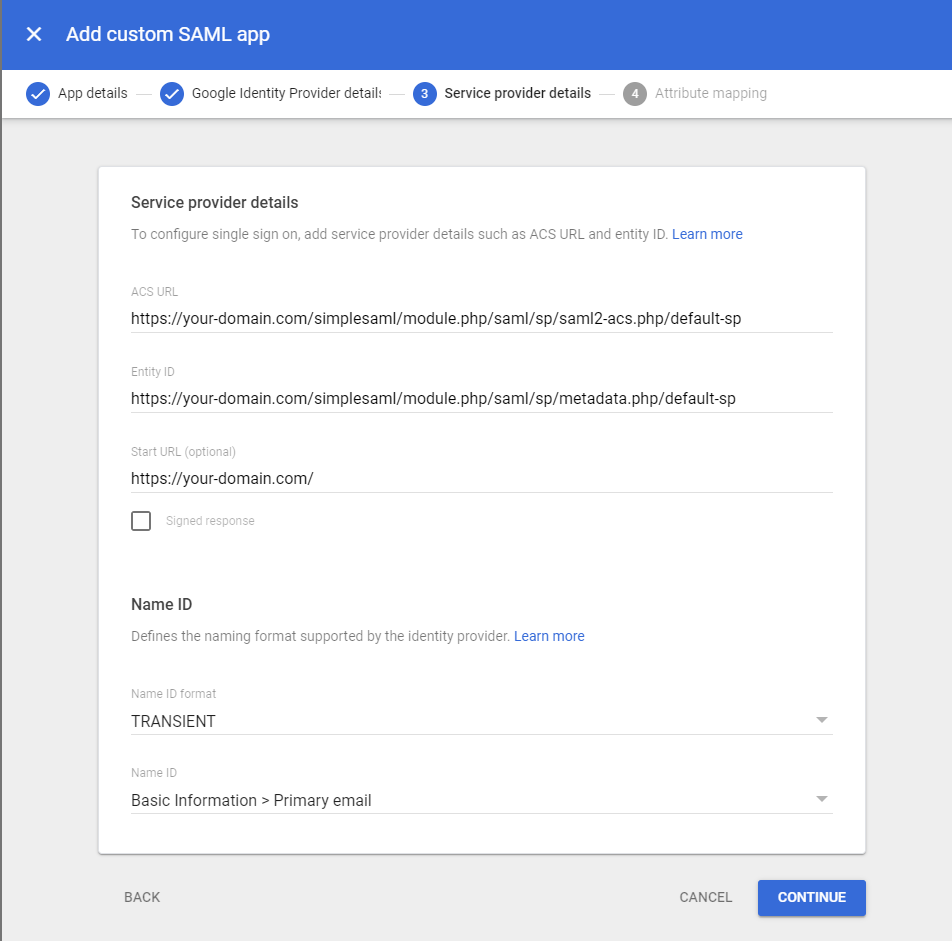
-
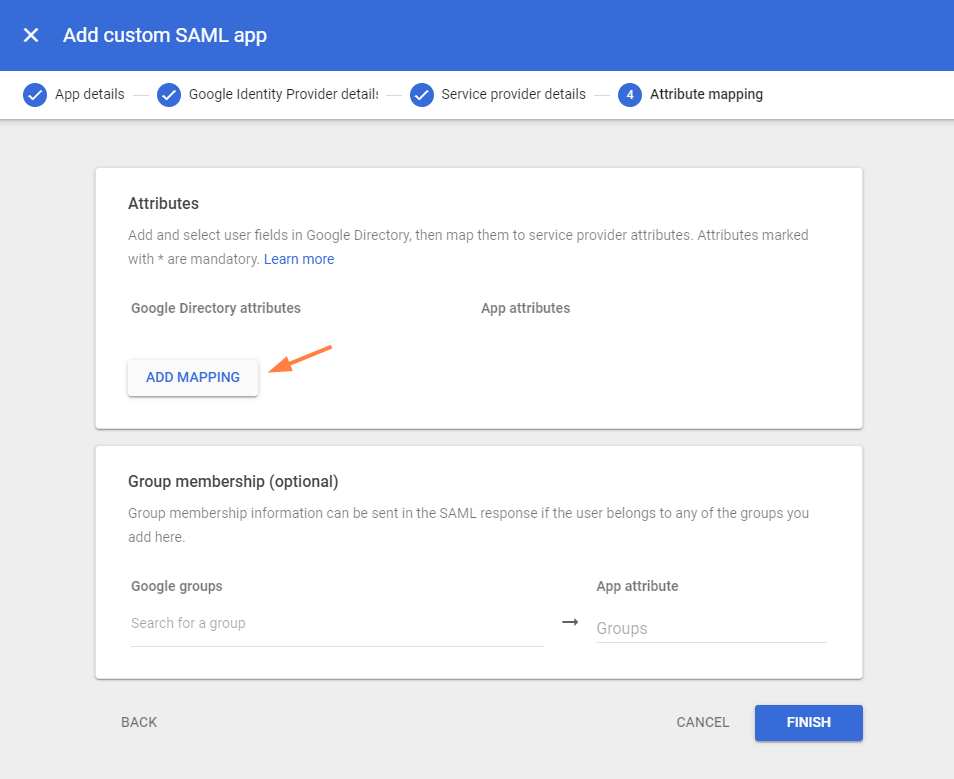
Click ADD MAPPING.
-
Choose the Google Directory attributes below, and add the specific values shown to App attributes. Then click FINISH.
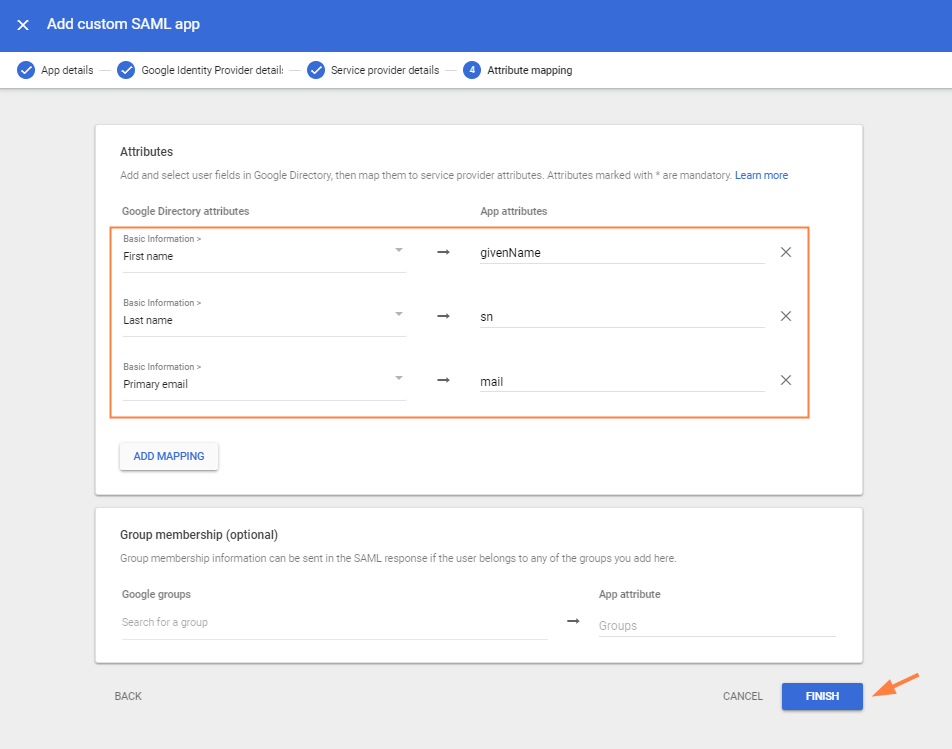
You should see a screen similar to the following. -
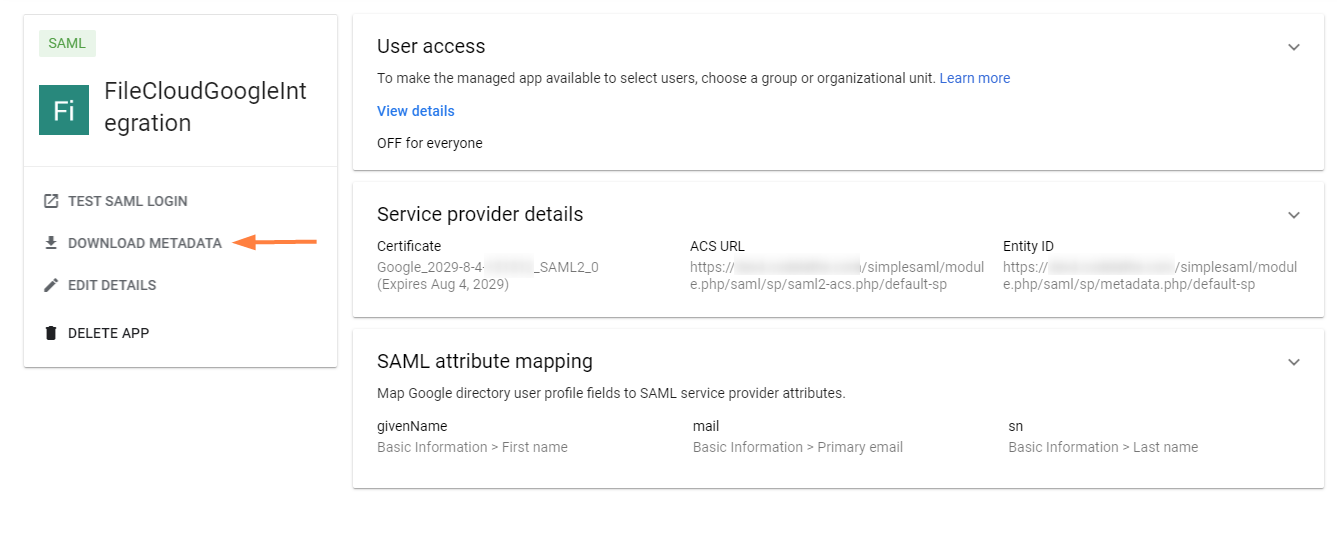
Click DOWNLOAD METADATA.
-
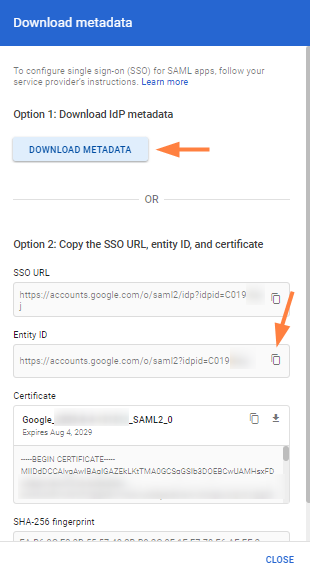
In the Download metadata popup, click DOWNLOAD METADATA.
The file GoogleIDPMetadata.xml is automatically downloaded. -
Click the copy icon next to Entity ID, and save it. You will need it to complete your configuration in FileCloud.
-
Click CLOSE.
-
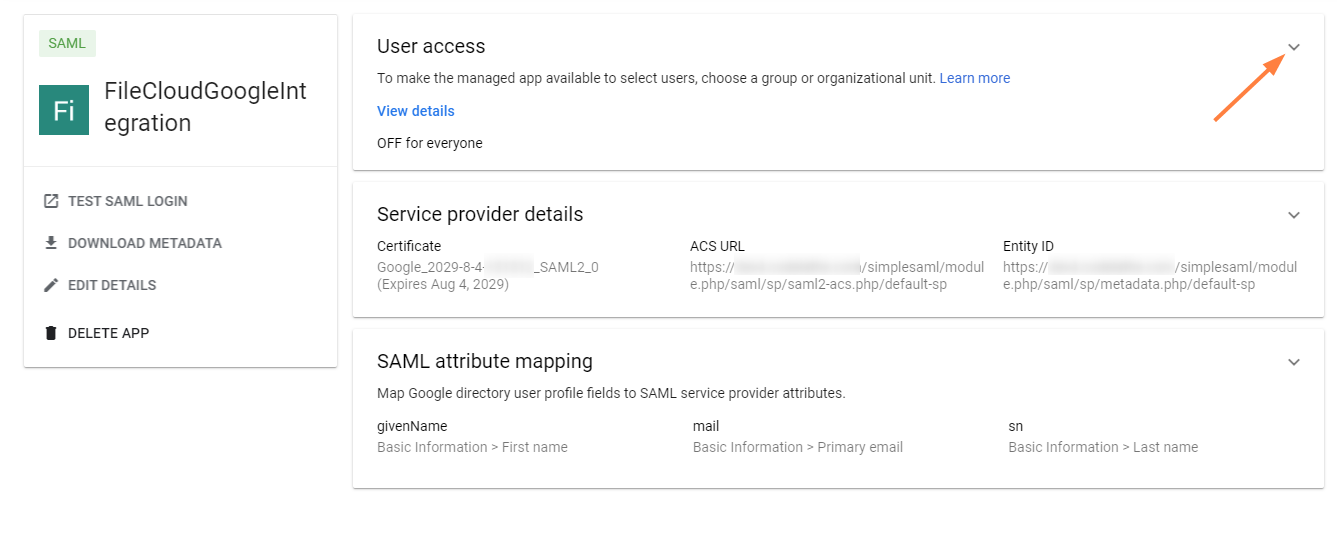
Click the down arrow in the User access box.
-
Select ON for everyone.
If you want to only enable this for certain groups, click the Groups down arrow and add the groups.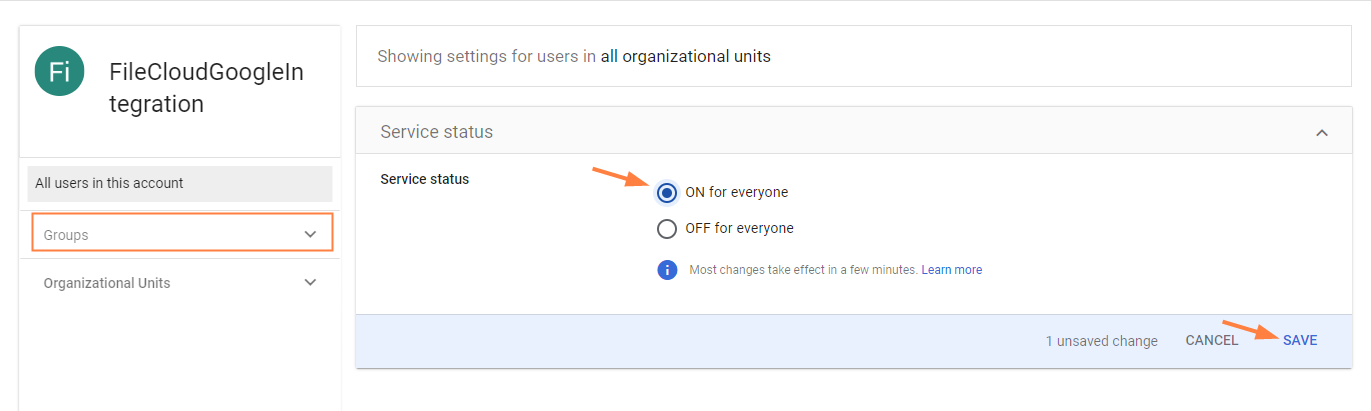
-
Click SAVE.
Configure Google SSO in the FileCloud admin portal
Now, add the values from your integration in the Google admin portal into the corresponding fields in FileCloud.
-
In the FileCloud admin portal's left navigation bar, scroll down and click Settings. Then, on the Settings navigation page, click SSO

The SSO page opens. -
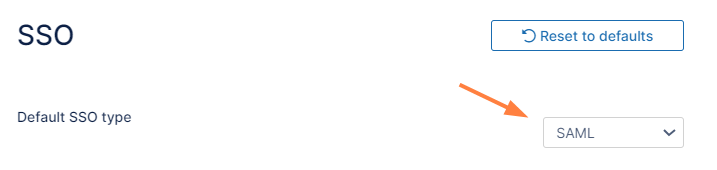
In Default SSO Type, select SAML.
-
Fill in the settings under SAML Settings. The table below the image shows what to enter in each required IdP value.
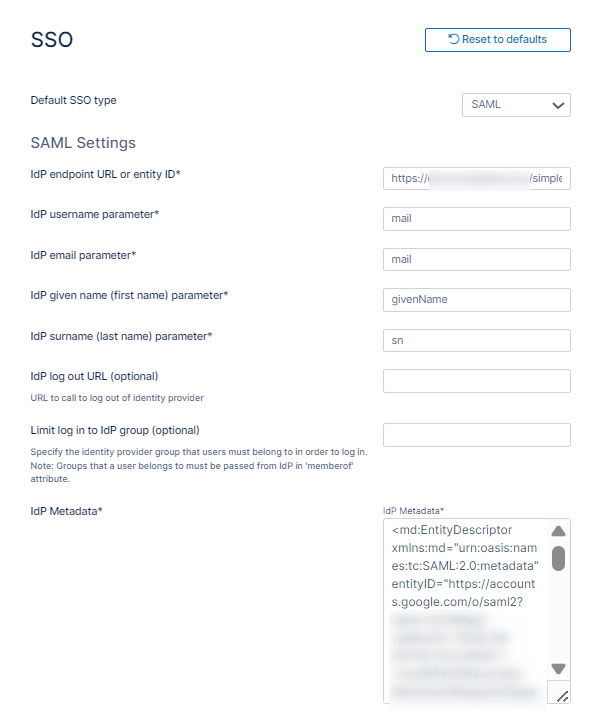
Setting
Value
IdP endpoint URL or entity ID
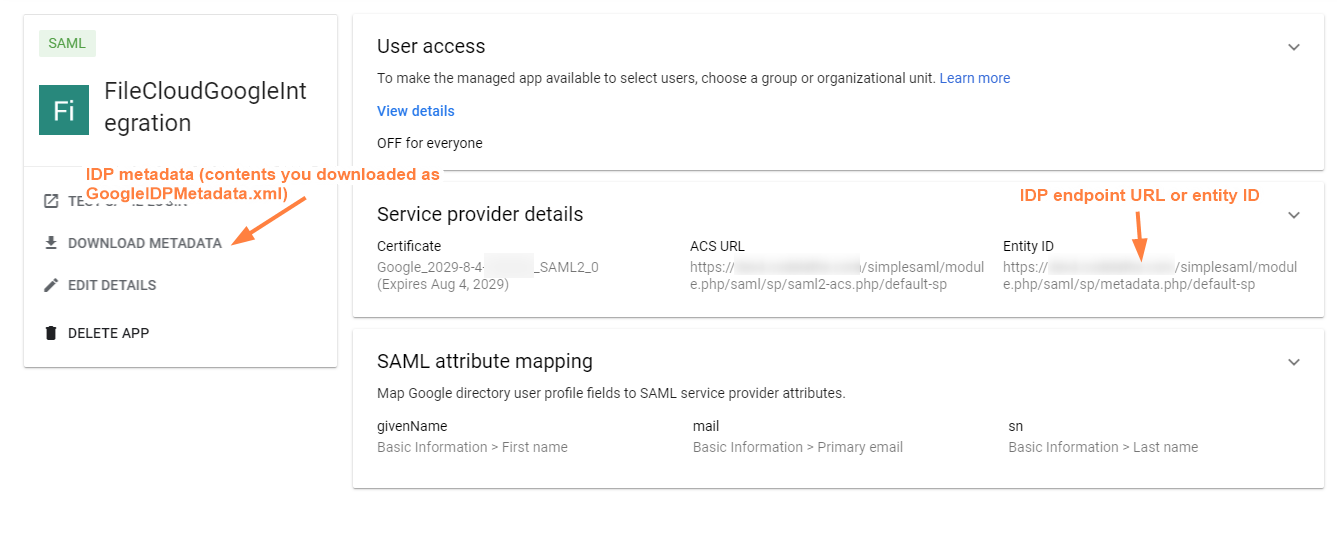
Enter the value of Entity ID from your Google/FileCloud app in the Google admin portal, See the image below.
IdP username parameter
mail
IdP email parameter
mail
IdP given name (first name) parameter
givenName
IdP surname (last name) parameter
sn
IdP log out URL
Limit log in to IdP group
IdP Metadata
Enter the content of the metadata file you downloaded from your Google/FileCloud app in the Google admin portal. It should have been downloaded as GoogleIdPMetadata.xml.
-
For help filling the remaining settings on the page, see Step 4 on page SAML Single Sign-On Support.
-
To display the SSO option on the user login page, see Step 6 on page SAML Single Sign-On Support