.svg)
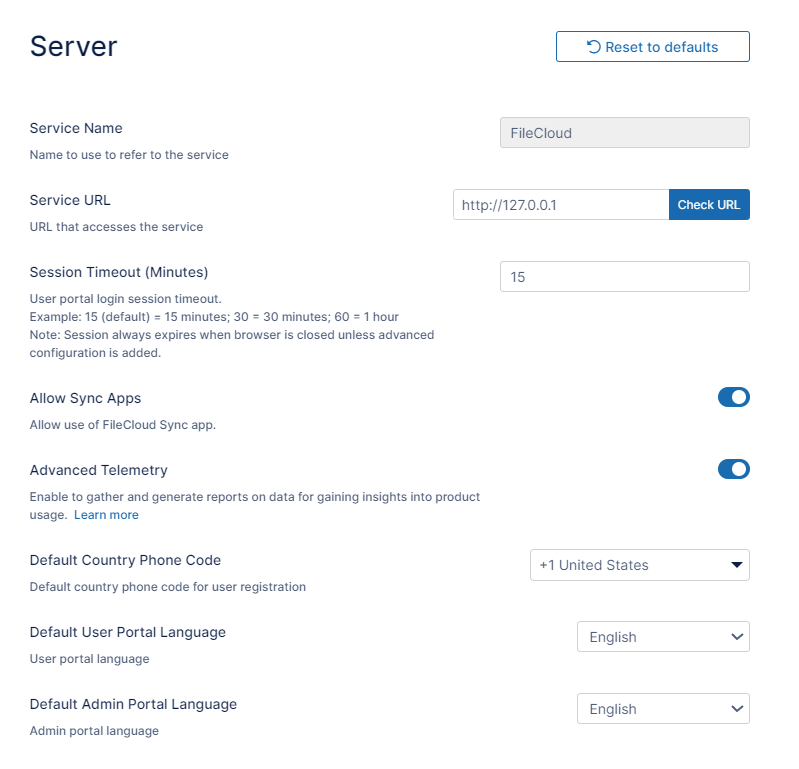
Server settings include the Service Name and Service URL, which you must set before using FileCloud, as well as other server-related settings such as the session timeout period and the languages of the user portal and admin portal.
To set the Server settings:
-
In the FileCloud admin portal's left navigation bar, scroll down and click Settings. Then, on the Settings navigation page, click Server

The Server settings page opens. -
Fill in the settings as shown in the following screenshot, using the table below as a guide.
|
Settings Name |
Description |
||||||
|---|---|---|---|---|---|---|---|
|
Service Name |
The name used when referring to your FileCloud service. This is used in email messages, in the zip filename for multiple downloads, and anywhere else your service is referred to by its name. |
||||||
|
Service URL |
The URL by which users access your FileCloud site, for example, https://xyz.company.com. |
||||||
|
Session Timeout |
The number of minutes of inactivity the browser session is logged out.
If the browser is closed, the session is logged out. By default Session Timeout value is only applicable for the user portal and not for other FileCloud clients such as Sync, Drive, and FileCloud Desktop. To apply Session Timeout to other clients, see User Session Expiration |
||||||
|
Allow Sync Apps |
Enabled by default. Disable to block all Sync apps from connecting to this server and performing sync operations. |
||||||
|
Advanced Telemetry |
Allow FileCloud to gather diagnostic and usage data. |
||||||
|
Default Country Phone Code |
The default country code that appears in the user portal when share creators invite users to a share and when users add/modify their phone numbers in settings. |
||||||
|
Default User Portal Language |
The language that is used when a user logs in to the user portal. |
||||||
|
Default Admin Portal Language |
The language that is used when an administrator logs in to the admin portal. |
To reset server settings:
-
Click Reset to defaults to reset the settings on this page only.