.svg)
Default Behavior
By default, when a user logs into FileCloud, their session remains authenticated for a specified amount of time.
|
Device |
Time Session is Valid |
|---|---|
|
User portal (web browser) |
Specified by the value in Session Timeout in minutes setting. If the browser is closed, the session expires.
|
|
All other apps and clients |
Doesn't expire. Session lasts until user logs out from app. |
Enabling Session Expiration for all Devices
If you want all login sessions on FileCloud user client devices to expire and require re-login, set the policy to Enforce session timeout for client devices.
-
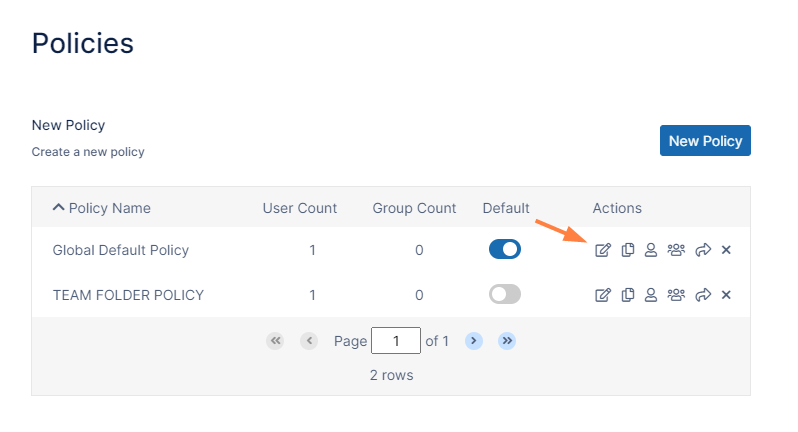
In the FileCloud admin portal's left navigation bar, scroll down and click Settings. Then, on the Settings navigation page, click Policies

The Policies settings page opens. -
Click the Edit icon in the row for the users' policy.
-
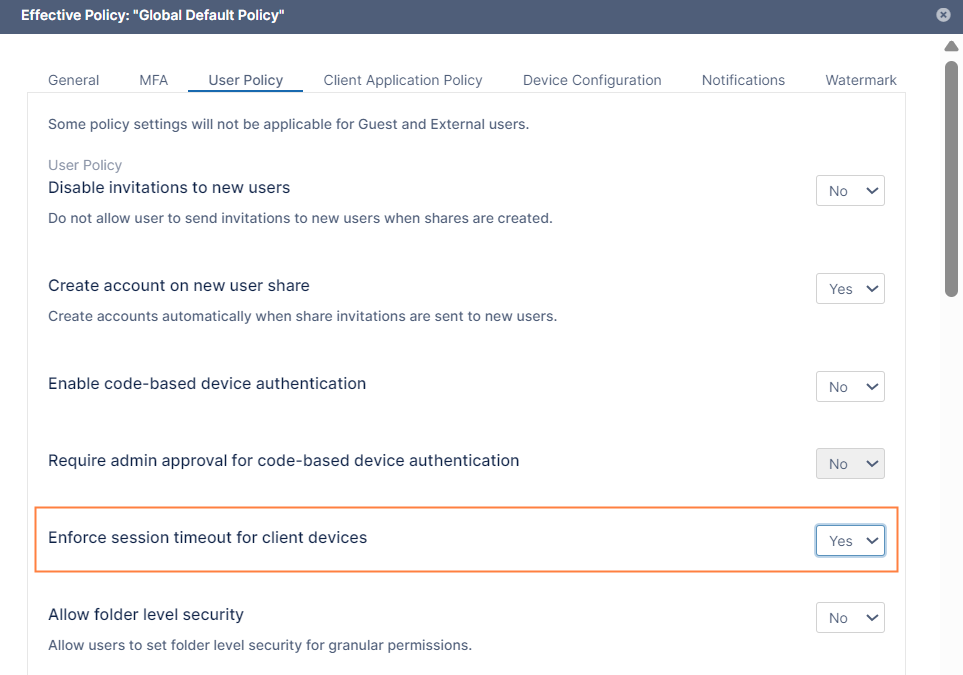
Click the User Policy tab.
-
Set Enforce session timeout for client devices to yes.
-
Click Save.
Note: We don't recommend requiring session expiration for devices and other clients as it might impact functionality and reduce user friendliness.
|
Device |
Time Session is Valid |
|---|---|
|
Web Browser |
Specified by the value in Session Timeout in minutes setting. If the browser is closed, the session expires. |
|
All other apps and clients |
Specified by the value in Session Timeout in minutes setting.
|