.svg)
The following image displays the default FileCloud log-in screen, but you can customize the features that appear on it.
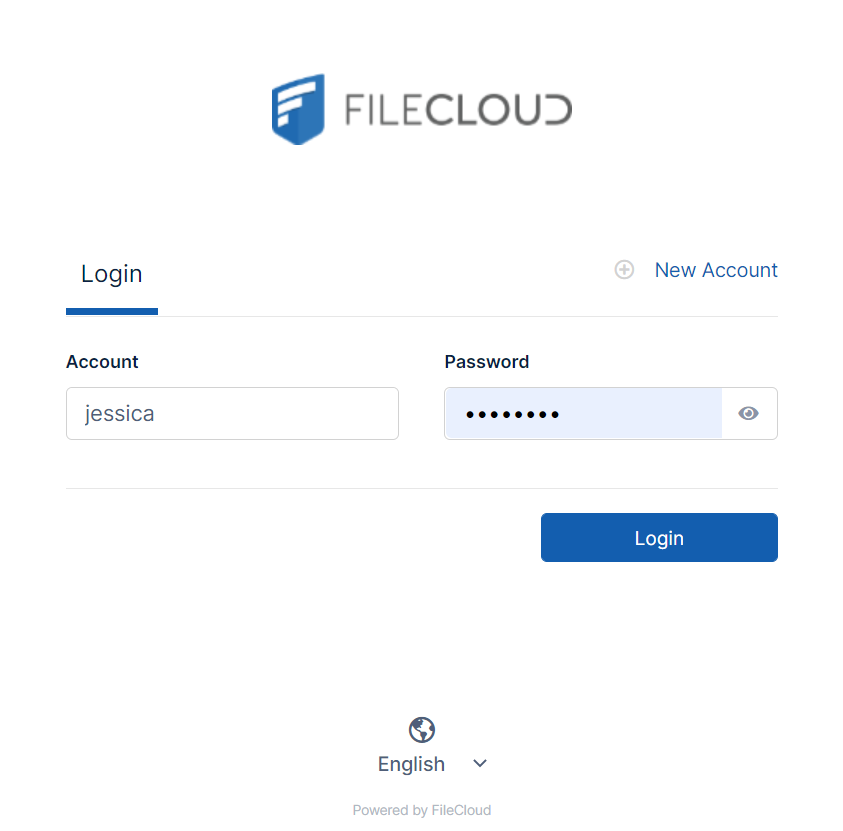
To customize the User Login screen
Admin users must have Customization permissions enabled to customize the user login screen. See Managing Admin Users for more information.
-
Open a browser and log in to the Admin Portal.
-
From the left navigation pane, click Customization.
-
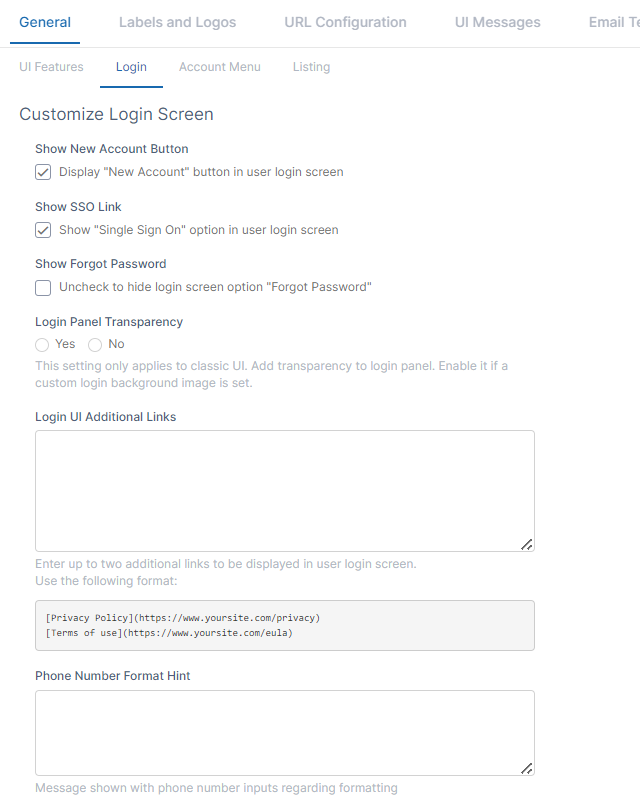
Select the General tab, and then the Login sub-tab.
|
Option |
Description |
|---|---|
|
Show New Account Button |
Displays New Account button in user log-in screen. Enabled by default. The New Account button allows a user to create a new account for themselves, and depending on the configuration of Automatic Account Approval, have it automatically approved. |
|
Show SSO Link |
Check to show Single Sign On link in the login page:
|
|
Show Forgot Password |
Uncheck to hide Forgot Password. |
|
Login Panel Transparency |
(Applies to classic UI only)
Set to:
|
|
Login UI Additional Links |
Enter up to two additional links to be displayed in user login screen.
The links appear at the bottom of the login screen:
|
|
Phone Number Format Hint |
Enter a hint to appear on screens where users can enter phone numbers. For example Include + and country code when entering phone number. |
.png?cb=1009d664de5923d4c4f5098d90bb48da)
.png?cb=eacd6be2fcb06cbe3608fdb1b6f2877f)
-
Modify the settings for any of the options.
-
To save your changes, click Save.
To customize for SSO log in
You can customize the user log-in screen to display the SSO log-in option along with the direct log-in option or to only display the SSO login.
To display the SSO log-in option along with the direct log-in option:
-
From the left navigation pane, click Customization.
-
Select the General tab, and then the Login sub-tab.
-
Check Show SSO Link and Show Login Options.
-
Save your changes.
Now, when users access the user portal log-in page, they will see:
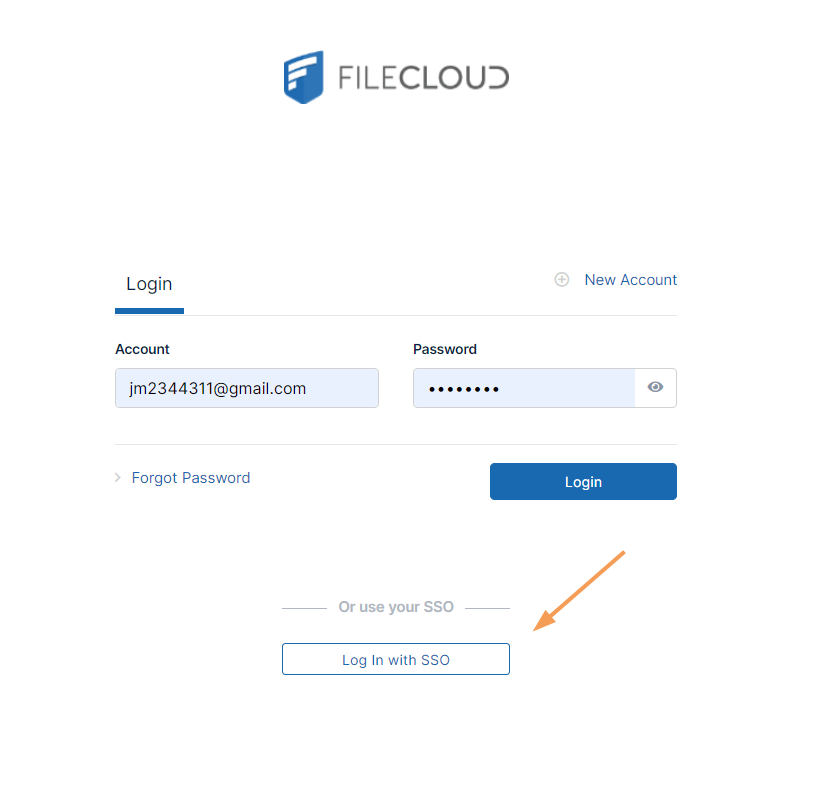
On clicking the Single Sign-On link on the login page, the user is redirected to the SAML SSO Service web page.