.svg)
FileCloud enables you to create admin roles with a set of administrator permissions. Users assigned to any of the admin roles that you have created become admin users and have the permissions assigned to the role.
For information on about admin roles and admin users and instructions for setting them up, see Admin User and Role Settings.
Check an admin user's permissions
If an admin user has one role, the user has the permissions assigned to that role, but if an admin user has multiple roles, the user has the combined permissions of all of its roles.
To check all of a user's permissions:
-
Click Admins in the navigation panel.
-
In the Manage Admin Roles screen, click Check user permissions.
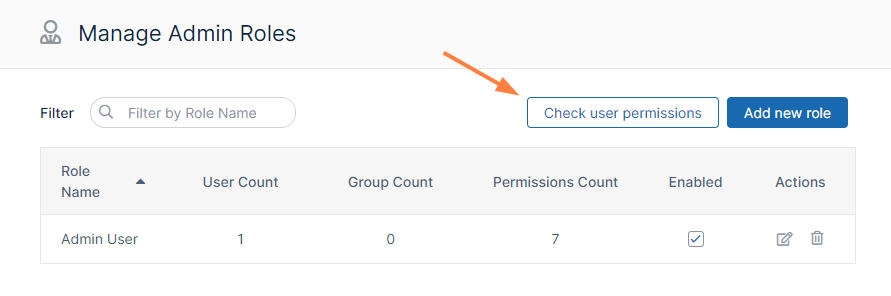
The User Effective Permissions dialog box opens. -
In User, enter the name of the user.
The dialog box displays the user's combined permissions with checks next to them.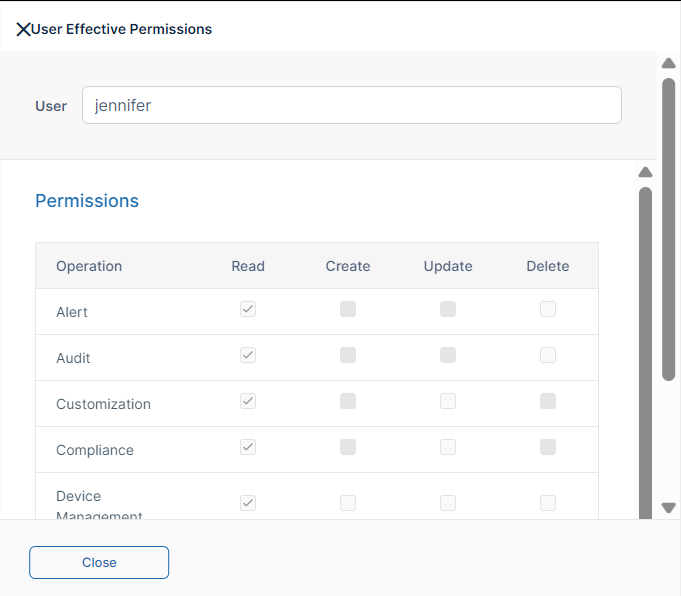
For definitions of the permissions, see page Admin User and Role Settings .
Remove an admin role
When you remove an admin role, you permanently delete it. To recreate it, you must create it, assign all permissions, and add users and groups again.
To remove an admin role:
-
Click Admins in the navigation panel.
-
Either
-
In the Manage Admin Roles screen, click the Delete button for the role, and then click Remove Role when you are prompted to confirm removal.
Or: -
In the Manage Admin Roles screen, click the Edit button for the role, and click Remove Role at the bottom of the dialog box.
-
-
Click Remove when you are prompted to confirm removal.