.svg)
FileCloud allows changes to a number of URLs used in the system to customize your user experience.
The following URLs can be customized.
|
URL |
Description |
|---|---|
|
Install Desktop Apps URL |
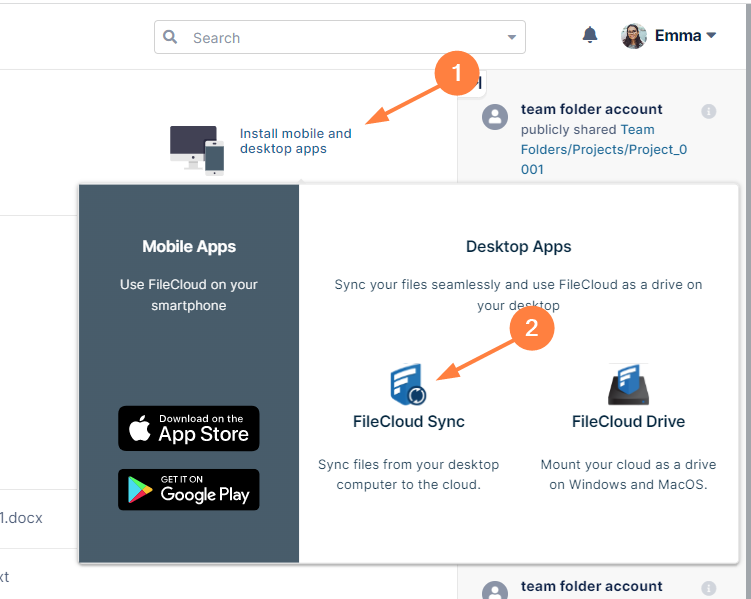
This is the URL that will be opened when a user in the user portal clicks Install Mobile and Desktop Apps, and then clicks FileCloud Sync.
If you are using FileCloud's default Sync app, then no change is necessary |
|
Install Mobile Apps URL |
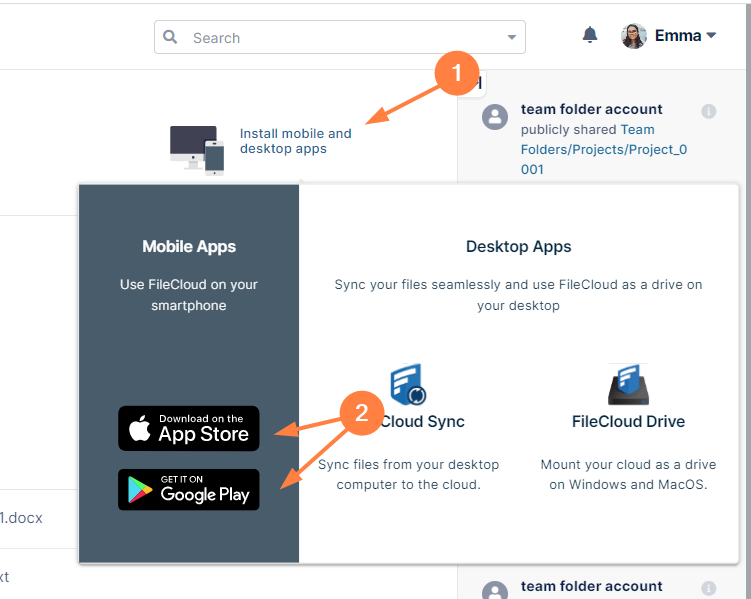
This is the URL that will be opened when a user in the user portal clicks Install Mobile and Desktop Apps, and then clicks Download on the App Store or Get It On Google Play.
|
|
Install FileCloud Addins URL |
This URL that goes to the add-ons section of downloads in the FileCloud website. The current user interface does not include a link that goes to this URL, but if you add custom links, you may use this URL.
|
|
Product Help URL |
This is the URL of the product's online help. By default it goes to the FileCloud support documentation. |
|
Product Facebook URL |
If this is set, the user UI will contain a link to open this URL in the account dropdown menu. Set this to empty string to remove this link. |
|
Product Tech Support URL |
This is the url that will be opened when user clicks on "Help & Support" in the drop down menu. |
|
Initial User Web Portal Path
|
This path can be used to customize which folder the web interface navigates to when a user logs in. Example: #expl-tabl./EXTERNAL
|
|
Forgot Password URL |
For External authentication like Active Directory or LDAP, it is possible to set a URL here so that when a user clicks on "Forgot Password", it takes them to the specific URL. |
|
User Login Custom Option Label |
This is to create a new label in More Options section of a login page, below forgot password, to redirect users to another option to reset the password. |
|
User Login Custom Option URL |
Specify the URL for the new label in More Options section of a login page, below forgot password. |
To perform customizations, follow the following steps
-
Log into the Administration portal
-
Click on Customizations on the left navigation panel.
-
Click on URL tab.
-
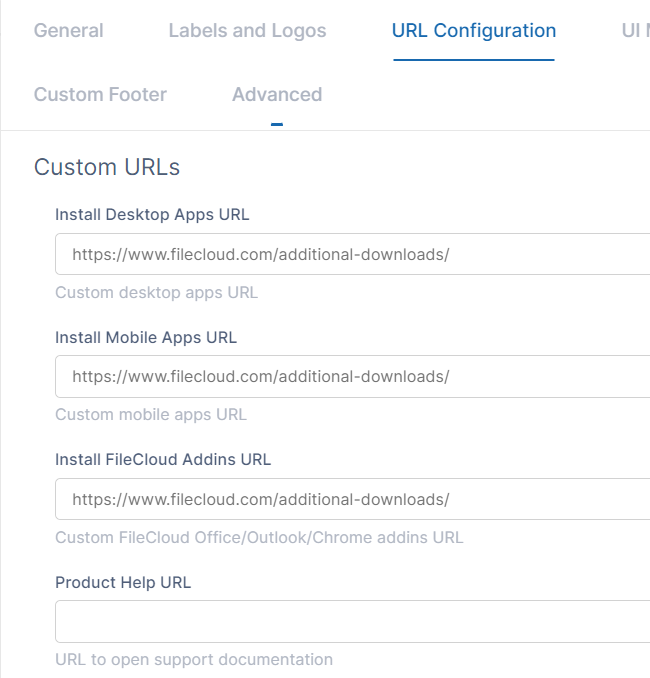
Change the URL(s).
-
Click Save.