.svg)
FileCloud Desktop for Windows opens to its dashboard, which has the tabs Live, Activity, Offline, and Settings, and a button for opening your FileCloud website (in Windows explorer).
Live tab
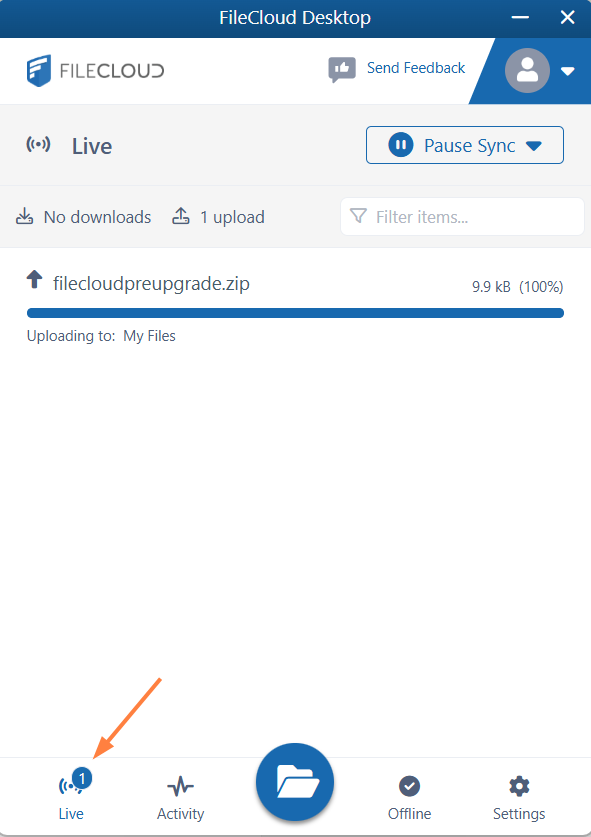
The dashboard opens to the Live tab, which shows current uploads and downloads of files and folders.
-
You will only see uploads and downloads that take a substantial amount of time in progress. To search for a file or folder in the list, enter a string from its name into the Filter items box.
Activity tab
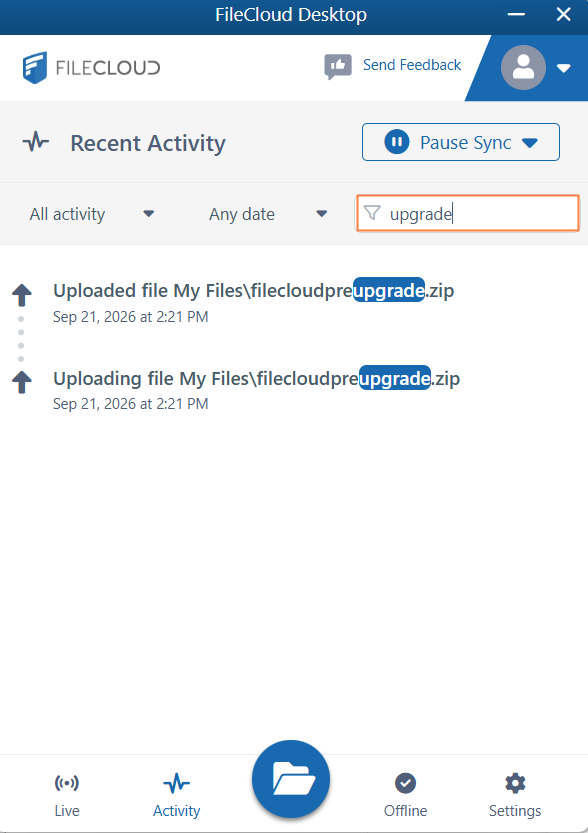
To view a list of recent FileCloud Desktop activities, click the Activity tab:
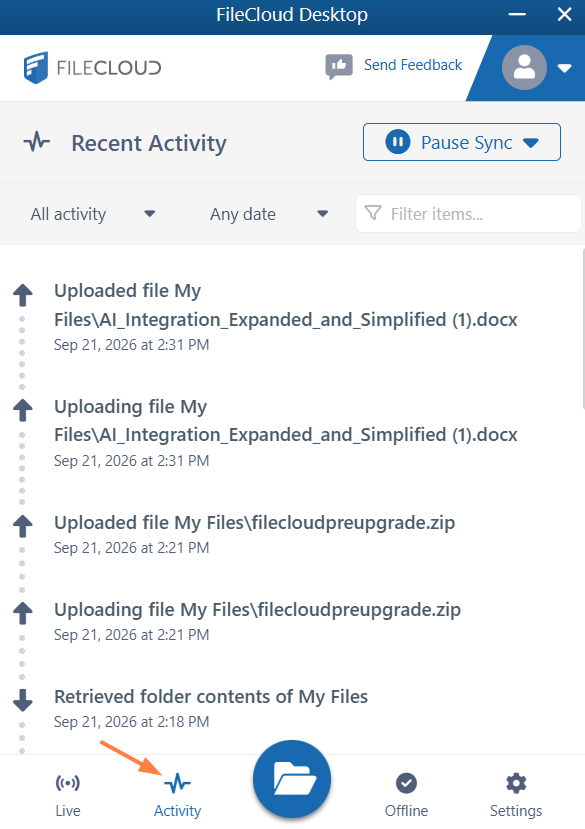
To filter activities on the Activity tab
-
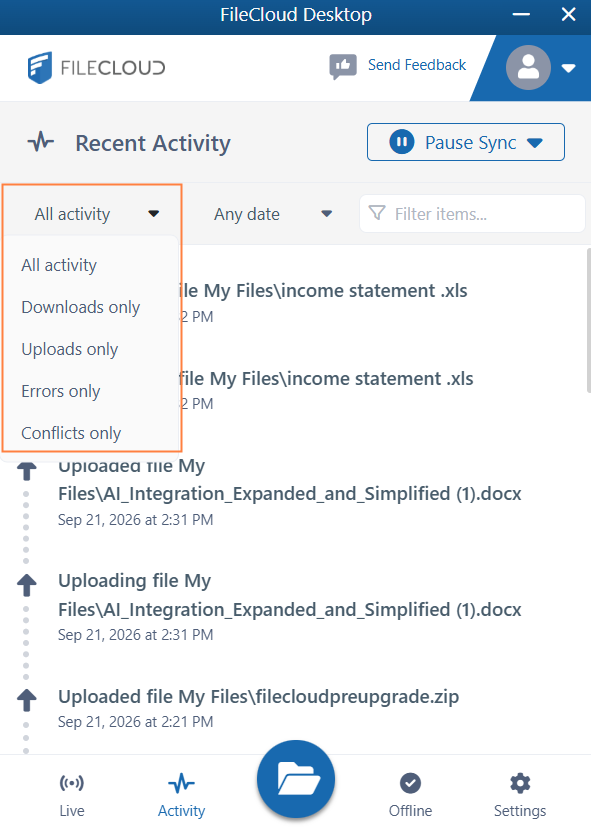
To filter activities by activity type, choose an option in the Activity drop-down list.
-
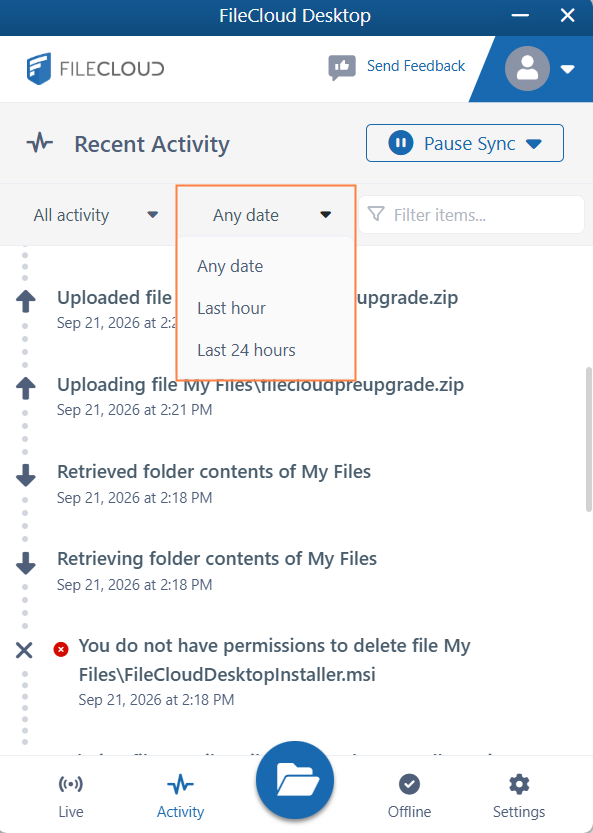
To filter activities by date, choose Any date, Last hour, or Last 24 hours in the Date drop-down list.
-
To filter by any string in the listing (including the action, file path, date, or time) enter the string into Filter items.
Offline tab
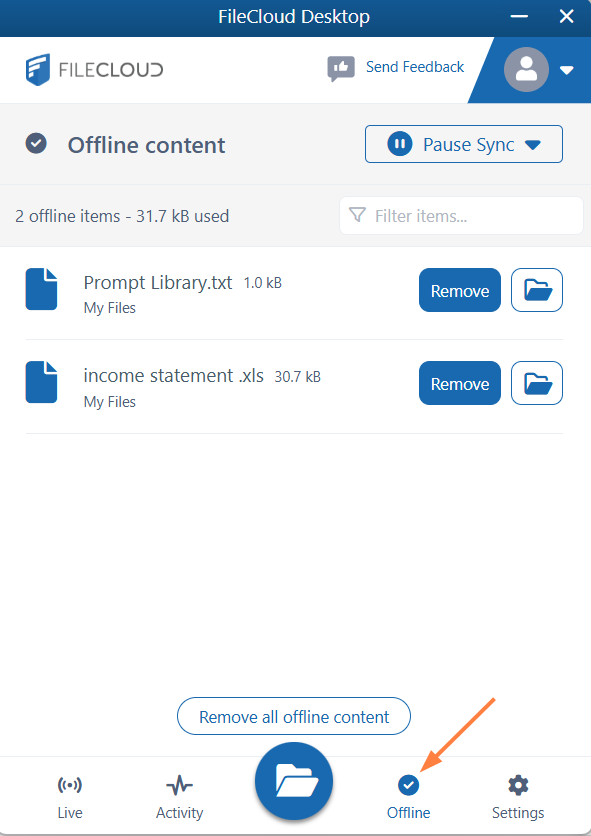
To view files and folders that you have moved offline using FileCloud Desktop, click the Offline tab.
-
To remove folders from the offline location from the Offline tab, see Remove Files from Offline Folders.
-
To open an offline folder in its location in Windows explorer, click the folder icon next to it.
Settings tab
To view FileCloud Desktop for Windows settings, click the Settings tab.
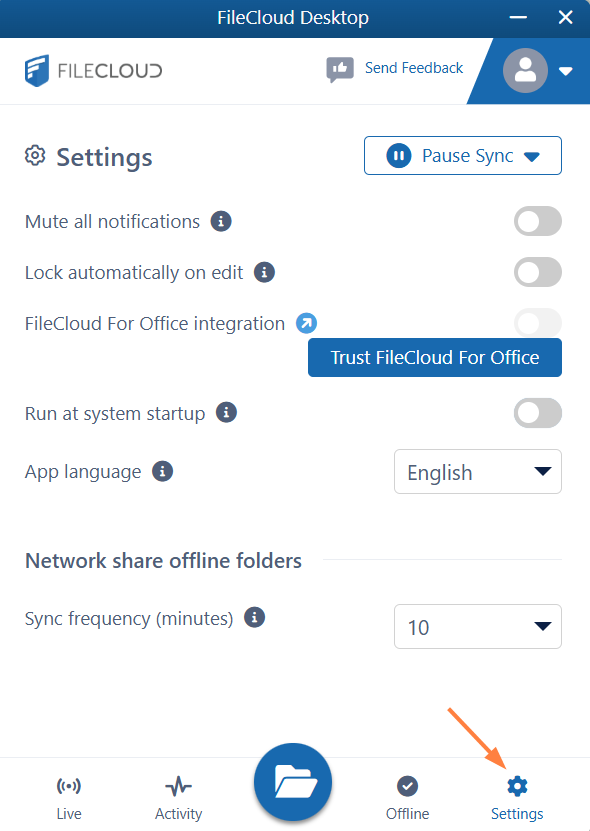
For information about FileCloud Desktop settings, see FileCloud Desktop for Windows Settings.
Pausing sync
The Pause Sync button appears on all tabs in the dashboard, and enables you to temporarily pause syncing to preserve system bandwidth or cancel a file transfer temporarily.
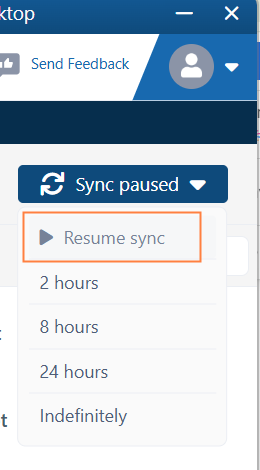
When you click the Pause Sync button, you may choose 2 hours, 8 hours, 24 hours, or Indefinitely in the drop-down list.
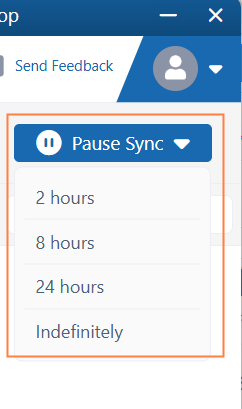
Once you choose an option, syncing is paused for the chosen interval and on each tab, the Pause Sync button appears as Sync paused and a banner appears across the top indicating that sync is currently paused.
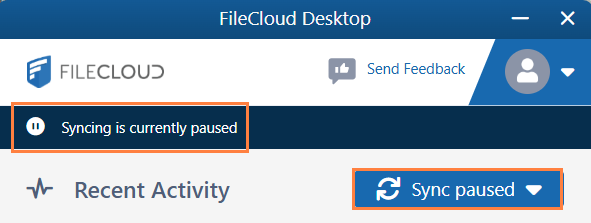
You can restart sync manually if you have chosen Indefinitely or before your chosen interval is over by clicking Sync paused, and choosing Resume sync.
More options
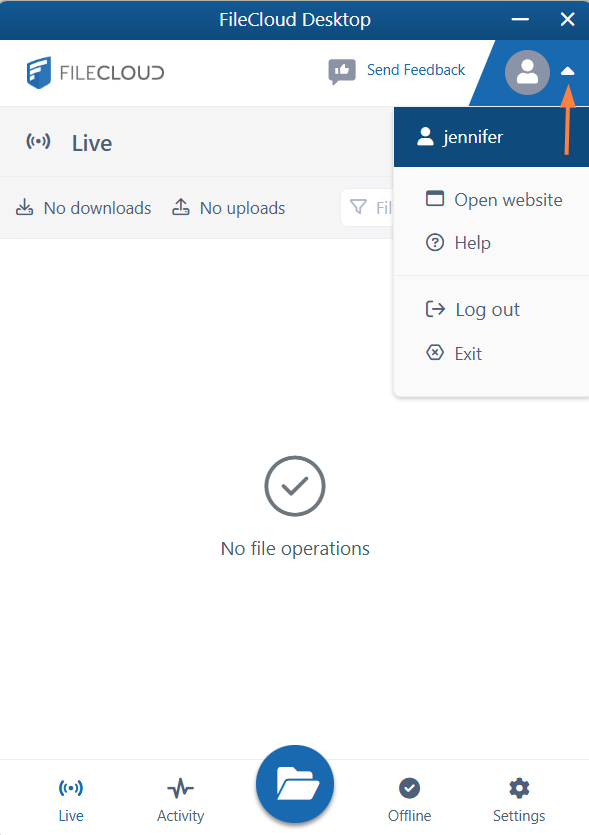
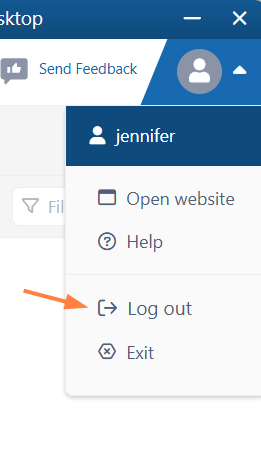
To access more options from the FileCloud Desktop for Windows dashboard, click the arrow next to the user image:
-
To open your FileCloud user portal, click Open website.
-
For this end user help, log files, and the version of FileCloud Desktop for Windows that you are running click Help.
The following dialog box opens:
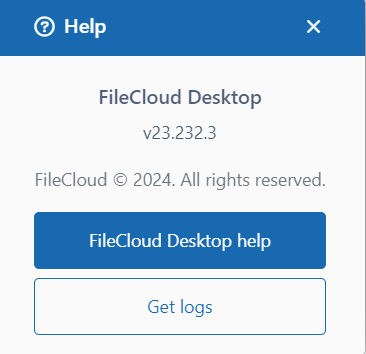
Click FileCloud Desktop help to access this end user help.
Click Get logs to access the contents of the Logs folder for FileCloud Desktop. -
To log out of FileCloud Desktop for Windows, click Log out.
You are warned that logging out will clear and remove the FileCloud folder that appears in the Windows Explorer, and asked to confirm.
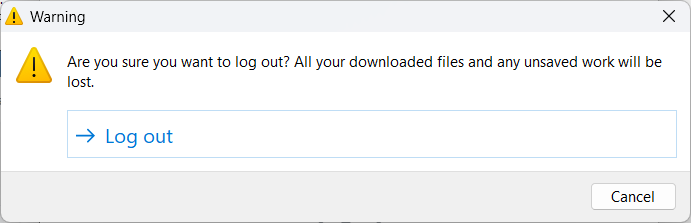
Click Log out. -
To close FileCloud Desktop for Windows without logging out, click Exit.