.svg)
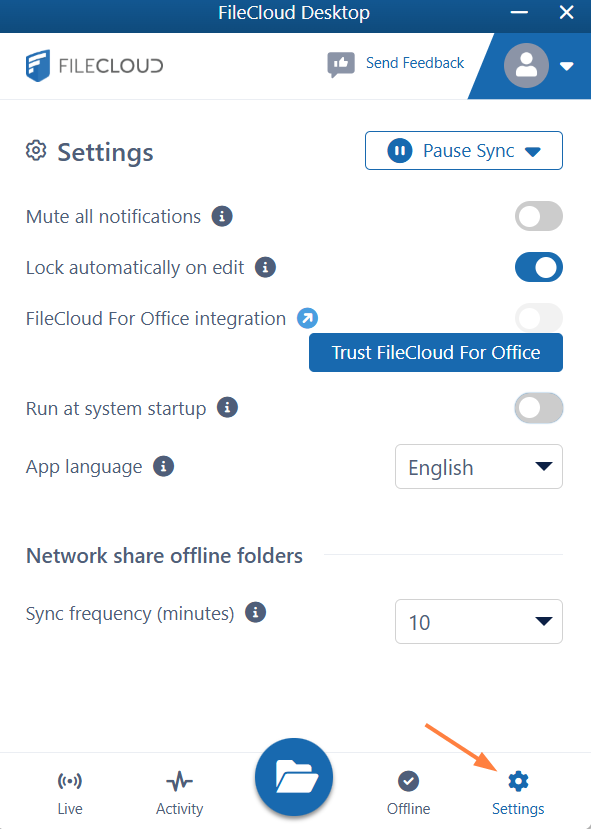
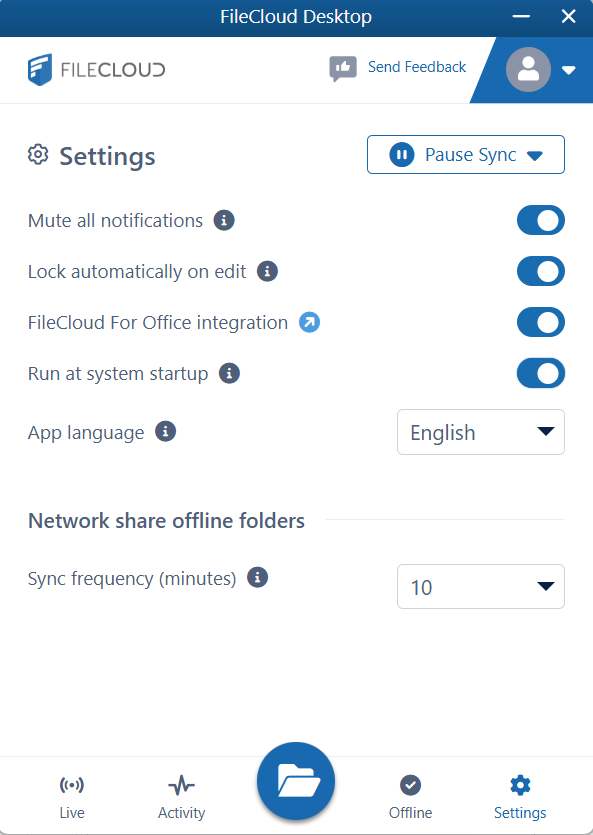
To change your settings in FileCloud Desktop, click the Settings tab at the bottom of the dashboard.
|
|
|
Setting |
Description |
|
|---|---|---|
|
Pause Sync |
Click and choose an interval option to pause syncing. Available intervals are 2, 8, and 24 hours, and indefinitely. This is useful if you need to conserve bandwidth temporarily but resume syncing later.
|
|
|
Mute all notifications |
When enabled, all notifications sent from FileCloud Desktop are turned off. Default is disabled. |
|
|
Lock automatically on edit |
When enabled, files opened for edit through FileCloud Desktop are locked, and other users cannot edit them. When the files are closed they are unlocked again. Default is enabled. |
|
|
Trust FileCloud for Office/
|
FileCloud for Office is an add-in that allows users to:
When you initially install FileCloud Desktop, the Trust FileCloud for Office button appears. Click it to use FileCloud for Office.
Default is disabled (FileCloud for Office is available and appears in FileCloud Desktop). |
|
|
Run at system startup |
When enabled, begin running FileCloud Desktop when the system starts. Default is disabled. |
|
|
App language |
User interface language. Change to any of the language options. Default is English. |
|
|
Sync frequency (minutes) |
Interval between automatic sync events for Network Folders. Choose any interval in the drop-down list. Default is 10 minutes. |
|