.svg)
The option to choose the drive letter that displays the FileCloud for Desktop folders in Windows explorer is available beginning in FileCloud Desktop for Windows 23.253.
Before logging in, close any apps that may have files open in your sync folder. If FileCloud Desktop can't rename or move the sync folder because another application has a file open in it, login may fail.
Initially, the login page for FileCloud Desktop opens after you install it. After that, by default, it opens automatically when you start up your computer. If you do not want it open automatically on startup, you can change the setting in FileCloud Desktop.
To open and log in to FileCloud Desktop for Windows:
-
Search for FileCloud Desktop in the Windows Start menu, and choose Open.
-
In the first screen of the login wizard, enter your server address.
If you want to view the user interface in a different language than the default shown, choose a different option.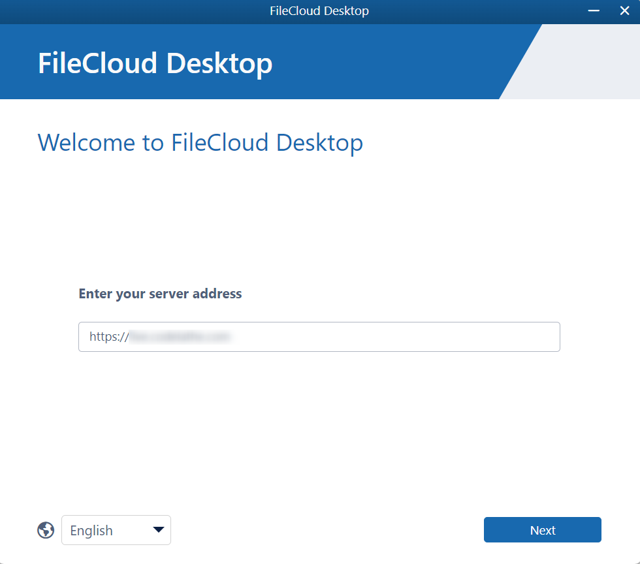
The next screen asks you to choose a login method. -
Choose one of the following login methods:
Log in with password
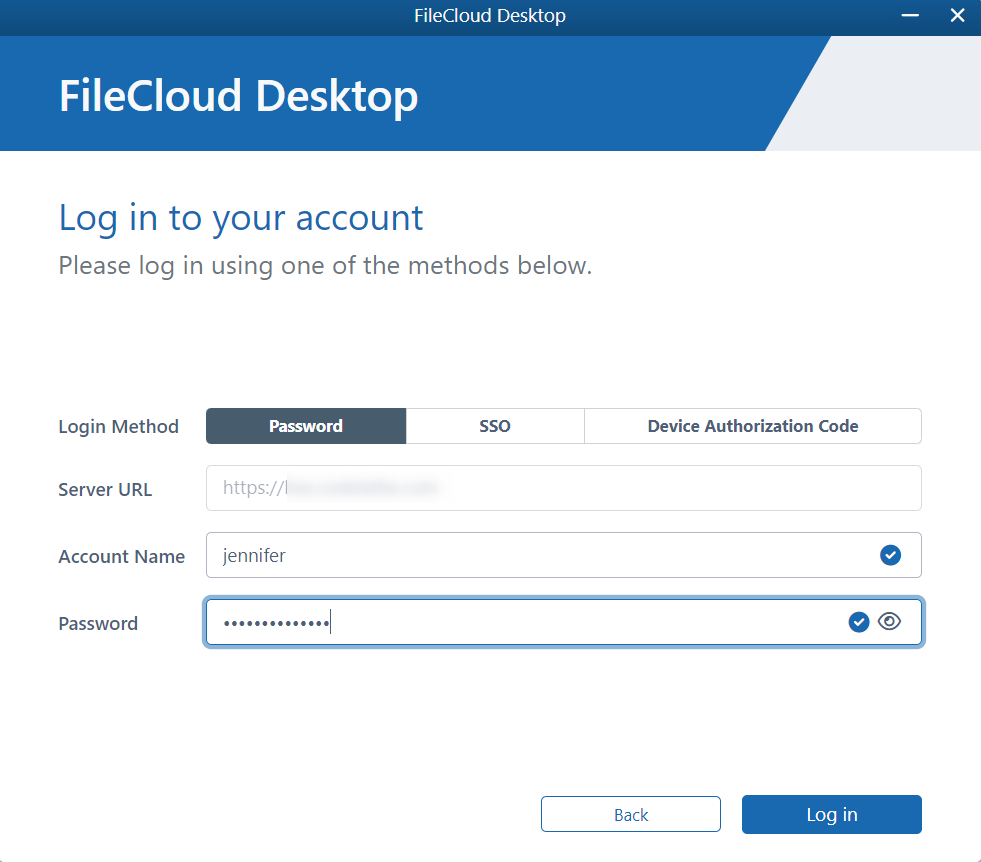
Leave Password selected for Login Method, and enter your Account Name (username), and Password, and click Log in:
Log in with SSO
-
Select SSO for Login Method.
The screen changes; now it only displays a field for Server URL. -
Type the address to the FileCloud server that was sent to you when your FileCloud account was created, and click Log in.
You are redirected to the SSO Login page, where you can enter your username and SSO password to log in.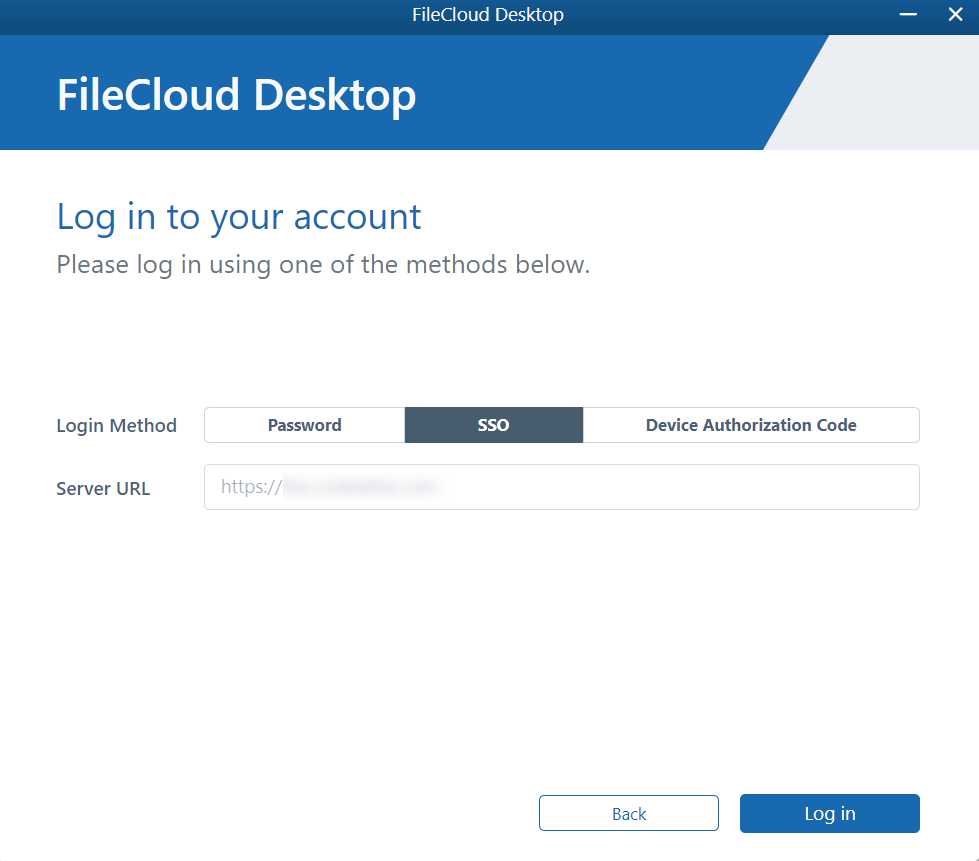
Log in with Device Authorization Code
-
Select Device Authorization Code for Login Method.
The screen changes to: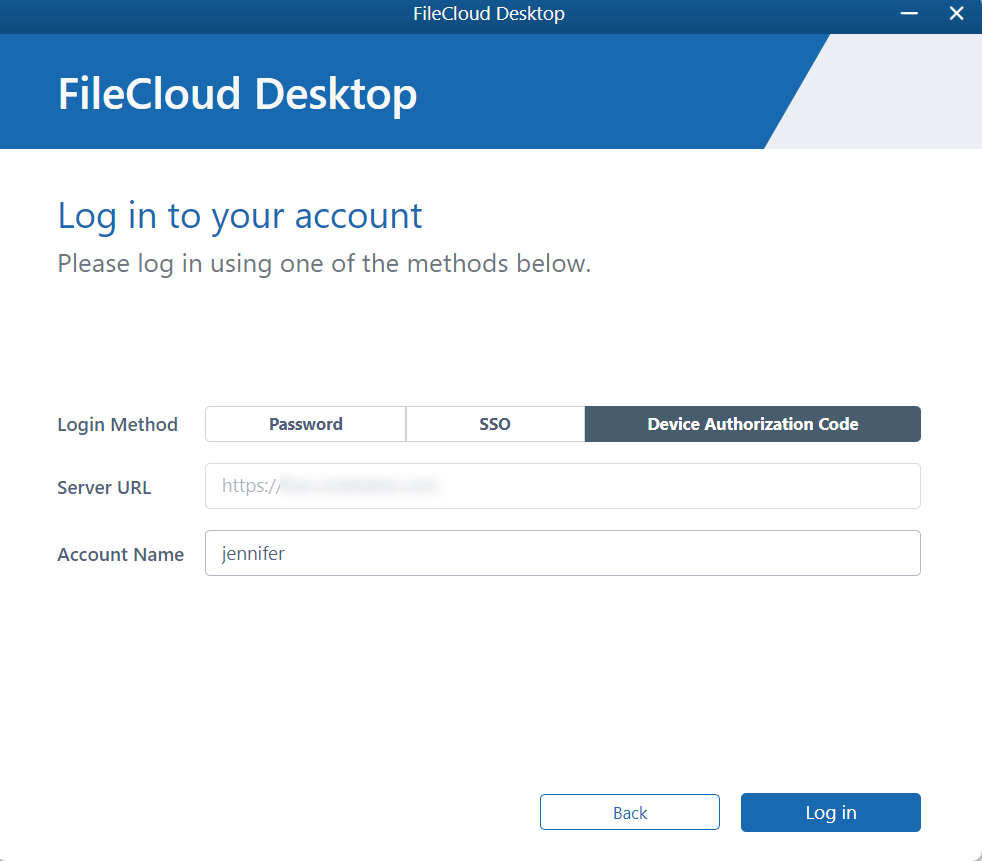
-
Enter your Server URL and Account Name (username), and click Log in.
A Device Authorization Code dialog box opens. -
Click the Open Devices Tab.
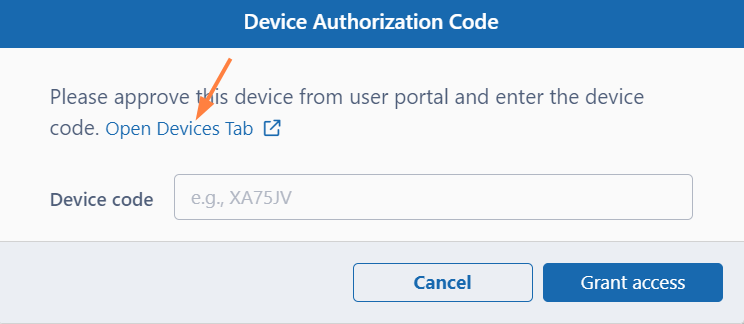
The log-in screen of the user portal opens. -
Log-in to the user portal.
The Devices tab in the Settings page opens: -
Next to the listing for FileCloud Desktop, click the check.
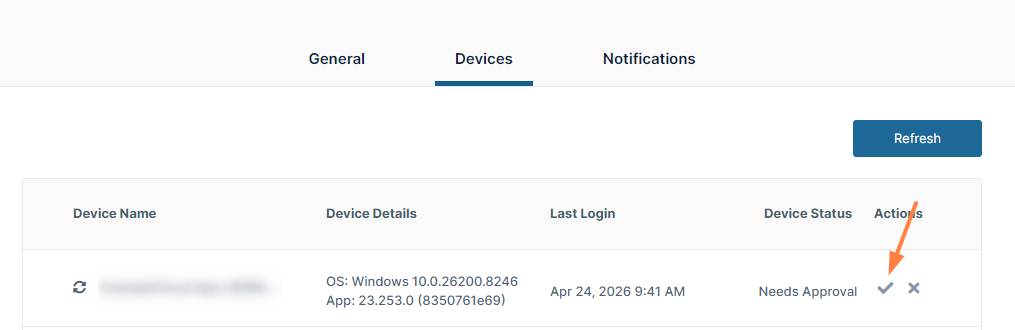
A dialog box with the device authentication code opens. -
Enter the authentication code into the Device code, and click Grant access.
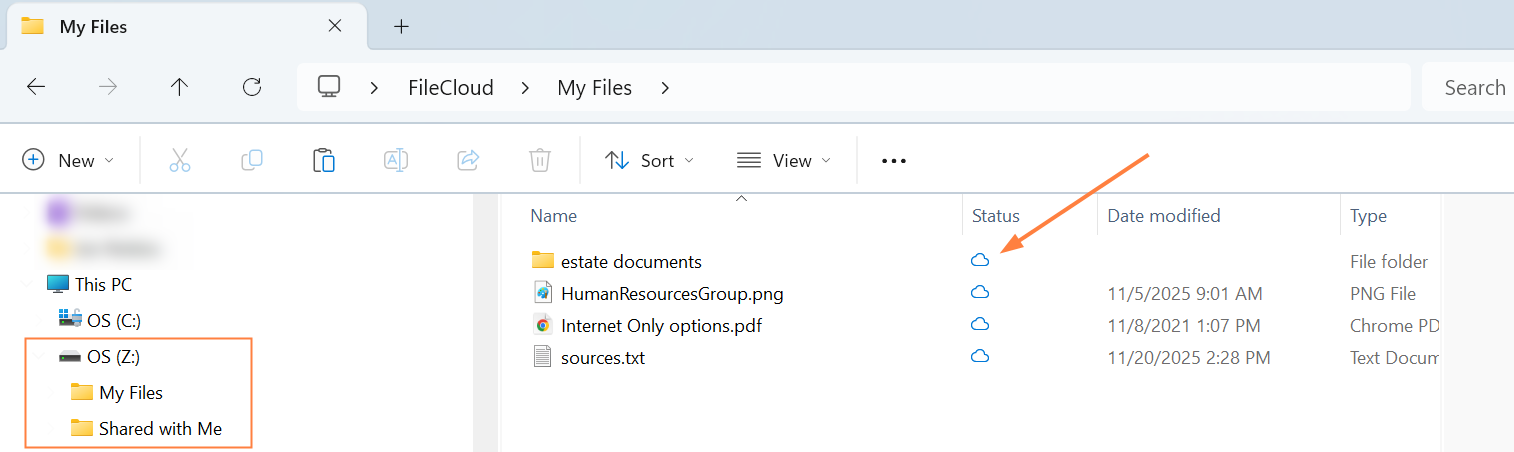
The next wizard screen contains an option for selecting Mount Point, a drive letter that has access to your FileCloud Desktop files and an option for changing your Local Sync Folder.
A Mount Point ensures correct functioning if your content uses Excel macros or cross references other files. Only specify it in these scenarios; otherwise, leave the setting at Default.
Although the drive letter appears in Windows Explorer, you are not intended to work with the FileCloud Desktop files from that location; work from them in the FileCloud Desktop root that is selected when you click the folder icon in the dashboard.
-
To choose a mount point, enable the toggle beside it.
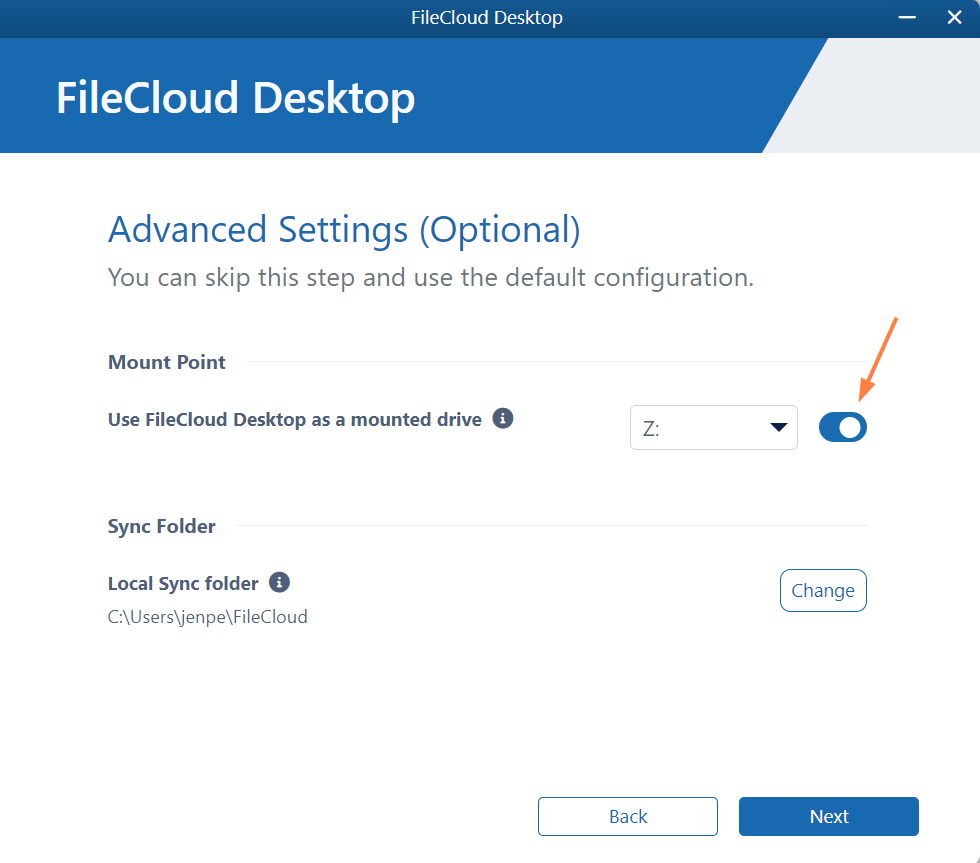
The drop-down list now shows the available mount point letters.
-
Choose a letter.
Your FileCloud Desktop files will appear in Windows explorer at that location, but you cannot work with them from there; continue to work with them from the FileCloud Desktop root. -
To change your sync folder to a different location, click Change beside it, and choose a new location.
Continue to move through the wizard until the dashboard opens to the Live screen. FileCloud Desktop cannot begin tracking and synchronizing online and offline FileCloud file activity until you download FileCloud folders and files to your local drive. So initially, the Live tab appears empty.
Click the folder icon at the bottom of the FileCloud Desktop dashboard to view the FileCloud folder, which now appears in File Explorer.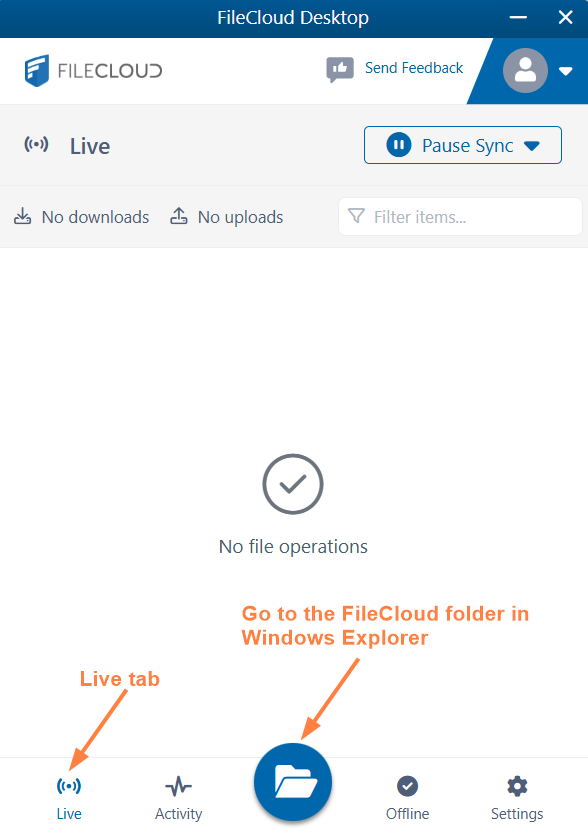
If this is the first time you have logged in to FileCloud Desktop, each file and folder should appear with a cloud icon next to it, which indicates that it hasn't been downloaded locally (made available offline) yet.
Begin setting up FileCloud Desktop by making FileCloud files and folders available offline.
For more information about the dashboard, see Using the Dashboard in FileCloud Desktop for Windows.
If you could not log in to FileCloud Desktop, and you closed any apps that may have had files opened in the Sync folder, ask your IT department to add the Sync root location to security software allowlists.
Push service is down
If the Push service is down warning appears at the top of your dashboard, you are unable to sync files and folders. Please contact your admin, who is able to restart the service so that you are able to sync files and folders again.
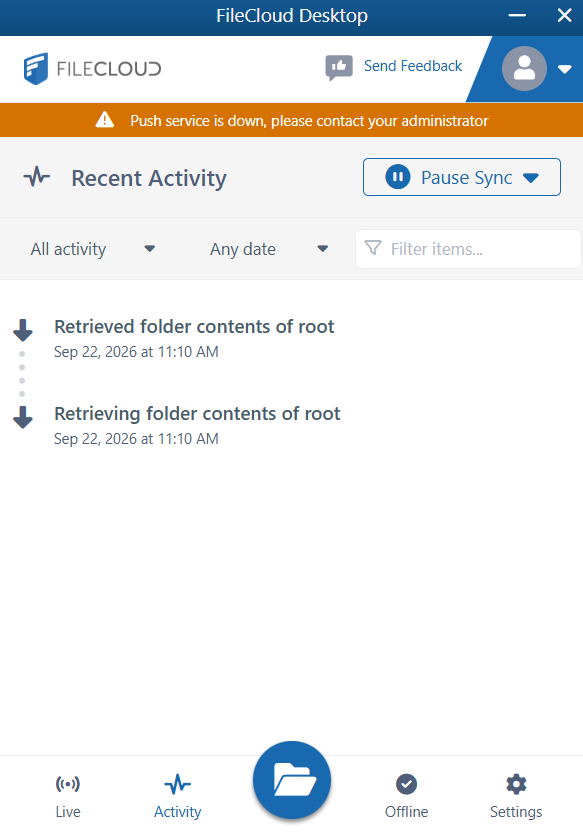
Admins: If users are seeing the Push service is down warning, restart the Push service from the FileCloud admin portal.