.svg)
Adding a user manually allows you to set specific attributes per user as you create them one at a time.
Figure 1. Manually Adding a User
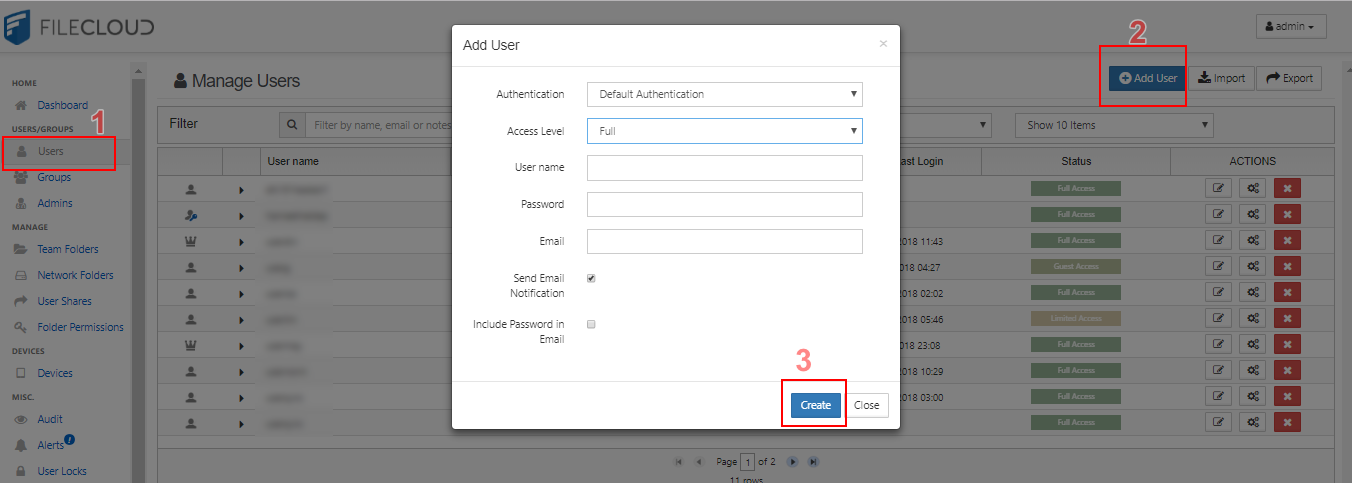
To manually add a new user:
-
Log in to the admin portal.
-
From the left navigation panel, under Users/Groups, click Users.
-
On the right side of the Manage Users page, click the Add User button.
-
In the Add User window, in Authentication, select one of the following methods:
Default authentication - you want to create a user by assigning a unique User name, Password, Email address
AD or LDAP - you want to import an existing user's information from your AD or LDAP environment. This allows the user to log in to FileCloud Online like they would for any other resource in your company's network. -
In the Add User window, in Access Level, select one of the following settings:
Access Level
User Log In
Account Exists
File Storage
Counted in the License
Disabled
(white-check-mark)
(white-check-mark)
Guest
-
Web portal
-
Client application
(white-check-mark)
(white-check-mark)
External
-
Web portal Only
(white-check-mark)
Full
-
Web portal
-
Client application
(white-check-mark)
(white-check-mark)
(white-check-mark)
-
-
In the Add User window, in User name, type in a unique user name.
-
In the Add User window, in Password, enter a password containing at least 8 characters.
-
In the Add User window, in Email, type in the user's email address.
-
In the Add User window, if you want to automatically send a Welcome email to the new user's email address, select Email Notification. This option includes sending the user name but not the password.
-
In the Add User window, if you want to automatically send a Welcome email to the new user's email address with the new user name and password, select Include Password in Email.
-
In the Add User window, click Create.