.svg)
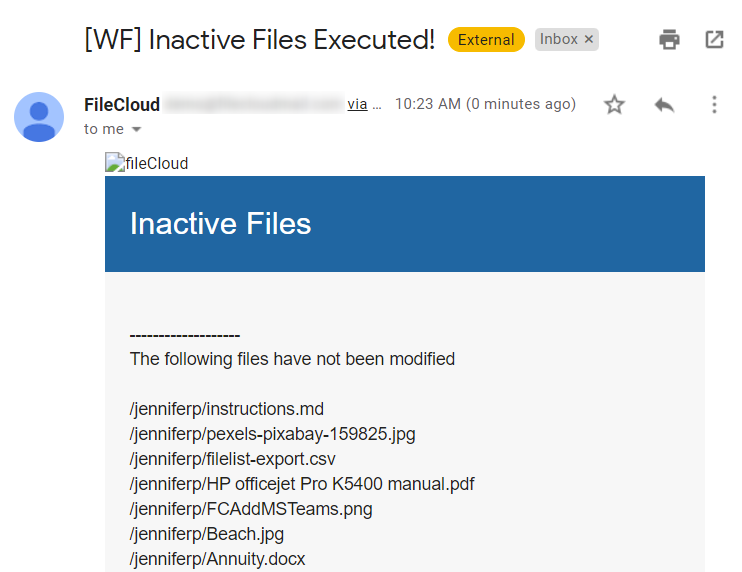
This workflow recipe sends an email report with a list of inactive files.
-
The workflow checks the number of days a file was unused and generates a report.
-
You can provide a set of email IDs the generated report will be emailed to.
To create a workflow that detects and generates a list of inactive files:
-
Log in to the admin portal.
-
Click Workflow in the navigation panel.
-
Click Add Workflow.
-
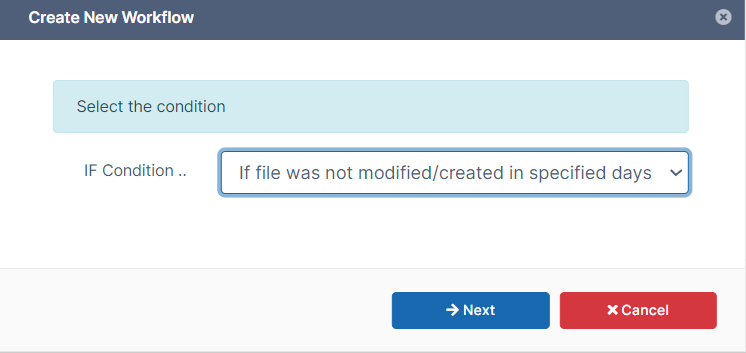
Set IF Condition to If file was not modified/created for specified days, and click Next.
-
Enter the parameters in the given format.
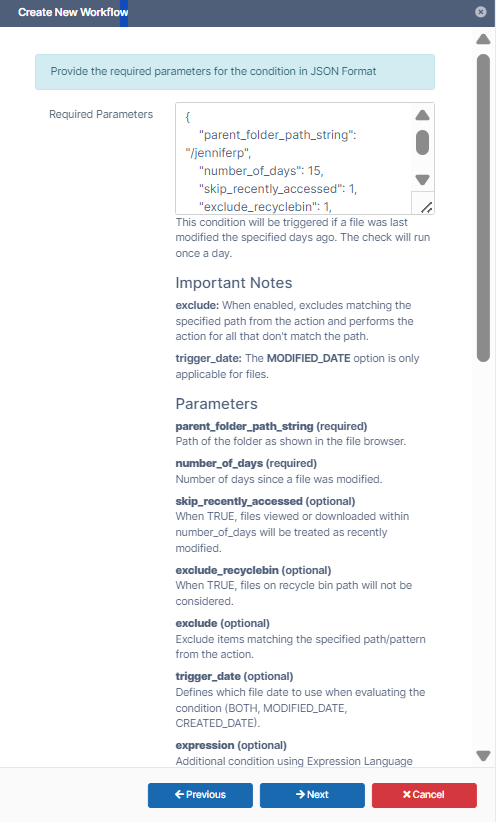
For example:{ "parent_folder_path_string": "/jenniferp", "number_of_days": 15, "skip_recently_accessed": 1, "exclude_recyclebin": 1, "exclude": ".*secret.*", "trigger_date": "BOTH", }Note: This workflow applies only to Managed Storage and not to Network Folders.
To identify a FileCloud specific path for a folder please refer to Identifying a FileCloud Specific Path. -
Click Next.
-
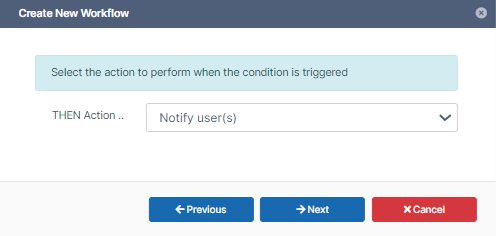
Set THEN Action to Notify user(s).
-
Click Next.
-
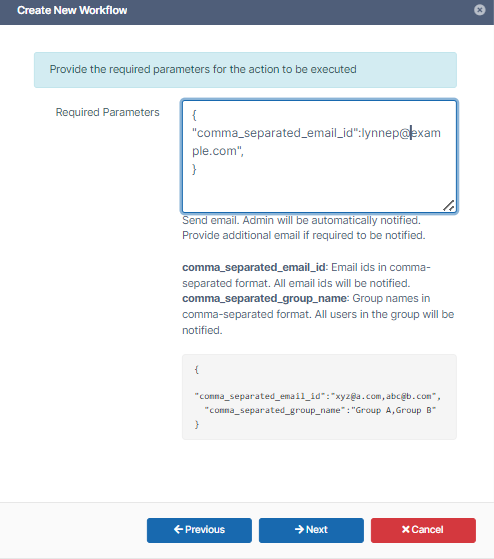
Enter the parameters in the given format.
For example,{ "comma_separated_email_id":"lynnep@example.com" }
-
Click Next.
-
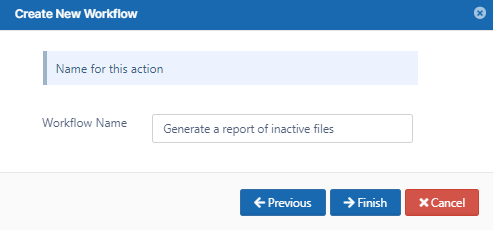
Enter a Workflow Name, and click Finish.
When you run the workflow, the emails specified receive an email with a list of inactive files.